

Overview
The Personalization Preview feature enables you to tailor content effectively, ensuring it meets the needs of your target audience. It lets you visualize how your personalized content will appear to end users. Previewing helps identify errors in Jinja code, provides precise character-level error notifications, helps fix the issues, and enhances the outcomes.Channels That Support Personalized Preview
Personalized preview allows you to preview the personalized messages of campaigns for one of your users.Types of Personalization Supported for Personalized Preview
Personalized preview is supported for all types of personalization, such as user properties, event properties, Recommendations, and content APIs.Preview Personalized Campaign Content
This section describes how to preview personalized content in campaigns.Push, SMS, WhatsApp, In-app mesages, and On-site messages
-
Navigate to step 2 of your campaign creation process.

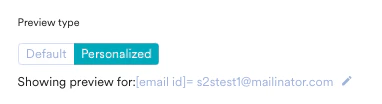
- Under Preview type, click Personalized. MoEngage will randomly select a user and render a personalized preview for that user.
-
Use the edit icon to change the default user.
-
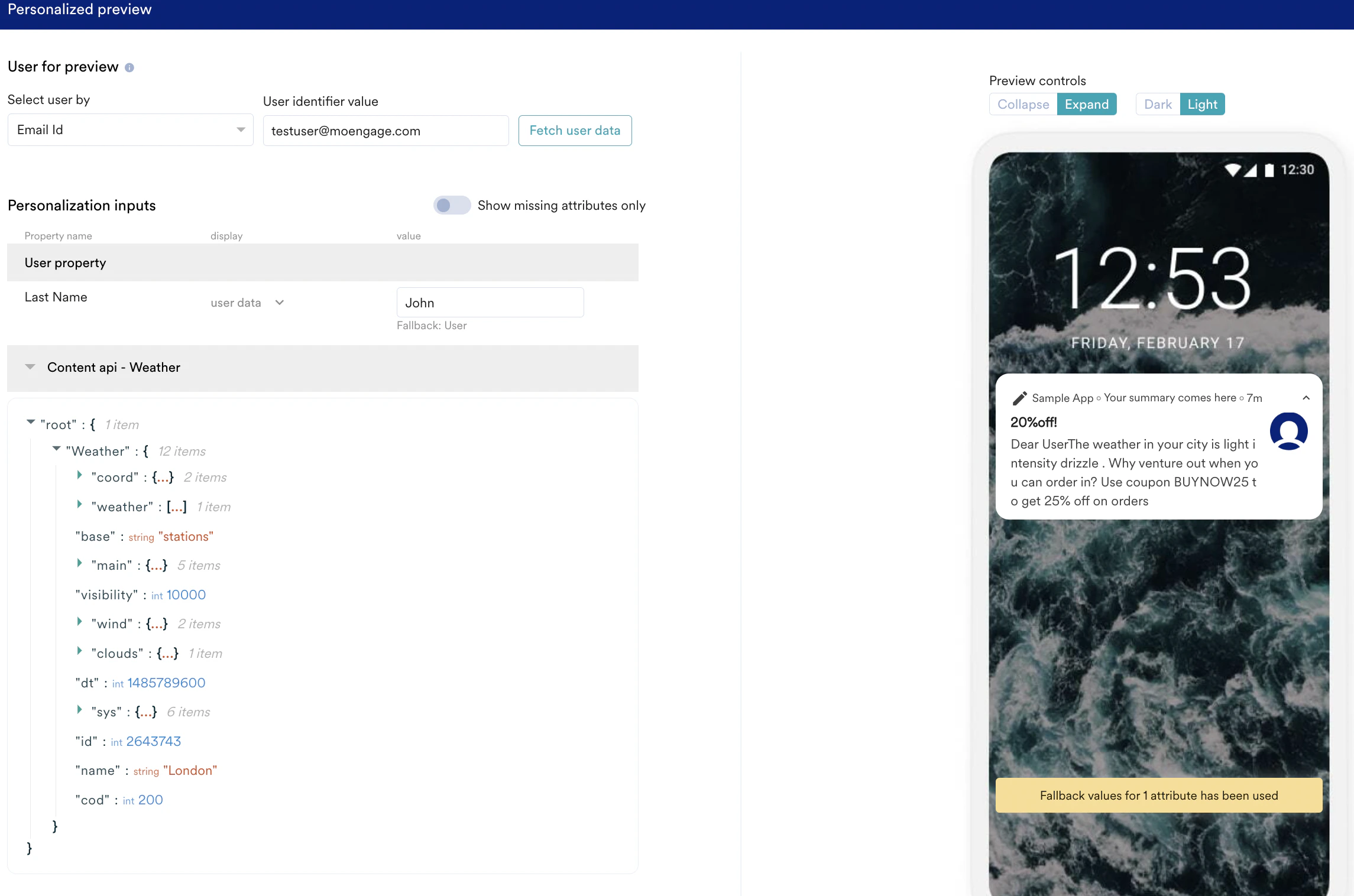
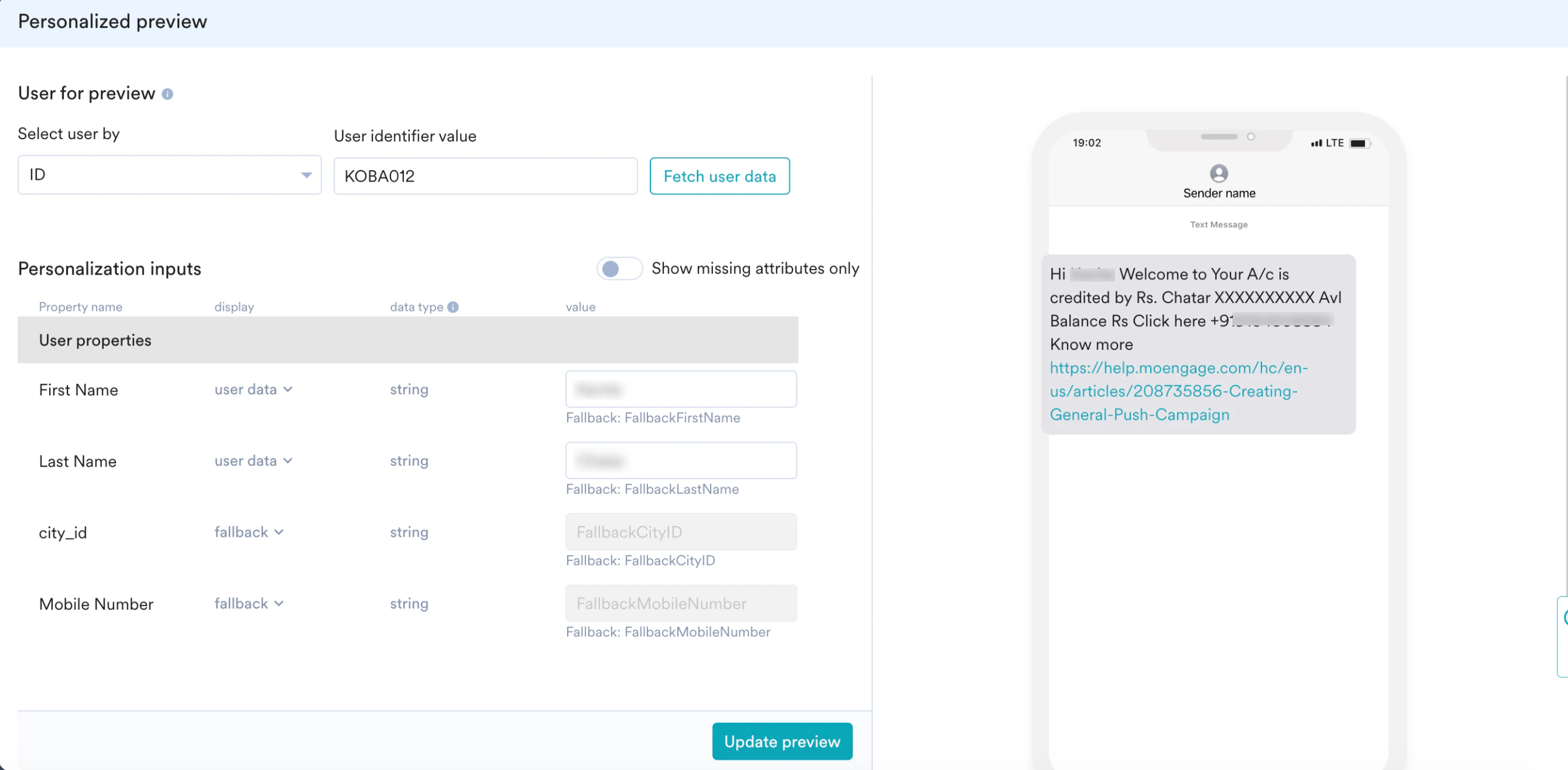
Use the Select user by and User identifier value lists to select the user you want to use for preview.

-
Click Fetch user data.
MoEngage will load all the attributes used in the campaign. The fallbacks, where applicable, are displayed next to the attributes.
-
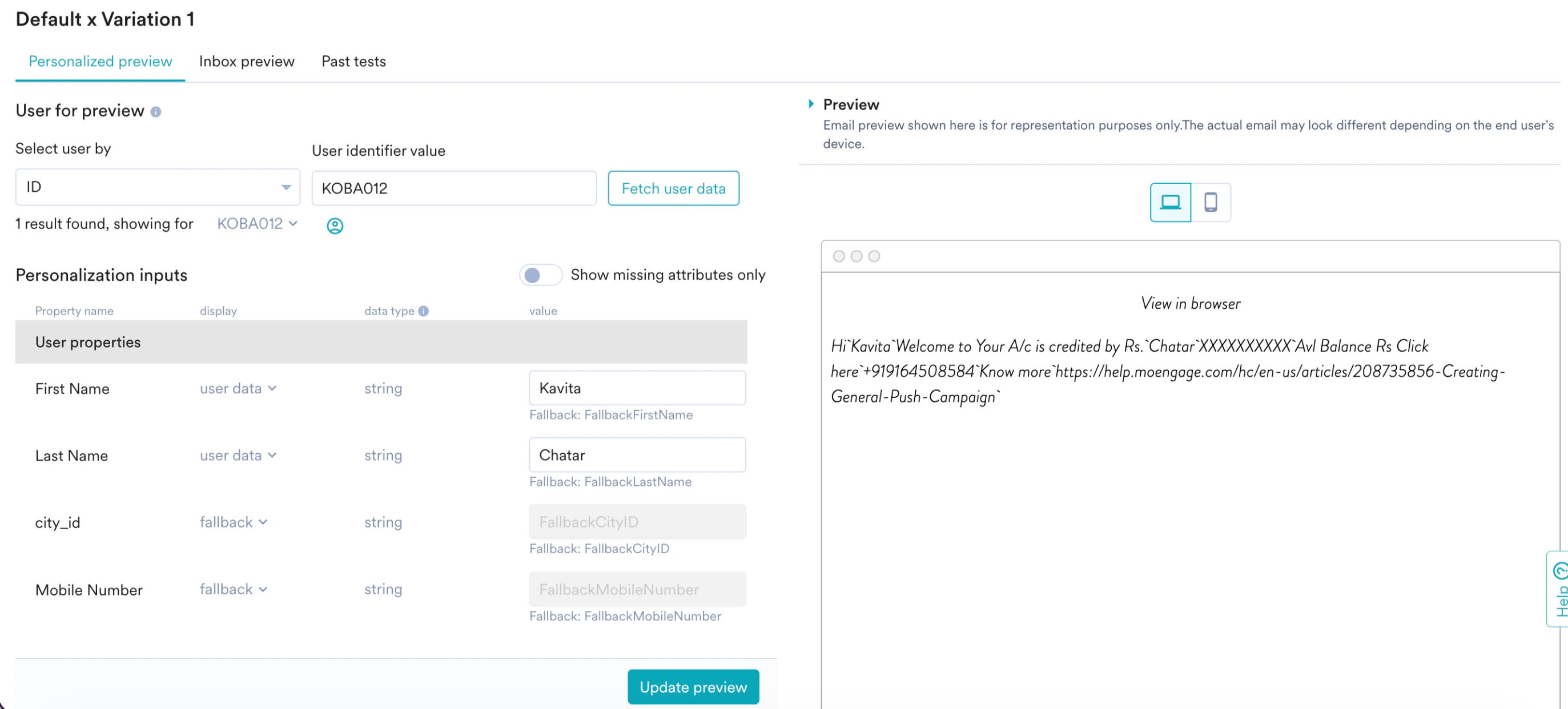
User and event properties: These values are directly taken from the user data. You can change the attribute values and switch between fallback and actual values.
After selecting all the values, click Refresh/Update preview to render the preview with the selected values.- Old UI
- New UI
 To enable Update Preview for your account, please contact your MoEngage Customer Success Manager (CSM) or the Support team.
 - Product sets: These values are directly taken from the product data. However, they are shown as JSON. Change the JSON object based on your requirement and click Refresh/Update preview.
-
Content APIs: MoEngage fetches these values using the configured APIs. You can change values in the JSON object for previews here.
-
User and event properties: These values are directly taken from the user data. You can change the attribute values and switch between fallback and actual values.
- After selecting the user and previewing them, you can close the slide-out and continue with the campaign changes. The selected user details are stored for your future previews.
-
Navigate to step 2 of email campaign creation. You have the following options to create content for your email campaigns:
- Create content with the Drag-and-Drop editor
- Create content with Custom HTML Editor
Both options support a personalized preview as follows:-
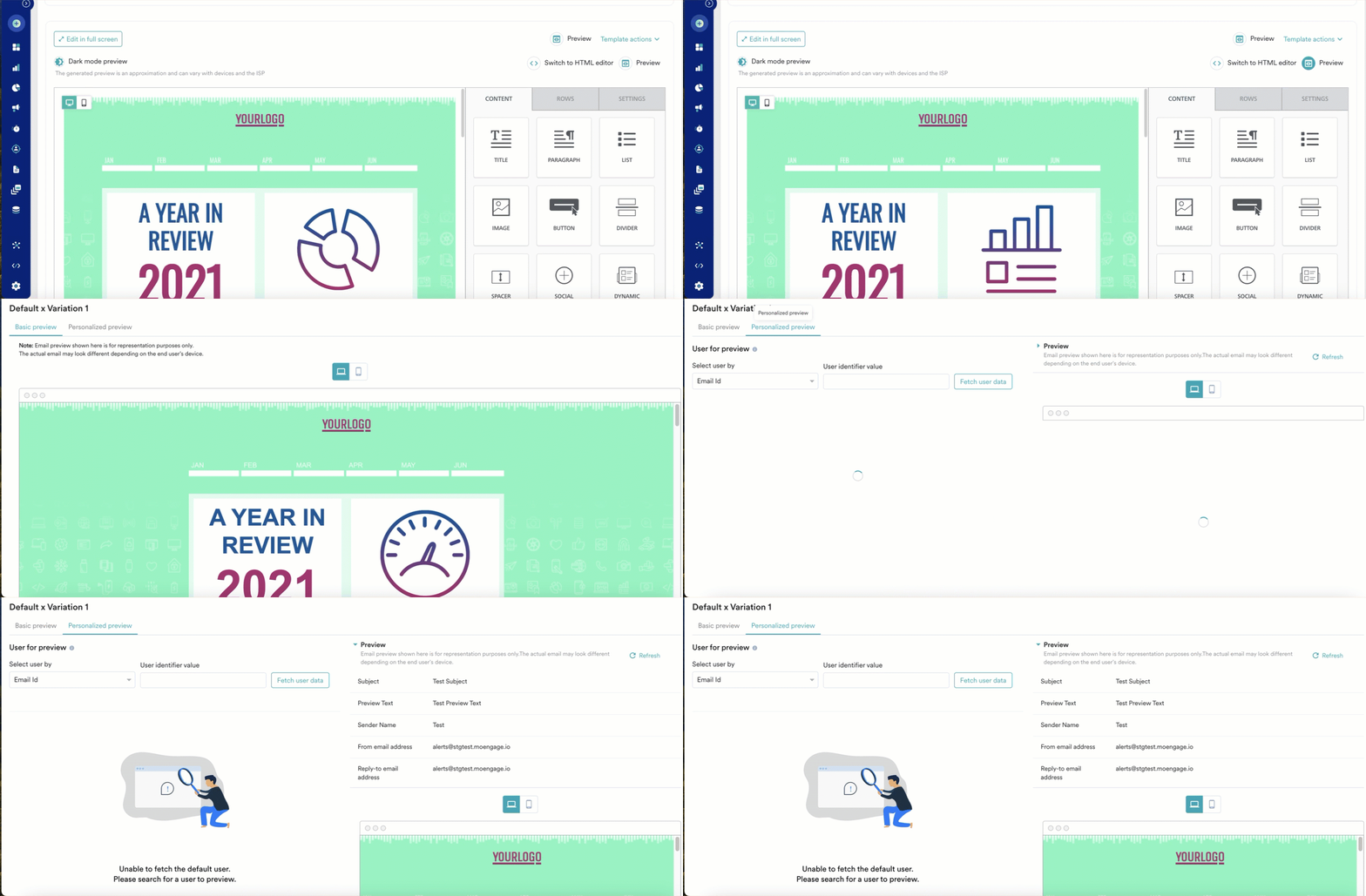
While creating email content with the drag-and-drop editor, you can access the personalized preview as shown below:
-
While creating email content with an HTML editor, you can access the personalized preview through the View advanced preview option as shown below:
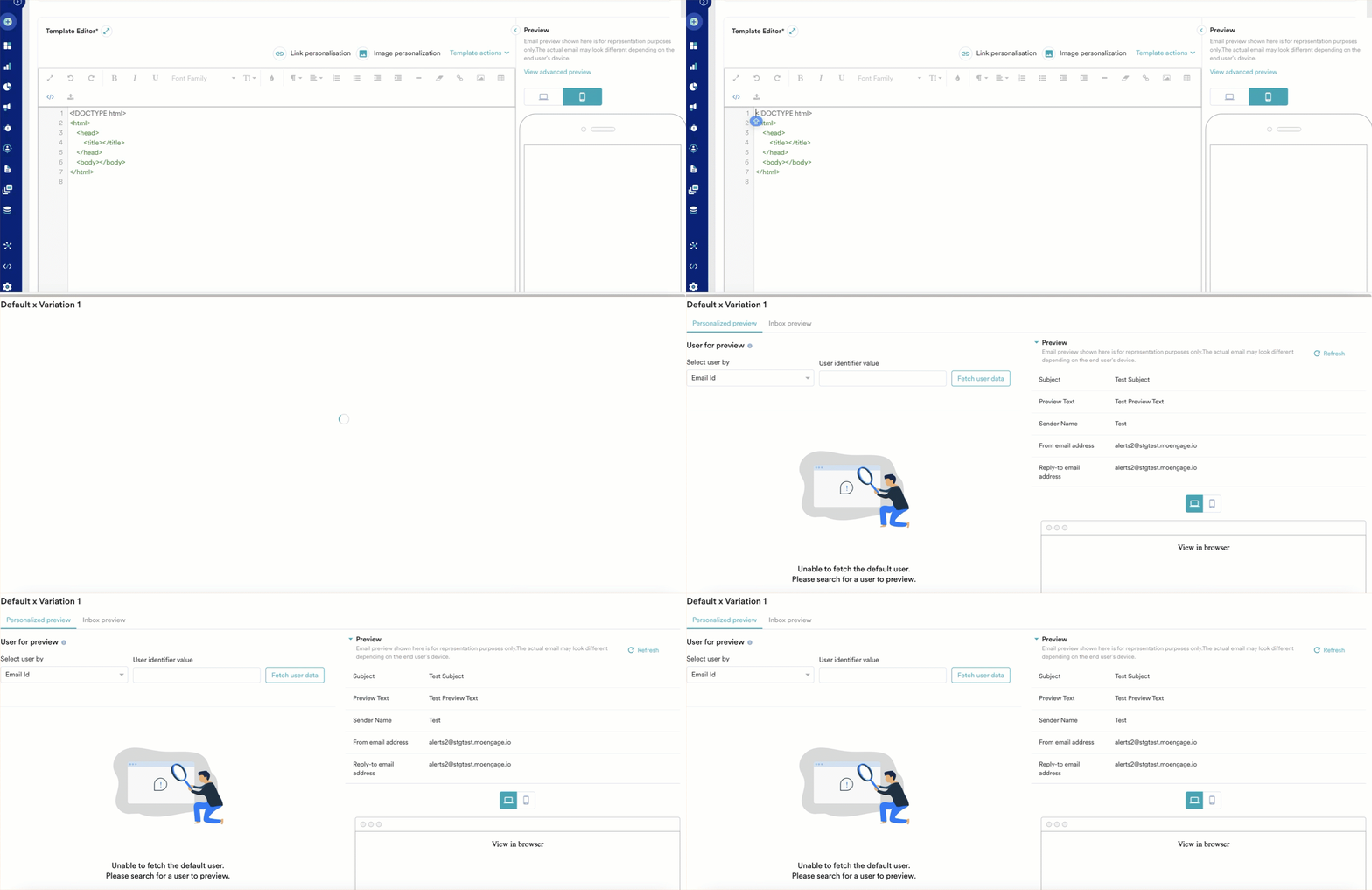
-
While creating email content with the drag-and-drop editor, you can access the personalized preview as shown below:
-
Similar to Push and SMS, you can select a user and preview your email message for the selected user.
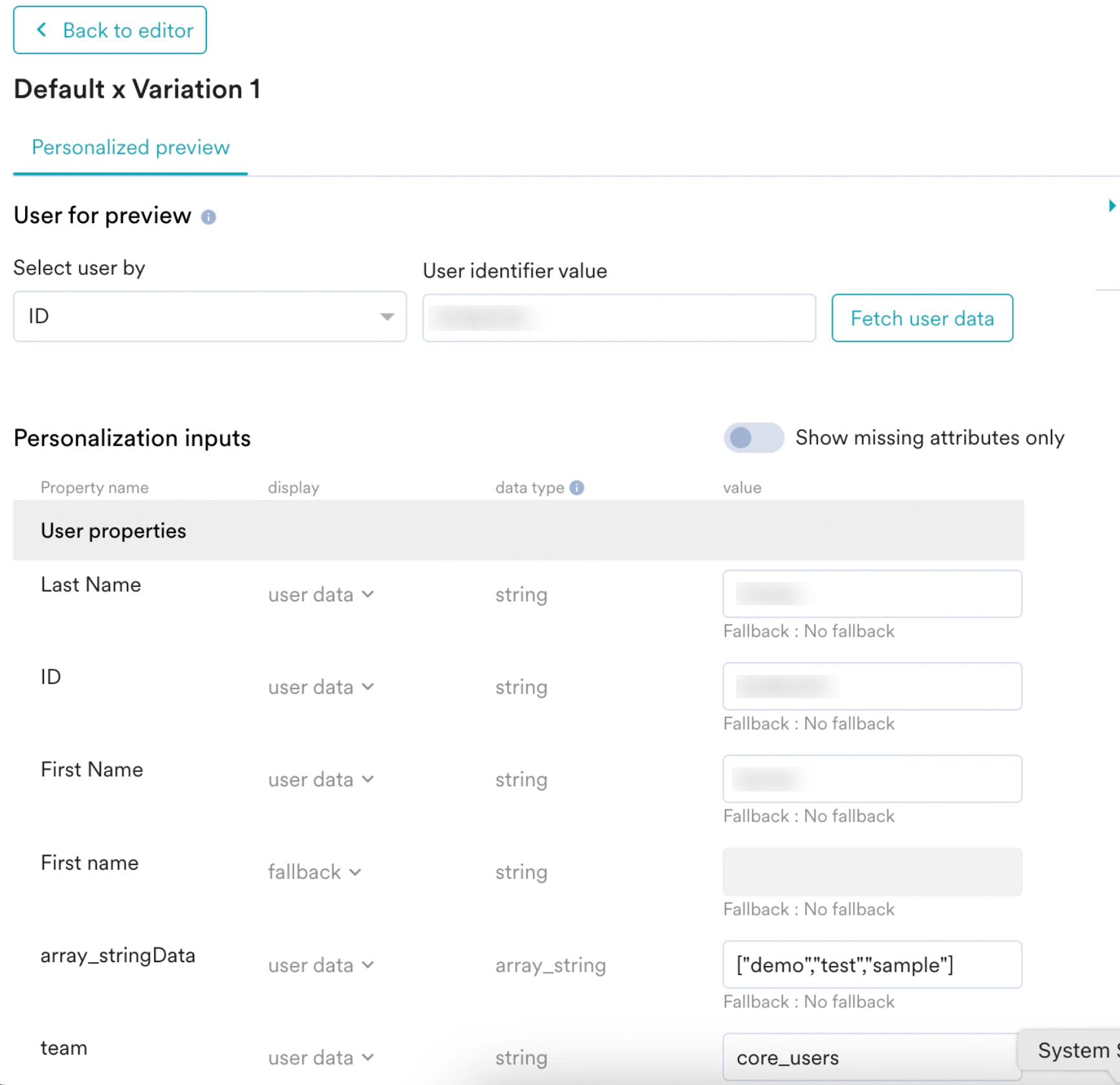
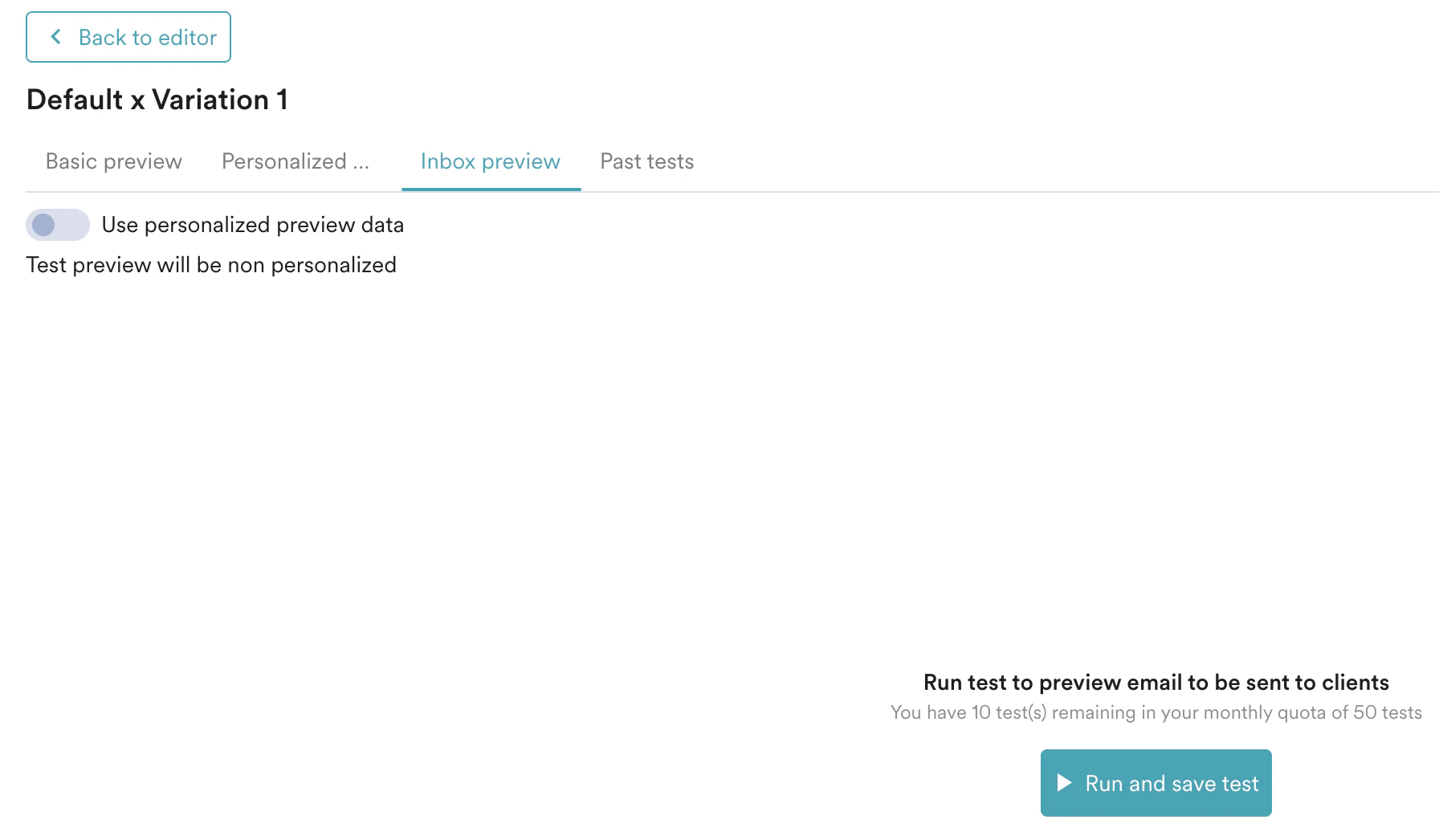
Edit Personalized Preview Output
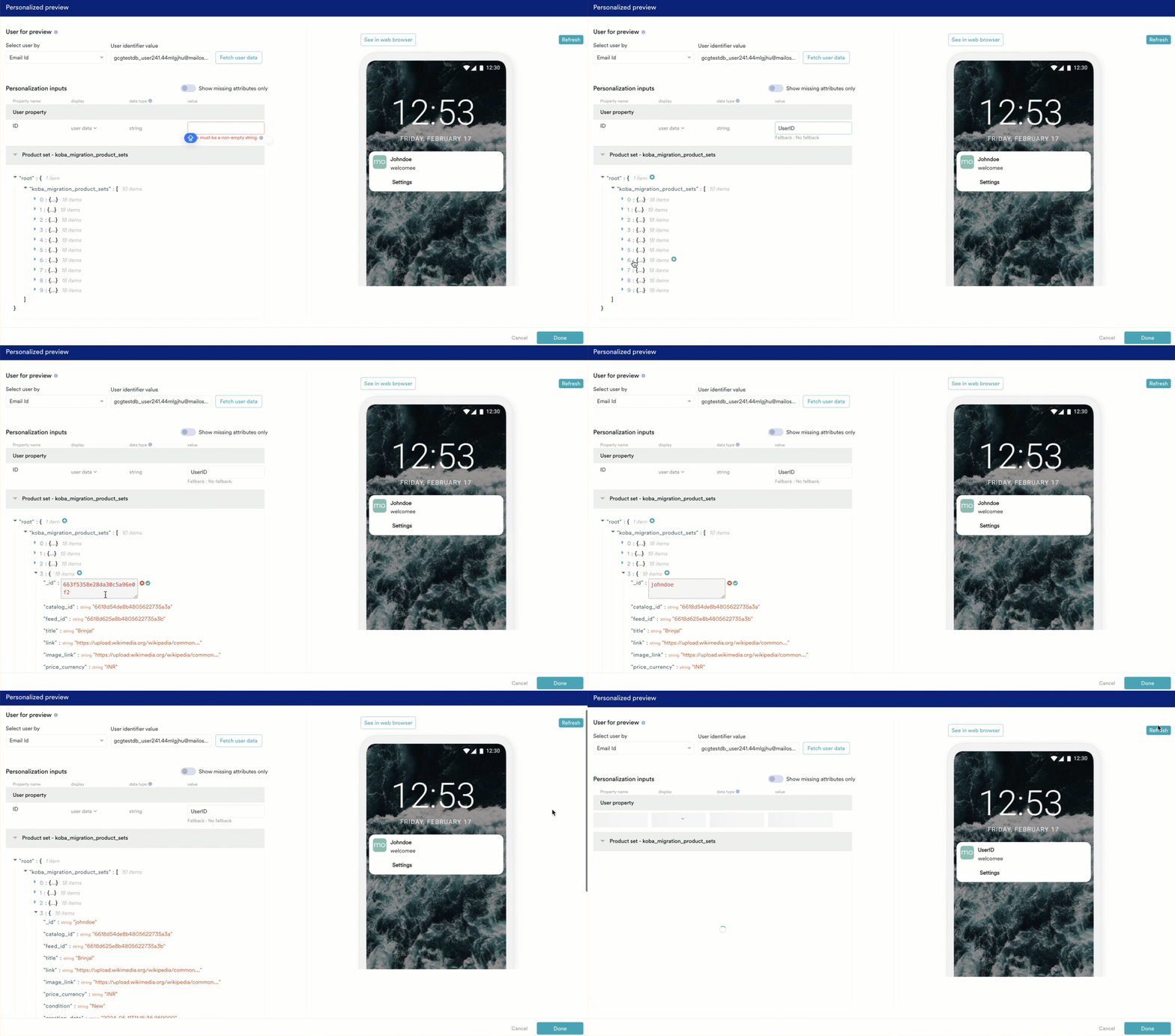
You can modify the personalized preview output to better align the content with your campaign goals and audience preferences, ensuring the preview accurately reflects your marketing intent. To edit the personalized preview output, perform the following steps:-
On the Personalized preview page, click the text box next to the personalization inputs and enter the data. You can also edit product sets by expanding the product sets list and clicking the edit icon. After editing the output, click Refresh/Update previewto update it.
To enable Update Preview for your account, please contact your MoEngage Customer Success Manager (CSM) or the Support team.
- Old UI
- New UI
-
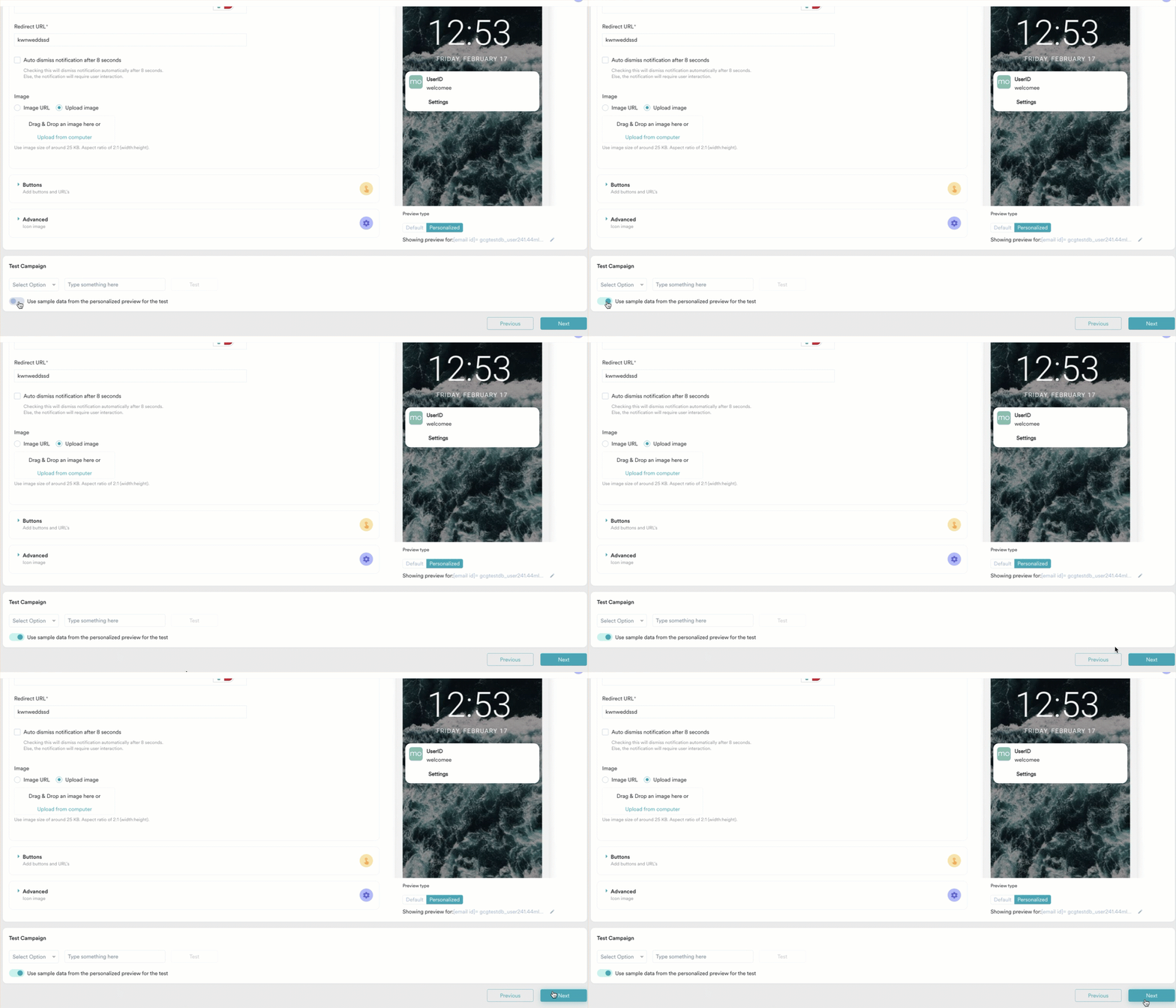
Turn on the Use sample data from the personalized preview for the test toggle to test your campaigns with the updated personalized preview output to evaluate their performance and effectiveness before launch.
Error Detection
This is an Early Access feature. To enable it for your account, please contact your MoEngage Customer Success Manager (CSM) or the Support team.
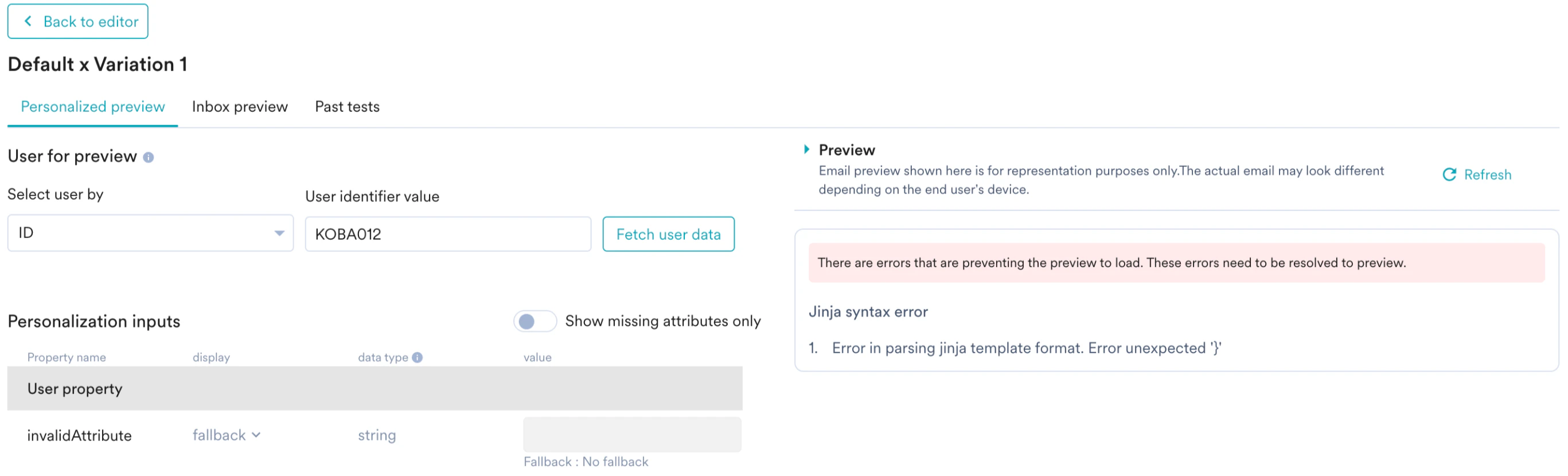
- If your message has multiple issues, such as a broken user property and event properties, they are all displayed simultaneously.
- If your message has issues arising from product set/content API/content blocks/AUX data, the first error category encountered is shown on the UI.
- Each error includes an error category (to identify the source) and a description (to explain the resolution).
Error Categories and Descriptions
The previewer classifies errors into major groups. The table below details how specific categories are reported, with example error messages you might encounter:| SMS/Push Preview | Email Preview |
|---|---|
 |  |
Custom Jinja Error Messages
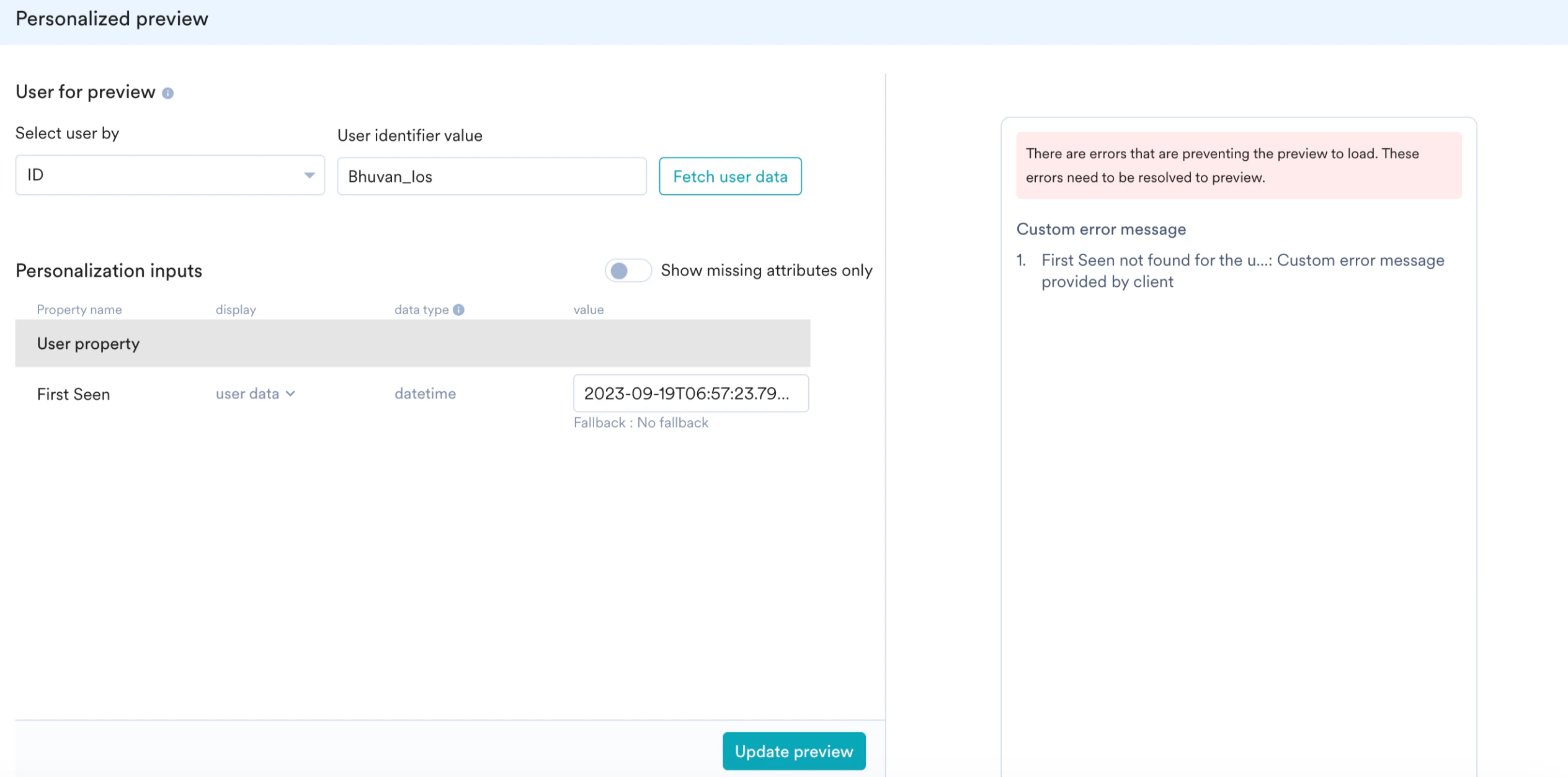
TheMOE_NOT_SEND tag allows you to define custom validation logic within your templates. This prevents messages from being sent if specific business conditions or data requirements are not met. These custom errors appear in the Preview Pane during testing and in the Analytics Error Breakdown post-launch.
Example 1: Single Attribute Validation
This example validates a specific event property. If the attribute is missing, MoEngage blocks the preview and displays the defined error message.1. First Seen not found for the u...: Custom error message provided by client.
Example 2: Aggregated Validation (Multiple Errors)
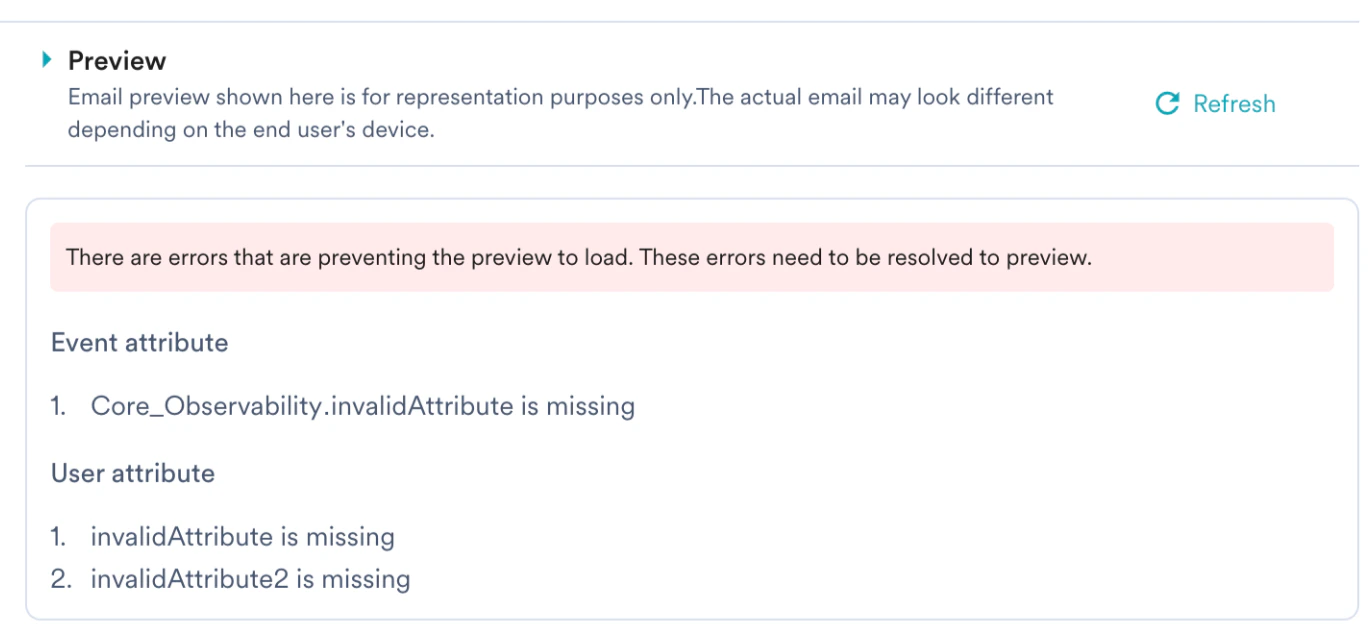
To validate multiple attributes simultaneously, use independentif statements rather than elif chains. This ensures the Preview Pane aggregates all validation failures into a single list, allowing you to debug multiple missing data points at once.
- Event property
-
- Core_Observability.invalidAttribute is missing
-
- User property
-
- invalidAttribute is missing
-
- invalidAttribute2 is missing
-
Validation Scenarios
Scenario 1: All Data Present- Input: The selected user has values for
Core_Observability,invalidAttribute, andinvalidAttribute2. - Result: The message is rendered successfully. The error pane remains empty.
- Input: The selected user is missing
invalidAttribute2, but other attributes are present. - Result: The preview is blocked.
- Error Output: The pane displays a single error under the User property category:
1. invalidAttribute2 is missing.
Finalize the Preview
- Review the errors in the right-side pane.
- Edit your Jinja code or modify the sample attribute values.
- Click Refresh/Update Preview to see the corrected content.
- Turn on the Use sample data from the personalized preview for the test toggle to send a test to your device using the debugged data.
FAQs
Do the changes I make in the preview pane affect the actual user's data?
Do the changes I make in the preview pane affect the actual user's data?
No, any modifications made to attributes or data in the Personalized Preview are temporary and used solely for rendering the preview. They do not overwrite or save to the actual user’s profile in MoEngage.
What happens if the Content API endpoint is not reachable?
What happens if the Content API endpoint is not reachable?
If the endpoint is unreachable, an empty response is displayed. You can manually enter temporary JSON data in the preview window to test your campaign.
Can I customize error messages for missing attributes?
Can I customize error messages for missing attributes?
Yes, you can use the MOE_NOT_SEND tag to define custom validation logic. This prevents the message from sending if specific conditions aren’t met and displays your custom error message in the preview pane.
I fixed the errors in my code, but the error list didn't disappear. Is it broken?
I fixed the errors in my code, but the error list didn't disappear. Is it broken?
The preview does not update in real-time while you type. After fixing multiple errors in your template, you must click Update Preview (or Refresh) to re-run the validation. This ensures all fixes are verified at once before clearing the error list.