

Availability of this feature depends on your MoEngage plan and may require a paid add-on. To check what’s available for your plan, refer to Plans and Pricing. To get this feature, contact your MoEngage Customer Success Manager (CSM) or the Support team.
Use Cases
- Notify users about a price drop on items in their wishlist or cart.
- Tell users a product they viewed is back in stock.
- Warn users that a saved item is selling out quickly.
- Alert users when a saved flight or ticket is now available at a lower price.
- Inform users that a monitored item’s price has risen since their last visit.
How Catalog Alerts Work
For each item a user has interacted with, MoEngage compares the current catalog value against the value at the time of the user’s last interaction with that item. If the change meets the rule you set (for example, price dropped by more than 30%), the item becomes eligible for the recommendation.Available Rules
Select one of the following rules to define the change you want to detect:How the Change Is Measured
MoEngage measures both the absolute change and the percentage change against the last interacted price:Change formulas
Create a Catalog Alert Recommendation
Only Admin, Manager, and Marketer roles can create Catalog Alert recommendations.
1
Open the Recommendations page
On the sidebar, hover over Content and click Recommendations.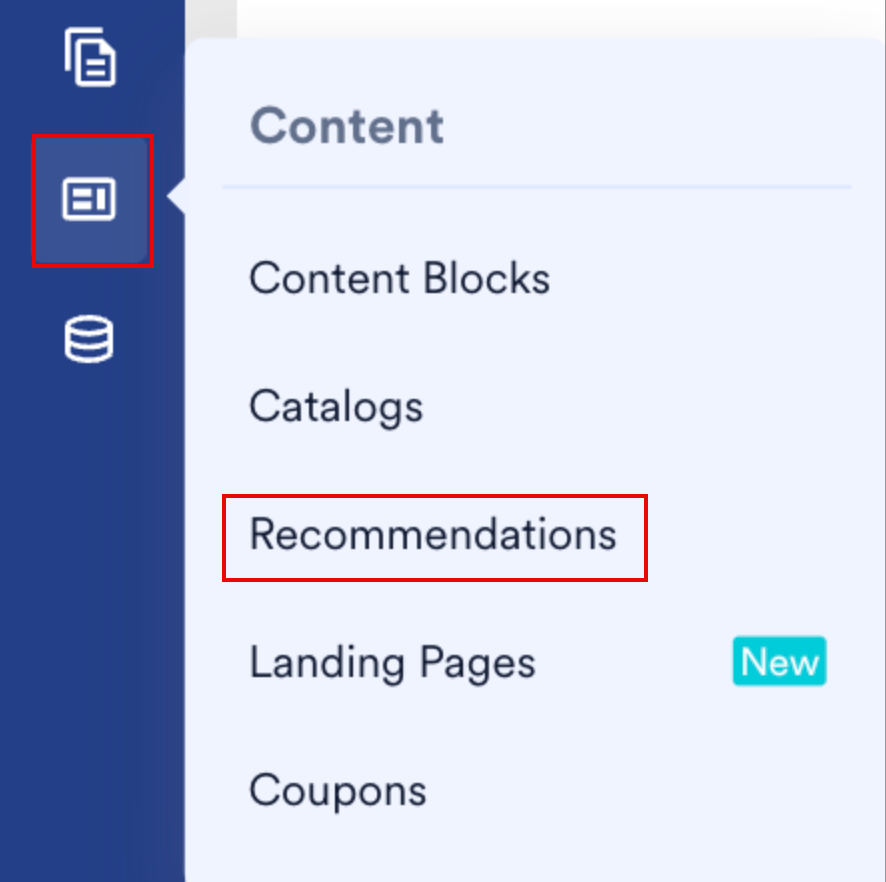
2
Start a new recommendation
Click + Create recommendation. The Select recommendation model step appears.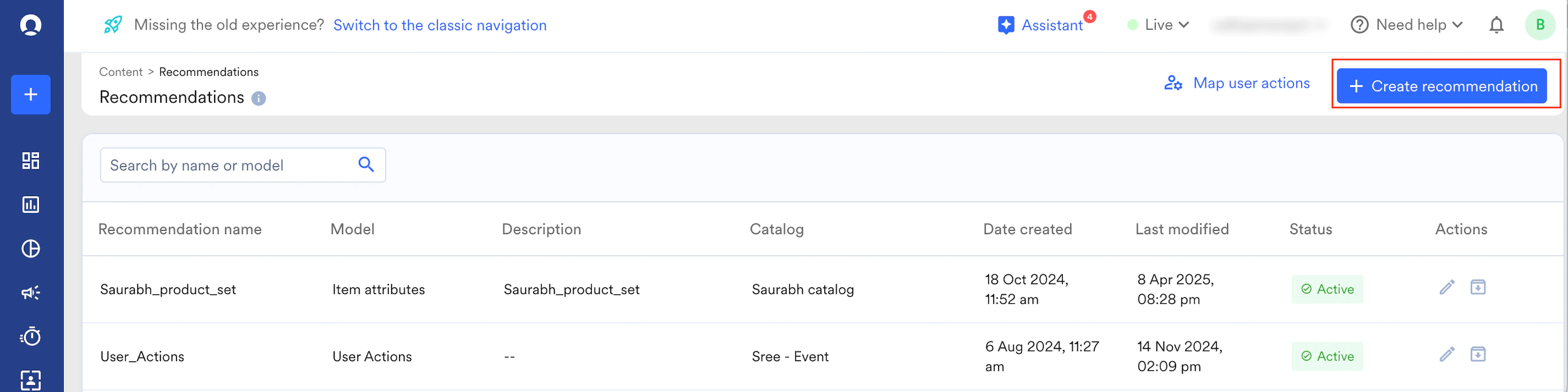
3
Select the Catalog alerts model
Click Catalog alerts, then click Next. The Create recommendation step appears.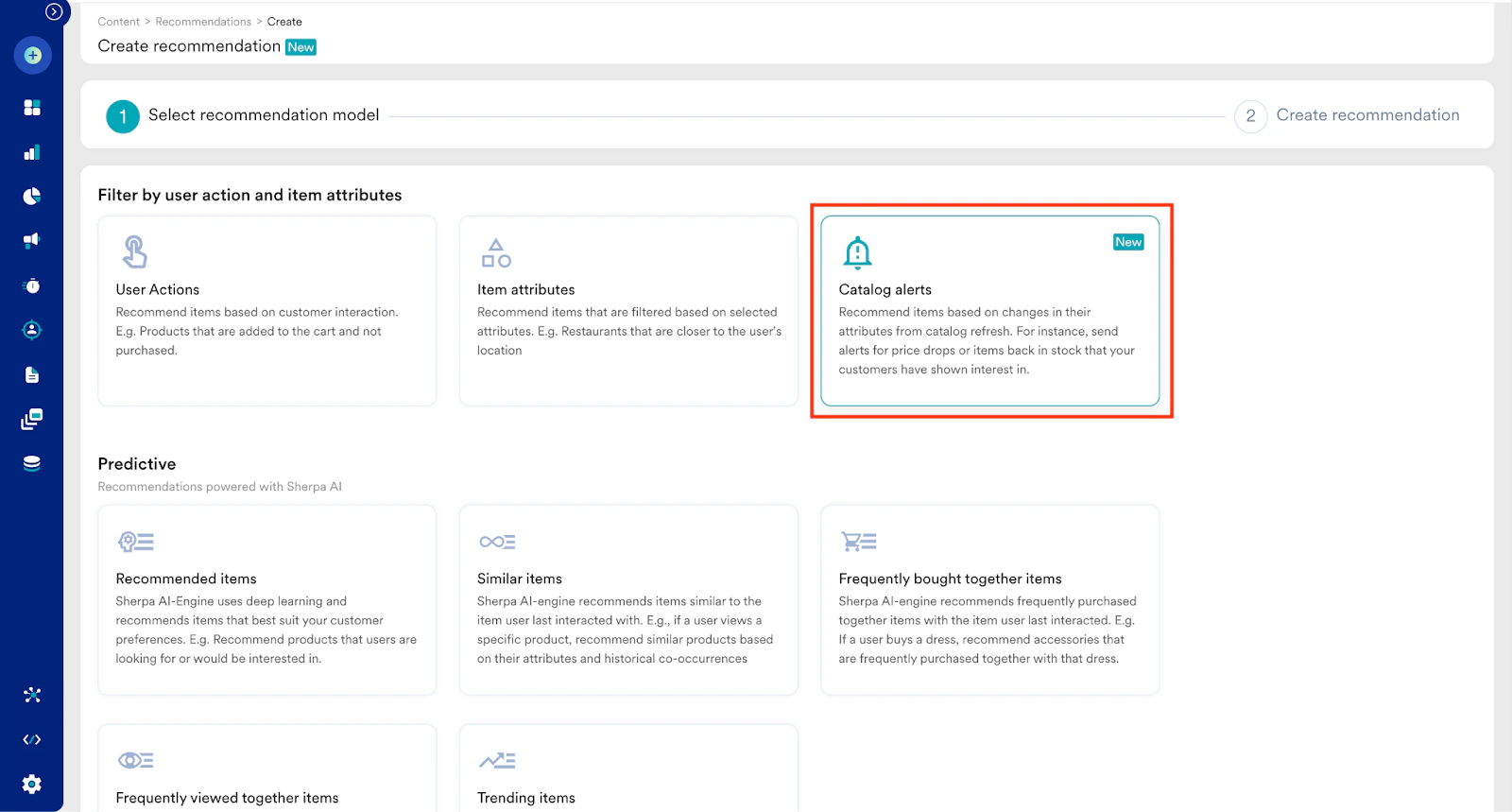
4
Name the recommendation and choose a catalog
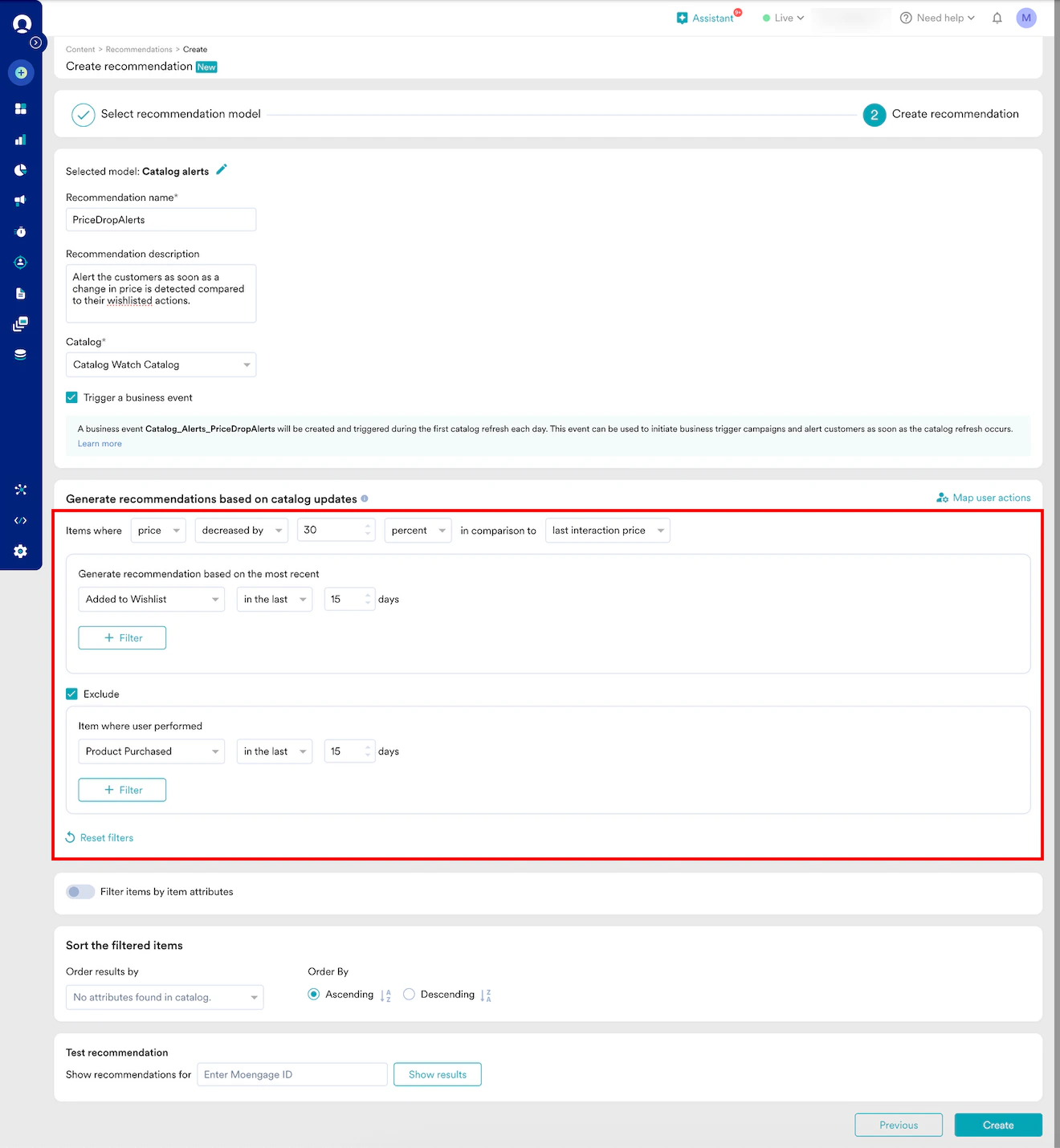
Enter a Recommendation name and Recommendation description, then select the Catalog the alert applies to.In Number of items to show, enter how many items you want the recommendation to return. MoEngage fills this field with 10 and shows the maximum for your workspace below it. To raise that maximum, contact MoEngage Support. For more information, refer to Fallback Items.Optionally, select Trigger a business event to trigger an event when the catalog is refreshed. See Business Event Trigger.
- The business event can initiate business-trigger campaigns and alert users instantly when the catalog is refreshed.
- It works for catalogs that use a scheduled URL or manual feed. If a catalog is refreshed multiple times a day, the event triggers only on the first refresh of the day.
- The business event is not available for API-based catalogs.
5
Define the catalog change to detect
Under Generate recommendations based on catalog updates:
- In Select catalog attribute, choose the attribute to monitor (price or quantity).
- In Select operator, value, and Select type, define the change to detect (for example, decreased by 30 percent).
- In Select compare to, choose the interaction value to compare against (for example, last interaction price).
-
Select the mapped user actions to consider, and any to exclude (for example, Added to Wishlist in the last 15 days, excluding Product Purchased in the same period).
6
Filter and sort the results (optional)
Turn on Filter items by item attributes to narrow results using catalog data (for example, quantity is greater than 0).In Sort the filtered items, order results by a MoEngage-derived attribute or any numeric catalog attribute (for example, order by Price percent change, highest to lowest).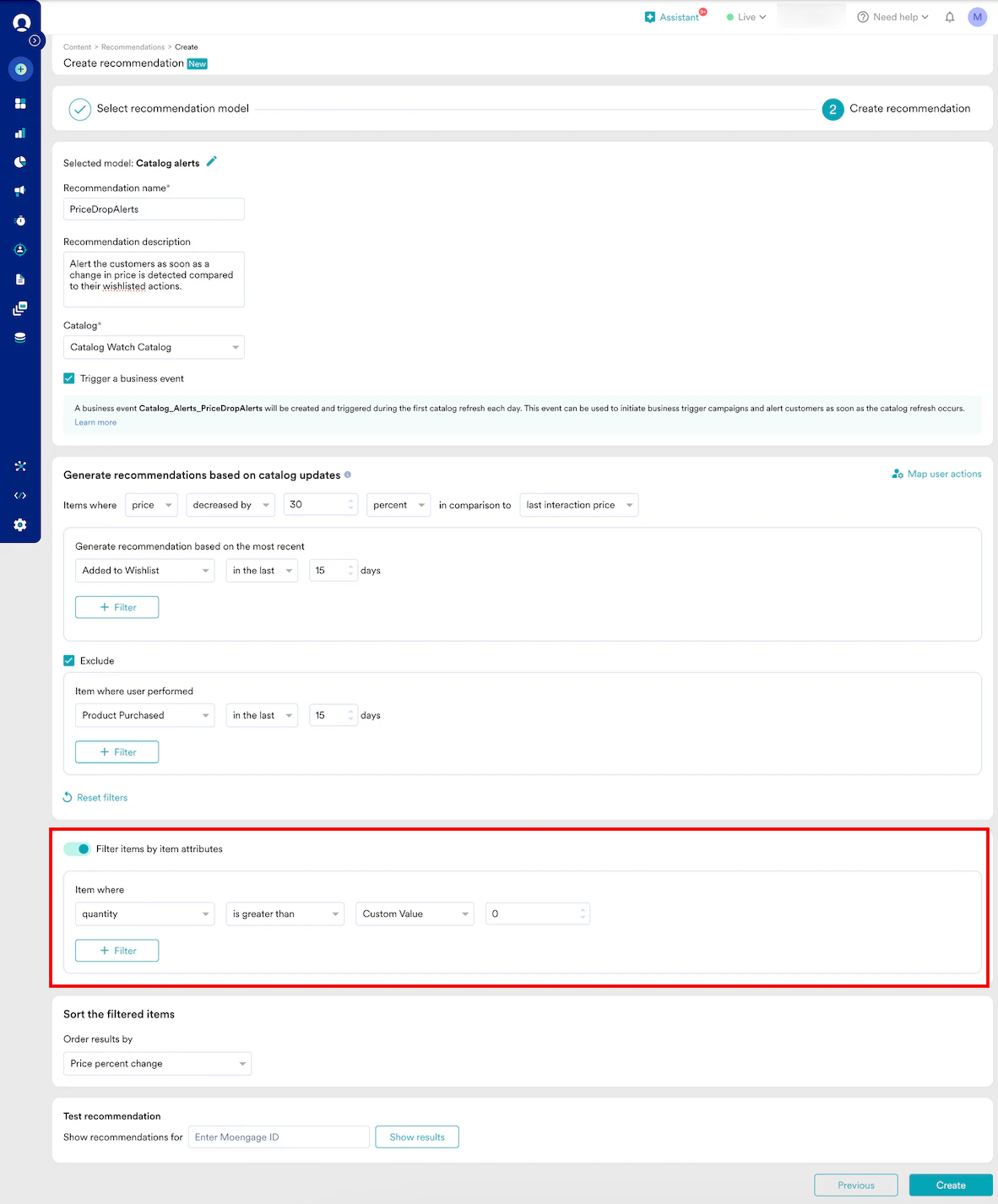
7
Create the recommendation
Click Create to save and run the model.
Worked Example
This example shows how MoEngage moves from a user’s activity to a final, sorted recommendation list. Recommendation setup: Price decreased by more than 30%, for items Added to Wishlist in the last 15 days, excluding items the user Purchased in the last 15 days. Reference time: April 30, 12:00 PM.Step 1: John’s Activity in the Last 30 Days
Step 2: Apply the User-Action Filter
MoEngage keeps only items that were Added to Wishlist in the last 15 days and were not purchased in that window. For items with several interactions, it uses the most recent one.
Anchor items carried forward: P007, P006, P005, P002.
Step 3: Compare Against Current Catalog Prices
After the catalog refresh, MoEngage compares each anchor item’s last interacted price with its current price.Step 4: Calculate the Percentage Change
Using% change = [(current price − last interacted price) ÷ last interacted price] × 100:
P002 and P006 are excluded because their drops do not exceed 30%.
Step 5: Sort the Final List
MoEngage sorts the qualifying items by percentage change, largest drop first:
Any item-attribute filters you configured are then applied to refine this list further.
Business Event Trigger
A business event trigger triggers an event after the first catalog change detected each day, so you can automate real-time alert campaigns. The event name follows the formatCatalog_Alerts_{{Recommendation_Name}}. For a recommendation named PriceDropAlerts, the event is Catalog_Alerts_PriceDropAlerts.
Use the event to power business-event-triggered campaigns. If the catalog is refreshed twice daily (for example, 10:00 AM and 10:00 PM), the event triggers only after the first successful refresh. You can still run other campaign types on the same recommendation at any schedule, independent of the business event.
Campaign Personalization
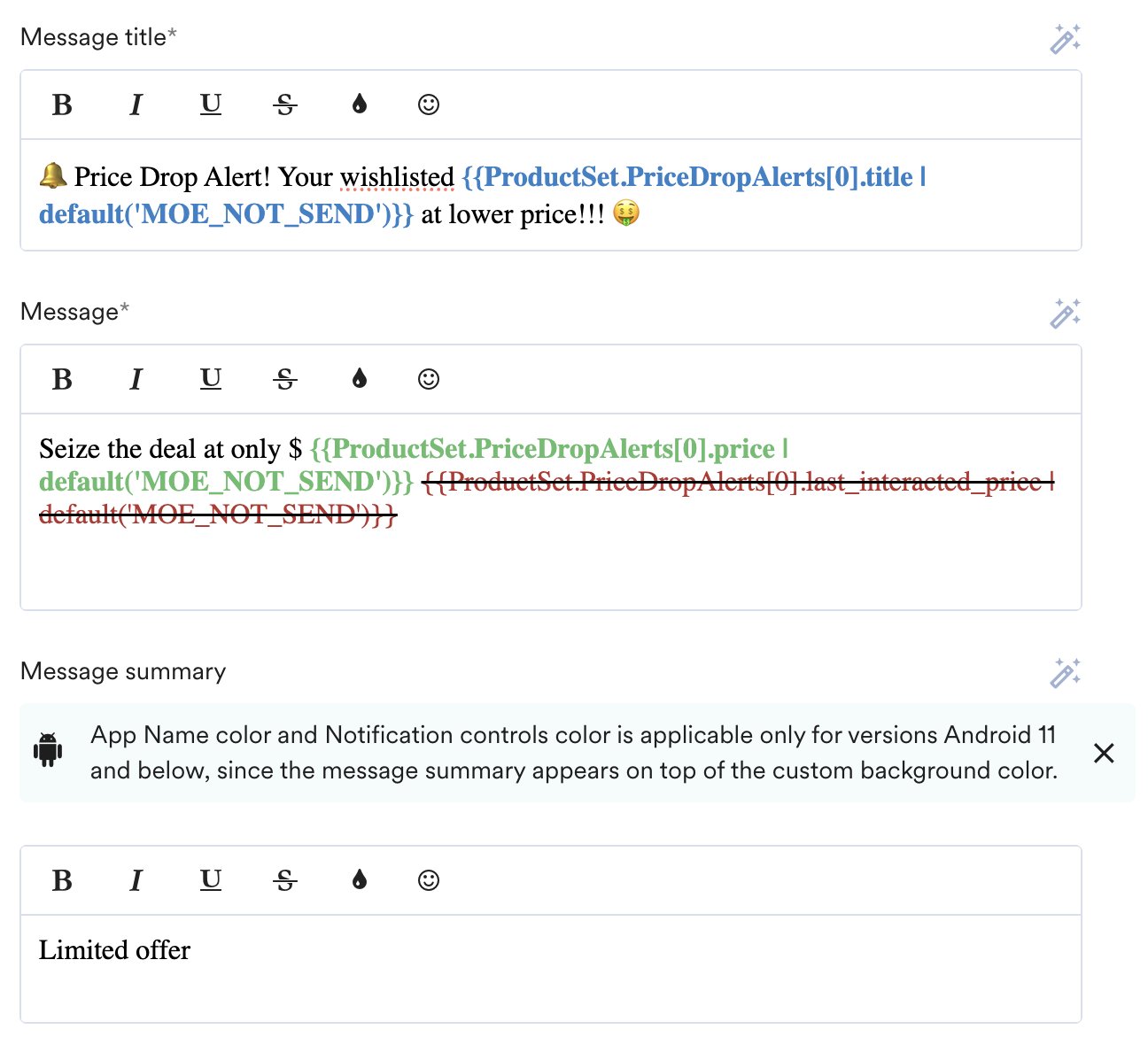
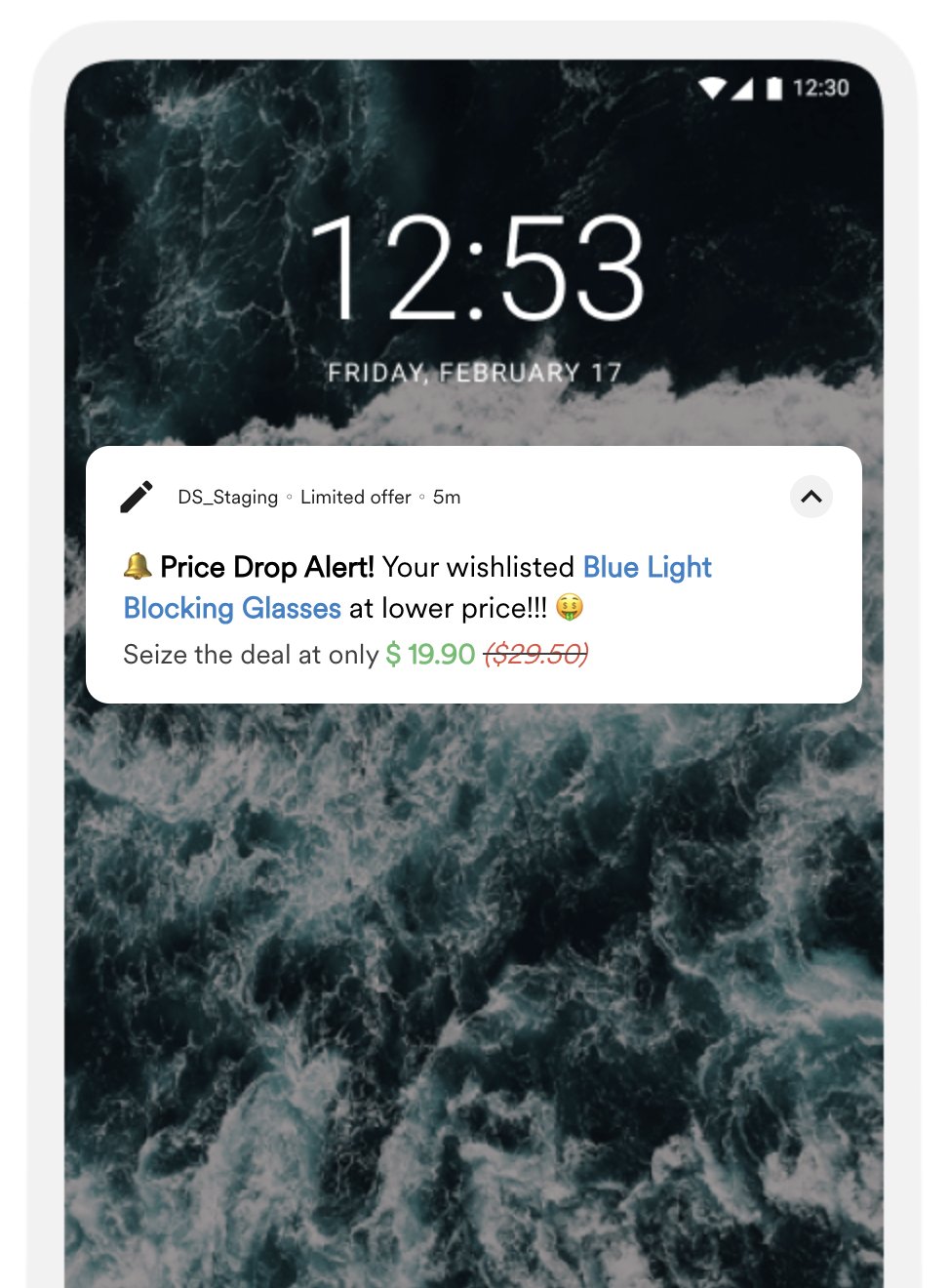
When you use Catalog Alerts, an extra attribute —{{last_interaction_price}} — becomes available for personalization. Place it alongside the current {{price}} to show users the exact difference and increase the likelihood of a click.
 |  |