

This feature is part of the Streams paid add-on. To check what’s available for your plan, refer to Plans and Pricing. To enable it for your account, contact your MoEngage Customer Success Manager (CSM) or the Support team.
Overview
Amazon Redshift is a fast and powerful, fully managed, petabyte-scale data warehouse service that forms part of the larger cloud-computing platform Amazon Web Services.How Does MoEngage Work with Redshift?
The MoEngage and Redshift integration exports Campaign Interaction Events data directly to your Amazon Redshift cluster.Integration
Prerequisites
- Ensure you have an Amazon Web Services account with permission to create/edit Redshift clusters, roles, and policies.
- It is optional to create a new user; you must have access to create a new user in your Redshift cluster.
- If your system requires IP whitelisting, you must whitelist MoEngage IPs. For more information, refer here.
- Ensure you have a Redshift Connection on the App marketplace.
Set Up Your Export
- For the full list of events and attributes, refer to the Data Export Glossary.
- The event_time of the exported events is always in UTC.
Add a New Redshift Export on the MoEngage App Marketplace
- On your MoEngage Dashboard, go to the App Marketplace.
- Search for “Redshift”.
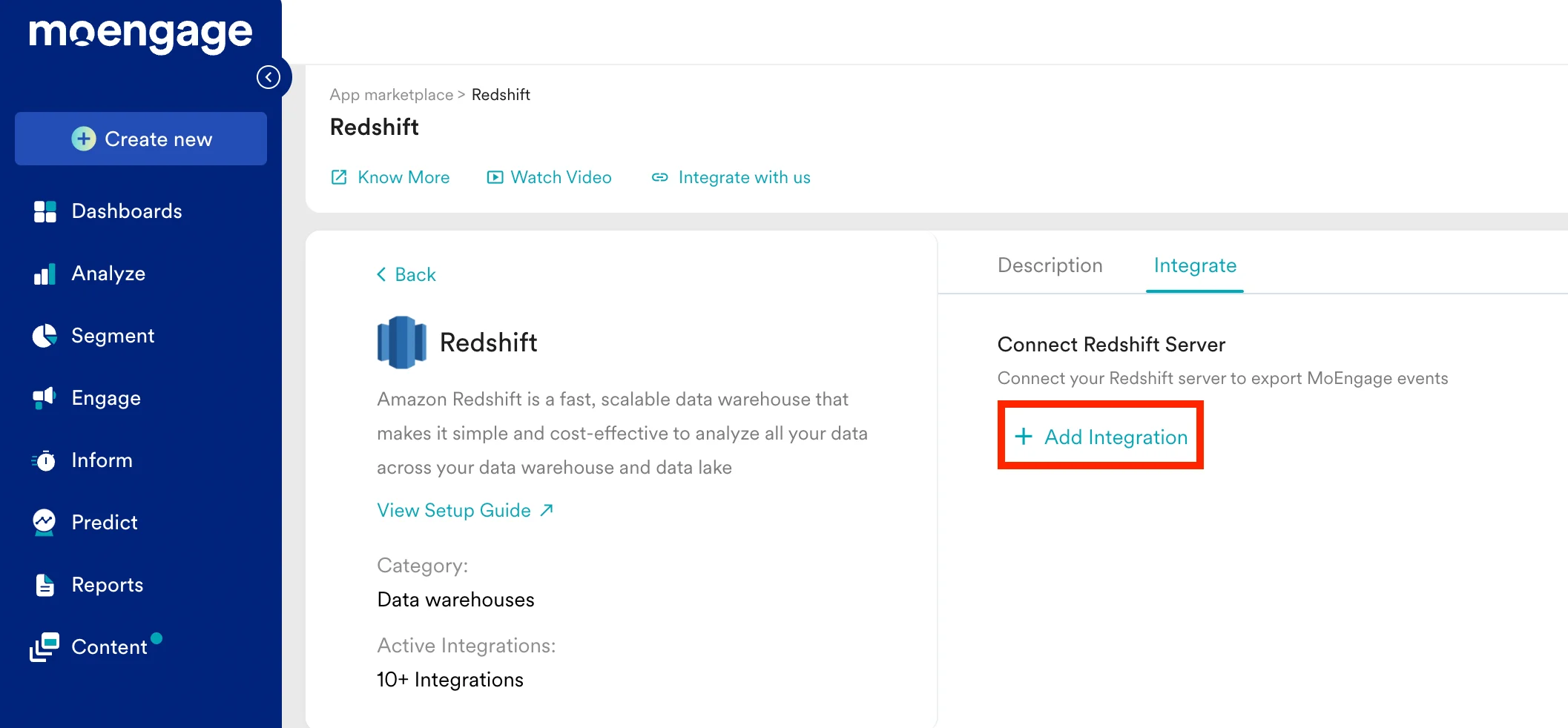
- Go to the “Integrate” tab, and click on ”+ Add Integration”.
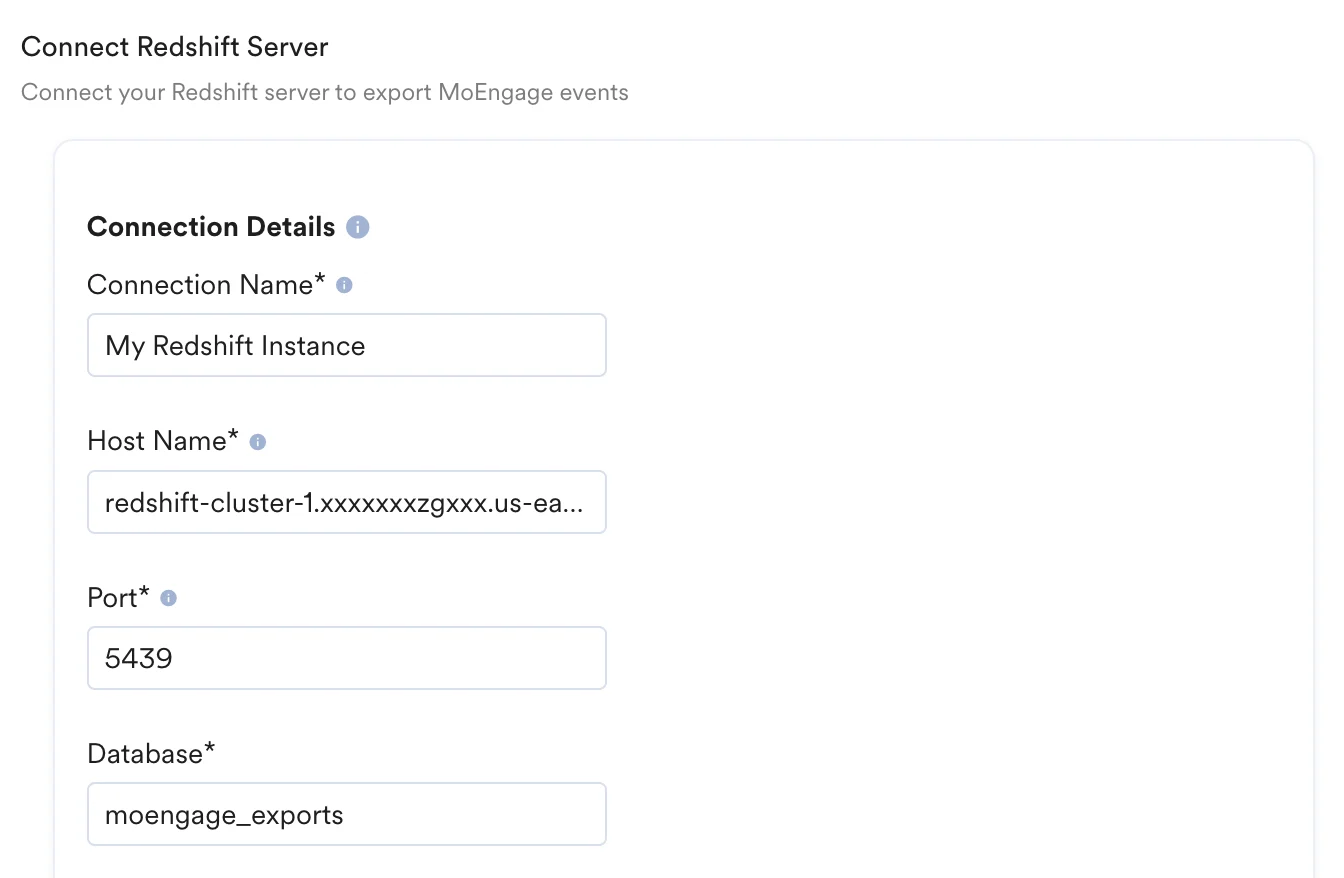
- Fill out the connection details of your Redshift cluster.
| Field | Description | Example |
|---|---|---|
| Connection Name | Give this connection an identifiable name. | My Redshift Instance 1 |
| Host Name | On your AWS Console, navigate to your Redshift cluster. Under General information, the hostname is listed as your Redshift endpoint. Paste the part before the colon :. For example, if the Endpoint is redshift-cluster-1.xxxxxxxzgxxx.us-east-1.redshift.amazonaws.com:5439/dev then your Host Name will be redshift-cluster-1.xxxxxxxzgxxx.us-east-1.redshift.amazonaws.com. 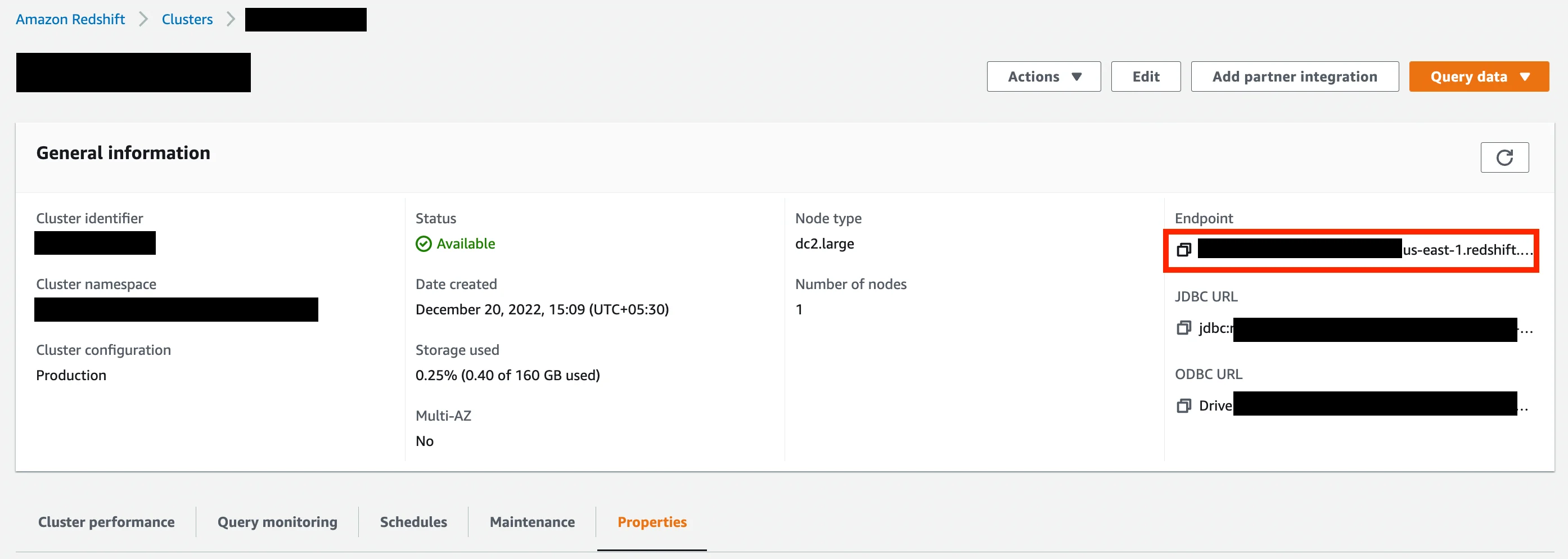 | Format should be [name].[id].[region].redshift.amazonaws.com |
| Port | Enter your port number. On your AWS Console, navigate to your Redshift cluster. Under the Properties tab, find your port number and database name in the Database configurations. By default, the Redshift port number is 5439. 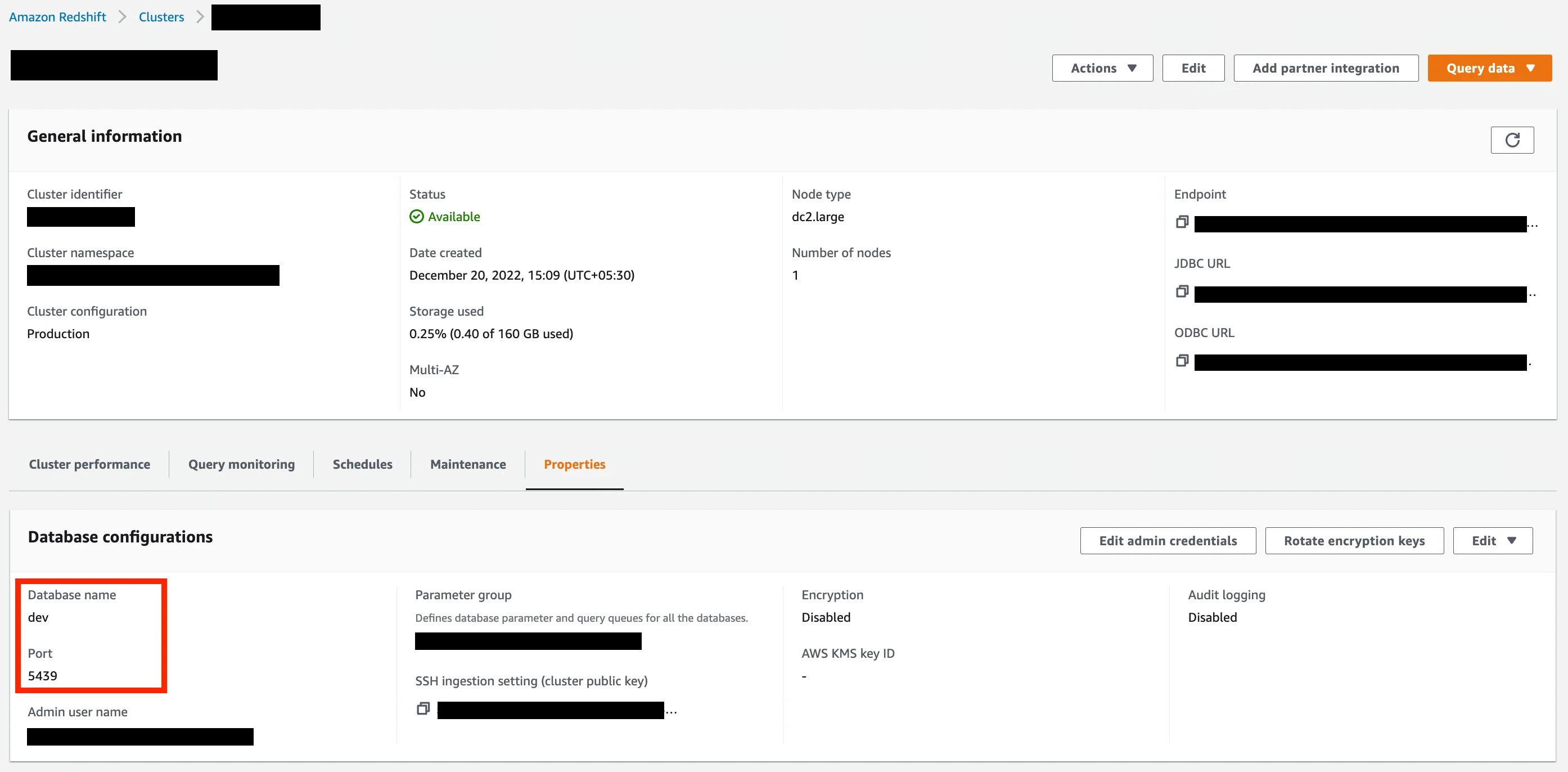 | 5439 |
| Database | The name of your Redshift database. | moengage_exports |
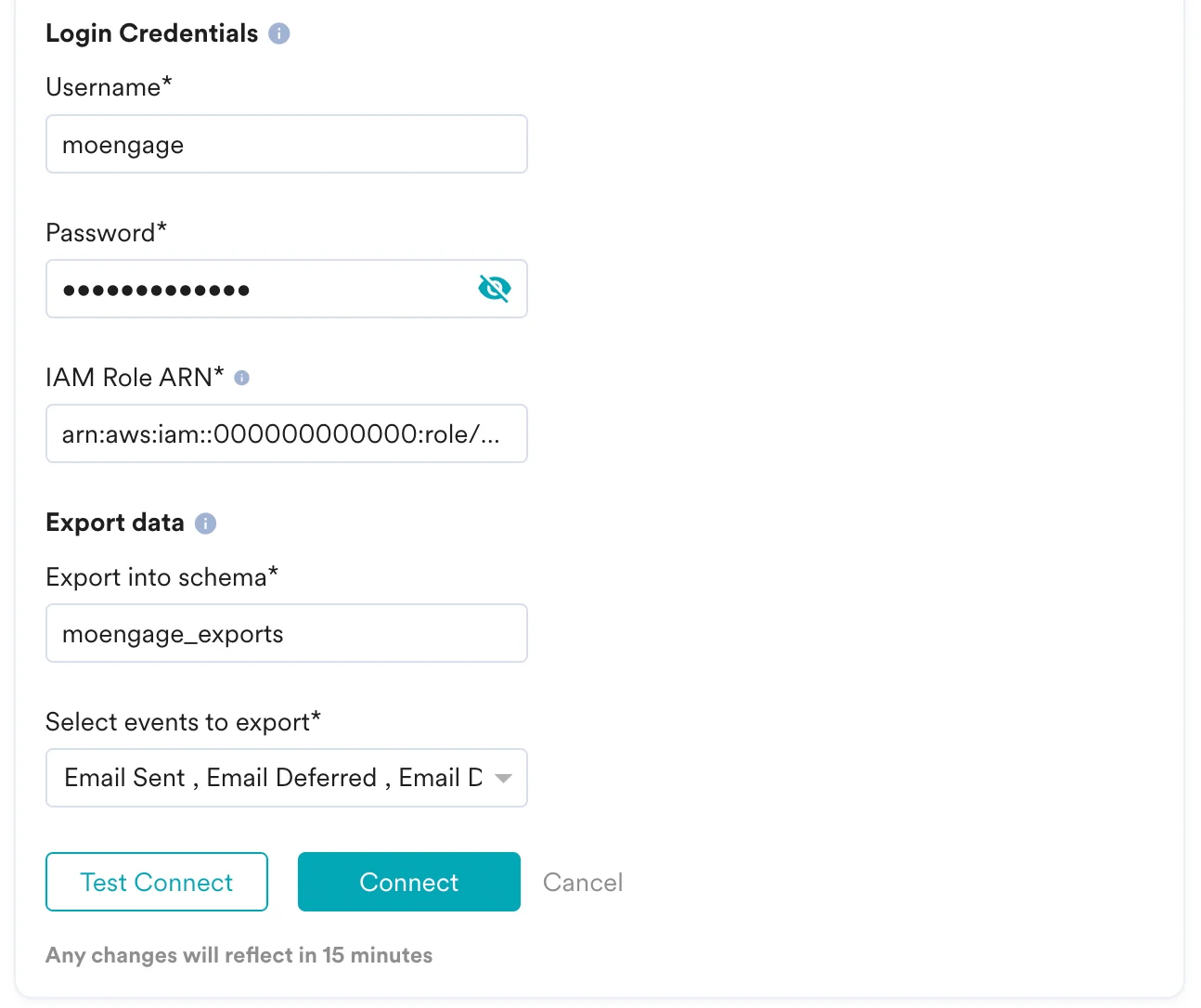
| Username | Enter the username you want MoEngage to connect as. This can either be an existing user, or the one you created in Step 2. | — |
| Password | Enter the password of the database user. | — |
| IAM Role ARN | Enter the ARN of the IAM Role you created in Step 5. To find the ARN, on your AWS Console, go to IAM Console. In the side menu, under Access Management, click on Roles. Select the IAM Role you created in Step 5. Under the Summary section, you will find the ARN listed. Copy and paste it into the input field. 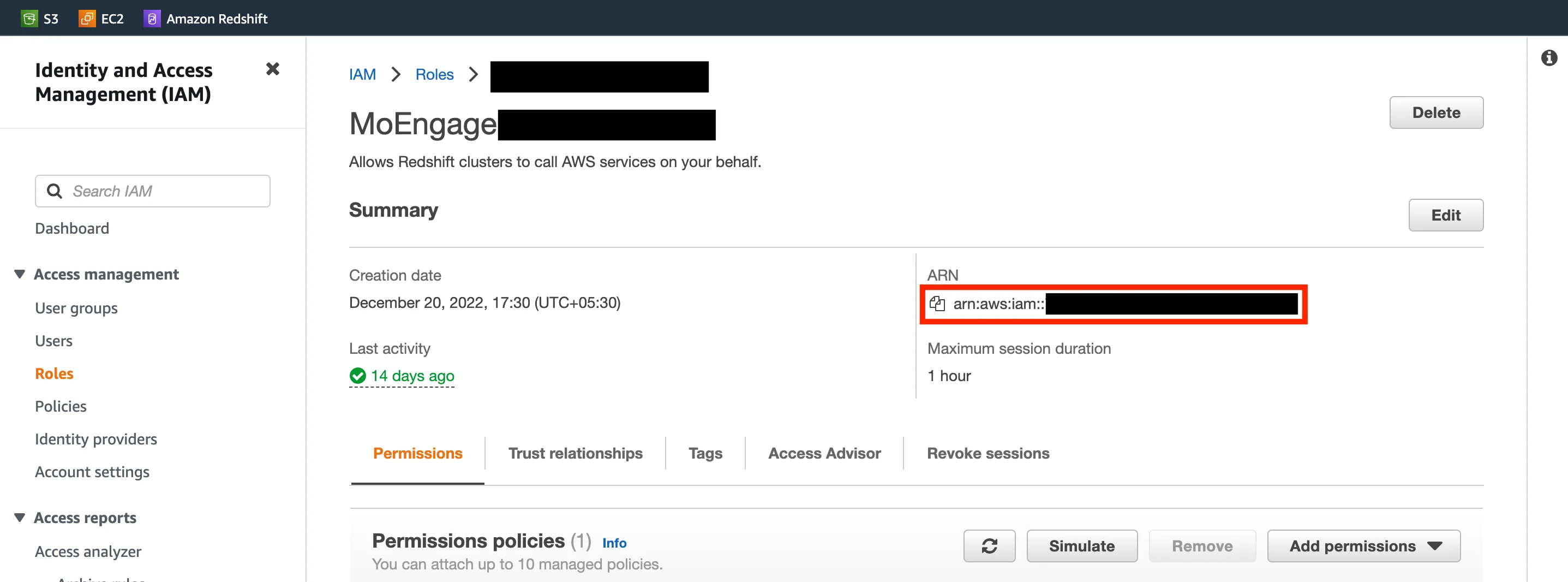 | Format should be arn:aws:iam::[aws-account-id]:role/[role-name] |
| Export into schema | MoEngage will create tables in the schema you provide. Unless specifically configured, the usual value for schema name is “public”. | — |
| Select events to export | Select which events you want to export to your Redshift cluster. | — |
- Optionally, you can choose to test the connection. MoEngage will attempt to verify if the details you entered are correct. If there is an issue, an error will be shown that you can rectify.
- Once the test connection is successful, you can save the connection details and MoEngage will begin exporting events shortly to your Redshift cluster.
Verify You Are Receiving Data Correctly
MoEngage will create the following two tables in your schema:test_connection_moengage- We will use this table to verify if your connection details are valid from time to time.moengage_events- We will dump (append) all your events in this table.
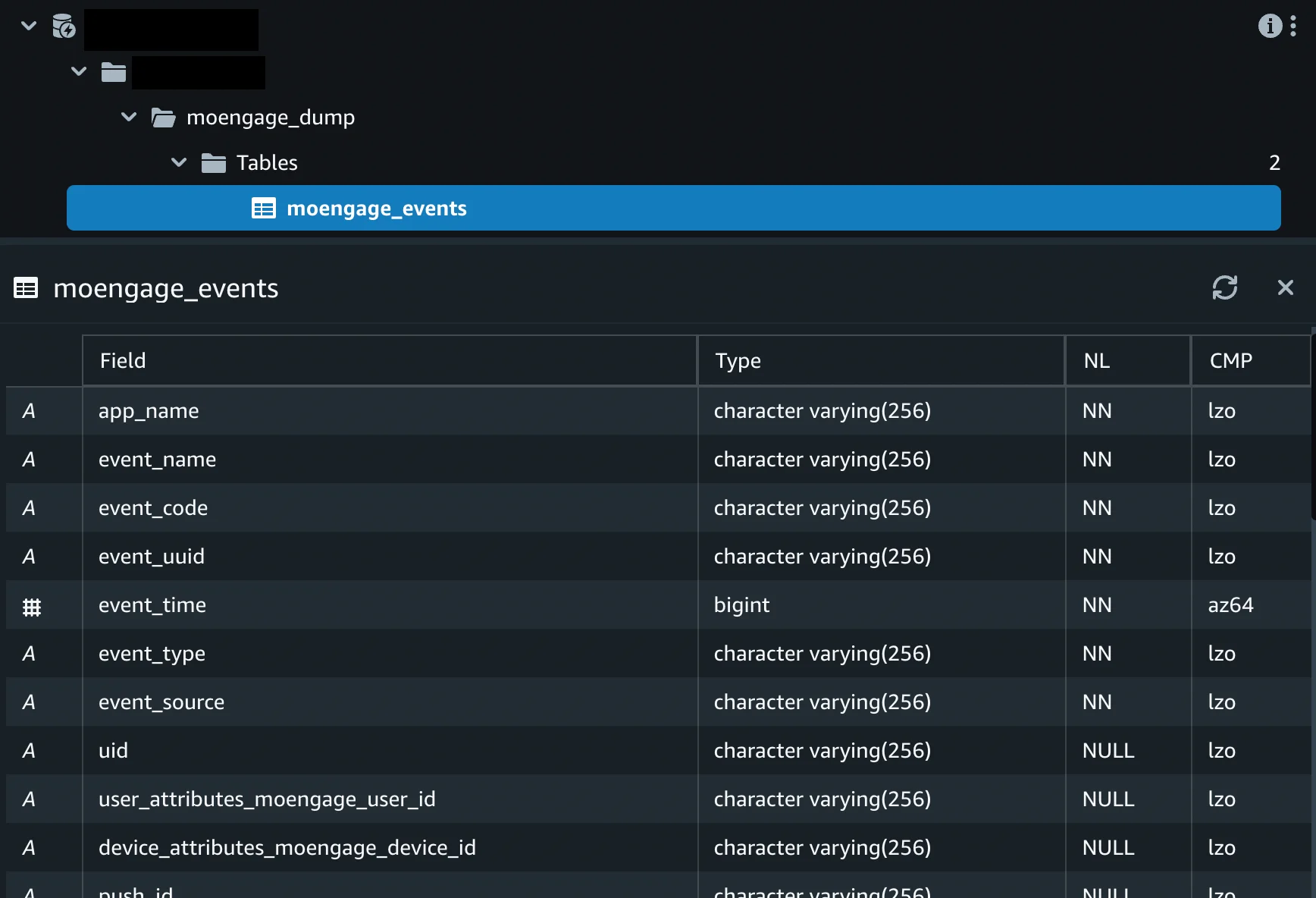
moengage_events table:
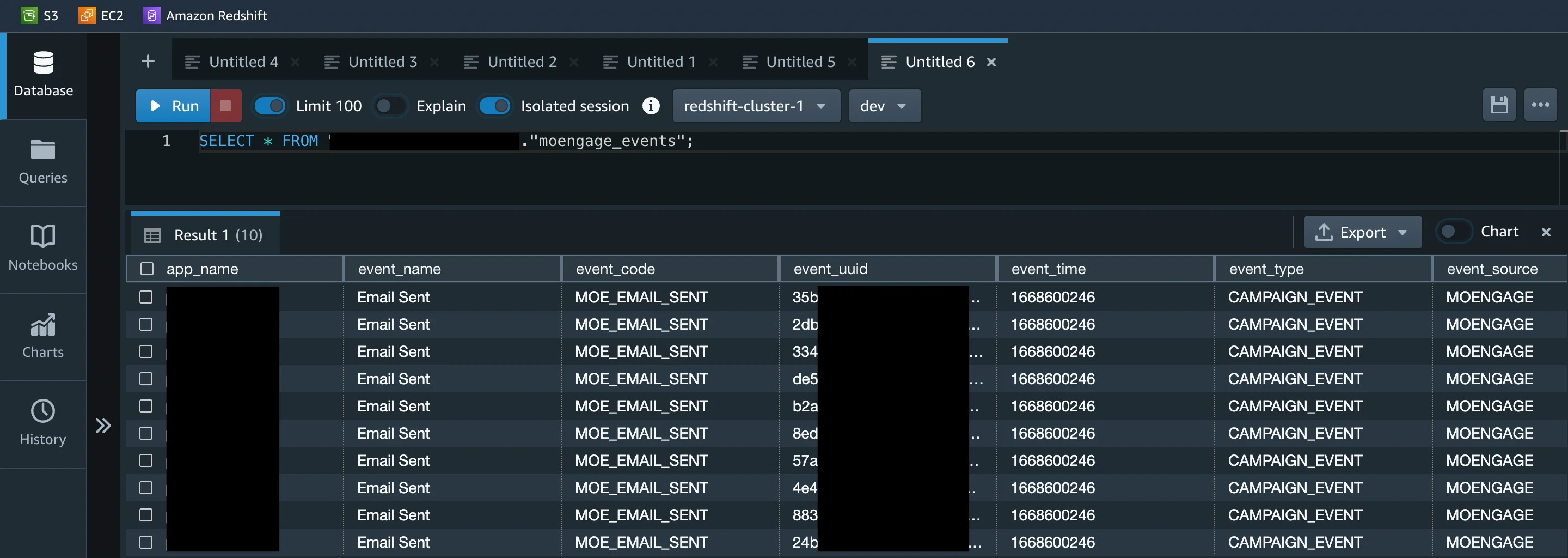
Export Process and Frequency
We will dump the data at hourly intervals.Sample Table Structure
The final table definition will depend on the exact configurations of your exports.Export Failure Policy
MoEngage pauses an export that keeps failing. While it is paused, MoEngage collects the events the export would have delivered, and you replay them after you fix the problem.When MoEngage Pauses an Export
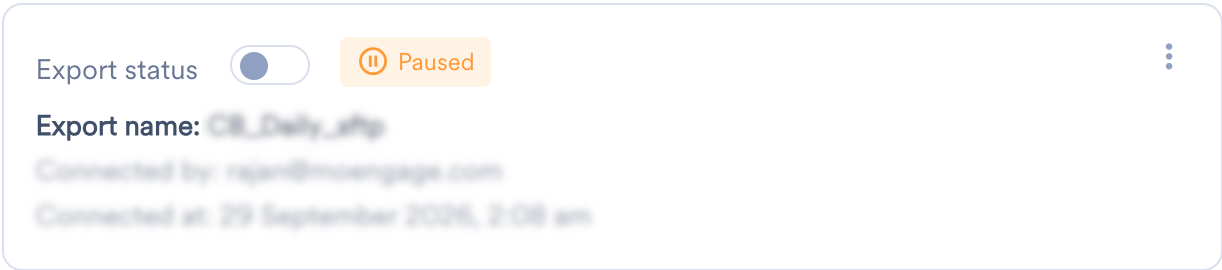
Exports to Redshift run hourly. MoEngage will retry an export multiple times before marking it as failed. The export will be paused after 3 consecutive scheduled export failures. When MoEngage pauses an export, it alerts you and shows the export as Paused on the App Marketplace.What Happens While an Export Is Paused
Resume an Export
Find the Failure Reason
On the App Marketplace, click the Integrate tab, and then hover over the Paused label on the export. MoEngage names the reason for the failure, such as a missing write permission on the destination table, and tells you how to fix it.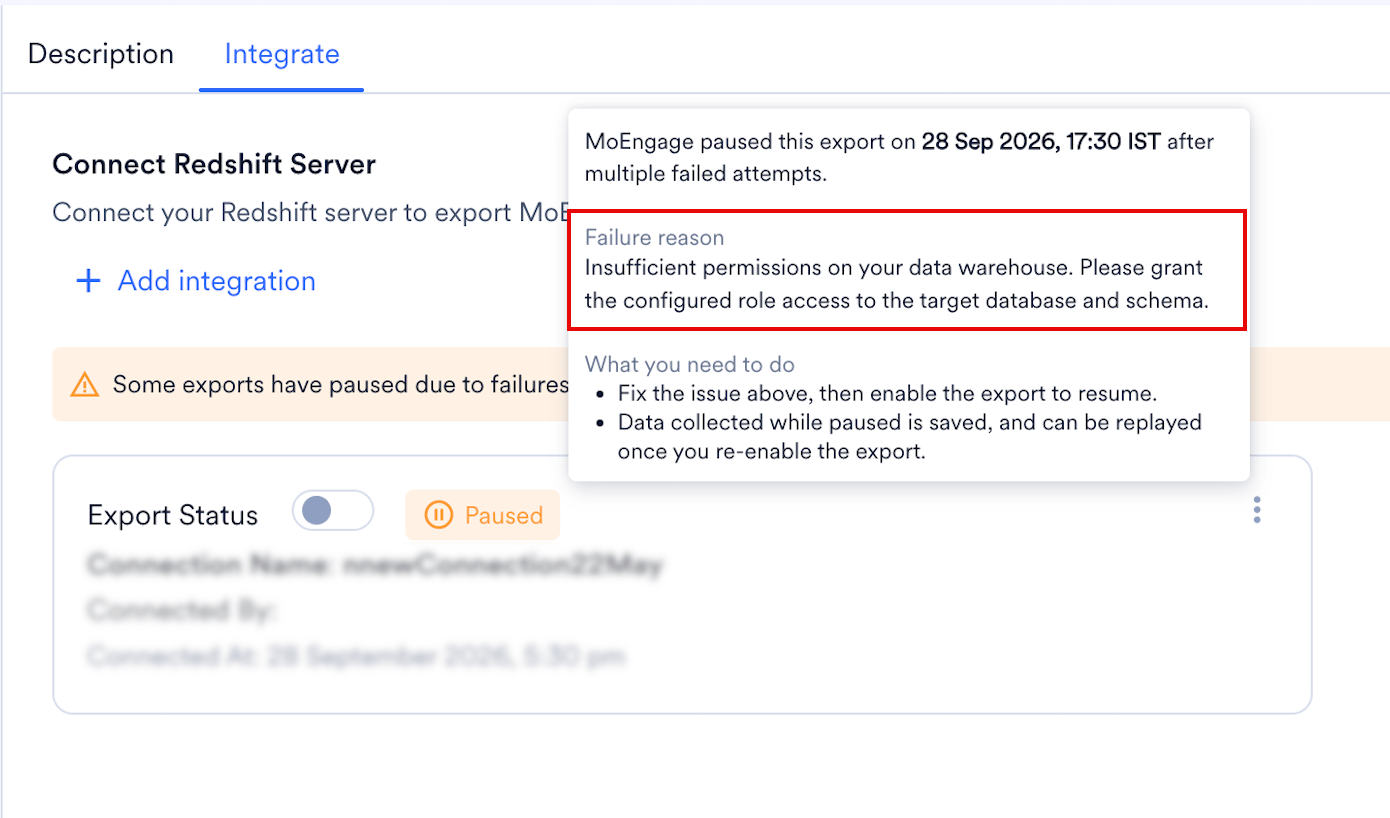
Enable the Export
Fix the cause at your end, and then turn on Export status for the export. Do this as soon as you can, because the 7-day window keeps moving while the export stays paused. When you enable the export, MoEngage stops collecting and sets aside what it has: the last 7 days of paused data, or all of it if the pause was shorter. This is the data you can replay. It stays fixed from then on, and does not reduce further even if you wait to replay it.Replay Paused Data
Request a Replay
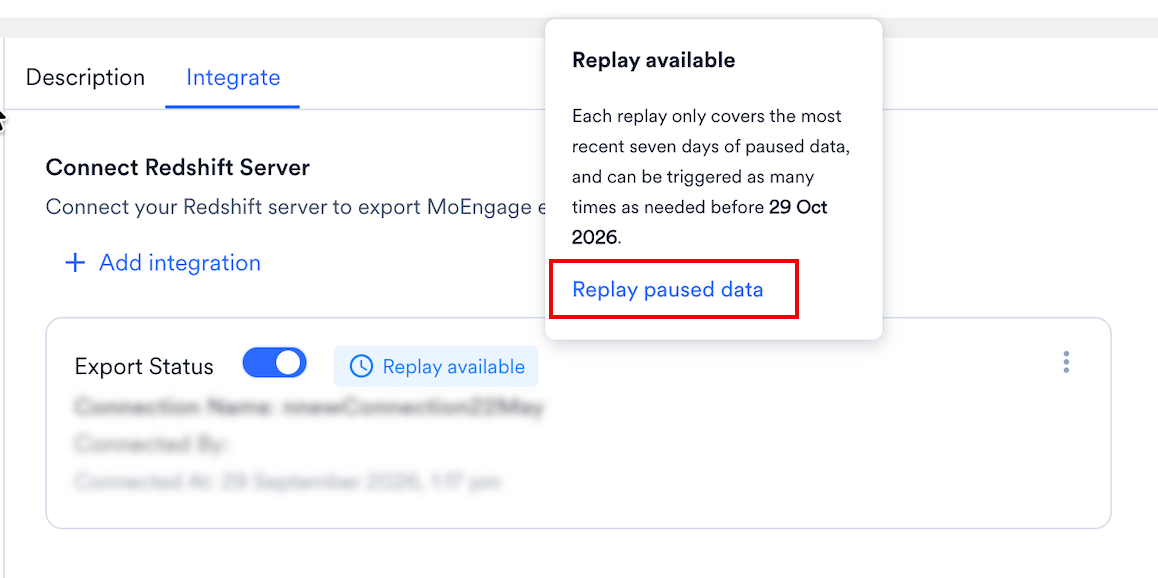
MoEngage saves the data it collected while the export was paused. An export with data waiting shows a Replay available label on the Integrate tab. To replay, perform the following steps:- Hover over the Replay available label, or open the kebab menu on the export.
-
Click Replay paused data.
-
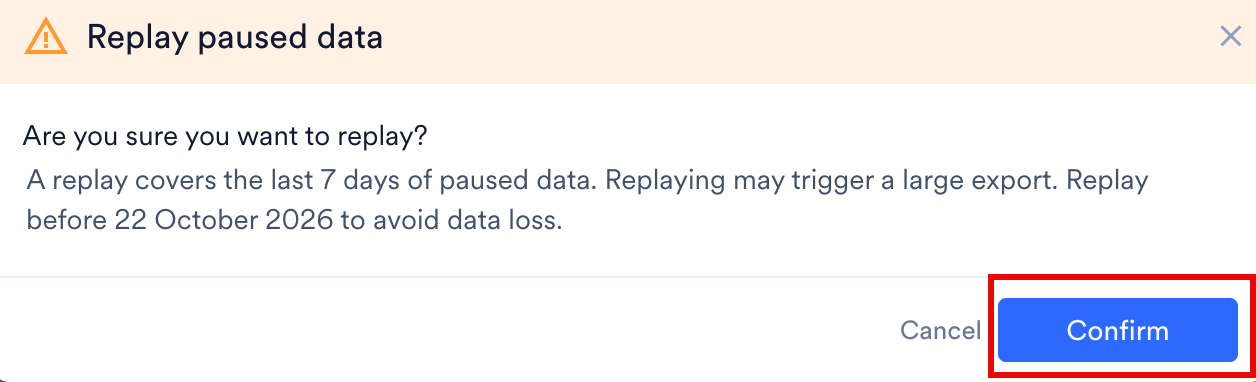
In the Replay paused data dialog box, click Confirm.
Replay before the export pauses again. If it pauses a second time before you replay, MoEngage adds the new paused data to the data still waiting from the first pause. The combined data is then trimmed back to the most recent 7 days, so if the two pauses are more than 7 days apart, the older data is lost.For example, your export pauses on day 1. You enable it but do not replay. It pauses again on day 20. Since that is 19 days later, the day 1 data falls outside the 7 day window and is gone, even though its 30 day replay window had not expired. If the second pause had happened within 7 days of the first, the day 1 data would still be included.
Replay Results
When the replay finishes, MoEngage emails the user who requested it with one of the following results:
You can run only one replay per export at a time.
Avoid Duplicate Data
Every replay sends the whole collection again, because MoEngage does not deduplicate. If you replay more than once, deduplicate at your end on theevent_uuid field, which is unique for each event. For the fields in the export, refer to the Data Export Glossary.
Export Paused Alerts
MoEngage alerts you when it pauses an export, so you can fix the issue and replay the data collected while the export was paused. MoEngage subscribes workspace admins to the Data Exports system alert by default, and adds the user who creates or updates an export. To subscribe or unsubscribe anyone else, go to the Alert Management page. Subscribing or unsubscribing changes notifications only for that person, and does not affect anyone else’s subscription.Frequently Asked Questions
What does the Replay available label mean?
What does the Replay available label mean?
MoEngage is holding data it collected while the export was paused. Hover over the label or open the kebab menu, and then click Replay paused data.
My export was paused for three weeks. Why can I replay only part of it?
My export was paused for three weeks. Why can I replay only part of it?
MoEngage keeps only the most recent 7 days of paused data, so a three-week pause leaves only the last 7 days to replay.
Why did my replay come back as Partially Successful?
Why did my replay come back as Partially Successful?
MoEngage delivered some of the data and not the rest, usually because the destination rejected part of it. Fix the cause and replay again. The next replay sends the whole collection, not only the part that failed.
Can I run two replays at the same time?
Can I run two replays at the same time?
No. You can run only one replay per export at a time. Wait for the result email before you request another.
I replayed twice and I see duplicate rows. Why?
I replayed twice and I see duplicate rows. Why?
Every replay sends the whole collection again, because MoEngage does not deduplicate. Deduplicate at your end on the
event_uuid field, which is unique for each event.How soon will I start getting the data?
How soon will I start getting the data?
It typically takes up to 30 minutes for the automated data exports to be set up for your account and for you to start seeing data there.
Can I export additional events at a later time?
Can I export additional events at a later time?
Yes, if you need to export new events at a later time, you can always edit your configuration on the App Marketplace and get the new events added to your exports.
Can I export historical data using Automated Data Exports?
Can I export historical data using Automated Data Exports?
As of now, you cannot export historical data using Automated Data Exports. Once configured, you will start seeing data for each event from the time you enabled your exports.
Is there any pricing involved for Automated Data Exports?
Is there any pricing involved for Automated Data Exports?
If your billing plan does not cover this already and you need to get this enabled at a later time, you would need to work with your Customer Success Manager to get this included in your billing plan. Based on the amount of data that MoEngage will place in your Data warehouse/Partner/API on a monthly basis, this could lead to additional charges.
Does Data Exports guarantee the latest user properties?
Does Data Exports guarantee the latest user properties?
No, Data Exports is primarily built to export your Events in near real-time and user properties in MoEngage are updated asynchronously so it is currently not possible to guarantee the latest values of user properties in the exports.