

Tracking Users Who Entered a Flow
To identify users who have entered a flow, you can segment the users who have performed the “User Entered Flow” event. The event is tracked for each entry done by a user.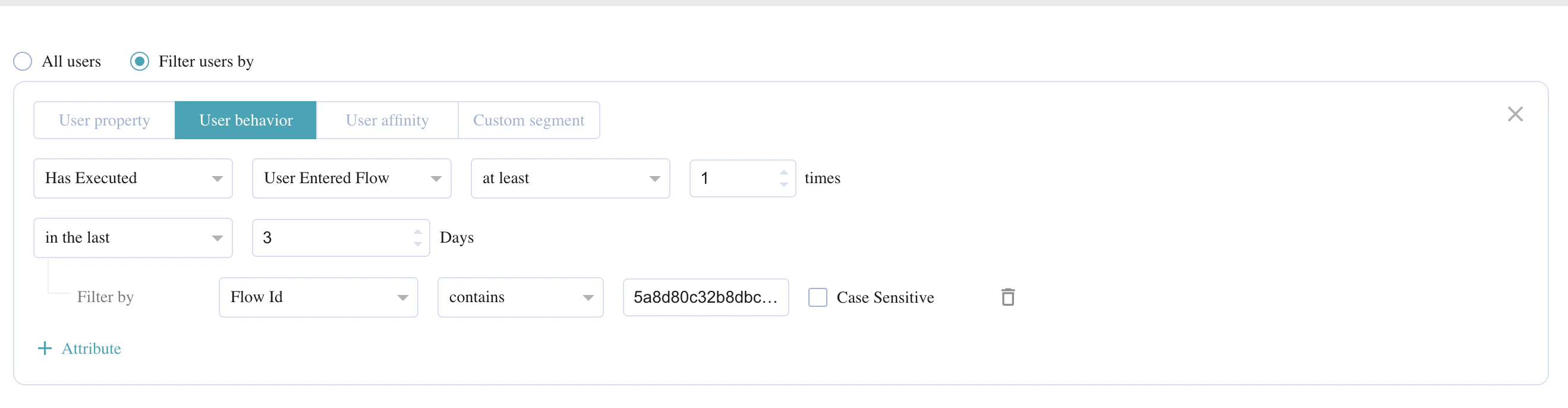
- The Event time of a User Entered Flow event will show in the User’s timezone. If it is unavailable, then the App’s timezone is shown. If neither is available, then UTC time is taken as the Event Time. Note: The displayed event time is not adjusted for local Daylight Saving Time changes.
-
You can find the Flow Id for your campaign by opening your flow in a new window and copying the string that follows /flows/ from URL. For example, 6616a9259670a17eec8b7c65 is the Flow ID in the following image:

Tracking Users Who Converted
To identify users who have performed the conversion goal event after receiving one of the Flow Action campaigns (that is, converted users), you can segment the users who have performed the “Flow Trip conversion”.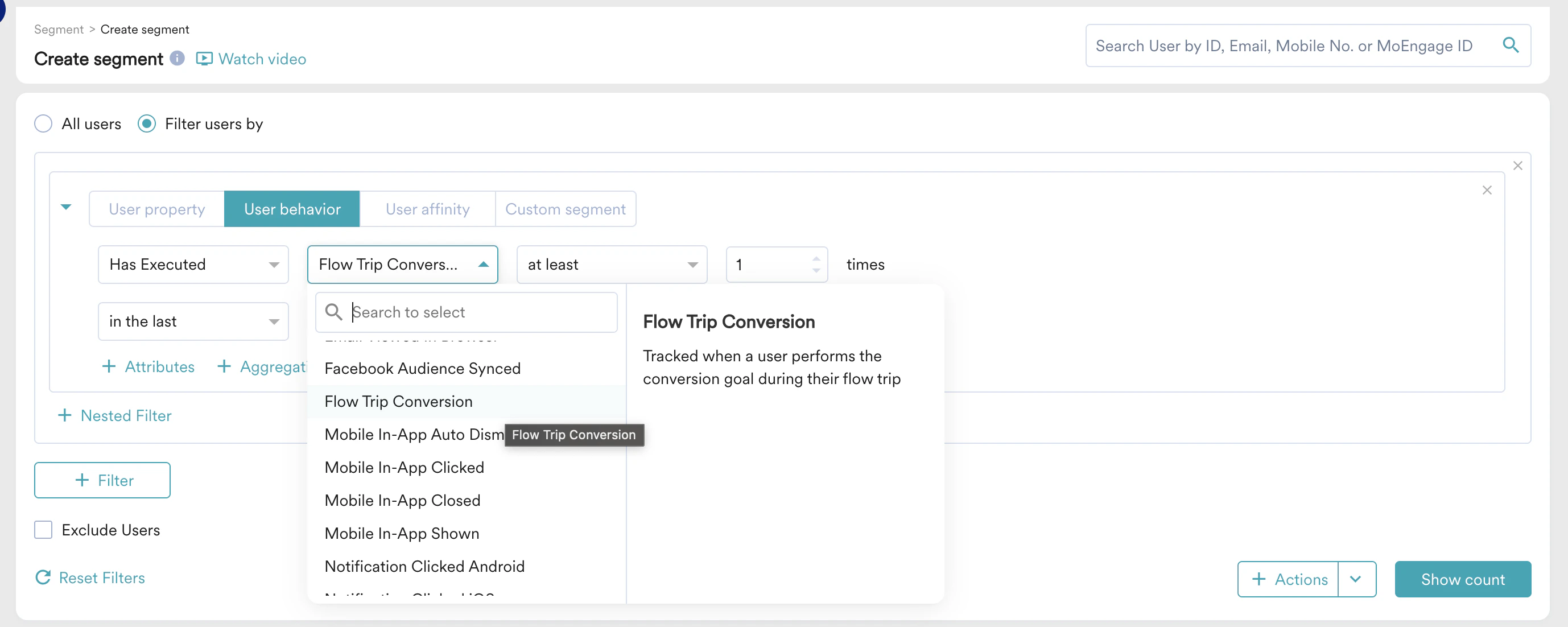
Tracking Users Who Exited a Flow
To identify users who have exited from a flow, you can segment the users who have performed the “User Exited Flow”.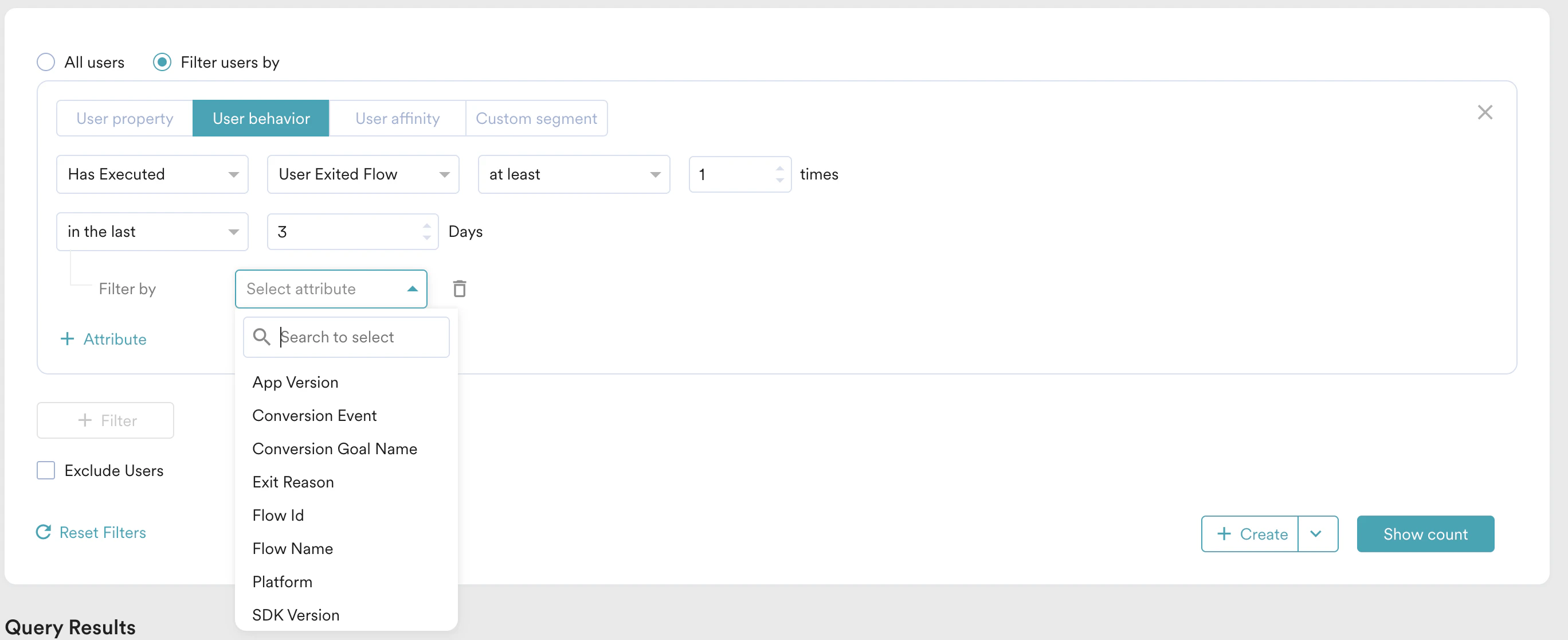
- Using the “User Exited Flow” event, you can segment how many and which users have exited a specific flow during certain time duration and retarget them through any of the campaigns (Push/Email/SMS/Connector/Flows) depending on your use case.
- The Event time of a User Exited` Flow event will show in the User’s timezone. If it is unavailable, then the App’s timezone is shown. If neither is available, then UTC time is taken as the Event Time. Note: The displayed event time is not adjusted for local Daylight Saving Time changes.
Tracking Users Who Advanced Through an Experiment Stage
To identify users who have been allocated to a specific branch of an AB Split or Intelligent Path Optimiser (IPO) stage, you can segment users who have performed the “User Flow Advancement” event. This event is raised each time a user passes through an experiment stage and is assigned to a branch.User Flow Advancement is a Billable Standard Event. It is tracked at your request and each occurrence contributes to your billed event count. To get this enabled for your account, contact your MoEngage account manager or raise a Support Ticket.
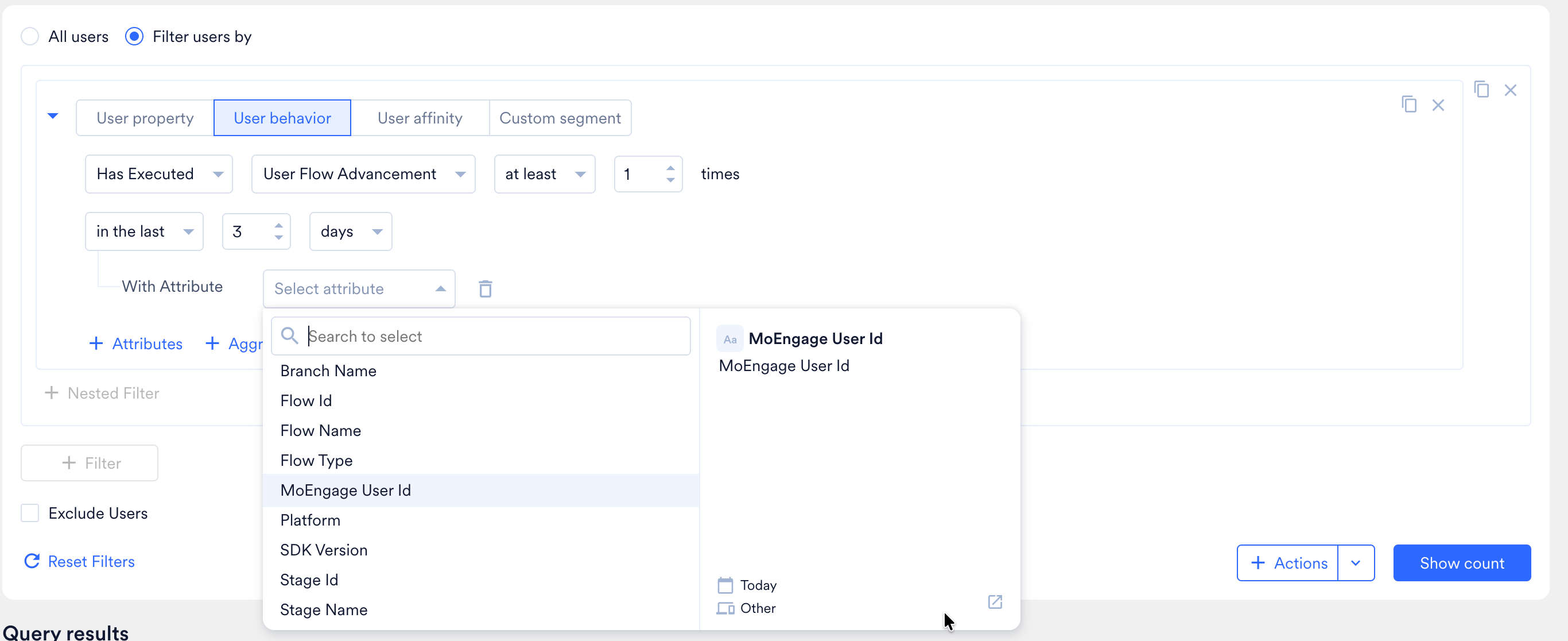
- Using the “User Flow Advancement” event, you can segment users who entered a specific branch and retarget them through any of your channels (Push / Email / SMS / WhatsApp / Flows) depending on your use case.
- Since this event is tracked independently of the flow’s attribution window, you can use it to run longer-term analysis of user behavior — conversions, retention, or any other metric — beyond what is available in the flow’s built-in reporting.
- By filtering on Branch Name, you can compare users who entered different branches of an experiment in MoEngage Analytics or export them to third-party tools for deeper analysis.
- By filtering on User Type, you can include or exclude control group users from your analysis to get a clean view of how targeted users in each branch performed.