This is an Early Access feature. To enable it for your account, please contact your MoEngage Customer Success Manager (CSM) or the Support team.
Step 1: Initiate Merlin AI Assist
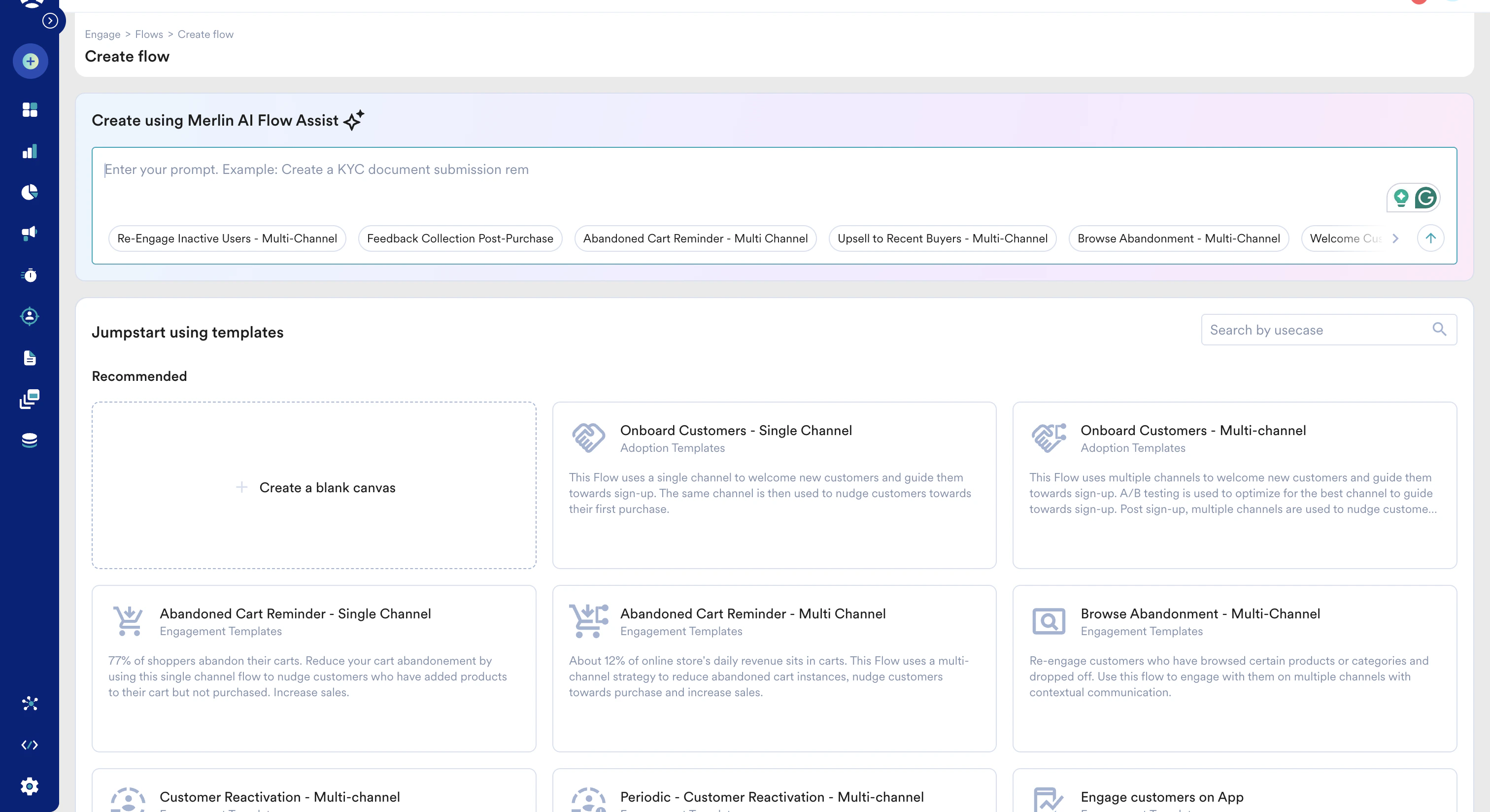
You can access the AI assistant at the start of your creation process:- On the left navigation menu in the MoEngage UI, click Engage > Flow.
- On the Create flow page, enter your prompt in the Create using Merlin AI Flow Assist field. You can also choose from the available sample prompts.
Step 2: Define Your Flow (The Prompt)
Currently, AI-generated flows default the target audience to All Users. Ensure you review the “Who will enter the flow” section to apply specific segment filters if needed.
.gif?s=eed1fea5e882ba1fa6b00ae55773bf6c)
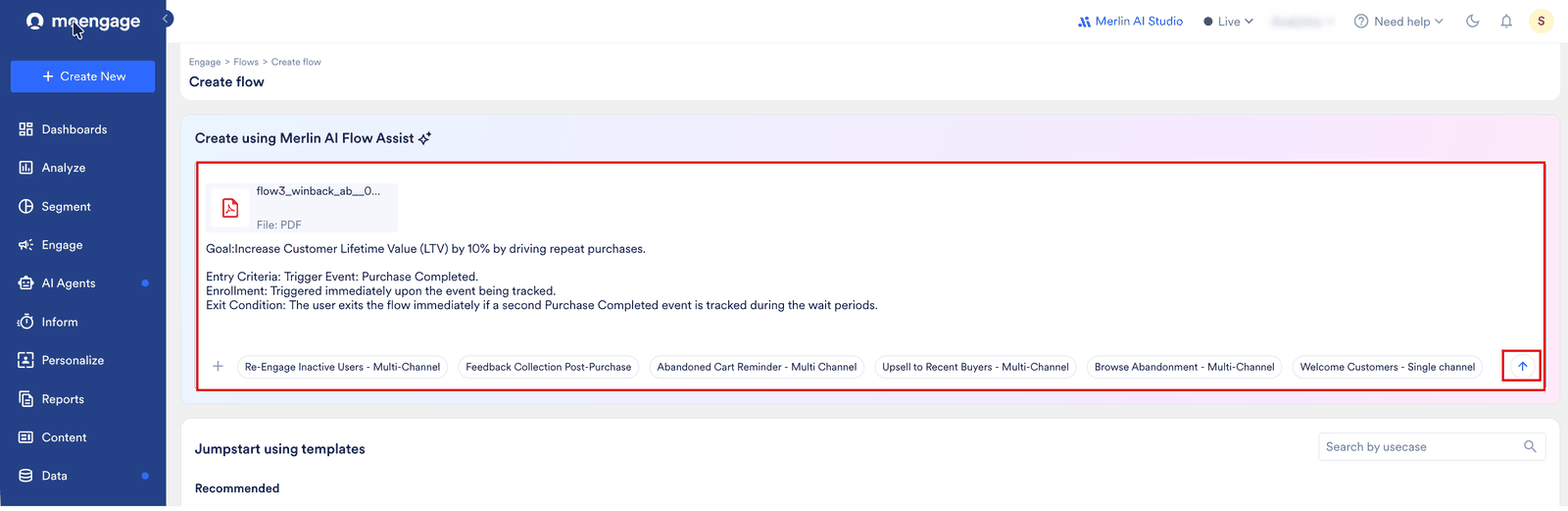
- Enter your prompt: Describe the trigger, the sequence of actions, and the goals. Example: Build a flow to improve Product Purchase by 15% for users who Added to Cart but didn’t buy. Use Email and Push, with a 24-hour delay between them.
- Send your prompt: Click the send icon.
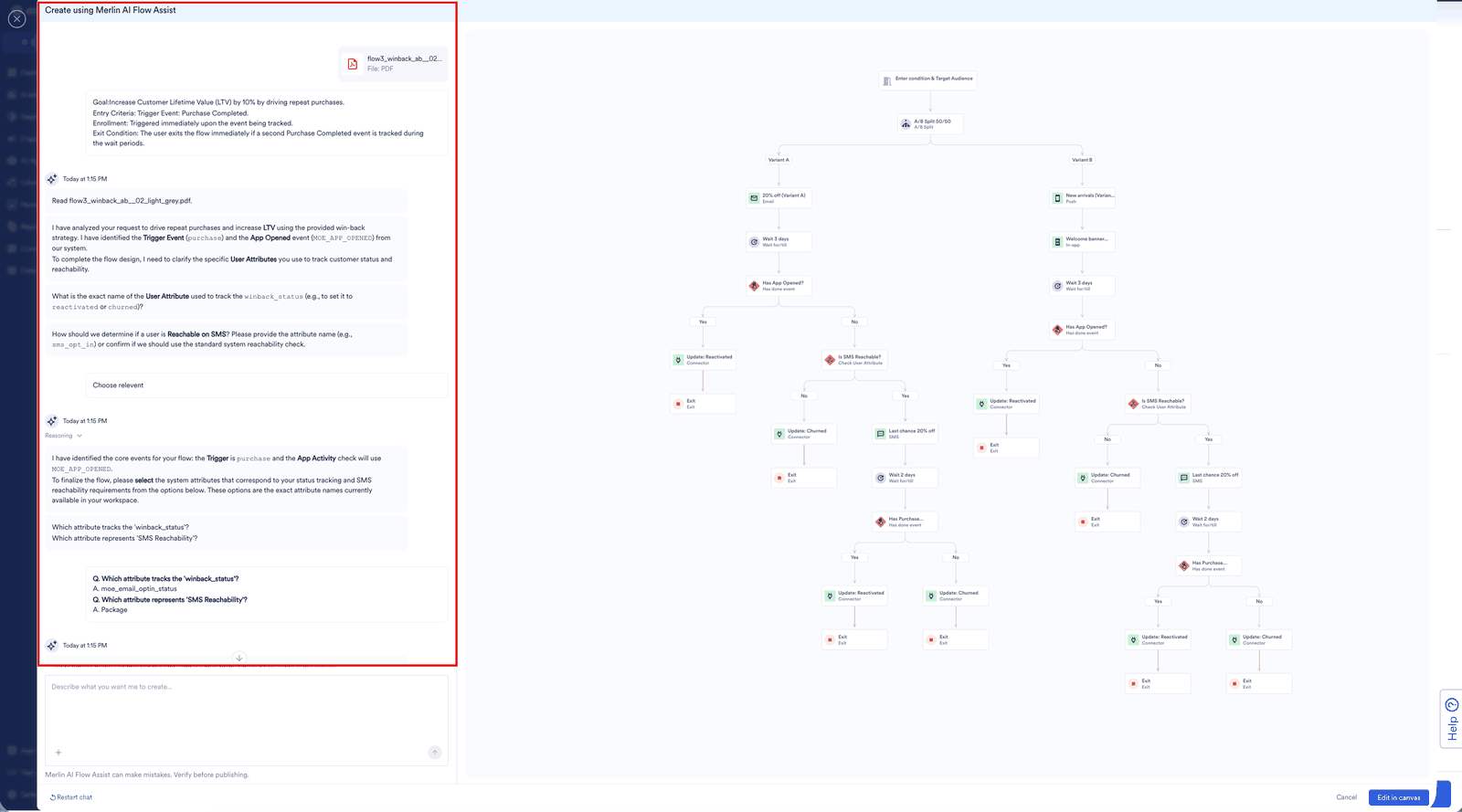
- Clarification: If your prompt is ambiguous (for example, you mention “purchase” but have multiple purchase events), Merlin AI asks follow-up questions to ensure the flow is technically accurate.
- Review the Strategy: Merlin AI explains the logic it intends to build. Review this summary carefully.
Step 3: Refine the Draft with Follow-Up Prompts
After Merlin AI generates the initial flow draft from your prompt, you can keep refining it conversationally. Describe your desired changes in the prompt; Merlin AI applies them while retaining your previous context.- Review the generated draft: Once Merlin AI returns a draft of the flow, go through the proposed structure, channels, timing, and goals.
- Describe your changes: In the same conversation, enter a follow-up prompt that explains what you would like to adjust. You can request both small tweaks and larger structural changes—for example, add or remove a channel, change a delay, reorder stages, adjust the entry condition, or update the conversion goal.
- Merlin AI updates the flow: Instead of starting over, Merlin AI edits the current draft based on your instructions, so the rest of your flow stays intact.
- Iterate until it’s right: Repeat this prompt-and-refine loop as many times as needed. When the draft matches your intent, continue to the canvas.
Iterative refinement happens within the conversational assistant, before you push the flow to the canvas. You can also make manual changes on the canvas at any point.
Step 4: Design on Canvas
After confirming the logic, Merlin AI translates the conversation into a visual structure.- Edit in Canvas: Click Edit in canvas to populate the stages onto the MoEngage Canvas.
- Manual Adjustments: You can still manually drag, drop, or delete stages once they appear.
- Configure Content: Merlin AI builds the structure, but you must click each Action Stage (Email, Push, etc.) to select your specific message templates and creative content.
Step 5: Configure Flow Details and Goals
Even when using AI, you must ensure the flow’s metadata and tracking are correctly configured. Click the Settings icon on the canvas to verify:- Flow Details: Enter a name for the flow (minimum 5 characters) and select up to five flow tags.
- Conversion Goals: Define success (for example, Event: Product Purchased). You can add up to five goals.
- Flow Controls: Enable Control Groups to accurately measure uplift.
Step 6: Publish
Click Publish to activate the flow according to the configured settings. For more information on Approval Flows, refer to Campaign Approval Workflow.Attach a Reference
Instead of describing a flow from scratch, you can attach something you already have and let Merlin AI build from it. You can attach a flow you published earlier, or a document or image that describes the journey you want.Attachments are a beta feature. To enable them for your account, contact your MoEngage Customer Success Manager (CSM) or the Support team.
What You Can Attach
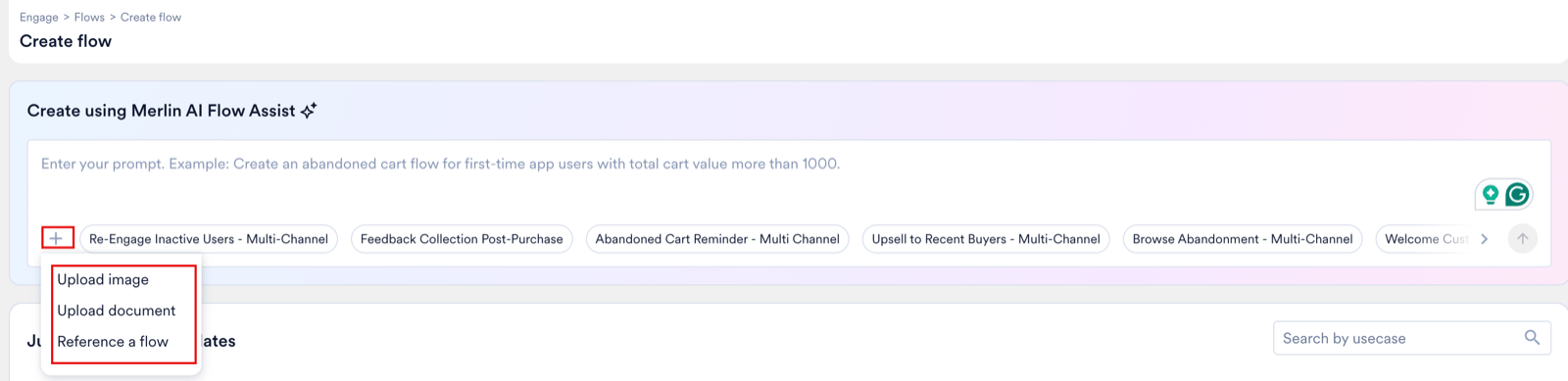
You can combine them. For example, attach one flow, one PDF and two screenshots in the same conversation. MoEngage does not support DOC, DOCX, PPT or XLS, and each file must be smaller than 10 MB. All three start from the add icon in the Flows Assist chat.
Attach a Flow
To attach a flow, perform the following steps:- In the Flows Assist chat, click the add icon, and then click Reference a flow.
- In the Attach flow dialog box, select the workspace you want to take the flow from.
- Select the checkbox next to the flow you want, and then click Attach.
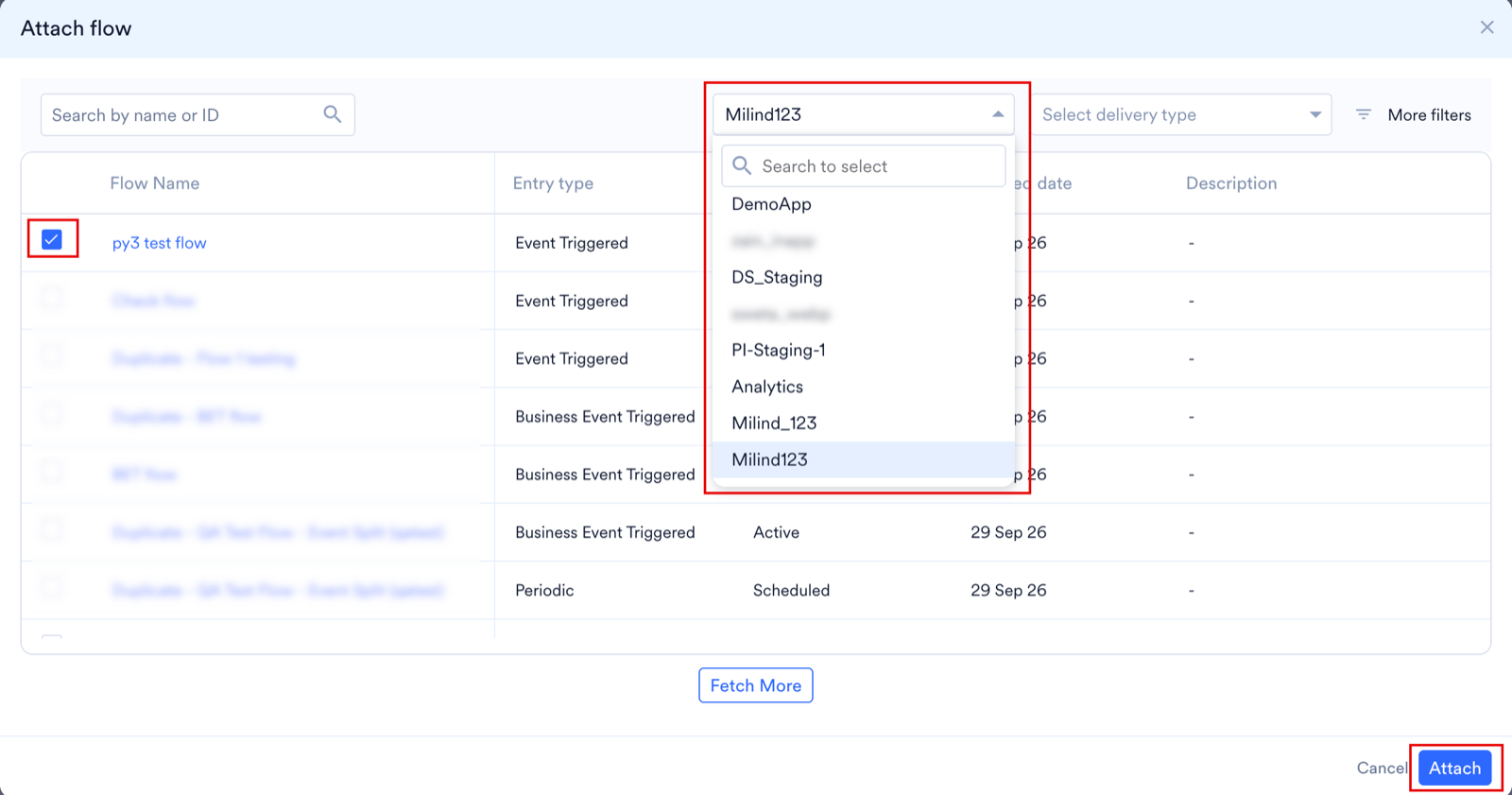
- Workspace: Select the workspace to take the flow from. The dropdown lists every workspace you belong to, so you can pull in a flow another team built or one you put together while testing in a separate workspace, and Search to select finds one in a long list.
- Search by name or ID: Search for a flow by its name or its ID.
- Select delivery type: Filter the list by delivery type.
- More filters: Filter the list by created date and status.
- Fetch More: Load the rest of the flows.
- Description: Read each flow’s description to tell similar flows apart.
What MoEngage Copies from a Flow
MoEngage rebuilds the structure and the configuration:- The stage types and the order they run in
- The trigger configuration
- The entry and re-entry rules
- The wait and delay durations
- The branching logic and its conditions
When Merlin AI Rebuilds Instead of Copying
Attaching a flow from your current workspace produces an exact copy that matches the original stage for stage, including its audience, its conversion goals and its description. You get that copy whether you add no instruction at all or an instruction that asks for one, such as “Copy this” or “Replicate this as is”. In the following cases, Merlin AI rebuilds the flow instead, which is a best effort rather than an exact match:- You attach a flow from a different workspace.
- The flow no longer fits your workspace, because a channel it uses is turned off, or an event or user property it relies on no longer exists.
- You attach a flow and also type an instruction that changes it, such as adding or deleting a stage, or reconfiguring one. Merlin AI first rebuilds the flow and shows it to you, and then applies your instruction to produce a second version.
Attach a Document or an Image
To attach one, click the add icon in the Flows Assist chat, and then click Upload image or Upload document. A document or an image works the same way as a prompt: Merlin AI reads it, asks you questions if anything is unclear, and then builds the flow. It reads each attachment once and works from what it took out of the file, so the more precisely the file describes the journey you want, the closer the result, and anything the file leaves vague stays vague in the flow.Attach Something Partway Through
You can attach a file at any point in the conversation, not only at the start. Once Merlin AI has generated a flow, a new attachment becomes an instruction to change that flow rather than a request to start again, so your draft stays and Merlin AI edits it. The limits in What You Can Attach apply across the whole conversation, so an attachment you add later counts against the same cap as one you added at the start. Merlin AI does not hold the attachment itself in the conversation. It keeps the summary it wrote from that attachment, and your later instructions work from that summary, so you do not have to attach the same flow or file again to refer back to it.Add a Flow Description
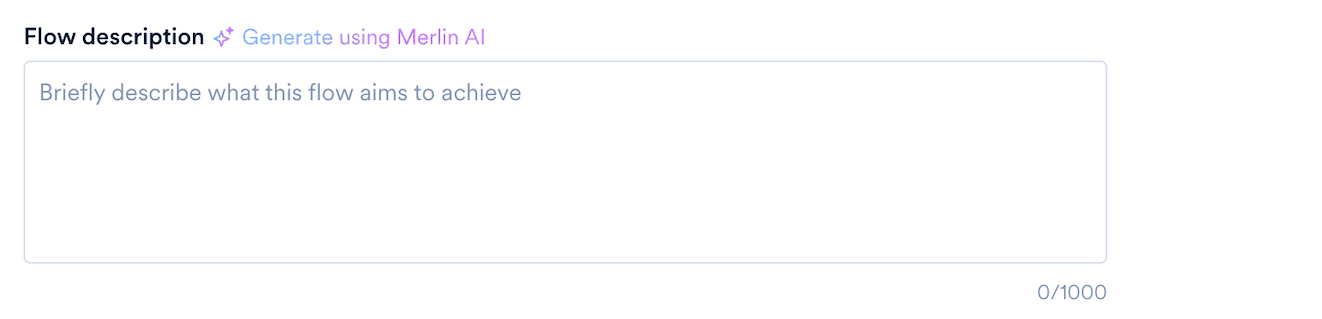
A flow description is a short summary of what the flow does. It appears in the Description column of the Attach flow dialog box when someone references this flow in Flows Assist, and in Flow settings, so you and your team can tell flows apart without opening them.Flow descriptions are a beta feature. To enable them for your account, contact your MoEngage Customer Success Manager (CSM) or the Support team.
- Open the flow, and then click the settings icon.
-
In the Flow description field, perform one of the following actions:
- To write your own, enter the description.
- To have one written for you, click Generate using Merlin AI, and then edit the draft it produces.
- Click Save.