Overview
Optimizing a flow is often an iterative process. To iteratively improve your flow, you must edit your published flows. You can experiment with a new channel or a new strategy altogether to improve flow performance. Versioning of flows enables you to achieve the same for any published flow without creating multiple separate flows. It allows you to keep all the analytics and context of the flows intact. Versioning helps you edit published flows while efficiently managing them and viewing the revision history using logs rather than creating duplicate independent flows. You can add, remove, and change elements, add stages and parameters, and change flow paths and configurations in published flows. This improves operational efficiencies when experimenting and optimizing customer journeys while reducing confusion and clutter. Versioning also provides you with clear reporting and insights on the performance of each version of your flow.Use Cases
- A retail brand runs a monthly discount campaign in the last week of each month. They communicate this through a multi-channel approach using a series of carefully crafted emails, SMS, and Push notifications. But the performance of these campaigns has dropped in the last few months. They can edit their flow to create improved versions of the running campaigns and optimize these campaigns.
- A retail brand can edit its flows and create multiple versions to test different user paths messaging, and creative elements in a published flow without having to duplicate the entire flow. They can create multiple versions of the same flow with different channels, conditions, and stages to evaluate whether this drives improved engagement and conversions.
- By editing a flow and iteratively creating flow versions, a fintech app can make changes to its published flows based on feedback from its customers. For example, if customers are having trouble navigating through the app, the fintech app can use versioning to quickly make changes to the flow and improve the user experience.
How does versioning work?
When a published flow is edited, a new version is created. For example, on adding or deleting a stage or changing the Flows settings (like conversion tracking and control group), a new version of the flow is created regardless of whether the changes are saved. When you are done with all the changes, you can publish the newly created version. When published, the new users that satisfy the entry condition will enter the latest published version. For users who are already active in the previous version, you decide what happens at the time you publish. You can either let them finish the version they are in, or move them into the new version. For more information, refer to Publishing a new version. When a new version is created for the Flow, the following happens:- The versions are typically named ‘Version ‘n” depending on the number of versions spanned for the Flow. In the case of our example, the active Flow is labeled as ‘Version 1’, and the version being edited is termed as ‘Version 2’.
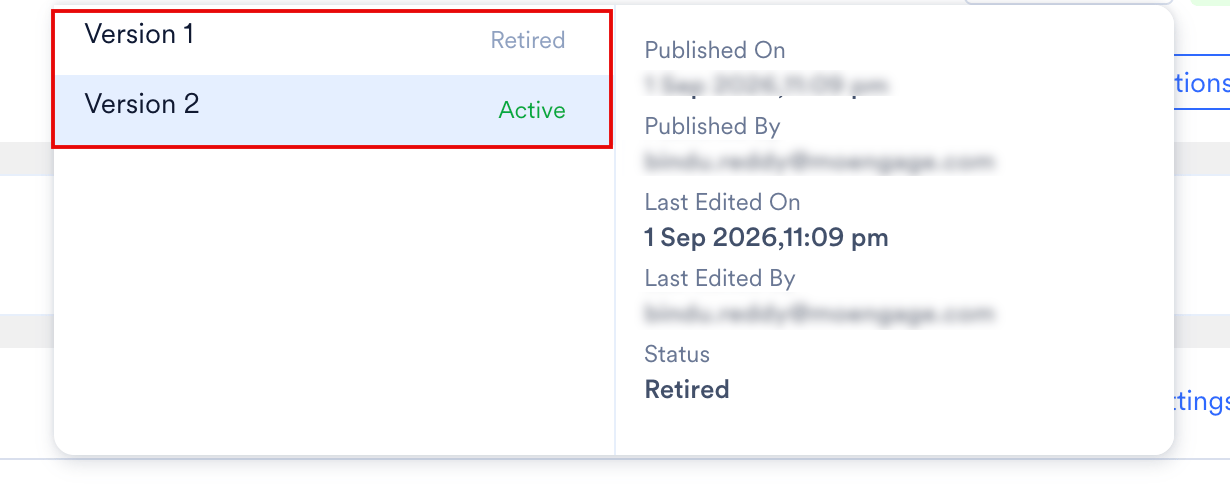
- A version selector(dropdown) is added next to the flow name to help you track the versions. The version being edited is selected in the dropdown. The version selector has the following information:
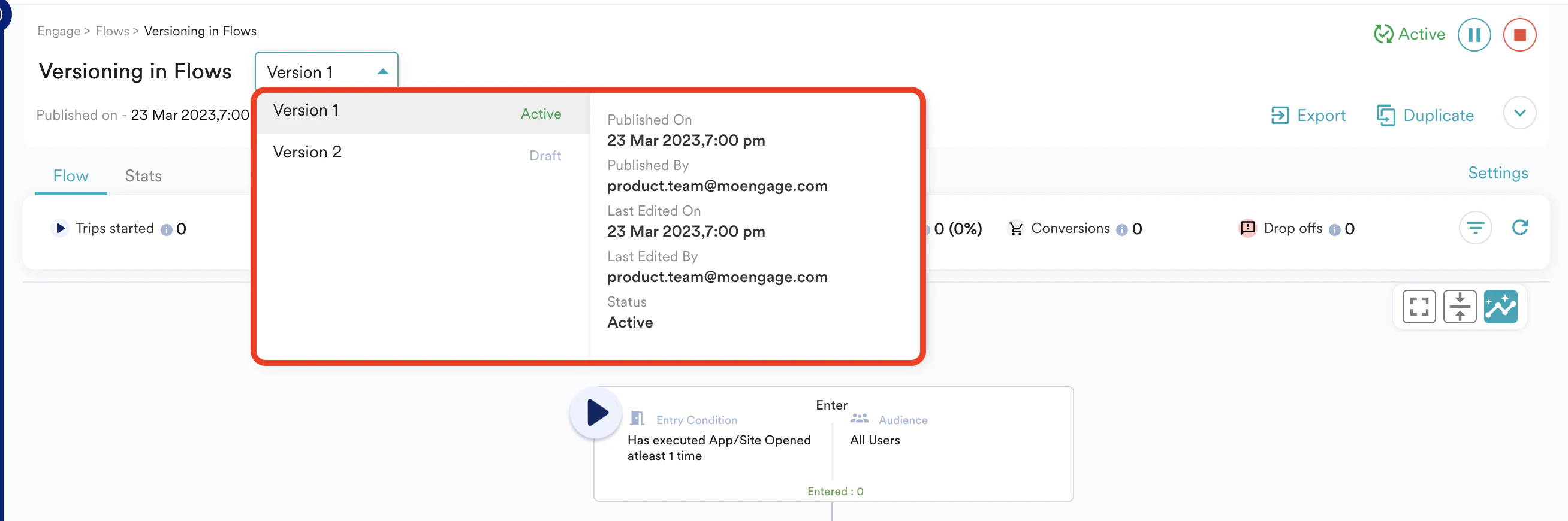
- You can view the changes by clicking on the “View Changes” hyperlink at the top ribbon (Flow details section) of the page above the Flows canvas. This hyperlink will open the version logs, where you can see the unsaved and saved changes. For more information, refer to Version Logs.

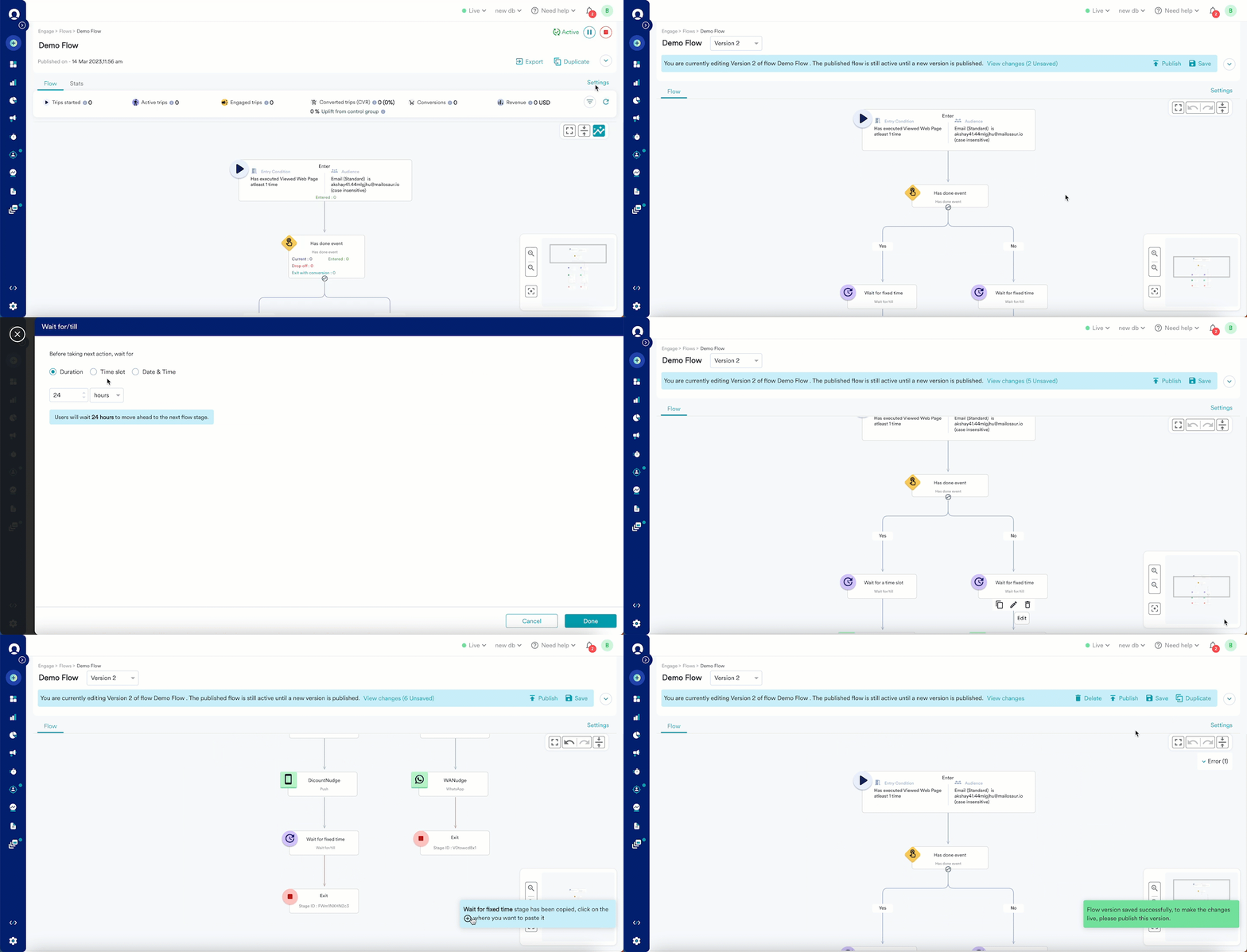
- After you make the desired changes, click Save on the top ribbon of the page above the Flows canvas. The changes saved will be available in the Saved section of the Version Logs.
- Upon saving a version, you’ll get the following option on the top of the page above the Flows canvas:
How does limiting user entry work across Versions?
The User Entry Limit carries over across Flow versions. It doesn’t reset when a new version publishes. A user’s past entries count against whatever limit the current version defines, so they can only enter the new version enough times to reach that limit. For example, say a Flow’s User Entry Limit is 2 per year in Version 1, and a user has already entered twice:- Version 2 keeps the limit at 2: the user can’t enter for the rest of the year, since they’ve already used up the limit carried over from Version 1.
- Version 2 raises the limit to 3: the user can enter once more, since only 2 of the 3 entries have been used.
- Version 2 lowers the limit to 1: the user can’t enter at all, since their entry count already exceeds the new limit.
When is a new version created?
The following actions will lead to the creation of a new version:- Versioning is not applicable for the following flow statuses: Stopped, Retired, Completed, and Draft, and also for the ‘One-time’ time-based Entry flows. To bring back an earlier version of an active flow, refer to Restoring a previous version.
- The Entry Type cannot be changed for a published Flow.
- Changing the control group settings or the User Entry Limit condition in a Scheduled Flow will not create a new version.
- For active and paused flows, the Flow’s schedule settings cannot be edited except for the ‘End Date’ for periodic times.
- Changes to flow name, flow status, DND, and FC settings, and changes in the content of existing action campaigns, do not lead to creating new versions of the Flow.
Publishing a New Version
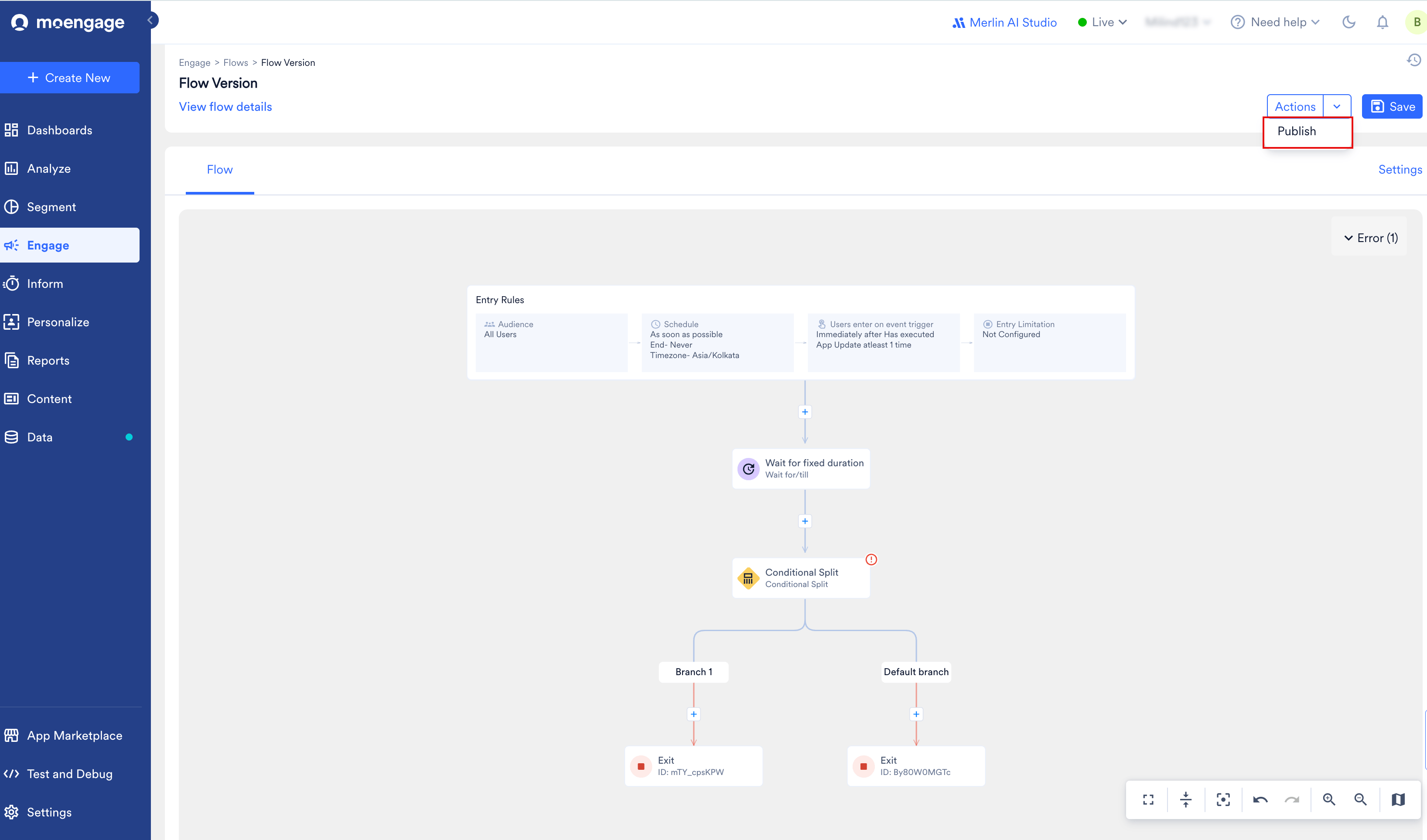
When you publish a new version, MoEngage asks what should happen to the users who are still active in the previous version. To publish a new version, perform the following steps:-
On the flow canvas, click Actions, and then click Publish.
-
In the Publish new version dialog box, select one of the following options:
-
Click Publish.
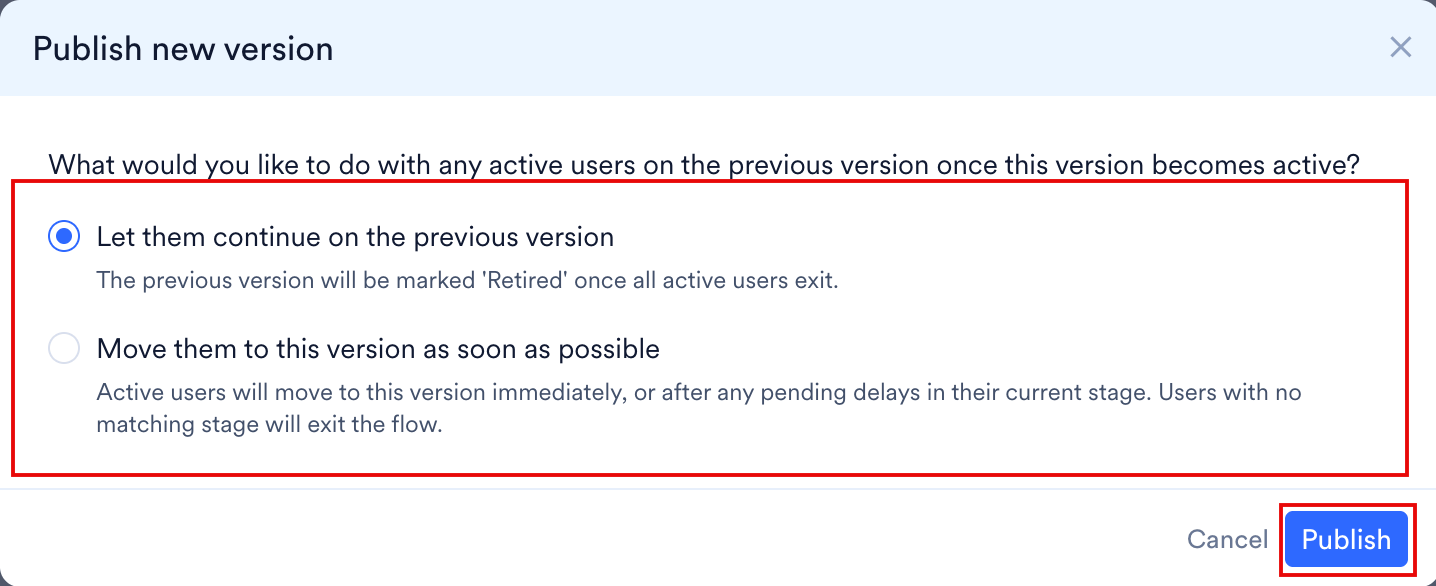
There is no default selection, so you must select one of the two options before you can publish. Publish stays unavailable until you do.The choice affects only the version published immediately before this one. If you publish Version 3, it applies to the active trips in Version 2 and not to any earlier version.
How Users Move Between Versions
When you select Move them to this version as soon as possible, where each user lands depends on the change you made. Users at a wait stage, at a condition stage with Keep Evaluating For turned on, or at an action stage where DND is not ignored move only after their pending delay ends.
MoEngage raises the User Exited Flow event for each user who leaves the previous version, with one of the following exit reasons:
- Move to new version, when the user enters the new version.
- Dropped off as the path was no longer defined, when no matching stage exists for the user in the new version.
Sending a New Version for Approval
If your workspace uses the campaign approval workflow, Actions shows Send for approval instead of Publish, and the dialog box has the following two steps: Manage users from previous version and Send for approval. To send a new version for approval, perform the following steps:-
Under Manage users from previous version, select one of the two options, and then click Next.
 There is no default selection, so you must select one of the two options before you can continue. Next stays unavailable until you do.MoEngage asks for the user movement choice every time the version goes for review, so you answer it again when you edit a version that is already under review or resubmit one that an approver rejected.
 -
Under Select Approvers, type the approver’s name in the Start typing to filter approvers box, and then click + Add beside the approver.
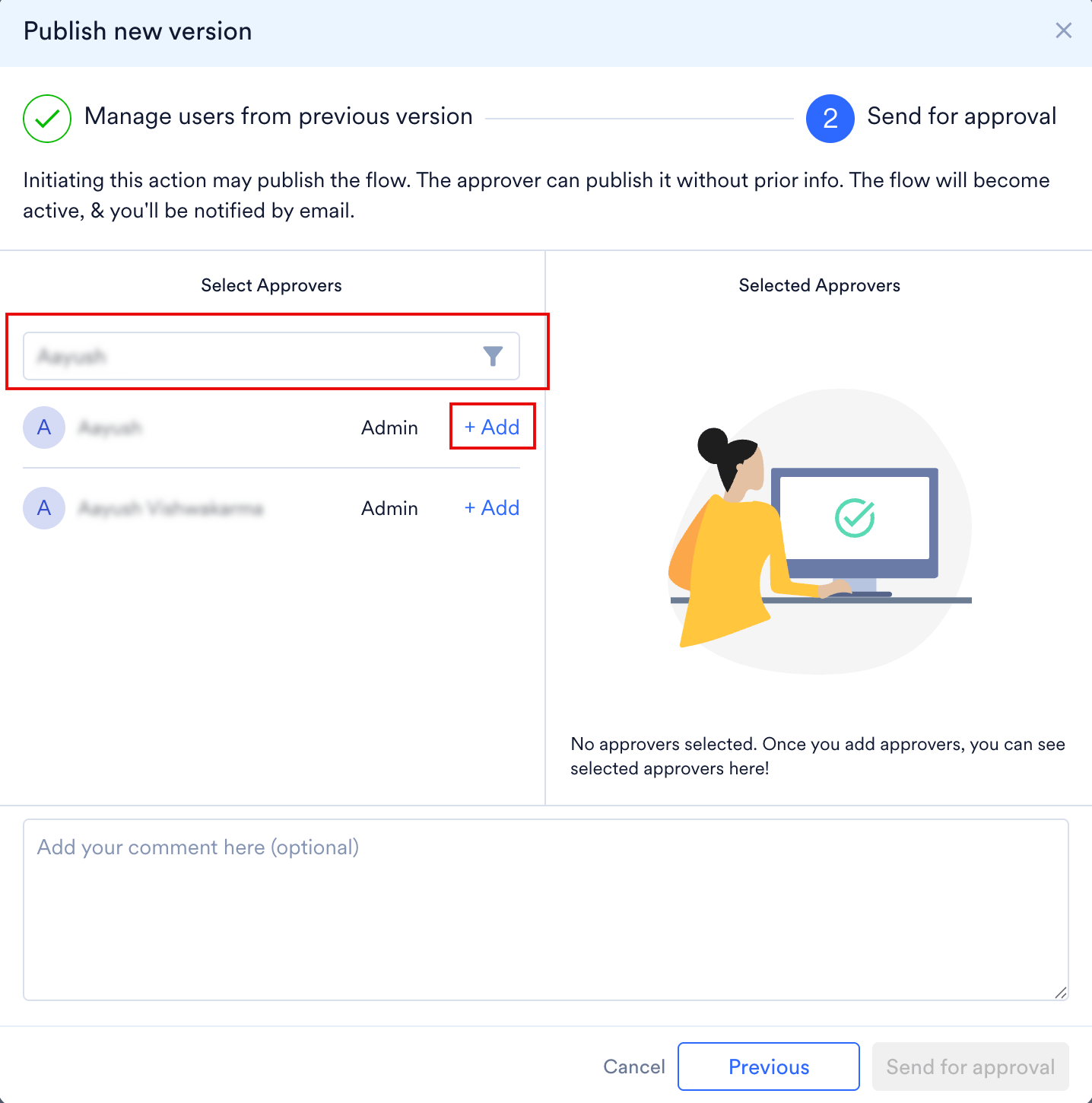
- Optionally, enter a note for the approvers in the Add your comment here box.
-
Click Send for approval.
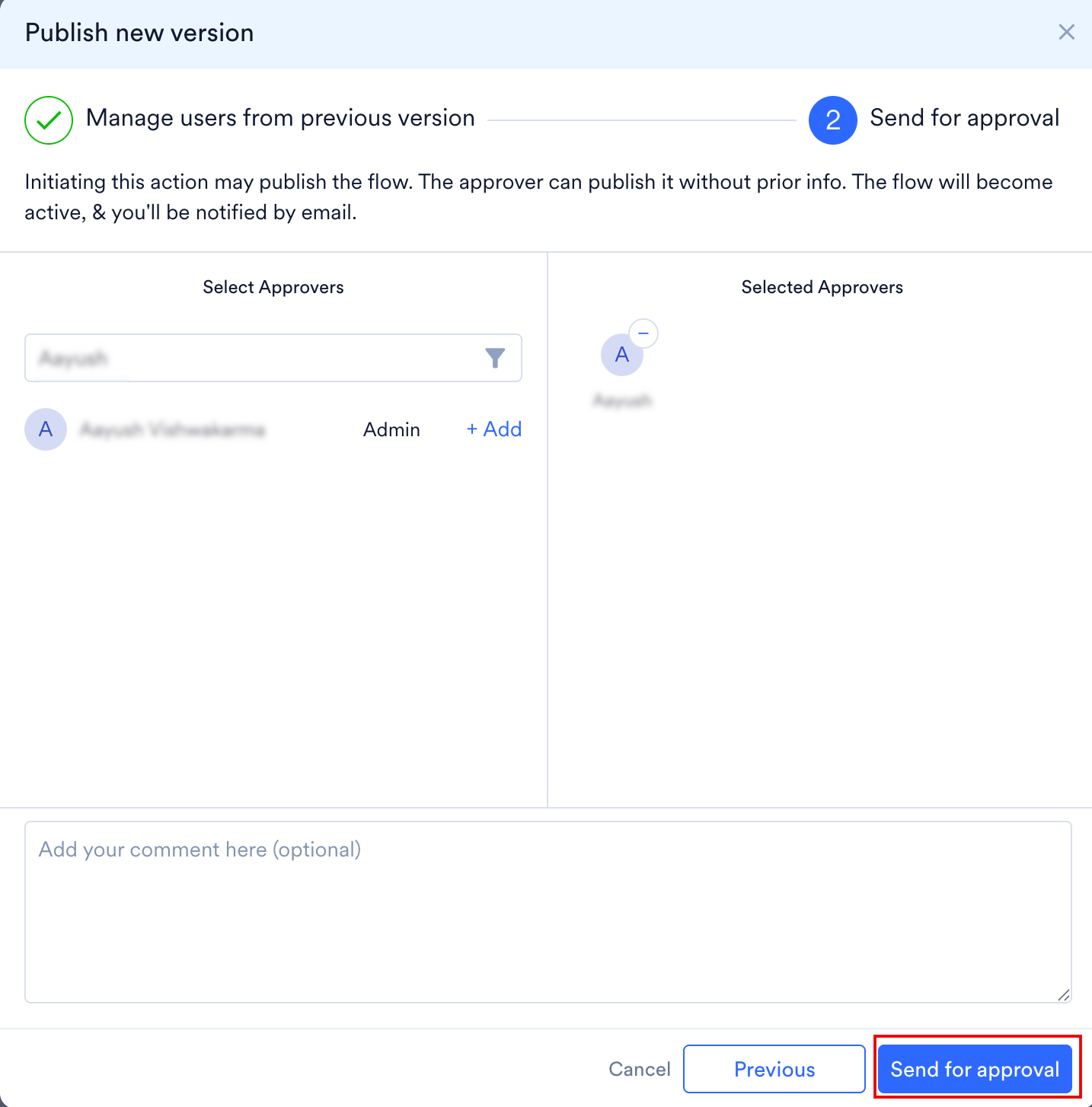
Viewing the Choice Later
Flow Settings shows the option you selected when you published the version, so you can check the decision later. To view the choice, perform the following steps:-
Open the flow, and then click Settings.
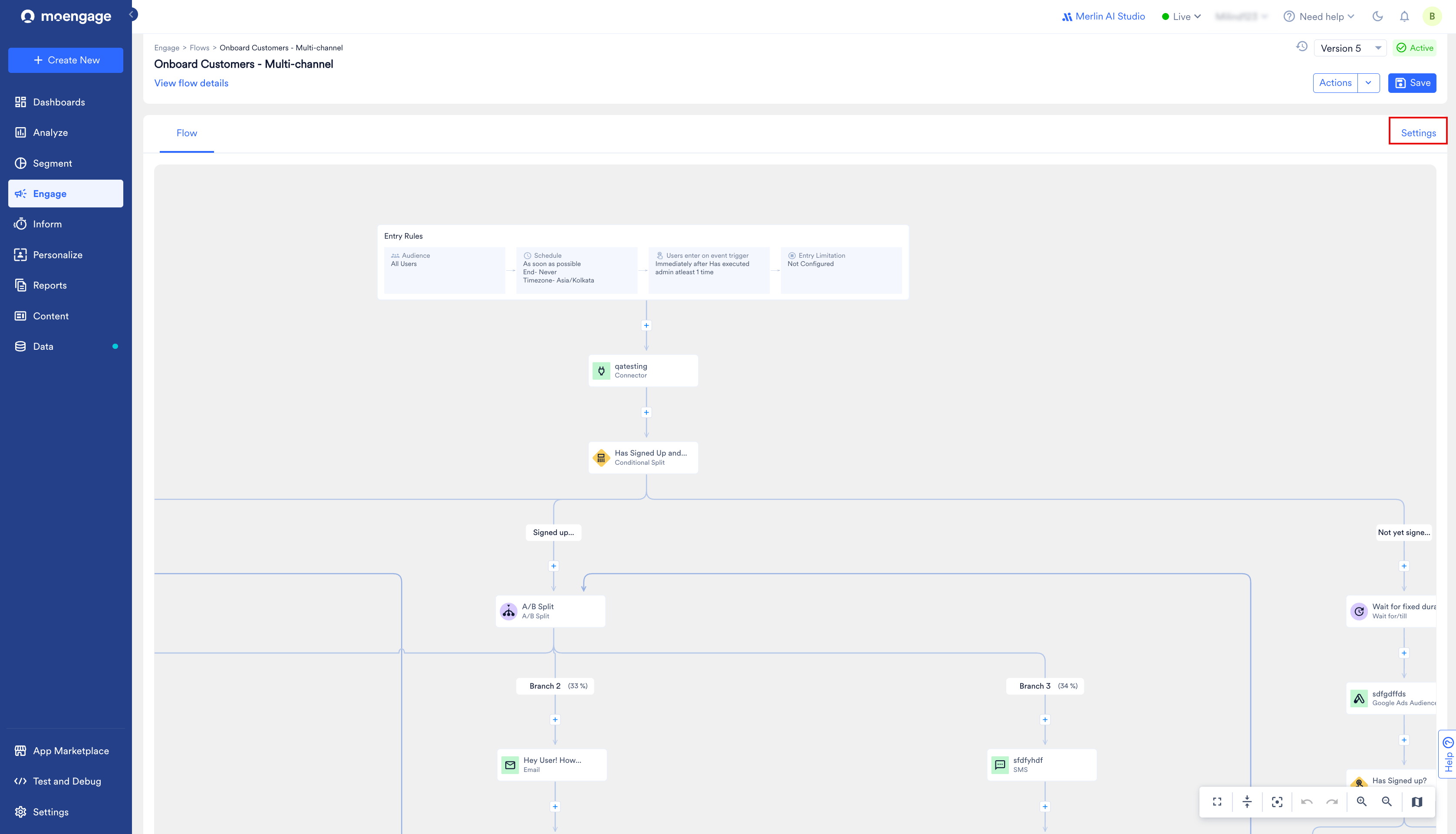
-
Scroll to Users movement from previous version to this version, and then check which option is selected.
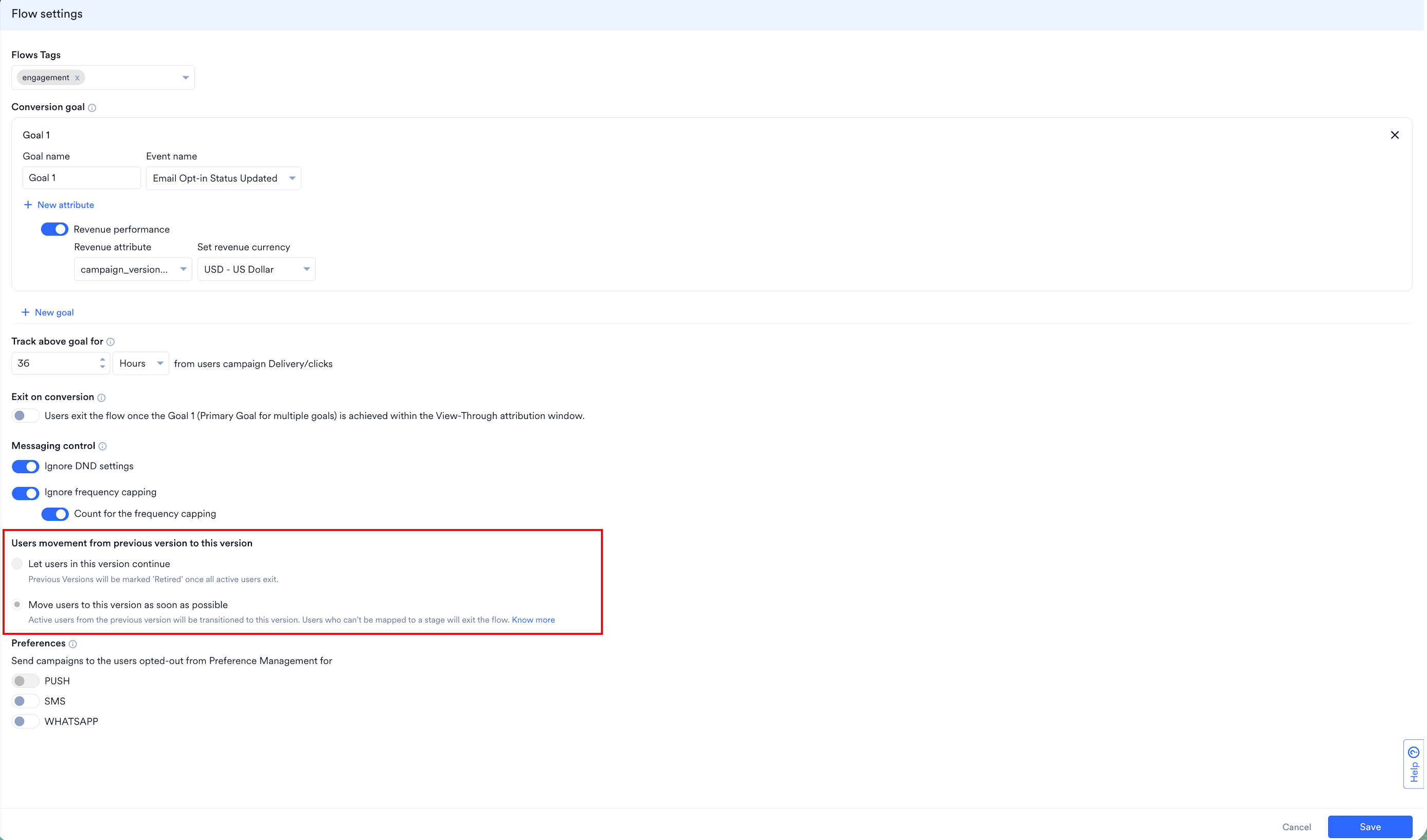
Restoring a Previous Version
If a newer version is not performing as expected, you can bring back an earlier version instead of rebuilding it. Restoring copies that version into a new draft, which you can then edit and publish like any other version. To restore a previous version, perform the following steps:-
Beside the flow name, click the version selector, and then select the version you want to restore.
-
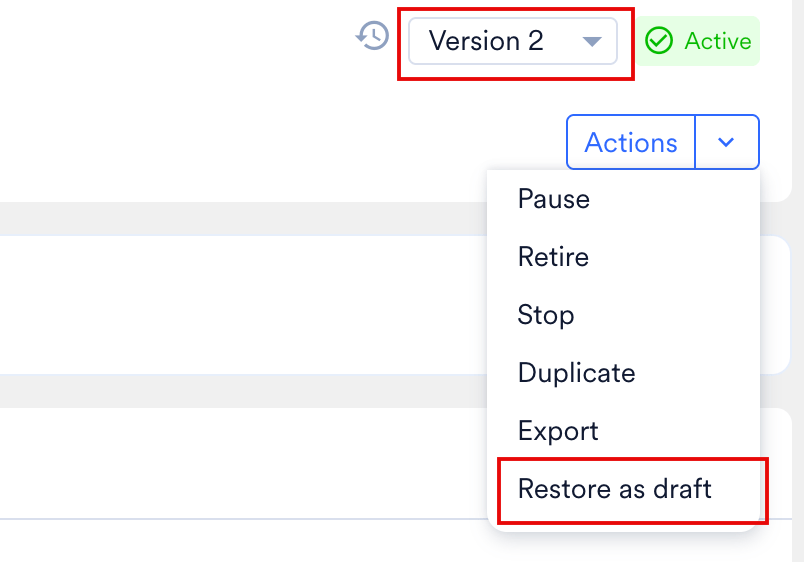
Click Actions, and then click Restore as draft.
-
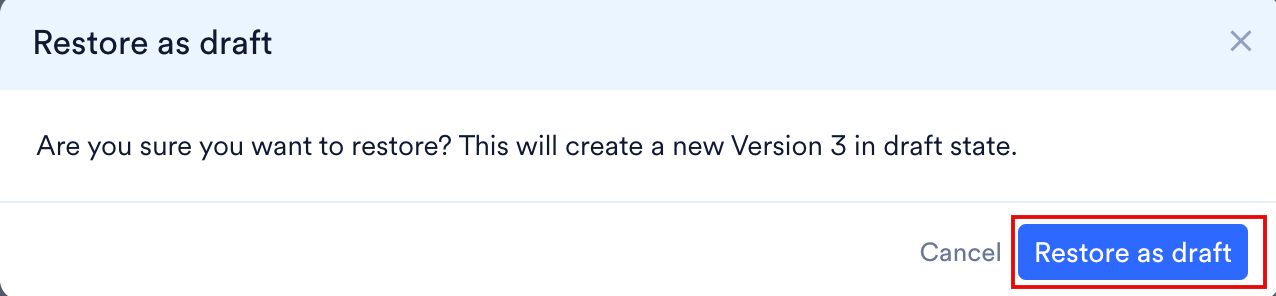
In the Restore as draft dialog box, click Restore as draft.
- The option is available while the latest version is active, scheduled, paused, or retired.
- The option is not available when the latest version is stopped.
Stopping a Flow That Has Active Older Versions
Stopping the latest version also stops every older version of the flow, so that users still active in an earlier version do not keep receiving messages from it. MoEngage shows this confirmation only when an earlier version still has active trips. When no earlier version has active trips, stopping the flow shows the standard confirmation described in Stop. To stop the flow, perform the following steps:- Click Actions, and then click Stop.
-
In the Stop all versions of this flow? dialog box, click Stop Flow.
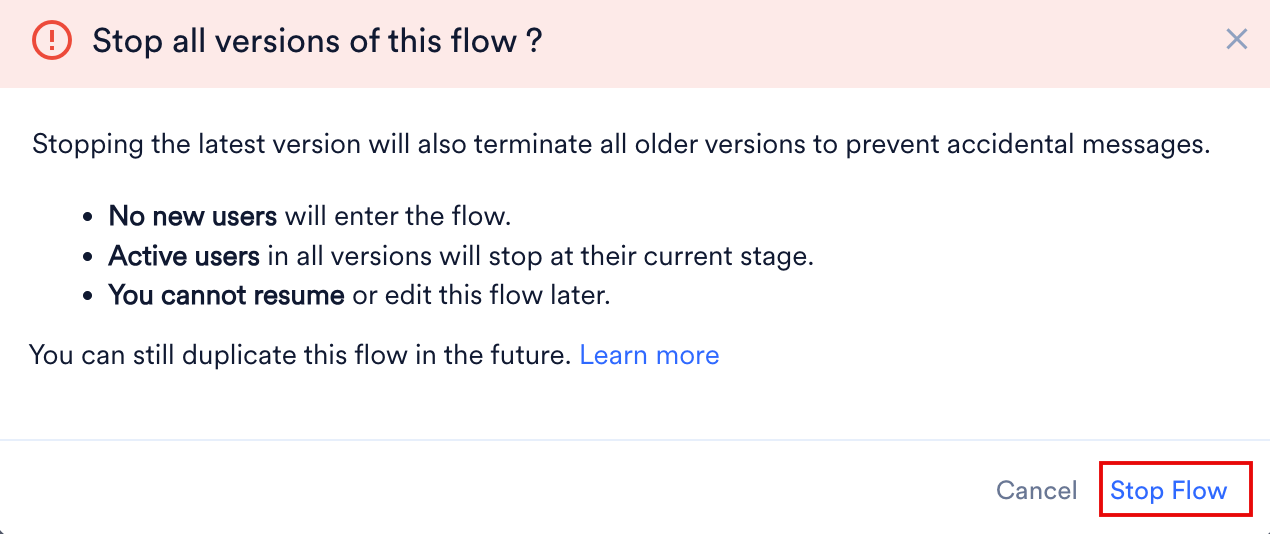
- No new users enter the flow.
- Active users in all versions stop at their current stage.
- You cannot resume or edit the flow later.
Switching between versions
When you switch between versions, the following happens:- If the current version is not saved, you will be asked if you want to save the changes. If you choose not to save, the version will not be retained, and all the changes will be discarded.
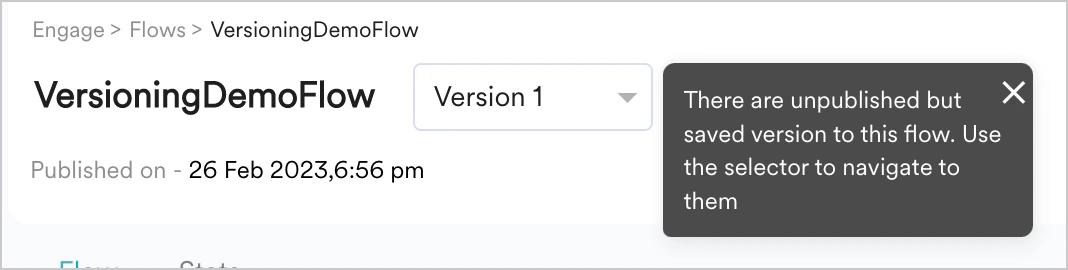
- When you switch versions after saving (but the saved version is not published), you’ll be notified of the same with the following alert beside the version selector.
Logs
With the possibility of editing a published flow comes the question What are the changes made, Who made the changes, and when. The following logs will help marketers answer the above questions both for a Version and across multiple versions of a flow:Version Logs
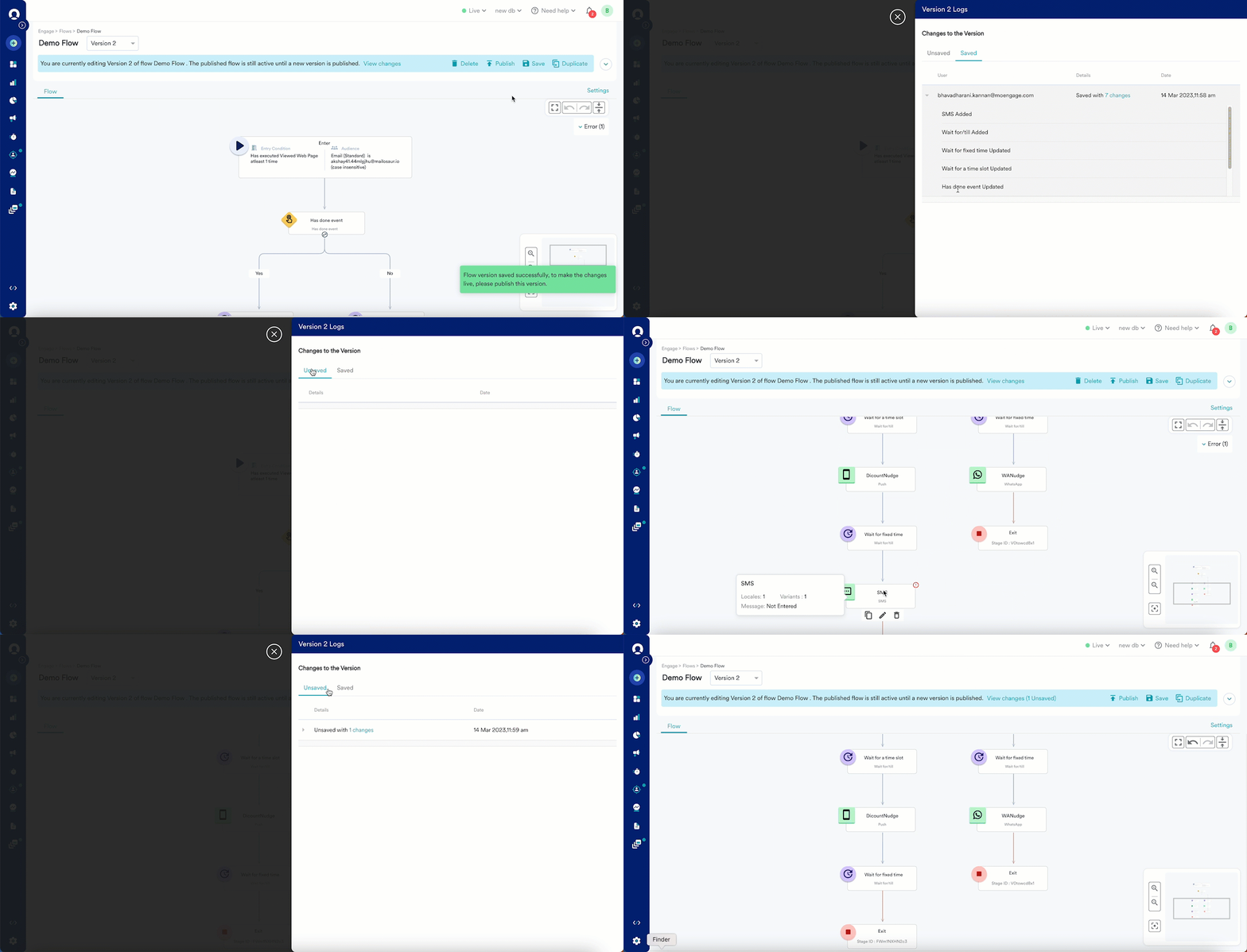
Version logs are available for the versions of the Flow in the draft state and answer the above three questions to a version. You can access the version logs by clicking the View Changes label at the top ribbon (Flow details section) of the page above the Flows canvas. The following details are available in the version logs:- Unsaved - Details and Dates are available in this section. You can see the details of the changes made to the version listed. Click on the change listed, and you will be shown the node/stage where the change was made, as illustrated in the image below.
- Saved- User, Details, and Date are available in this section, as shown below. Also, you can see the details of the changes made to the version.
Audit Logs
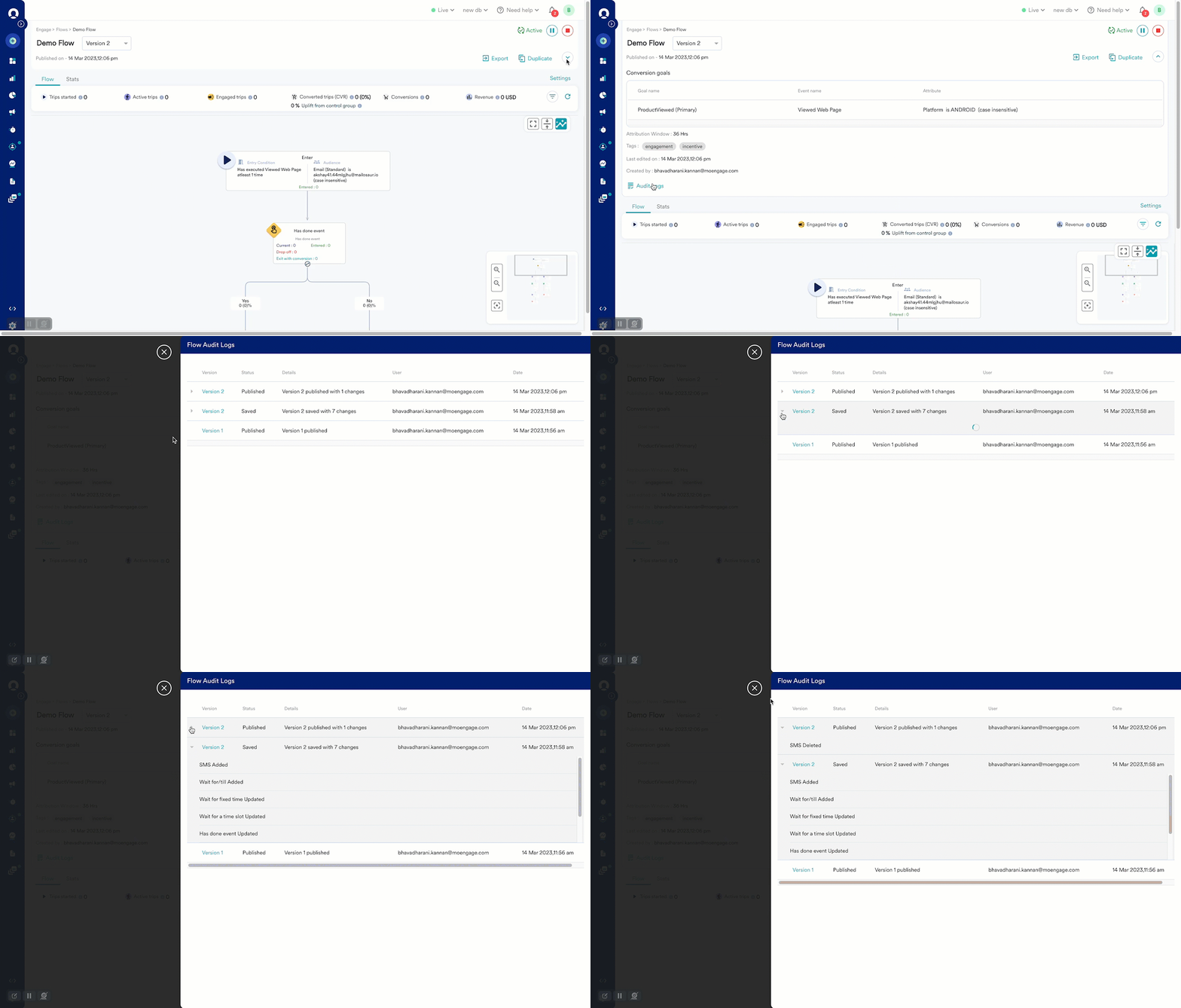
Audit logs are available for all versions of the Flow. They contain the following information for each version:- Version - This field indicates the version name of the Flow.
- Status - This field indicates the status of the version.
- Details - This field contains information about whether the version was published and the list of changes made, has saved changes with a list of changes made, and so on.
- User - This field contains information about who made the most recent edit to the version of the Flow.
- Date - This field contains information about when the most recent edit to the version happened.
Finding users who entered a Flow Version
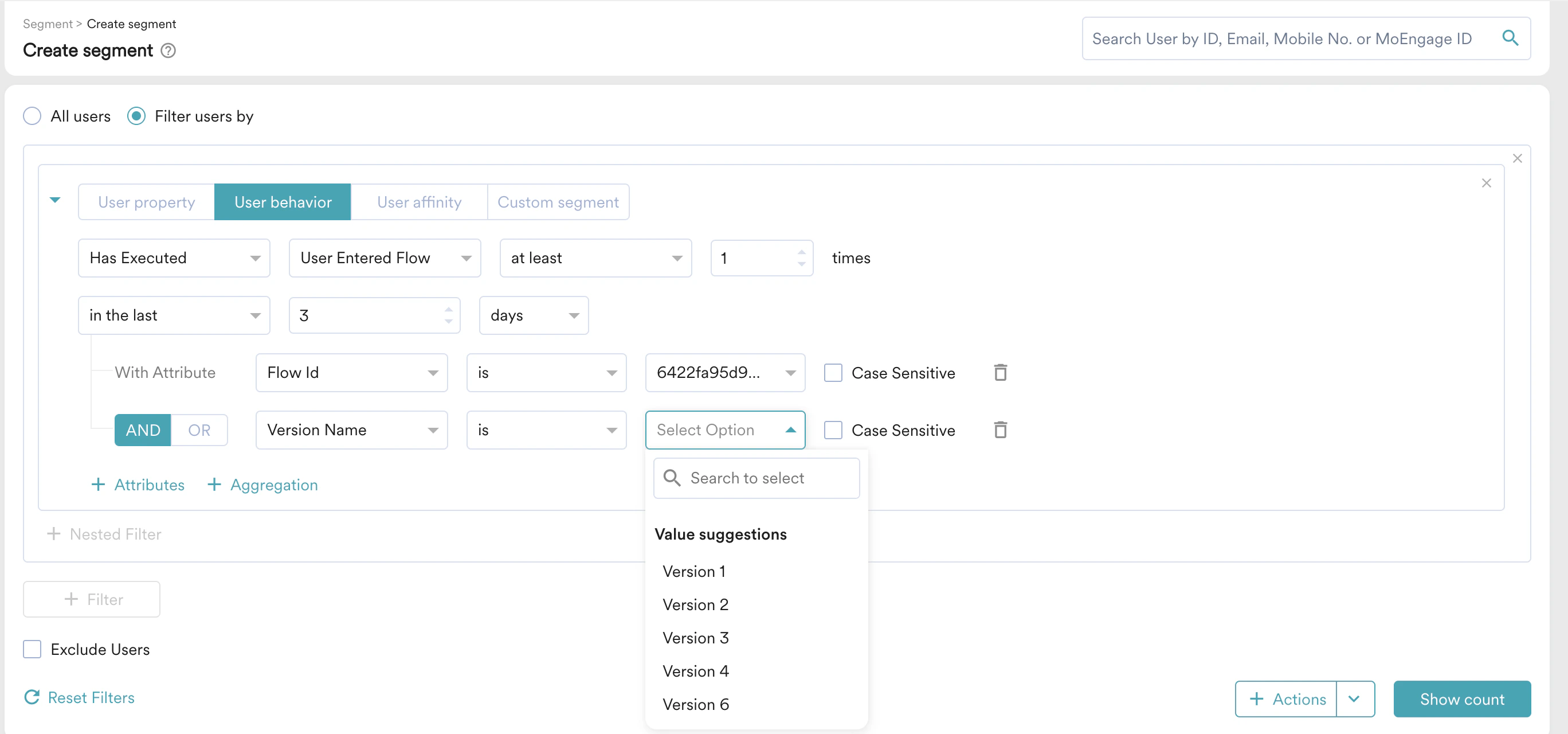
After you create a new version, you might want to find users who have entered the new version and compare their performance with respect to an older version of the same flow. You can create a segment with all the users who have performed the User entered flow event with the Flow Id Attribute value being the flow-id of your flow, with the Flow Version Name attribute as the particular version name (For more information, refer to finding the version name for a Flow.