This step is recommended (but optional) to ensure the API integration is set up correctly and the personalization is rendered properly.
How to test the Alert before publishing?
You need to pass a few values to the request copied from the Dashboard. They are the Authorization Header, MOE-APPKEY, request attributes, and personalization attributes (if any).Build Authorization Header
MoEngage uses Basic Authentication. Use the Workspace ID and API Secret to generate HTTP Auth Header, as explained here.Copy Request
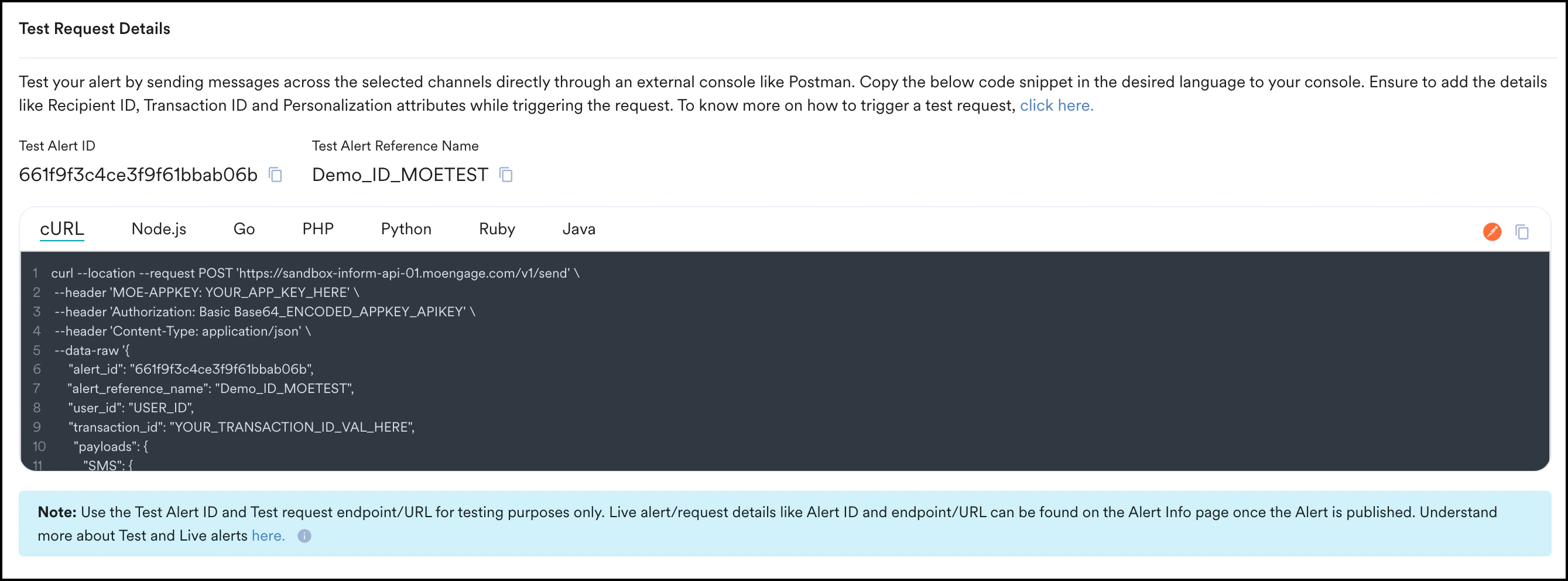
You can also copy the sample request in any of the supported languages from the Test Request section in the dashboard and test it on an external console using the copy to clipboard icon.Copy Workspace ID
The request header MOE-APPKEY should contain the Workspace ID value of your MoEngage Account.Test Alert ID
A Test Alert ID is provided on the Dashboard to send this Test Alert request to an external console. This value gets passed in the request automatically. Note: This would differ from the Alert ID for the published Alert.Test Alert Reference Name
Test Alert Reference Name is configured while adding the alert on the Dashboard to send this Test Alert request to an external console. This reference name can be used to test the alert.This is different from the Reference ID for the published Alert.
Attributes
The following attributes need to be passed in the request:| Request Field | Mandatory | Description |
|---|---|---|
| MOE-APPKEY | Yes | This is the Workspace ID of your MoEngage Account. The Workspace ID uniquely identifies your MoEngage workspace. This value gets auto-populated in the test request (supported in multiple languages). |
| Authorization | Yes | This is the Base64 encoded authorization header (APPID:APISECRET) that needs to be passed for authentication. |
| alert_id | Yes | This is the Test Alert ID generated to test the request from an external console. This value is auto-populated in the request. |
| alert_reference_name | No | This is the reference ID that you can add while creating the alert. |
| user_id | No | This field is provided by your brand and should be pasted in the request being tested. This field is the Client ID and identifies the user to whom the Alert is being sent. This is essential for event mapping back to the user. If an Invalid User ID or non-existent User ID is shared and API request has valid recipient details, a new user profile would be created with valid recipient details. If User ID is not present in the request, the request will still be processed, provided the recipient details are available. However, the events will not be logged to any user in MoEngage. For more information, refer to User identification for sending the Alert. |
| transaction_id | Yes | This field needs to be provided by the brand and pasted in the request being tested. This field identifies the transaction about which the Alert is being sent to the user. Moengage will store the transaction ID against the uniquely generated request ID. Ensure that the transaction_id is unique for every request you send to the user. This is also used to support idempotency. |
| payloads | Yes | This field contains the channel-level payload that, in turn, contains the user details and personalization attributes. The payload has the following structure: "payloads": {"<Channel_Name>": {"recipient": "<pushtoken/mobile number with country code/email id>","locale": "<required locale version to be sent to the user>""personalized_attributes": {<list of the attributes to be personalized>},"sender_attributes": {<list of the API attributes used for evaluating the sender to be selected>},"personalized_attachments": {<list of the attributes used for sending attachements>},"live_activity_attributes": {<list of attributes used to manage the lifecycle, static data, and dynamic state of an iOS Live Activity>},}}For more information, refer to Payloads. The recipient field in the payload identifies the user to whom the Alert has to be sent. For more information, refer to User identification for sending the Alert. |
Payloads
| Field | Mandatory | Fallback | Description |
|---|---|---|---|
| recipient | Yes, depending on conditions | Yes | This field denotes the unique identifier (e.g., push token, E.164 mobile number, or email ID) of the user to whom the Alert must be sent. If not passed, this value is fetched from the User Profile. If the user profile does not contain the recipient details, the alert will not be sent out. |
| locale | No | Yes | This field denotes the specific language and regional version required for the message. If not passed, this value is fetched from the User Profile. If the user profile also lacks the locale details, then the default configured locale is used for the message. |
| sender_attributes | No | Yes | This field contains a list of the API attributes used for evaluating the sender to be selected. If not passed, the alert will be sent out using the default sender. |
| personalized_attributes | Yes | Yes | This field contains a list of attributes and their values used for resolving personalization within the message content. If the API attribute is configured to use user attributes as a fallback, then this value is fetched from the User Profile. If the user profile does not contain these attributes, the alert will not be sent out. |
| personalized_attachments | Yes | No | This field contains the personalized attachments for the email channel and should be sent as a base64-encoded string. If email attachments are specified to be Uploaded via API during Alert creation, this field should be added to the payload, and the attachment should be passed using the attachment key specified during alert creation. |
| live_activity_attributes | Yes, if Live Activity or Live Activity with Push Fallback is selected as the message type while creating the push alert. | No | This field lists the attributes used to manage the lifecycle, static data, and dynamic state of an iOS Live Activity. Supported values are:
|
User identification for sending the Alert
The API processes the user identity information shared in the request and identifies the user to whom the communication needs to be sent, as shown below.
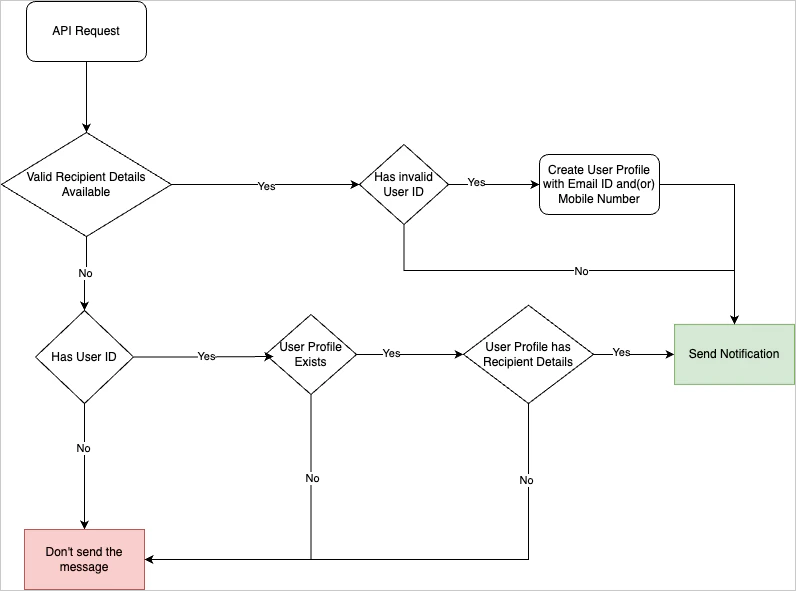
user_id has to be passed in the request, failing which, the request will be dropped. If the user_id (the ID field in the User Profile)is available in the payload and the recipient details(mobile number/email ID/active push token) for the specified channel are available in the user profile, then the Alert is sent.
In case of recipient details are available and a new user_id is shared a new profile will be created with the recipient details.
- Only the five most recently active device tokens available in the User Profile will be considered for sending the Alert for the Push channel.
- The recipient details are fetched from the User Profile if user attributes are enabled. For more information, refer to Enabling User Attributes.
Testing the request in Postman
To test in Postman, do the following:- Click on the copy & open Postman icon to copy the cURL and import it in Postman.
- Add the authentication details by using the authorization section. Add the Workspace ID as the username and the API Key as the password.
- The imported cURL will contain the payload details. Add the Email ID, Phone Number, and other attributes (user_id, transaction_id, personalization, if any).
- Click Send in Postman. This will send the request to the Send Inform API.