

Prerequisites
To use the app, you need:- An existing MoEngage account with access to the web dashboard. The app is for users who already use MoEngage on the web; you sign in with the same account and workspace. There is no separate sign-up in the app.
- Permission to view the campaigns you want to monitor. The app shows the same campaigns and data your account can access on the web.
- If 2-step verification is enabled for your account, it must be set up on your device. See Set Up 2-Step Verification on Your Device.
- If you approve campaigns, the campaign approval flow must be enabled for your team on the web dashboard.
Install the app
The MoEngage Go app is available on iOS and Android. Download the app to your mobile device using the App Store/Google Play or by scanning the QR code below:Download using App Store or Google Play


Download using QR Code
- iOS (App Store)
- Android (Google Play)
Sign in
You can sign in to the app with your existing MoEngage account, using the same workspace and login method you use on the web dashboard. The methods available to you depend on the login method configured for your workspace: password, Google, or SSO.- Sign in with Password or Google
- Sign in with SSO
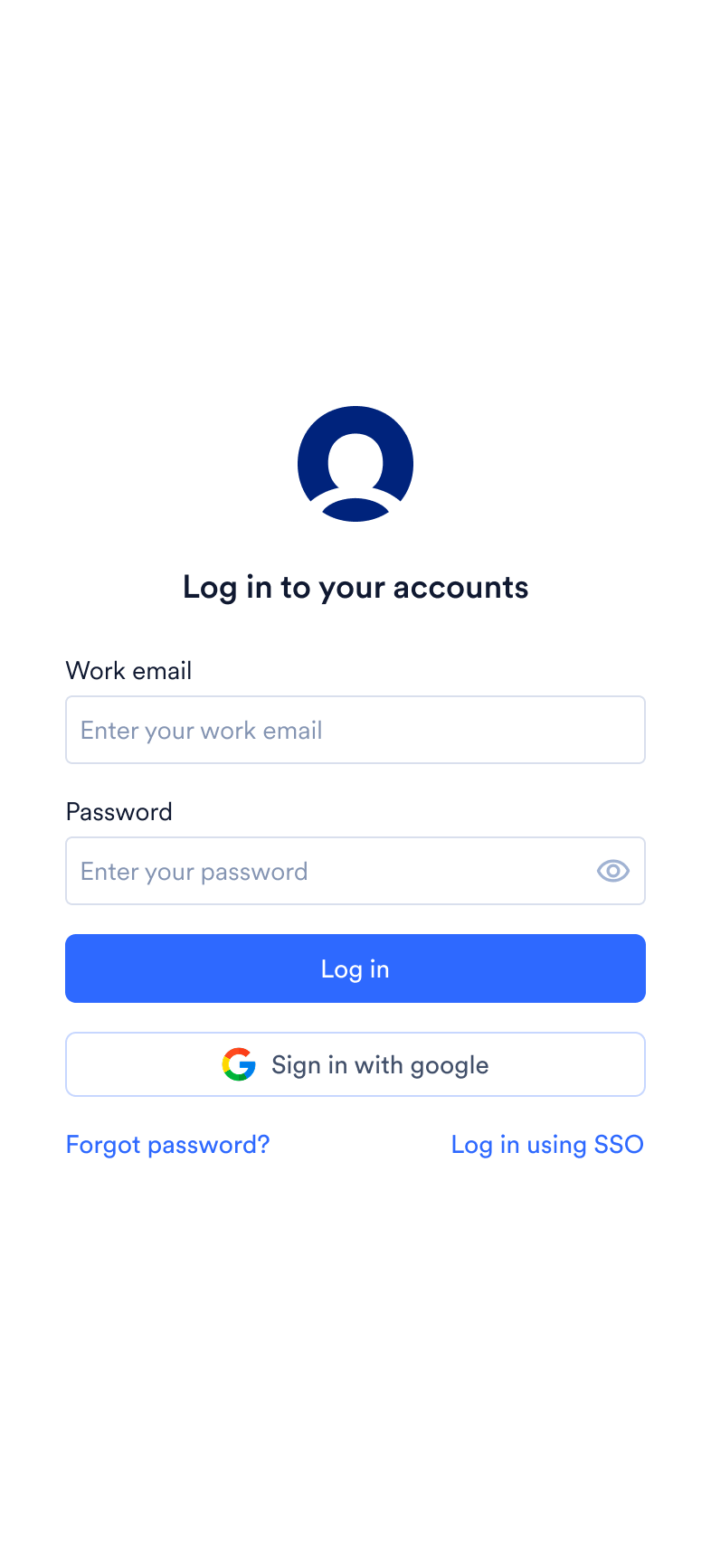
- On the login screen, in the Work email box, type your email address.
- Sign in with your workspace’s method
- Password: type your password and tap Login.
- Google: tap Sign in with Google and choose your Google account.
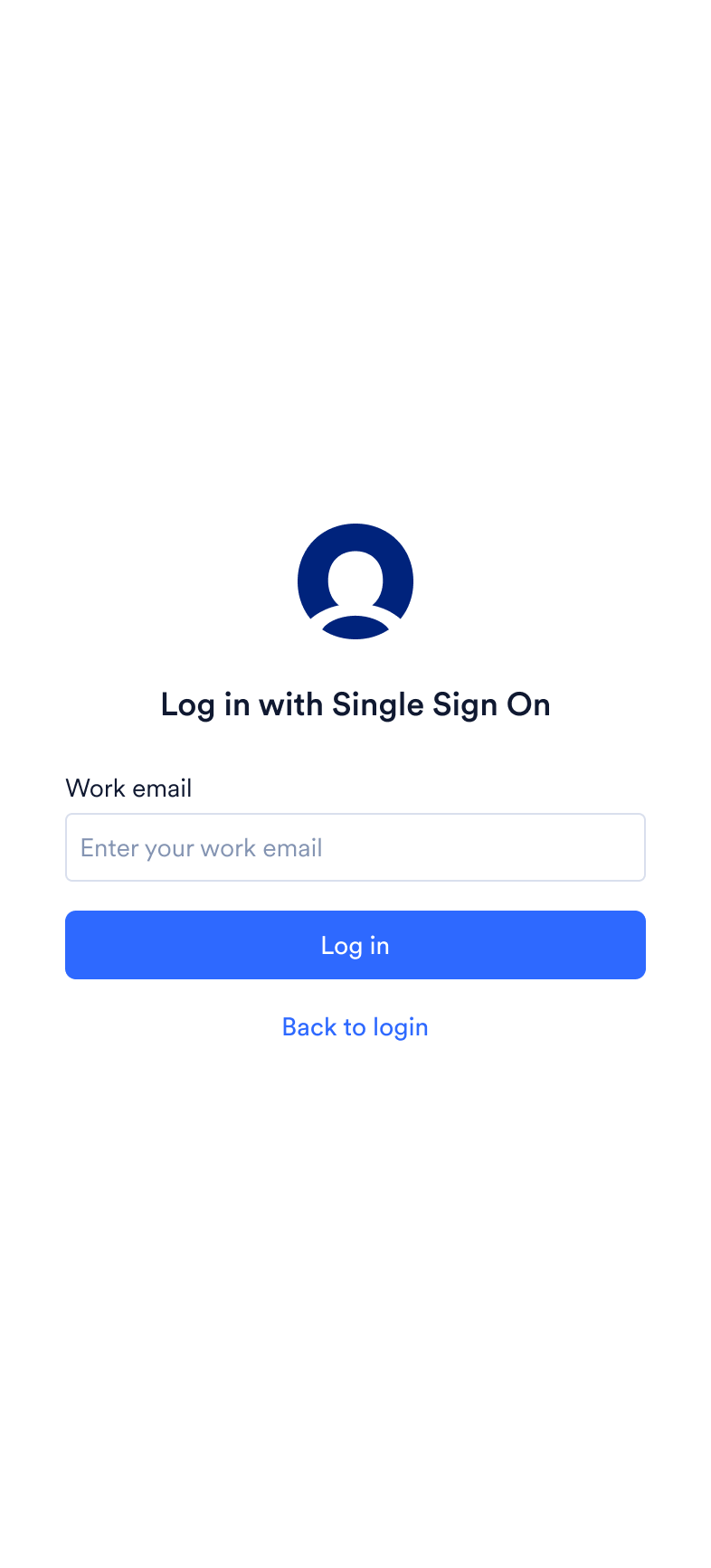
- SSO: tap Login using SSO, type your work email on the Login with Single Sign On page, tap Login, and authenticate with your organization’s identity provider.
- If 2-step verification is enabled for your account, you can choose between an Authenticator app OTP or an email OTP (note that the email OTP process includes a timer, while the Authenticator app process does not). Retrieve the 6-digit code from your preferred method, type it in the Verification code boxes, and tap Verify. The first time, you are prompted to set up 2-step verification on your device.
- After you sign in, the app opens to the Campaigns screen for your default workspace.