

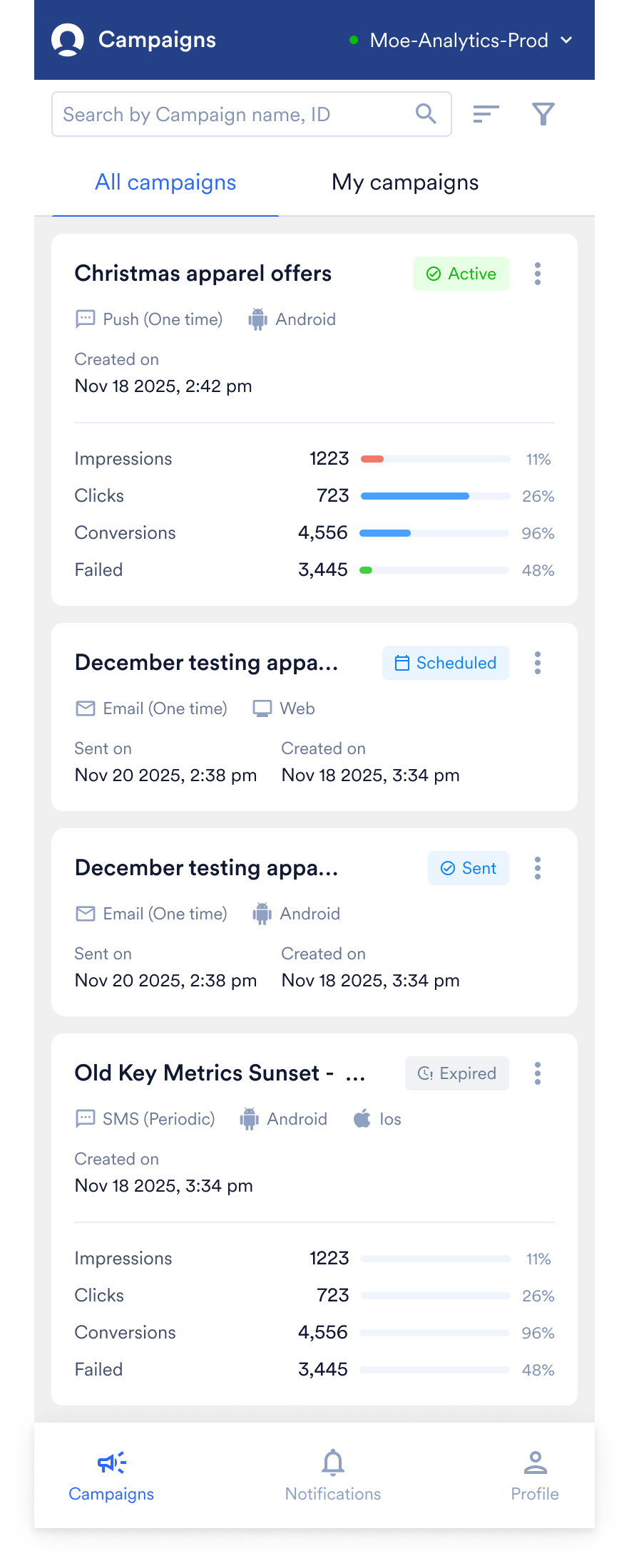
- Campaigns: Monitor active, scheduled, and past campaigns.
- Notifications: Respond to alerts, delivery failures, and pending approval requests.
- Profile: Access your account settings and preferences, and sign out.
Select Your Workspace
Before you review campaigns or notifications, make sure you are viewing the correct workspace.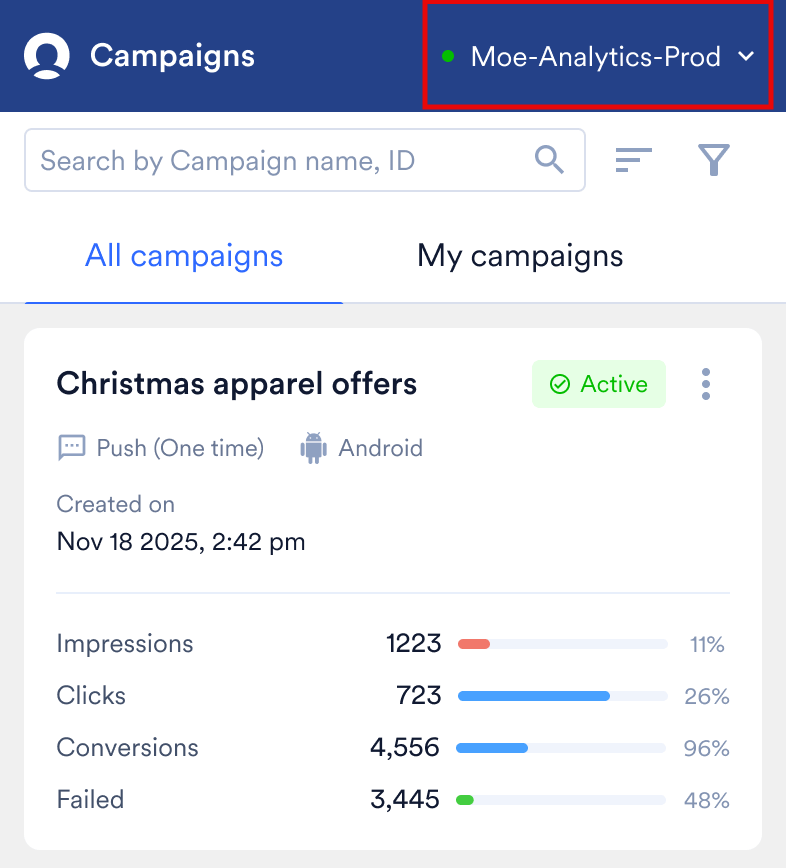
- At the top of the screen, click the dropdown to switch between workspaces in your organization.
- A status dot indicates the active workspace. The data shown across all tabs reflects the currently selected workspace.
The Campaigns Tab
View Campaign
- All campaigns: Every campaign in the selected workspace, regardless of who created it.
- My campaigns: Only the campaigns you created or are assigned to manage.
Search and Filter
- Search: Type a campaign name or ID to jump directly to it.
- Filter: Narrow the list by parameters such as channel (for example, Push, Email), delivery type, content type, status, platform (for example, Android, iOS), and date range.
Monitor Campaigns
Each campaign appears as a card that summarizes its configuration and performance.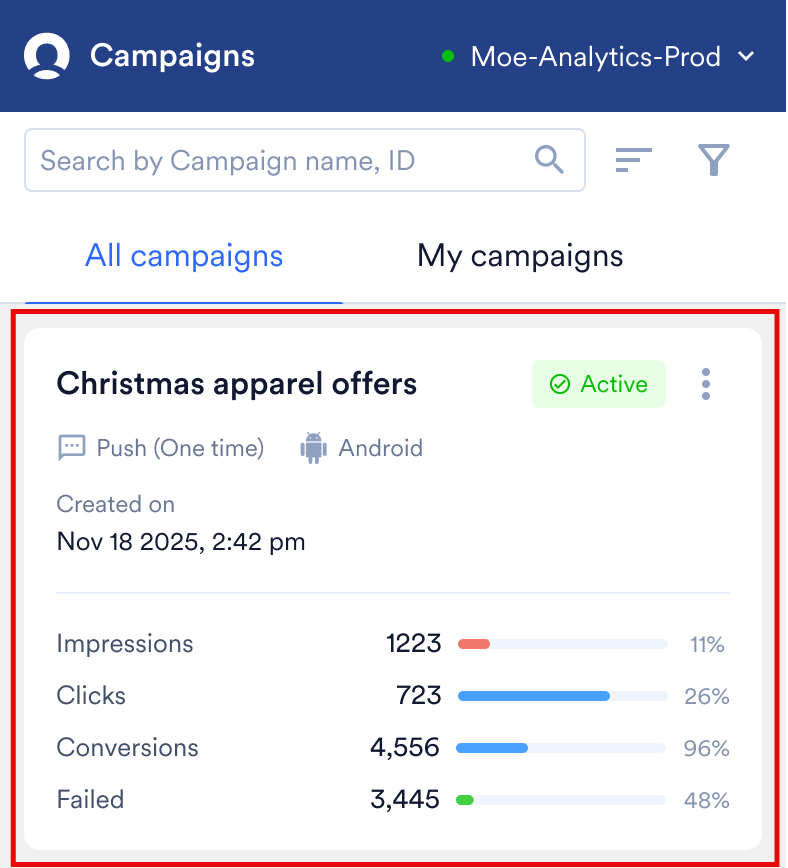
- Campaign name: The campaign’s title, for example
Christmas apparel offers. - Channel, delivery type, and platform: How and where the message is delivered, for example Push (One time) on Android, or SMS (Periodic) on iOS.
- Timestamps: When the campaign was created (Created on) and, if applicable, sent (Sent on).
Status
A color-coded badge shows the campaign’s current stage:The Draft status is not supported in the MoEngage Go app as the campaign creation and editing are limited to the web dashboard.
Performance metrics
For campaigns that are active or have concluded, the card shows engagement metrics. Each metric also shows a horizontal bar and a percentage. These represent the percentage breakdown for the metric and help you compare metrics and identify the drop-off between impressions, clicks, and conversions. Click the campaign card to view the detailed campaign analytics and info of the campaign.Campaign Actions
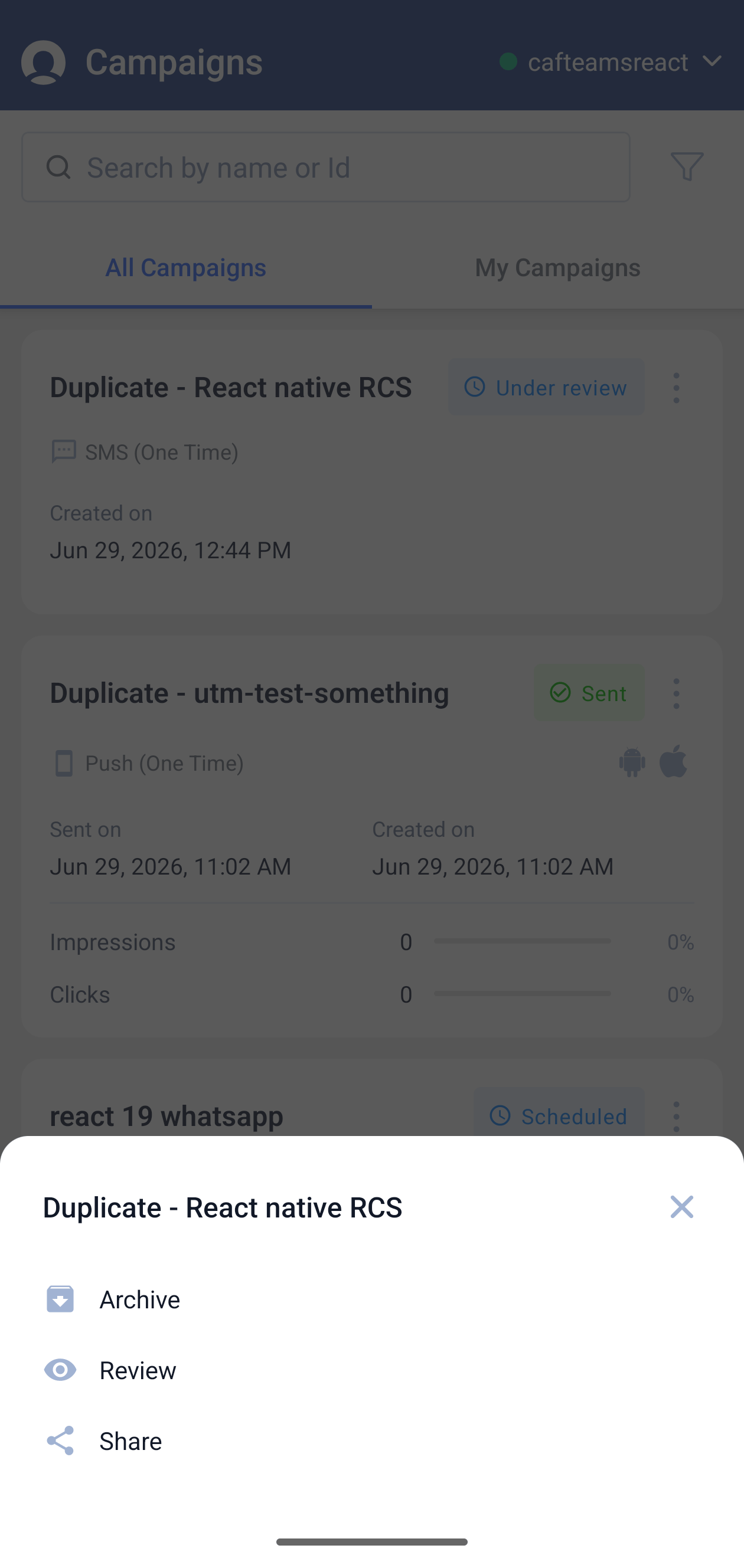
- Pause/Resume: Pause/Resume an active campaign.
- Stop: Stop a campaign currently in the Sending state.
- Review: If your organization uses campaign approval workflow, you can review pending campaigns and approve or reject them.
- Archive: Archive campaigns that are no longer actively needed to keep your view organized.
- Share: Share the campaign details with your team members.
The Notifications Tab
The Notifications tab is the central hub for alerts and updates relevant to your mobile app experience.The notifications displayed in the MoEngage Go app may differ from those you receive on the web dashboard, as certain alerts are specific to the mobile experience. While the tab is currently available, active notifications will begin appearing here as new mobile-specific features and alerts are rolled out.
The Profile Tab
The Profile tab allows you to view your account details, access support, and manage your app session. The screen displays the following information and actions: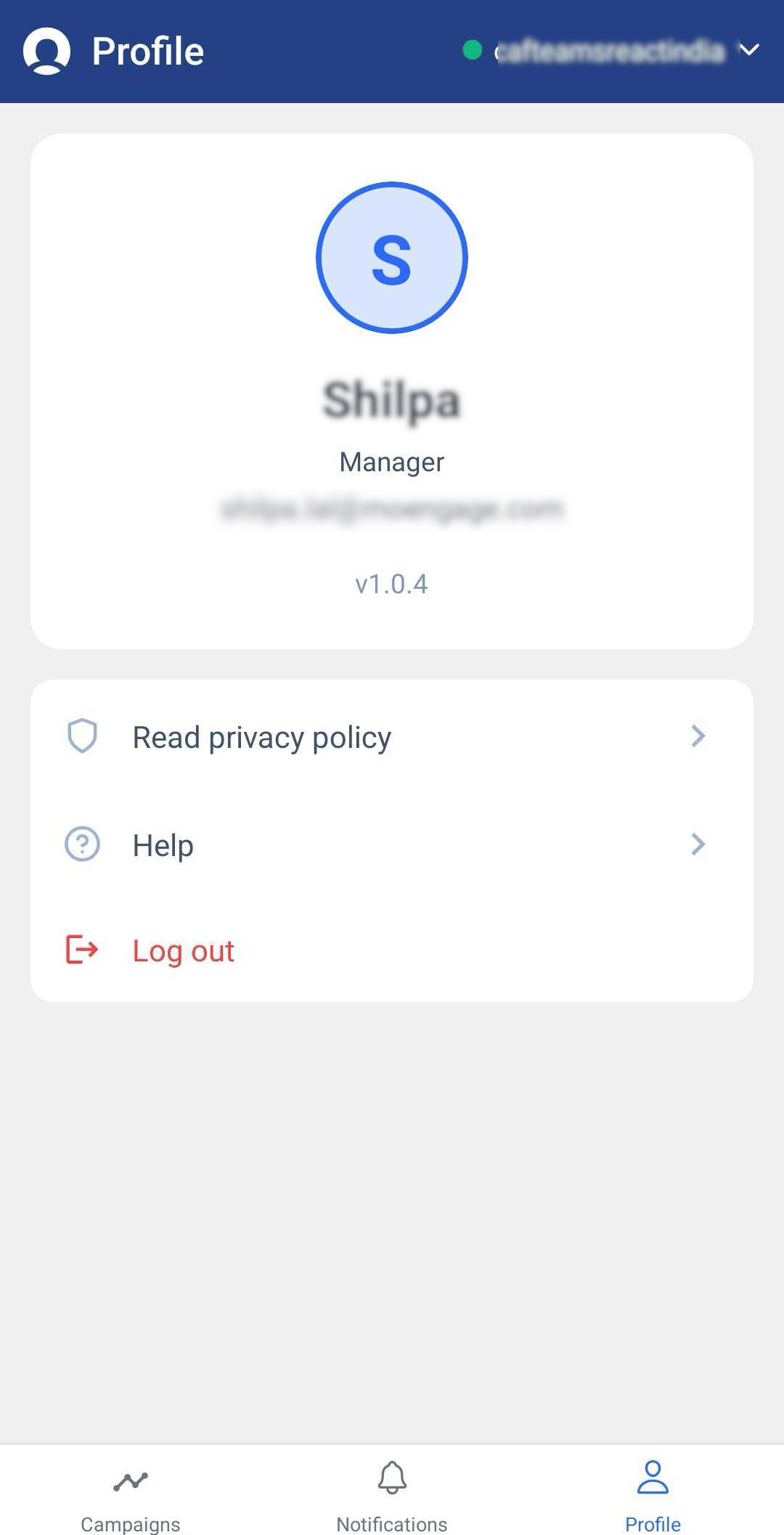
User Information
The top section displays your current account details and app information:- Profile Details: Displays your Name, your assigned Role in the workspace, and your registered Email address.
- App Version: Shows the current version of the MoEngage Go app installed on your device. You can reference this number when troubleshooting or contacting support to ensure you are on the latest release.
Account Actions
The bottom menu provides the following options:- Read privacy policy: Tap to open and review the privacy policy governing the MoEngage app and your data.
- Help: Tap to access support resources, help documentation, or to contact the MoEngage support team.
- Log out: Tap to securely sign out of your current session on the mobile app.