

The app is available on iOS and Android.
What the App Does
The mobile app gives you read access to your campaign data and a focused set of actions you can perform on the go. It does not replace the web dashboard; instead, it surfaces the information and controls most often needed outside of a working session at a desk. The app is organized into three main tabs accessible from the bottom navigation bar, along with dedicated detailed screens: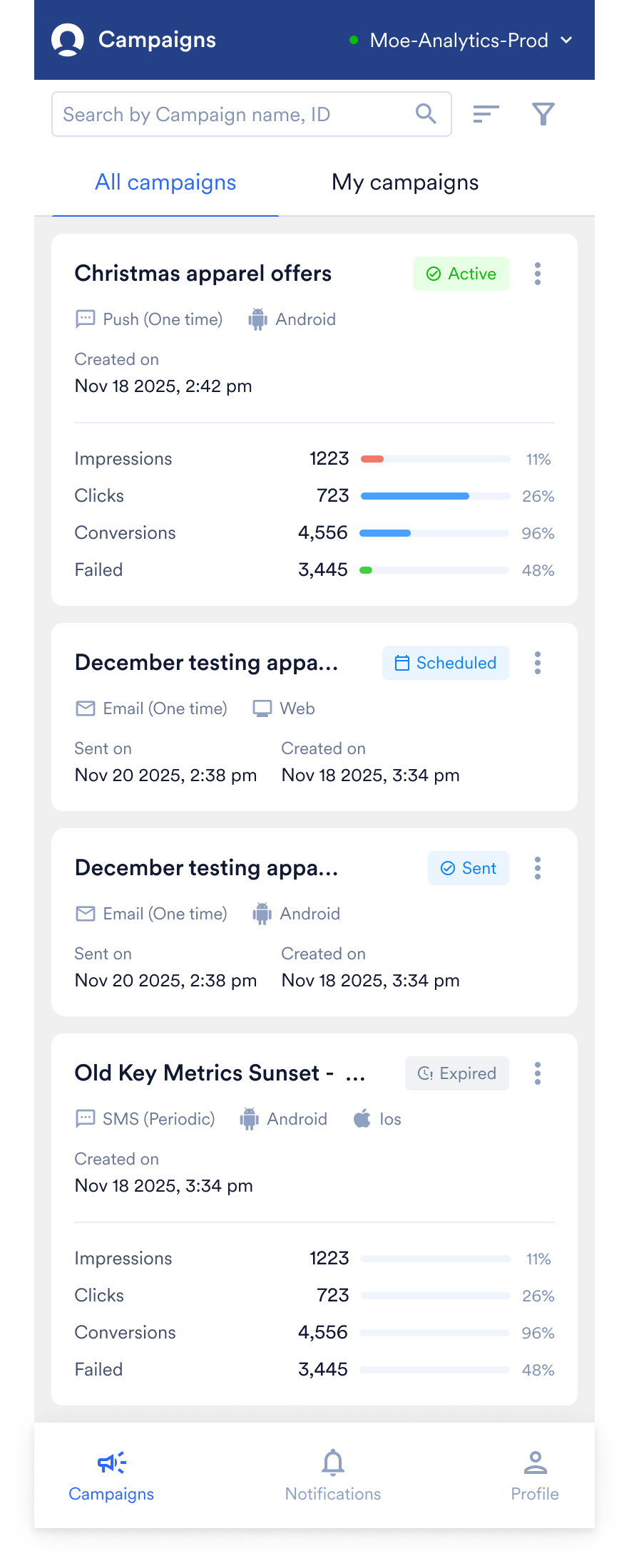
- Campaigns: The default landing screen where you can monitor and manage your campaigns. At the top of this screen, you can switch workspaces using the dropdown. You can toggle between All Campaigns and My Campaigns, and use the search bar or filter icon to locate specific campaigns. Each campaign is displayed as a card summarizing its status, channel, timestamps, and high-level performance metrics (such as Sent, Open, and Clicks).
- Notifications: Access your alerts, delivery failures, and pending approval requests.
- Profile: Access your account details, app version, help resources, and sign-out options.
- Campaign Details: Tapping any individual campaign card from the Campaigns tab opens its detail screen. It shows the campaign’s key information, analytics and info.
Intended Audience
The app is intended for marketers, campaign managers, and product owners who need to perform the following tasks without opening the web dashboard:- Check how campaigns are performing.
- Take immediate action on a campaign, such as pausing or stopping it.
- Approve or reject campaigns submitted by their team.
- Stay informed about campaign failures, expiries, and significant changes in key metrics.
Capabilities
- The app reads from the same campaign data as the web dashboard, so the campaigns, statistics, and audiences you see in the app match what you see on the web.
- The app supports a limited set of campaign actions. To create a campaign, edit campaign content, or build a segment, use the web dashboard.
- Performance statistics in the app are high-level. For detailed analytics, breakdowns, and info, use the web dashboard.
Use cases
The following use cases describe the tasks the app is designed to support.- Monitor campaign performance: When you are in a meeting, commuting, or otherwise away from the web dashboard, open the Campaigns screen to see how your campaigns are performing. Scroll through your campaign cards to check high-level performance metrics for individual campaigns at a glance, and easily spot which campaigns are currently active, scheduled, or sent.
- Pause or stop a campaign immediately: If a live campaign is underperforming, sending to the wrong audience, or affected by an external event, you can act without waiting until you are back at your desk. Open the campaign from the Campaigns tab, review its details and current performance, and pause or stop it from the campaign details screen.
- Approve or reject campaigns submitted by your team: If campaign approval workflow is enabled for your team, campaigns awaiting your review appear in the Notifications tab and in My Campaigns on the Campaigns screen. You can review a campaign’s details on your phone and approve or reject it, so campaign work is not blocked while you are away from the dashboard.
- Look up campaign details and audience: When you need to confirm what a campaign contains or who it targets, use search and filters in the Campaigns tab to find it, tap on the campaign card to open the campaign details screen. There you can view the campaign’s key information, a preview of the creative, campaign analytics and the segment or audience it is sent to.