Set up Single Sign-On (SSO) in MoEngage to let team members access the dashboard using your organization’s central identity provider (IdP).
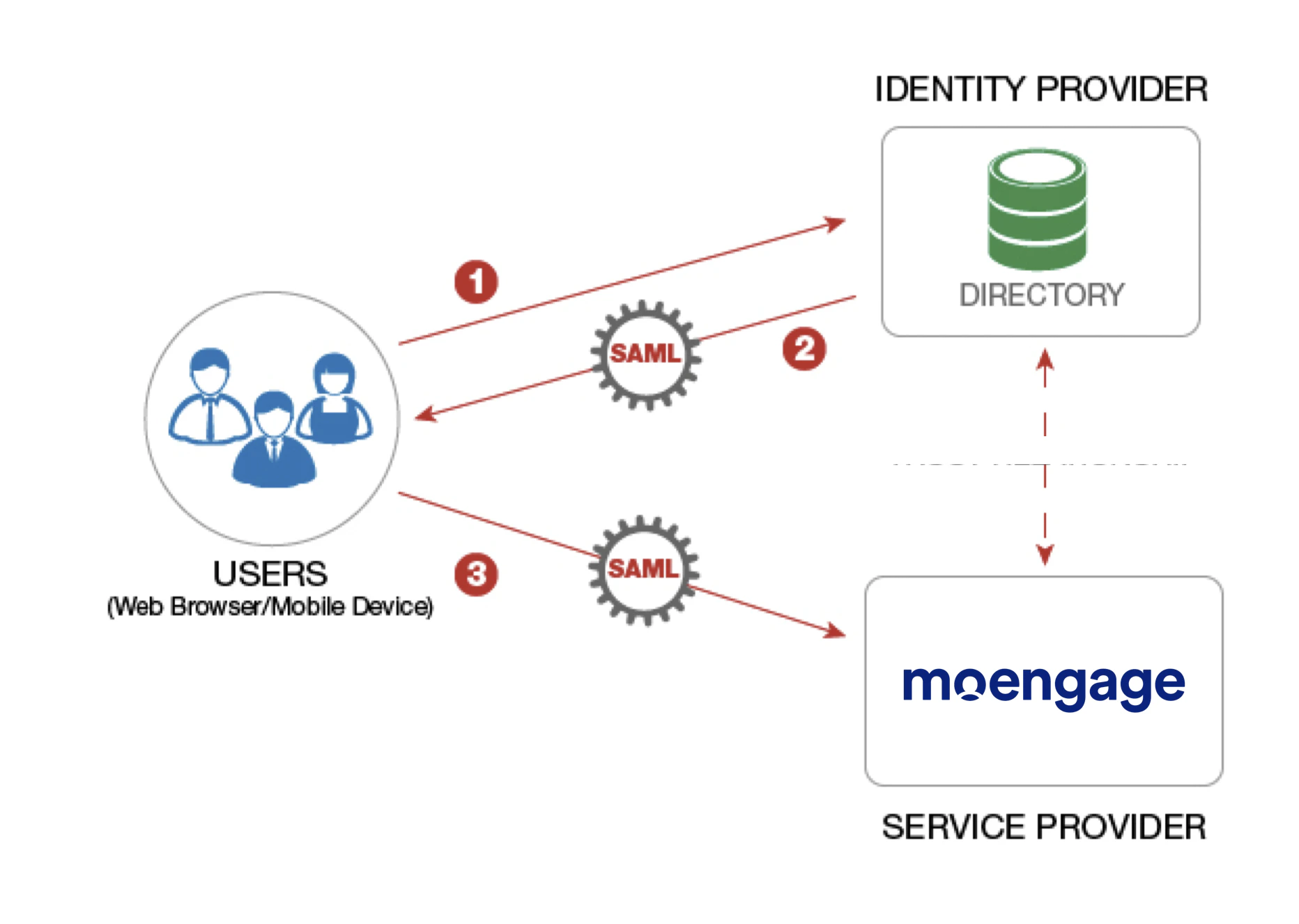
Single Sign-On (SSO) is a system that allows you to use one set of login credentials to access multiple applications without having to re-enter their credentials for each individual application. With SSO, you can easily access the MoEngage dashboard using your organization’s central identity provider (IdP).
Simplified user experience: SSO eliminates the need for users to remember and manage multiple usernames and passwords for different applications, making the login process much easier and faster.
Reduced password fatigue: By consolidating credentials, SSO reduces the burden on users to remember and manage numerous passwords, which can lead to security risks and frustration.
Enhanced security: Centralized authentication with SSO allows for more effective security controls, such as stronger password policies and multi-factor authentication, and simplifies the process of managing user access and permissions.
Improved productivity: SSO allows users to spend less time on login processes and more time on core work tasks, leading to increased productivity and efficiency.
Reduced IT costs: SSO streamlines user access management, reducing the workload for IT teams and minimizing the need for password resets and support calls, leading to cost savings.
MoEngage supports SSO using Security Assertion Markup Language (SAML) 2.0 and acts as an SSO service provider (SP). SAML is an industry-standard protocol that enables user authentication delegation similar to OAuth 2.Upon login, you are redirected to your internal or external SSO system for authentication and then returned to MoEngage when the response is verified.
Contact your organization’s IT team to set up SSO to log in to the MoEngage dashboard.
Only administrators can enable SSO for a workspace, which allows their teammates to log in securely using the identity provider credentials.
To configure SSO, you need an Admin role with the Setup & manage permission for the Login Settings component.
Note: The Login Settings is now renamed to Security Settings.
MoEngage uses Identity Providers (IdPs) to simplify and centralize user login. This allows you to securely access MoEngage services using SSO based on the SAML 2.0 standard. MoEngage supports the following IdPs currently:
Okta
Onelogin
Azure (Microsoft Entra ID)
Google Admin
Other (you can configure other IdPs, provided they are SAML 2.0 compliant, including JumpCloud)
To enable SSO in the MoEngage dashboard, perform the following steps:
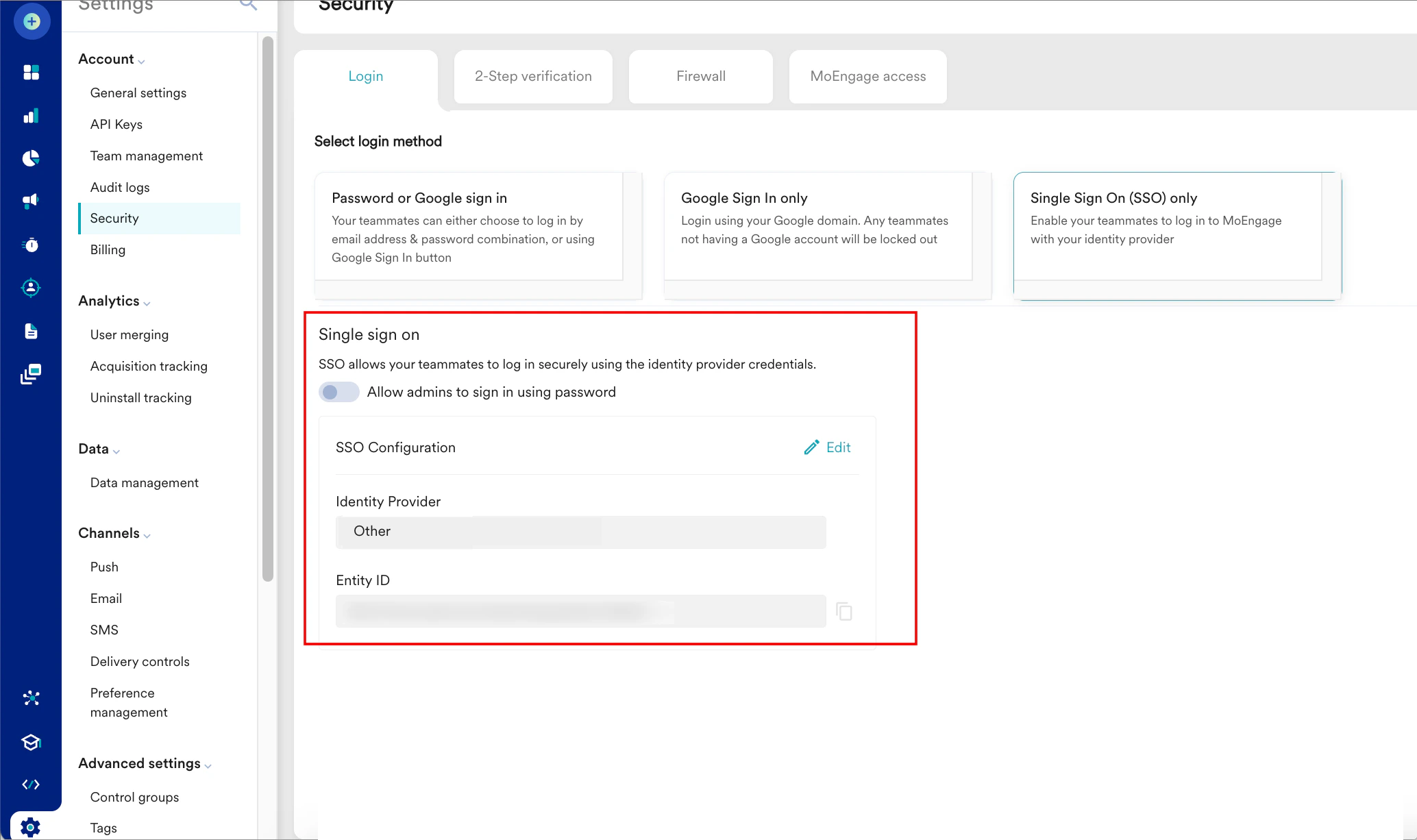
On the left navigation menu in the MoEngage dashboard, click Settings > Account > Security.
On the Security page, click the Login tab.
Click Single Sign On (SSO) only.
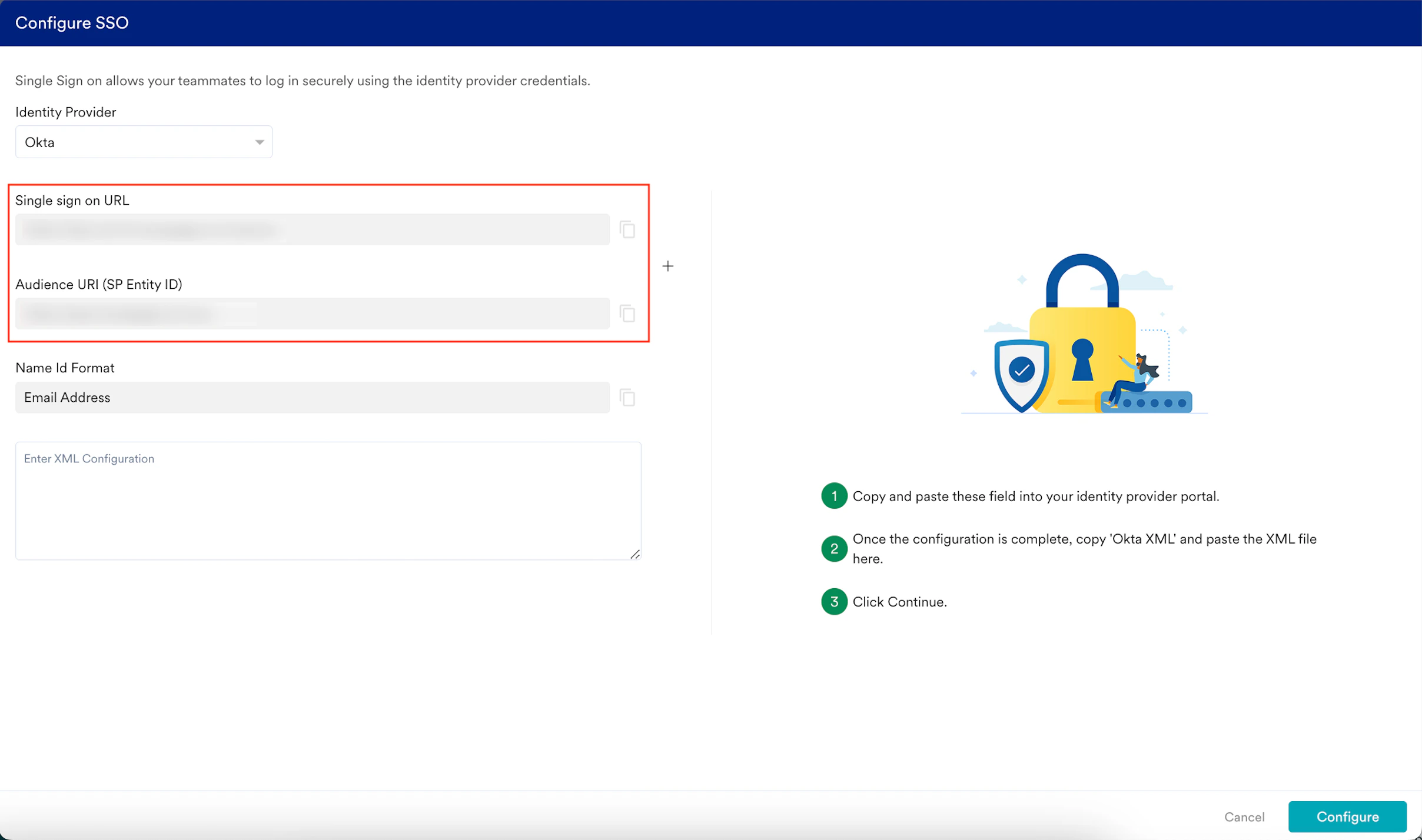
Under Single sign on, click Configure SSO. The Configure SSO dialog box appears.
In the Identity Provider list, select your identity provider. Now, you must switch to that specific IdP admin console to configure the SSO settings and ensure the SSO integration between MoEngage and the selected IdP functions as intended.
If your preferred identity provider is not available in the Identity Provider list, you can select Other to configure your SSO. This function works with any SAML 2.0-compliant provider.
Configure Okta SSO
Configure Onelogin SSO
Configure Microsoft Azure SSO
Configure Google Admin SSO
Configure JumpCloud SSO
Configure Other SSO
To set up SSO with Okta, perform the following steps:
Navigate to the Okta Admin Console.
On the left navigation menu, click Applications > Applications.
On the Applications page, click Create App Integration.
The Create a new app integration pop-up window appears.
Click the SAML 2.0 option and then click Next. The Create SAML integration page appears. You are taken to the first step, General Settings, to define your app.
Enter the following details:
Field
Required
Description
App name
Yes
Type your app name.
App logo
Optional
Upload an image file (typically PNG, JPG, or GIF) to serve as your application icon. Note: The image file must be smaller than 1 MB.
App visibility
Optional
Select the Do not display application icon to users check box adjacent to App Visibility to hide the application icon from the users.
Click Next. You will move to the second step, Configure SAML, to define the SAML settings.
On the Configure SSO dialog box in the MoEngage dashboard, copy the Single sign-on URL and Audience URI (SP Entity ID).
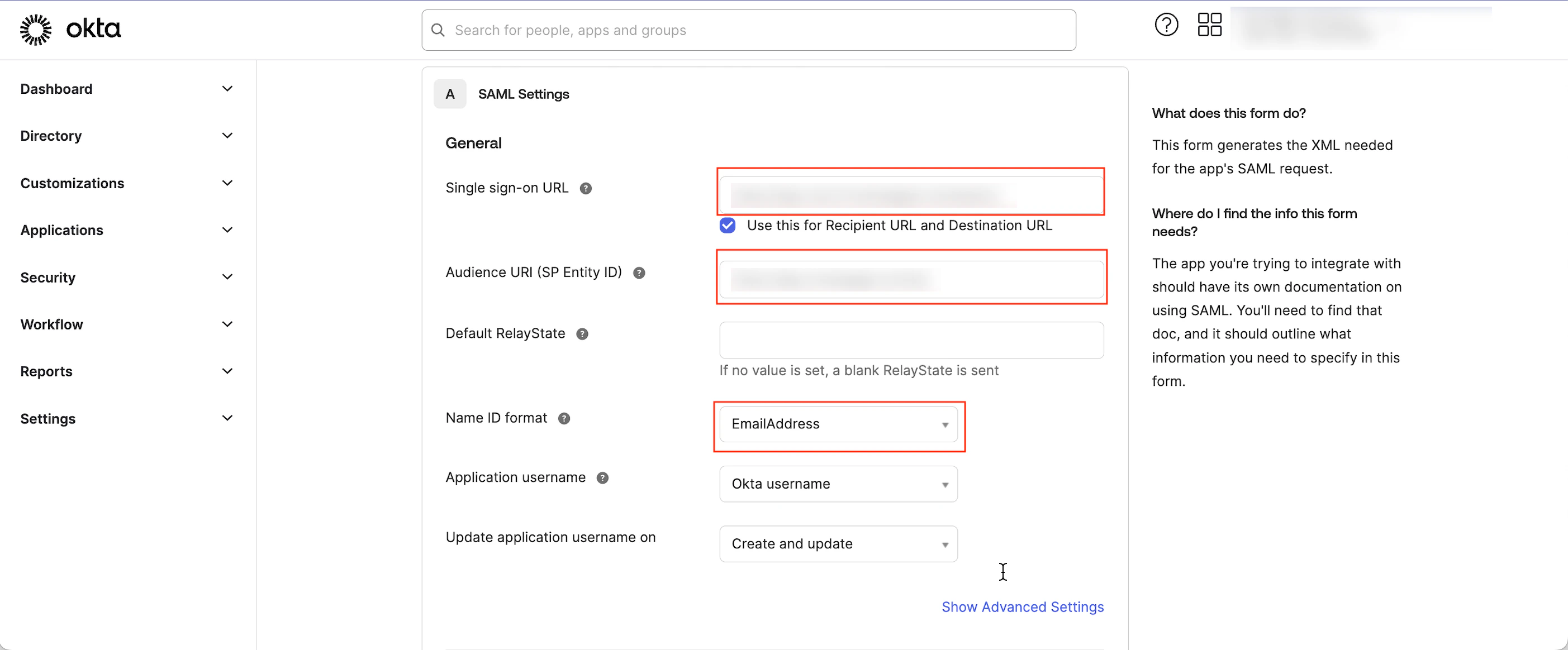
Under SAML Settings, enter the following details:
Field
Required
Description
Single Sign-On URL
Yes
This URL receives the SAML assertion (the authentication response) from Okta to MoEngage. Paste the URL copied from the MoEngage dashboard.
Audience URI (SP Entity ID)
Yes
This URL informs Okta about the specific application (MoEngage) for which the authentication assertion is intended. Paste the URI copied from the MoEngage dashboard. Note: In this box, you can add multiple entity IDs from different workspaces, separated by commas.
Name ID format
Yes
Select EmailAddress.
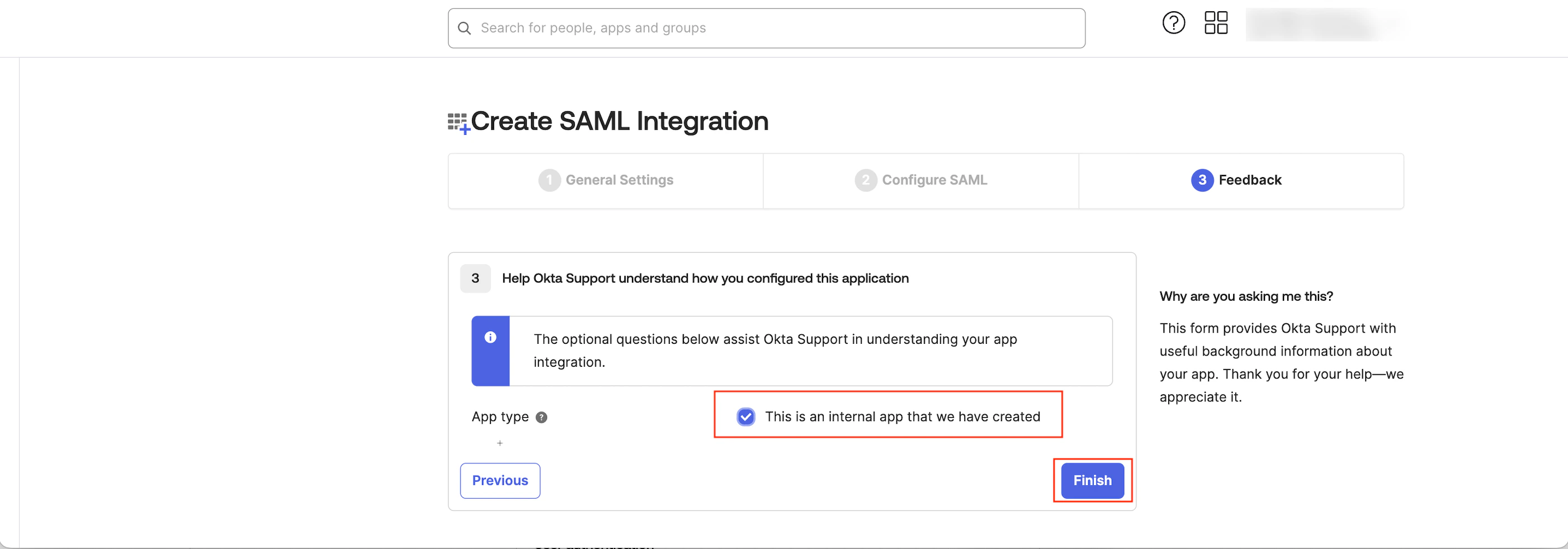
Scroll to the end of the page and click Next. You are taken to the third step, Feedback.
Select the This is an internal app that we have created check box adjacent to the App type.
Click Finish. You must now generate the SAML Signing Certificates to connect your app to Okta.
By default, you are on the Sign On tab. Scroll to the end of the page, and under SAML Signing Certificates, find the Status marked as Active to download the certificate.
Click the Actions arrow in the Actions column.
Click Download certificate. The metadata will be downloaded in an XML file.
Upload the downloaded XML file in the Enter XML Configuration box on the Configure SSO dialog box of the MoEngage dashboard.
By default, the Update the same config for Test Environment check box is selected. When it is selected, the configuration is applied to both the test and live environments. Clear the check box if you want the configuration to be applied only to the live environment.
Click Configure. The Alert pop-up window will appear, prompting you to review the instructions properly.
Select the Send email to the users of this workspace check box to notify all users about your workspace’s Single Sign-On (SSO) enablement.
Click Done. The SSO configuration is now successfully completed. You can see the Okta SSO on the Login tab.
To set up SSO with Onelogin, perform the following steps:
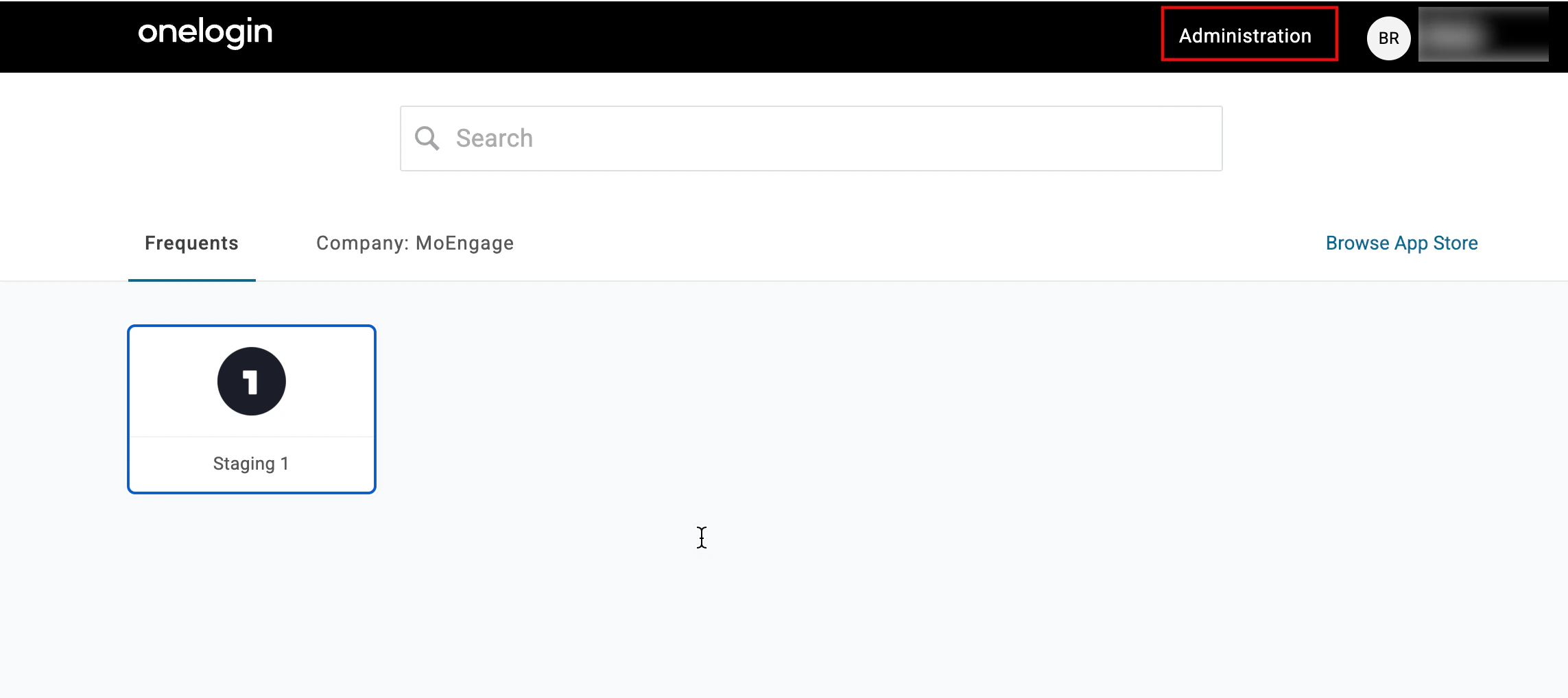
Navigate to the Onelogin Admin Console.
Click Administration next to your profile in the upper-right corner.
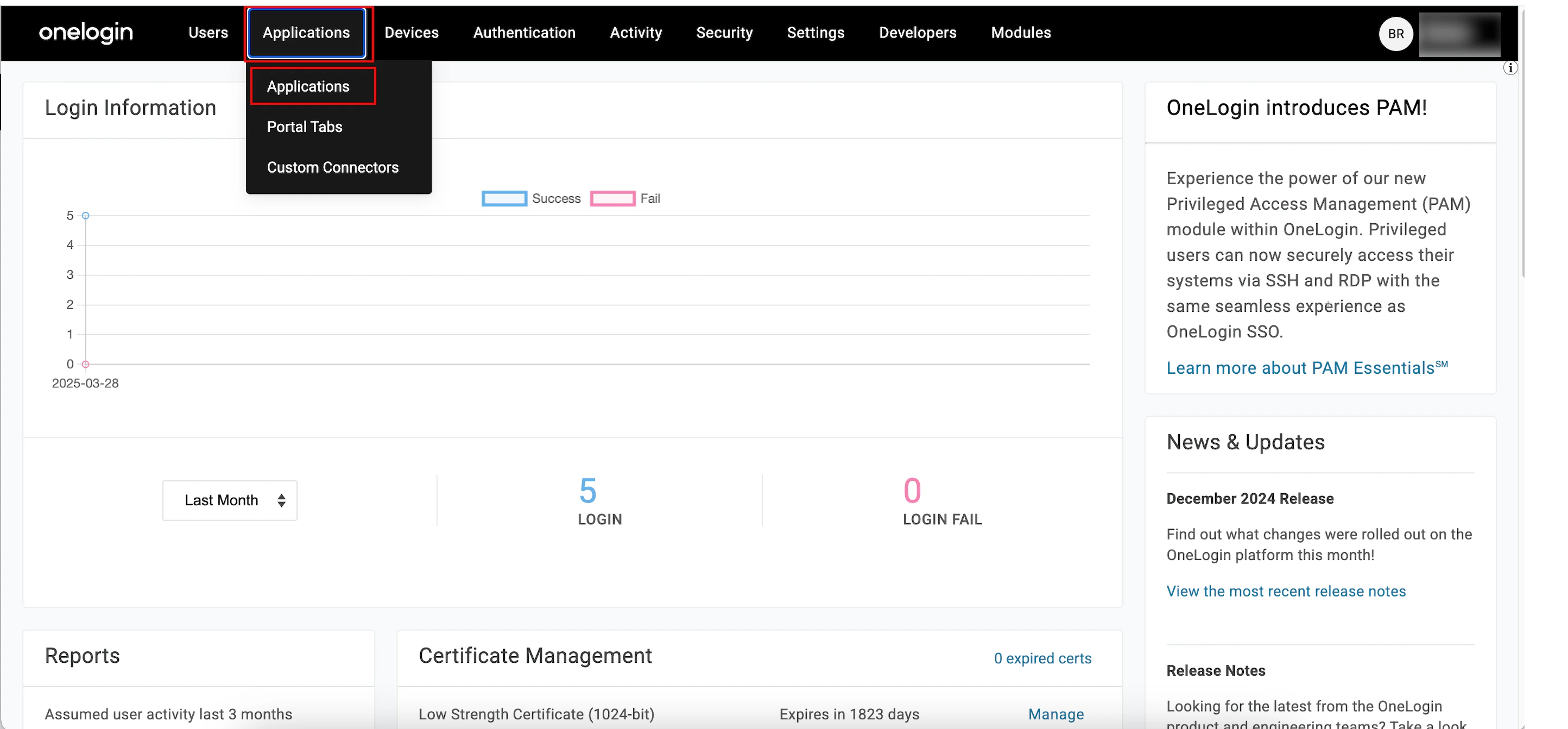
Click Applications > Applications.
On the Application page, click Add app. The Find Applications page appears.
In the Search box, type SAML, scroll through the page, and click SAML Test Connector (IdP). The Add SAML Test Connector (IdP) page appears.
In the Display Name box, type the SAML name being tested. (Optional)
Click Save. Your SAML is now successfully added, and the SAML Test Connector (IdP) page appears.
Click Configuration on the left navigation menu.
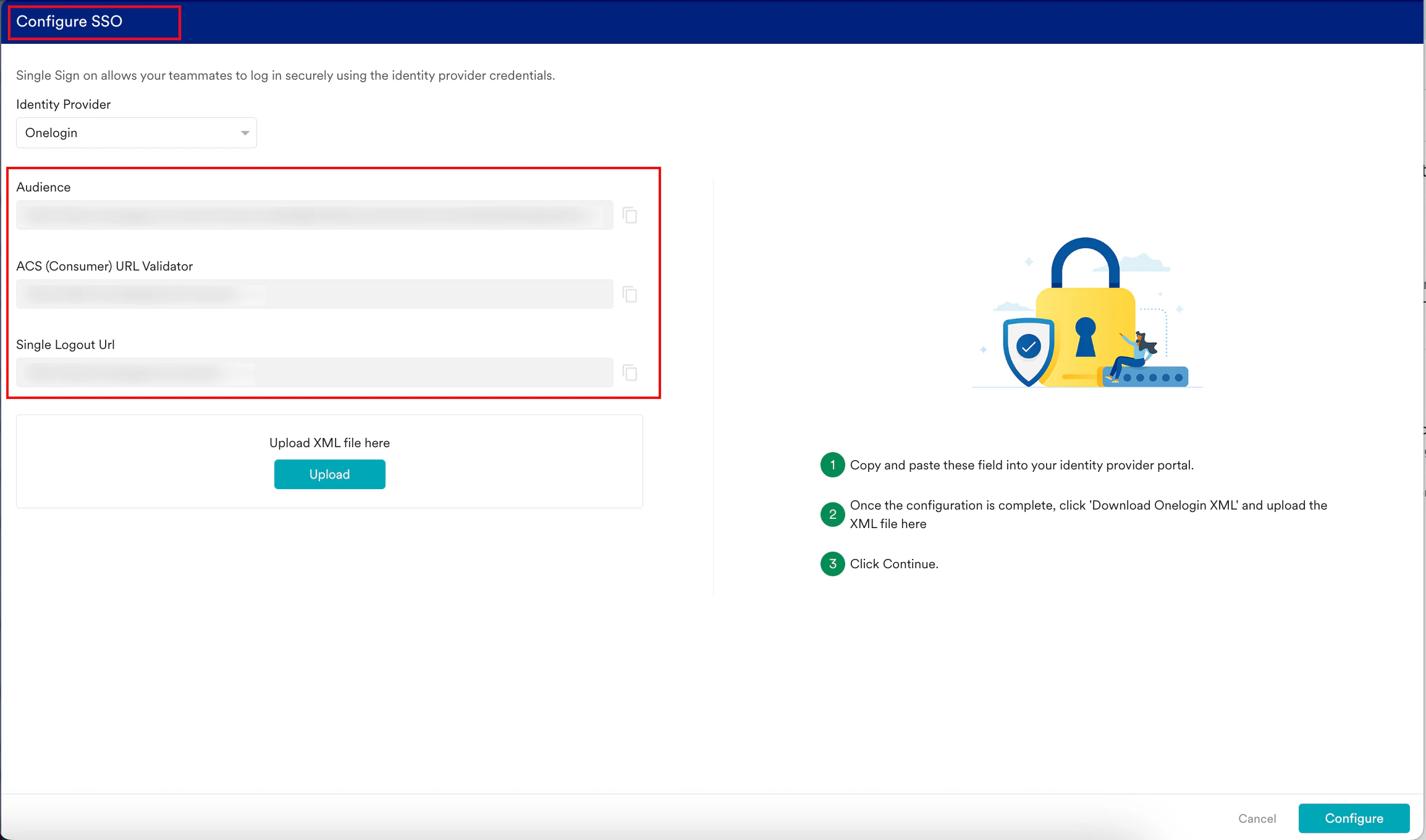
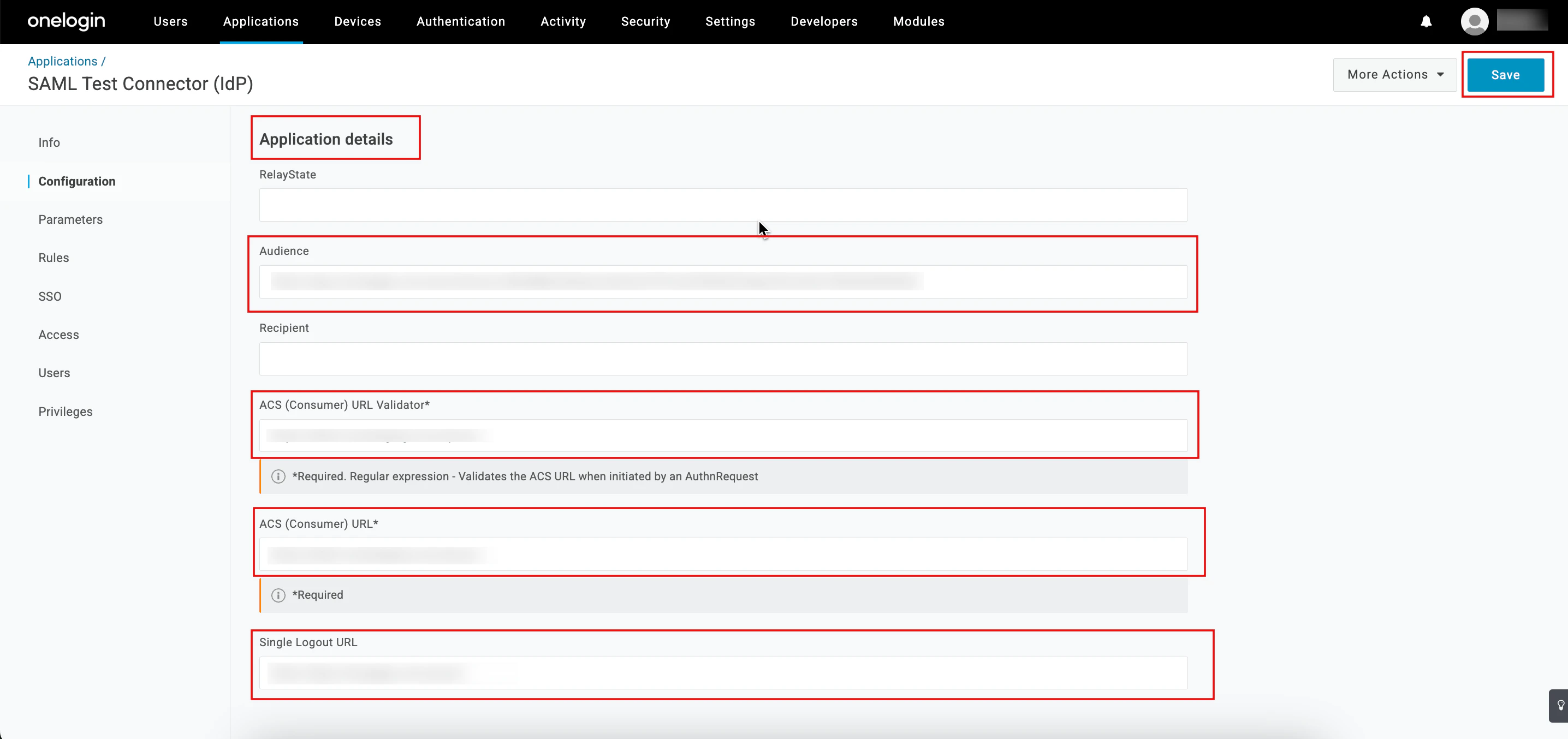
On the Configure SSO dialog box in the MoEngage dashboard, copy the Audience, ACS (Consumer) URL Validator, and Single Logout Url.
In the Application details section, enter the following details:
Field
Required
Description
Audience
Yes
This URL specifies the intended recipient of the SAML assertion. Paste the audience copied from the MoEngage dashboard.
ACS (Consumer) URL Validator
Yes
This URL adds an additional security to ensure MoEngage only accepts SAML assertions. Paste the URL validator copied from the MoEngage dashboard.
ACS (Consumer) URL
Yes
This URL receives and processes the SAML authentication data for MoEngage from Onelogin. Note: Paste the ACS (Consumer) URL Validator you copied from the MoEngage dashboard in the ACS (Consumer) URL box.
Single Logout URL
Yes
This URL allows for single logout functionality.
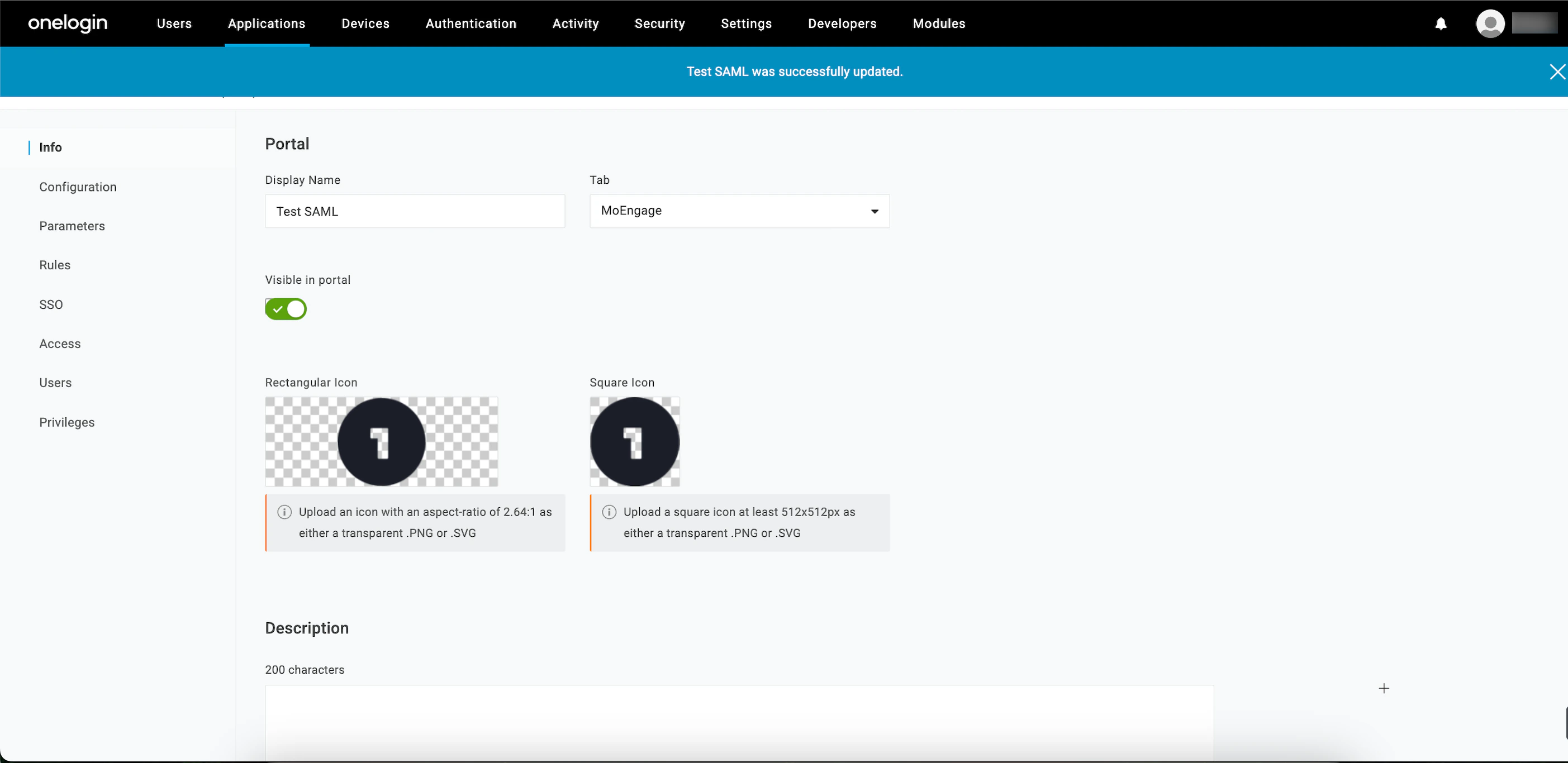
Click Save. Your SAML configuration is now successfully updated.
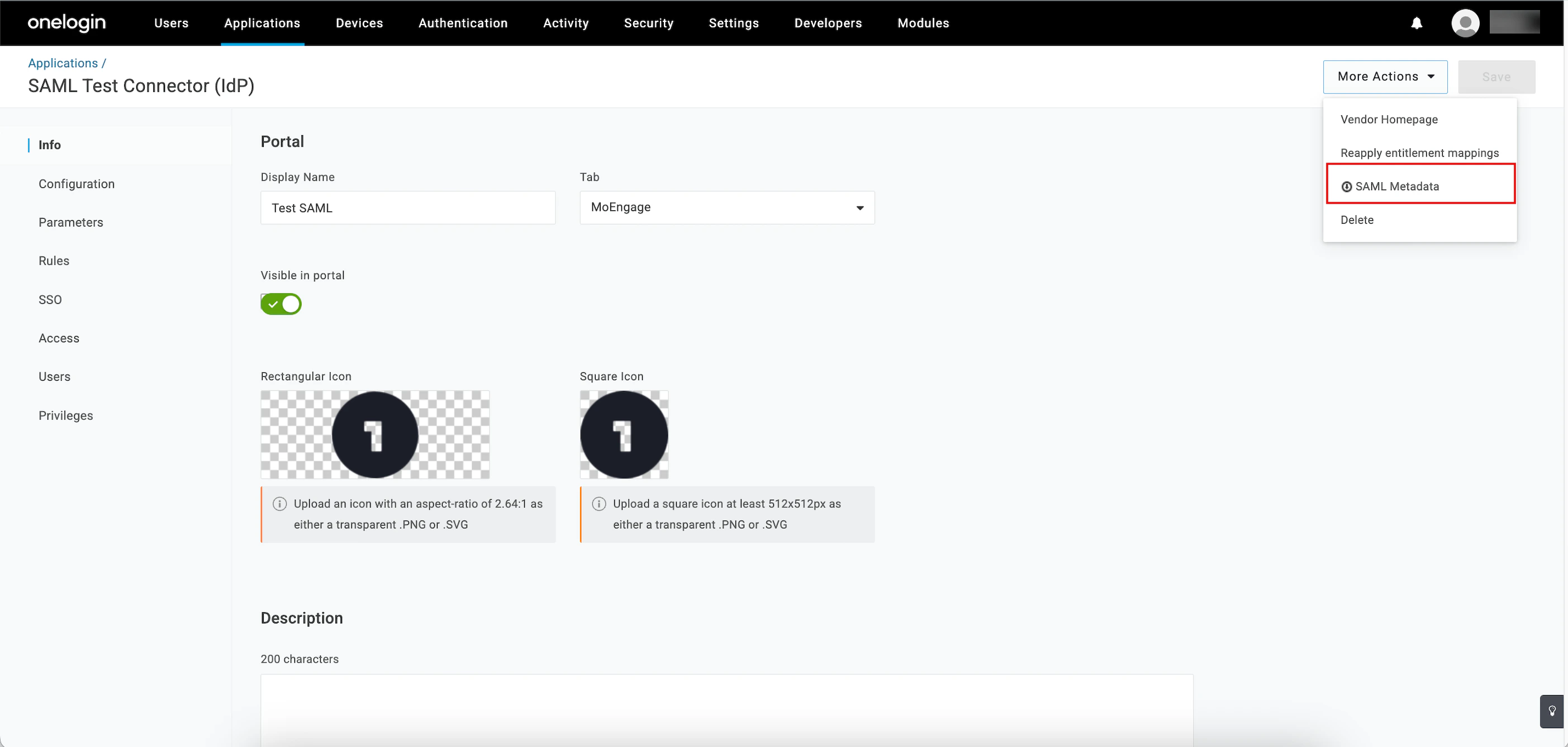
In the upper-right corner, click the More Actions arrow and select SAML Metadata.
The metadata will be downloaded in an XML file.
Click Upload to upload the downloaded XML file on the Configure SSO dialog box in the MoEngage dashboard.
By default, the Update the same config for Test Environment check box is selected. When it is selected, the configuration is applied to both the test and live environments. Clear the check box if you want the configuration to be applied only to the live environment.
Click Configure. The Alert pop-up window will appear, prompting you to review the instructions properly.
Select the Send email to the users of this workspace check box to notify all users about your workspace’s Single Sign-On (SSO) enablement.
Click Done. The SSO configuration is now successfully completed. You can see Onelogin SSO on the Login tab.
To set up SSO with Azure, perform the following steps:
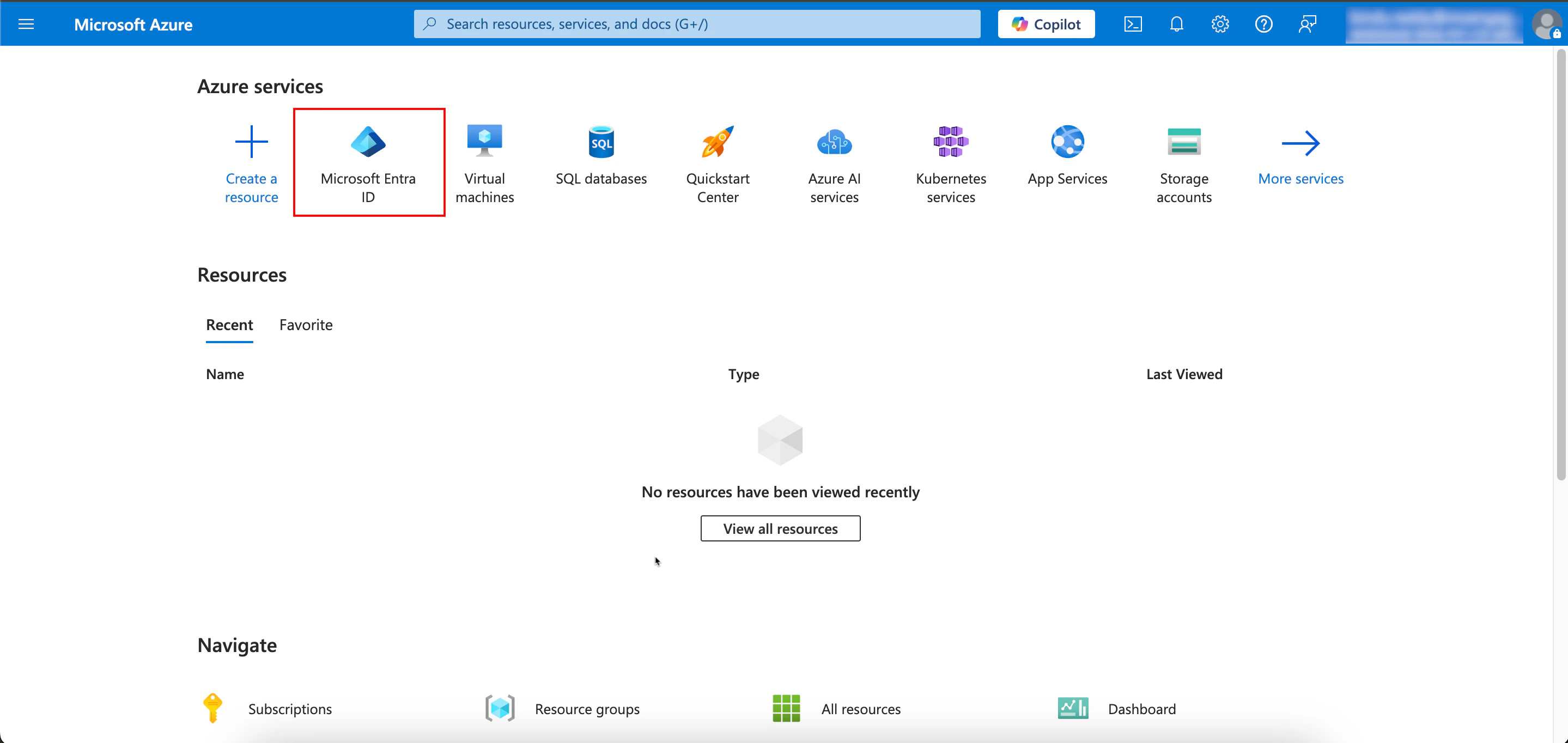
Navigate to the Azure Admin Console.
On the Azure services page, click Microsoft Entra ID.
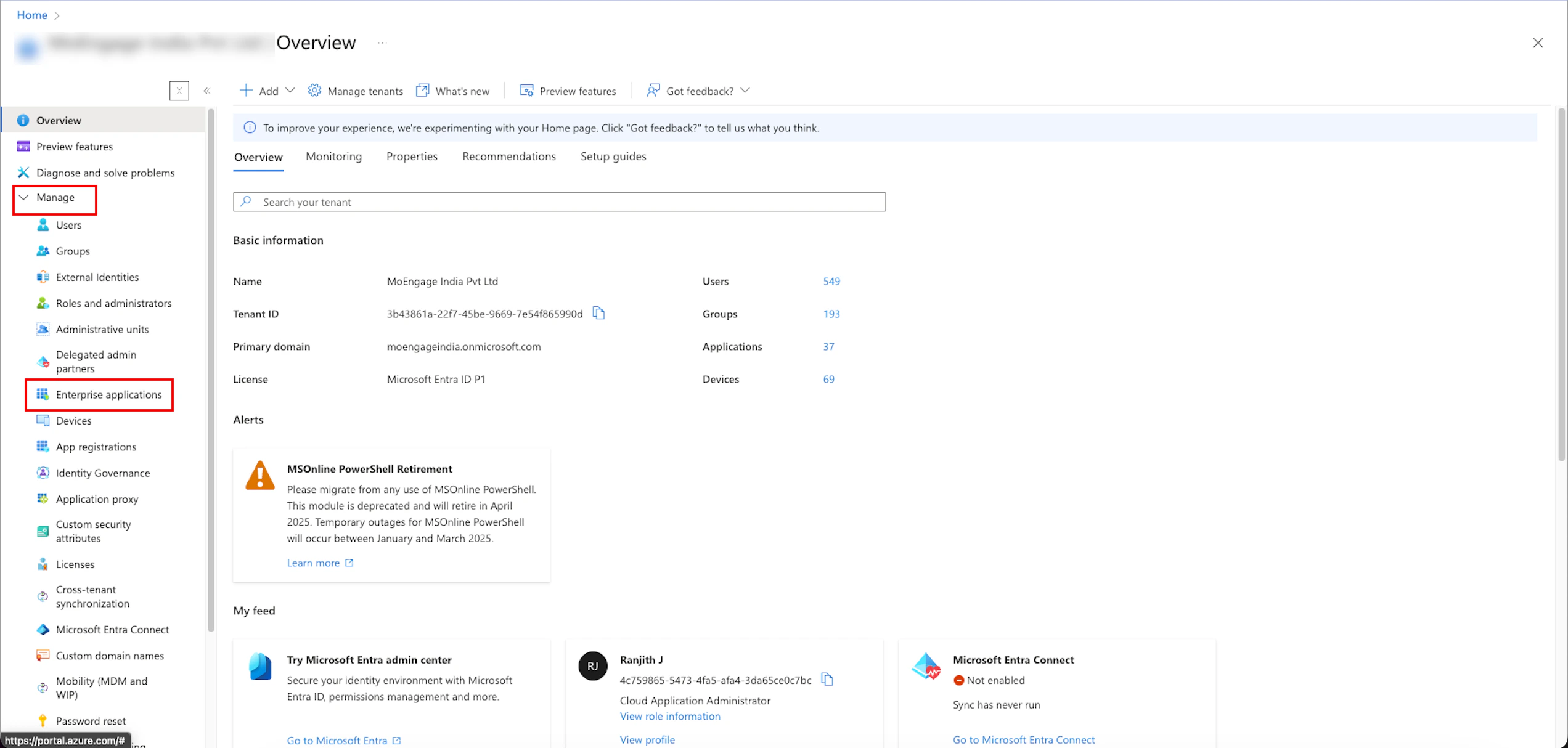
On the Overview page, go to the left navigation menu and click Manage > Enterpriseapplications.
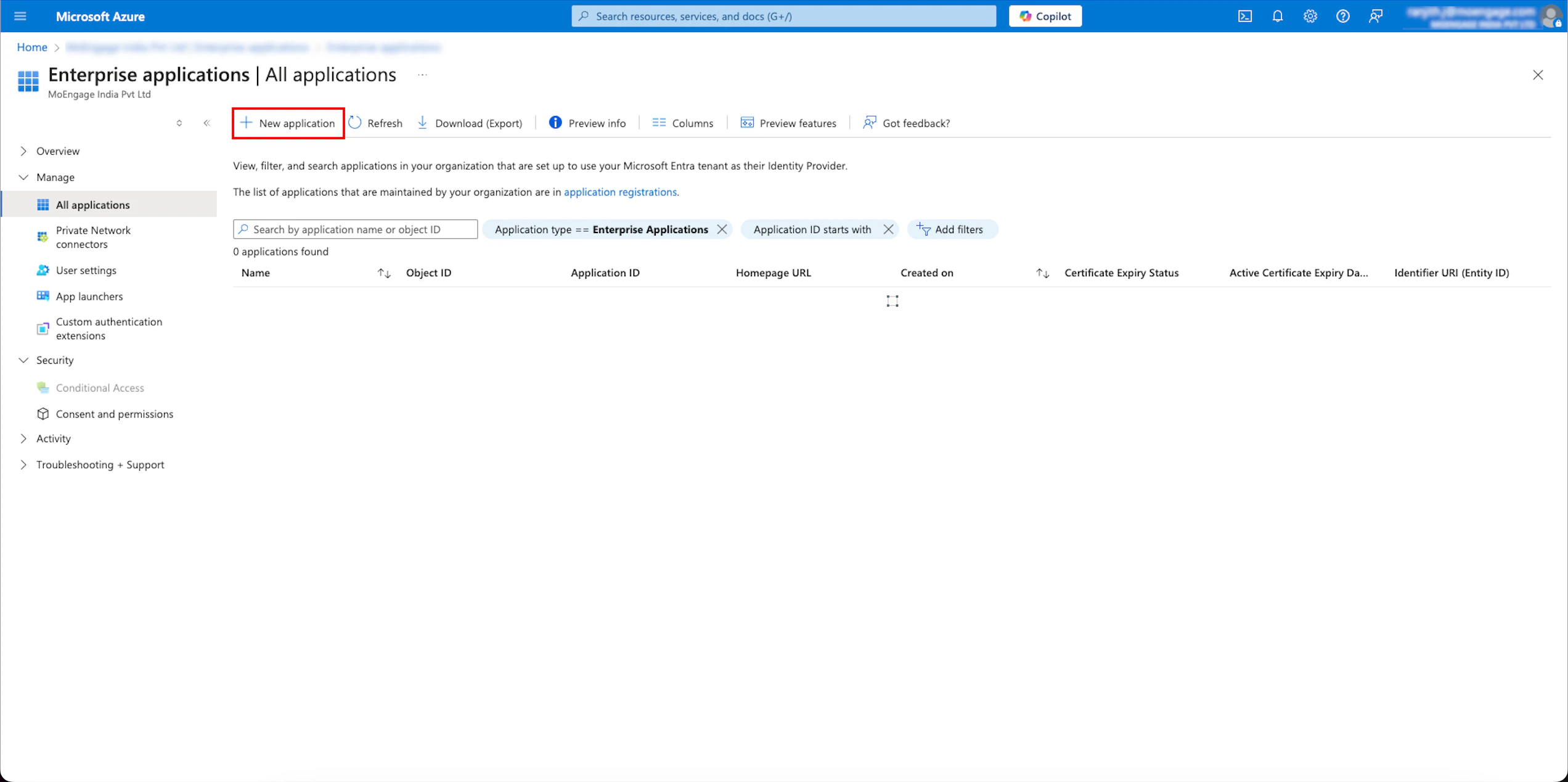
On the Enterprise applications | All applications page, click + New application.
On the Browse Microsoft Entra Gallery page, in the search box, type SAML Toolkit.
Click the Microsoft Entra SAML Toolkit tile and create the application. The created application is listed on the Enterprise applications| All applications page.
In the Search by application name or object ID box, type the name of the application that you created and select the application.
Your created application appears. Now, you must configure SSO for the application you created.
On your opened application page, go to the left navigation menu and click Manage > Single sign-on. The SAML-based Sign-On configuration page for your created application appears.
Move to the first step, Basic SAML Configuration, to define your metadata.
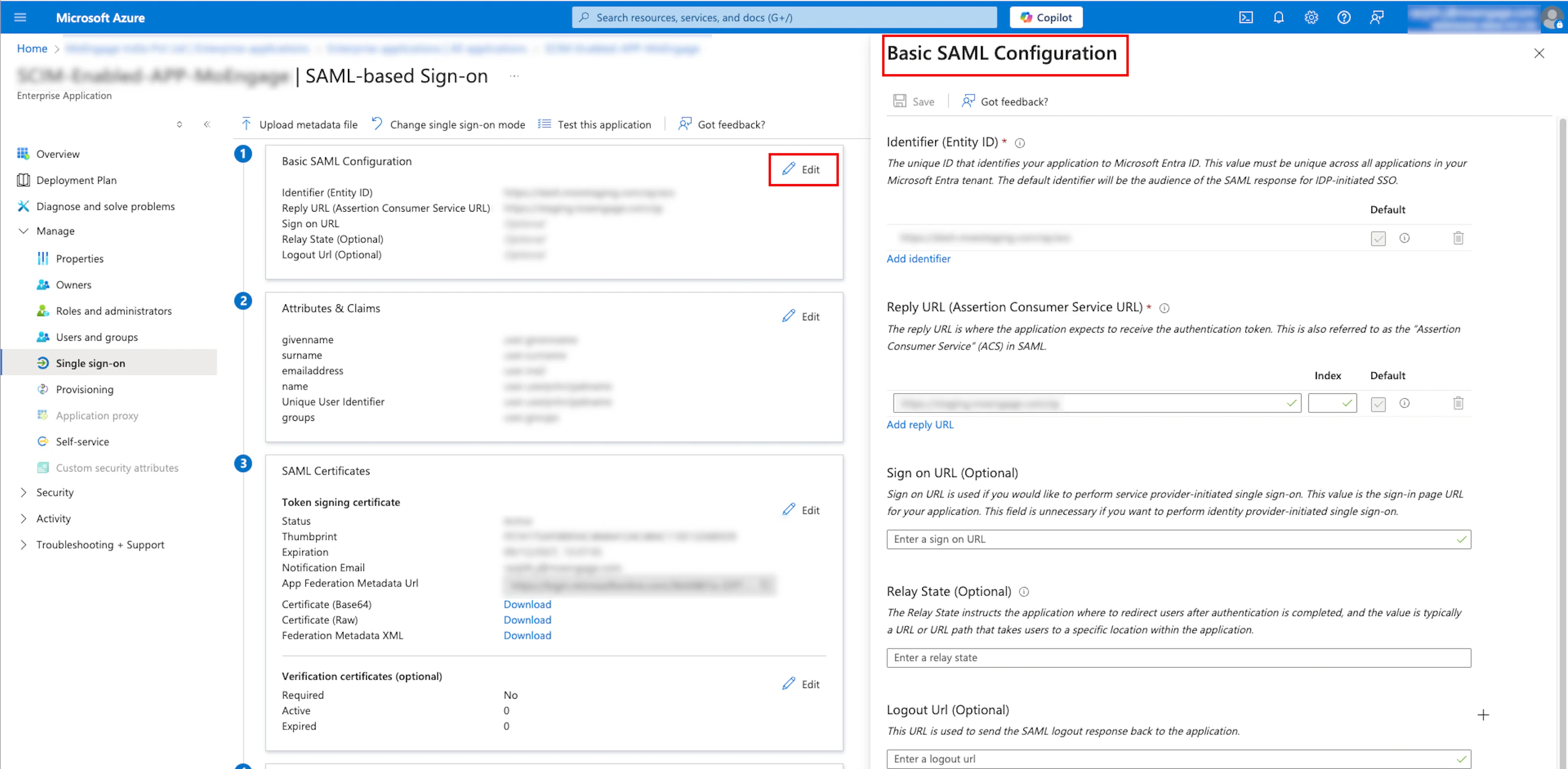
In the Basic SAML Configuration section, click Edit in the upper-right corner. The Basic SAML Configuration pane appears on the right side.
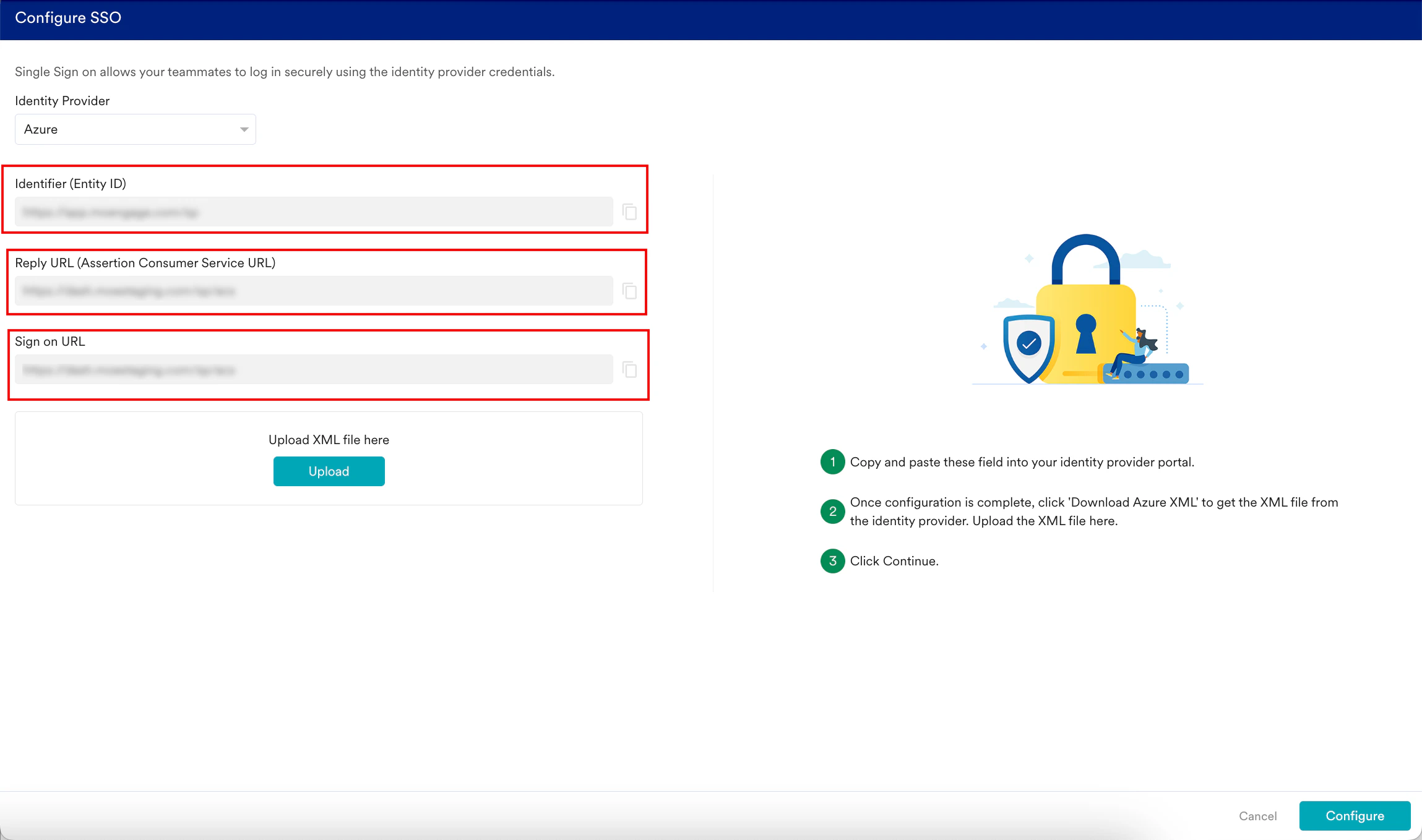
On the Configure SSO dialog box in the MoEngage dashboard, copy the Identifier (Entity ID) and the Reply URL (Assertion Consumer Service URL). Note: Copying the Sign on URL is optional and generally not recommended.
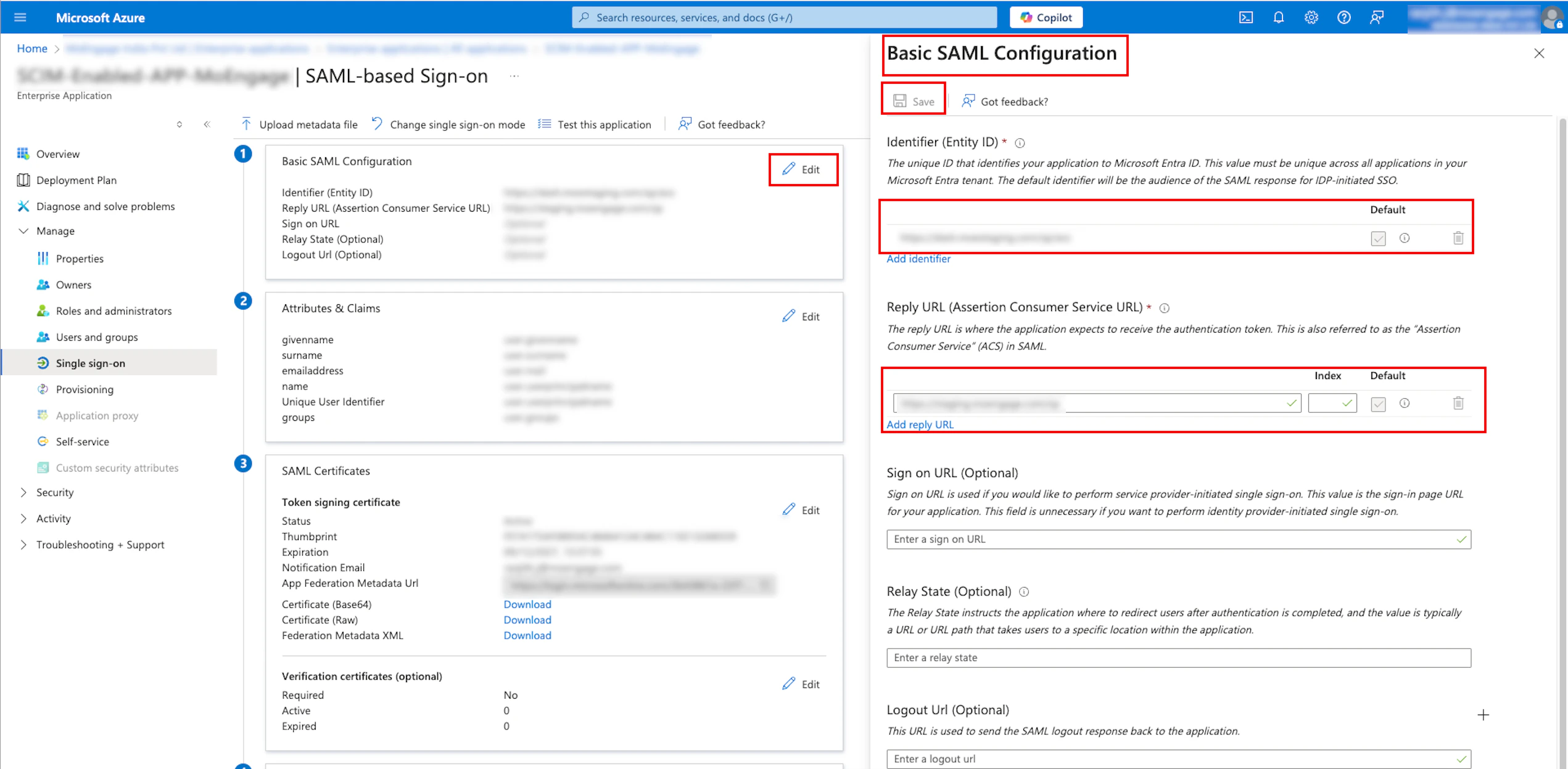
In the Basic SAML Configuration section, enter the following details:
Field
Required
Description
Identifier (Entity ID)
Yes
This URL allows MoEngage to verify authentication requests from Azure, ensuring secure and seamless logins. Paste the ID copied from the MoEngage dashboard.
Reply URL (Assertion Consumer Service URL)
Yes
This URL receives and processes the SAML authentication data for MoEngage from Azure. Paste the reply URL copied from the MoEngage dashboard.
Sign on URL
Optional and generally not recommended.
This URL is the entry point from Azure that triggers the SAML SSO process to access MoEngage. Paste the sign-on URL copied from the MoEngage dashboard.
Click Save.
Your SSO configuration has been successfully saved. To download the XML file, move to the third step, SAML Certificates.
In the SAMLCertificates section, click Download adjacent to the Federation Metadata XML. The metadata will be downloaded in an XML file.
Click Uploadto upload the downloaded XML file on the Configure SSO dialog box in the MoEngage dashboard.
By default, the Update the same config for Test Environment check box is selected. When it is selected, the configuration is applied to both the test and live environments. Clear the check box if you want the configuration to be applied only to the live environment.
Click Configure. The Alert pop-up window will appear, prompting you to review the instructions properly.
Select the Send email to the users of this workspace check box to notify all users about your workspace’s Single Sign-On (SSO) enablement.
Click Done. The SSO configuration is now successfully completed. You can see the Azure SSO on the Login tab.
To set up SSO with Google Admin, perform the following steps:
Navigate to the Google Admin Console.
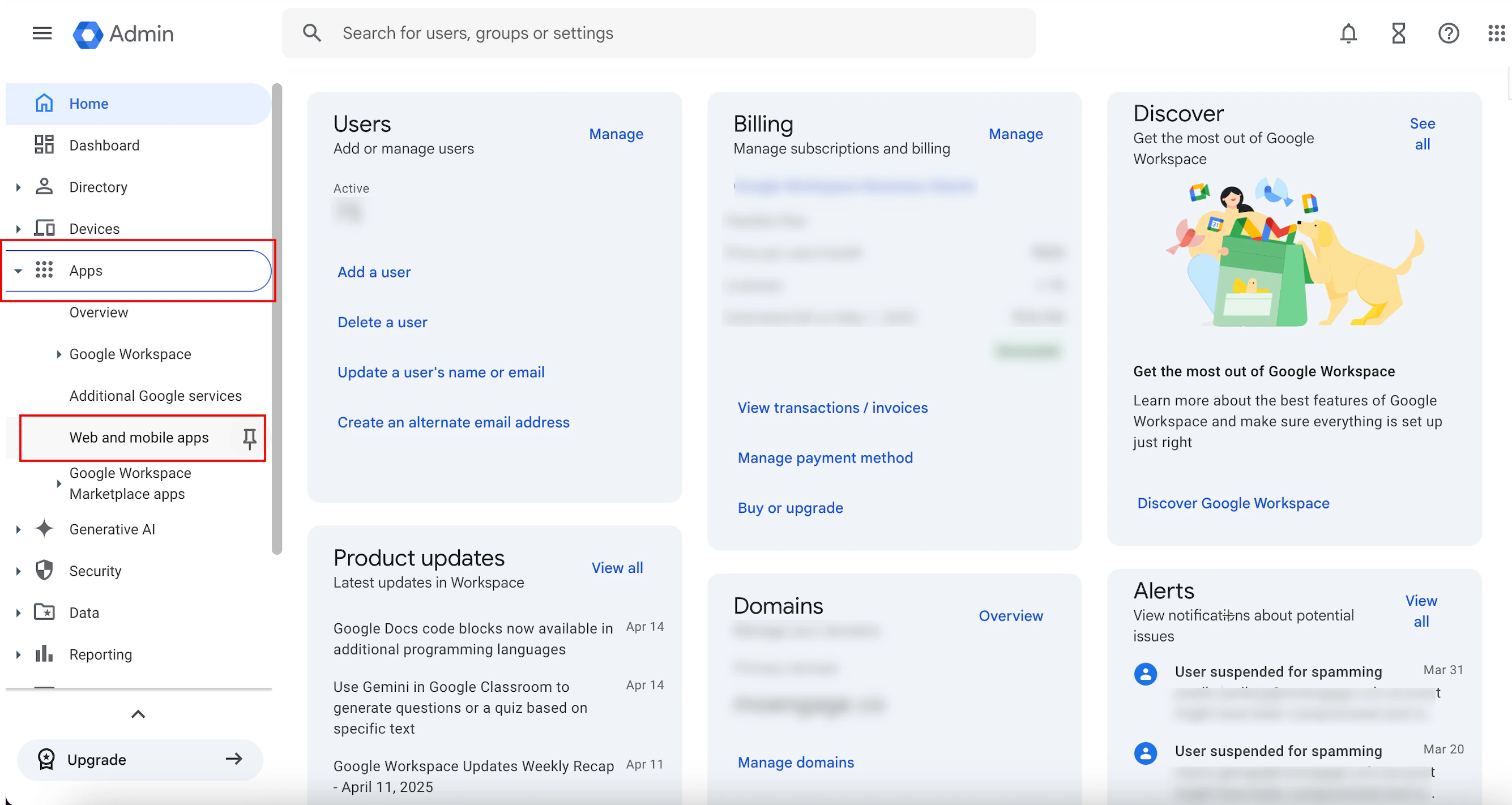
On the left navigation menu, click Apps > click Web and mobile apps.
Click the Add app arrow and click Add custom SAMLapp. You are taken to the first step, App details, to define your app.
On the App details page, enter the following details:
Field
Required
Description
App name
Yes
Name of your SAML application.
Description
Yes
Description of your SAML application configuration.
Upload logo
optional
Upload an image file (typically PNG, JPG, or GIF) to serve as your application icon. Note: The image file must be smaller than 4 MB.
Click Continue. You are taken to the second step, Google Identity Provider details.
Under Option 1: Download IdP metadata, click Download Metadata.
The metadata will be downloaded in an XML file.
Click Continue. You are taken to the third step, Service provider details.
On the Configure SSO dialog box in the MoEngage dashboard, copy the ACS URL and Entity ID.
On the Service provider details page, enter the following details:
Field
Required
Description
ACS URL
Yes
This URL receives and processes the SAML authentication data for MoEngage from Google Admin. Paste the URL copied from the MoEngage dashboard.
Entity ID
Yes
A unique identifier for your application. Paste the ID copied from the MoEngage dashboard.
Start URL
Optional
Leave this blank.
Select the Signed response check box to sign the entire SAML response, which includes the assertion and other protocol-related information.
In the Name ID format list, select Email.
Click Continue. You are taken to the fourth step, Attribute mapping. Here, you can map optional user attributes (for example, first name, last name, and email address).
Click Finish. Your SAML settings are updated.
On the Configure SSO dialog box in the MoEngage dashboard, click Upload to upload the XML file that you downloaded in step 6.
By default, the Update the same config for Test Environment check box is selected. When it is selected, the configuration is applied to both the test and live environments. Clear the check box if you want the configuration to be applied only to the live environment.
Click Configure. The Alert pop-up window will appear, prompting you to review the instructions properly.
Select the Send email to the users of this workspace check box to notify all users about your workspace’s Single Sign-On (SSO) enablement.
Click Done. The SSO configuration is now successfully completed. You can see Google SSO on the Login tab.
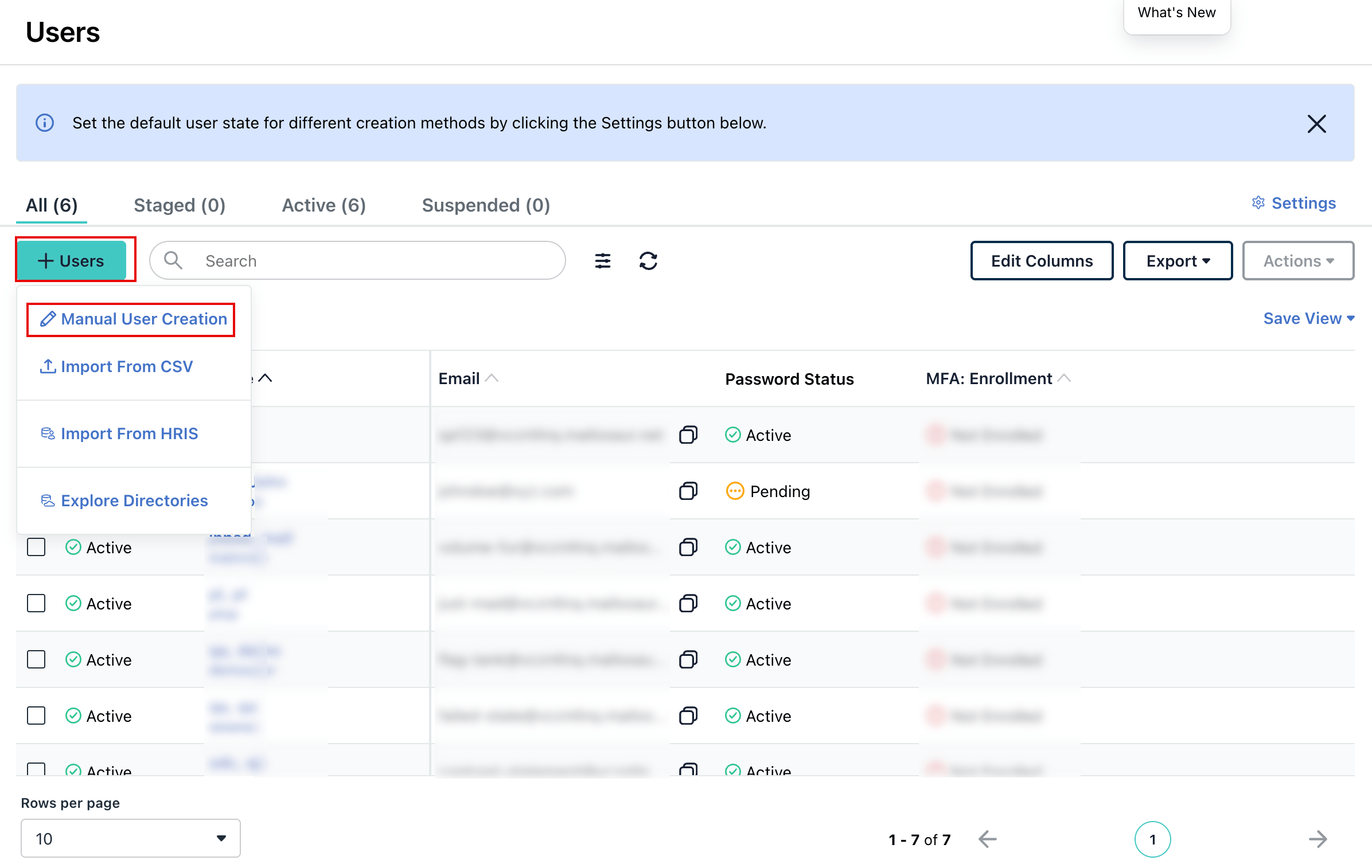
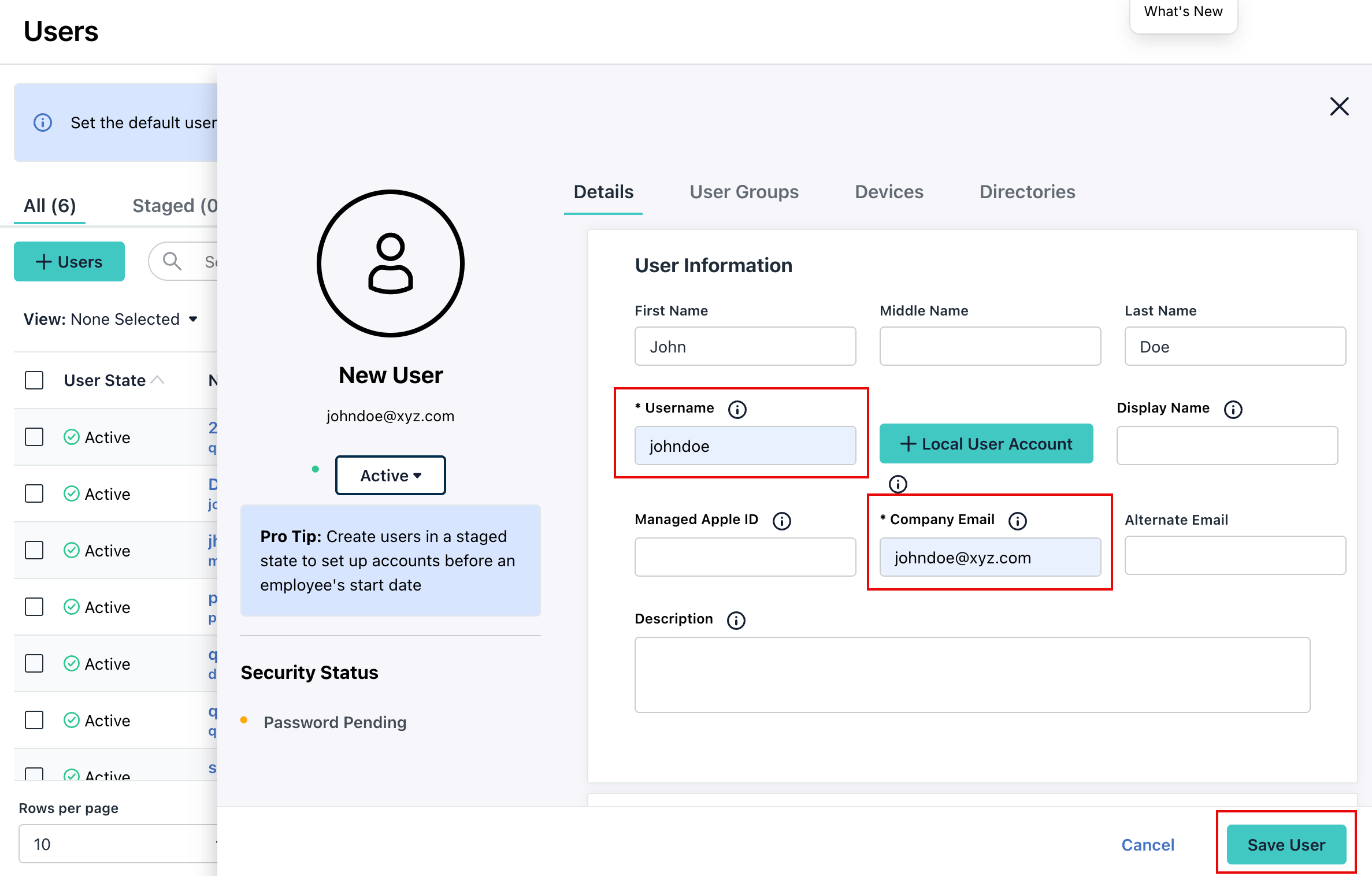
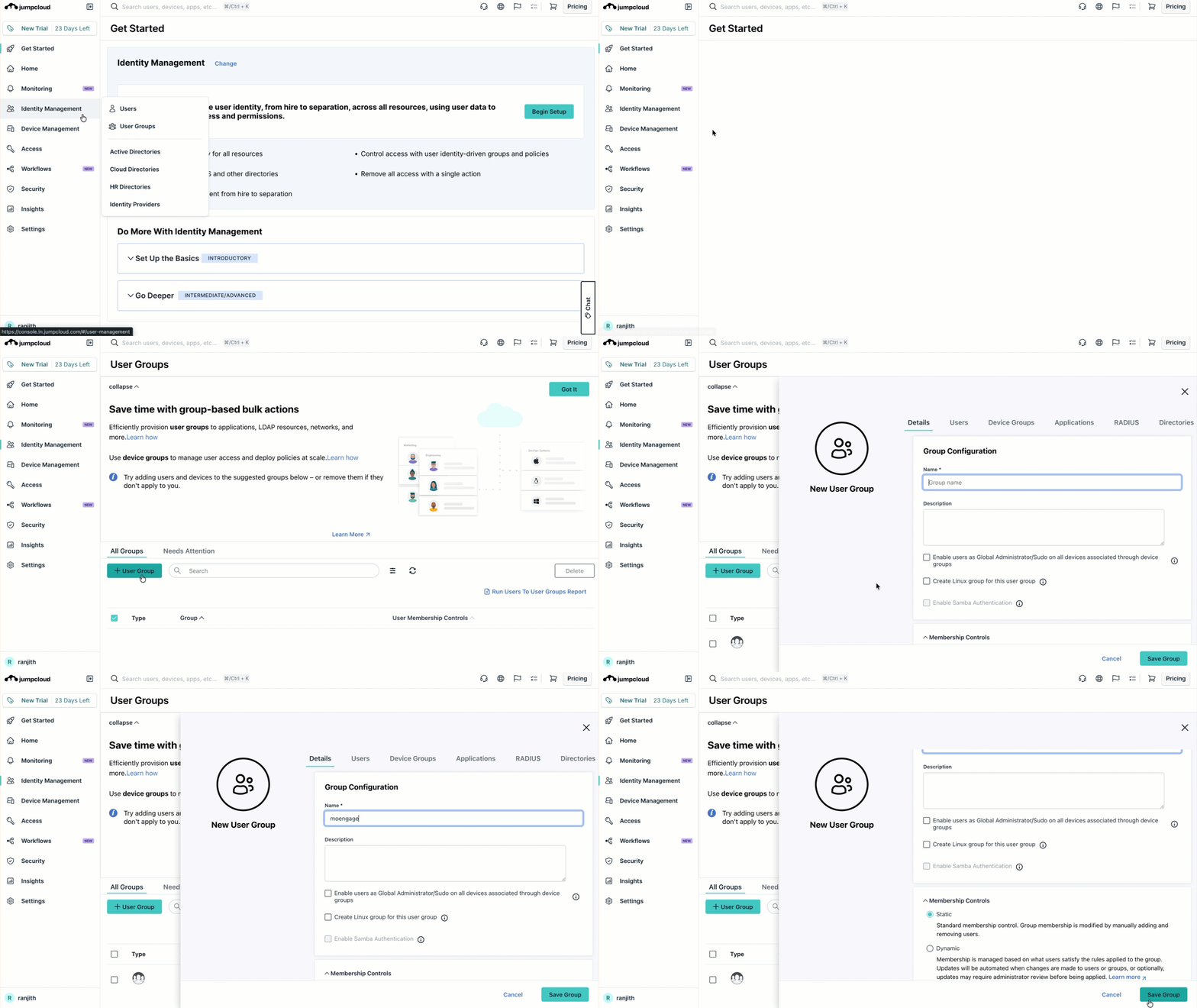
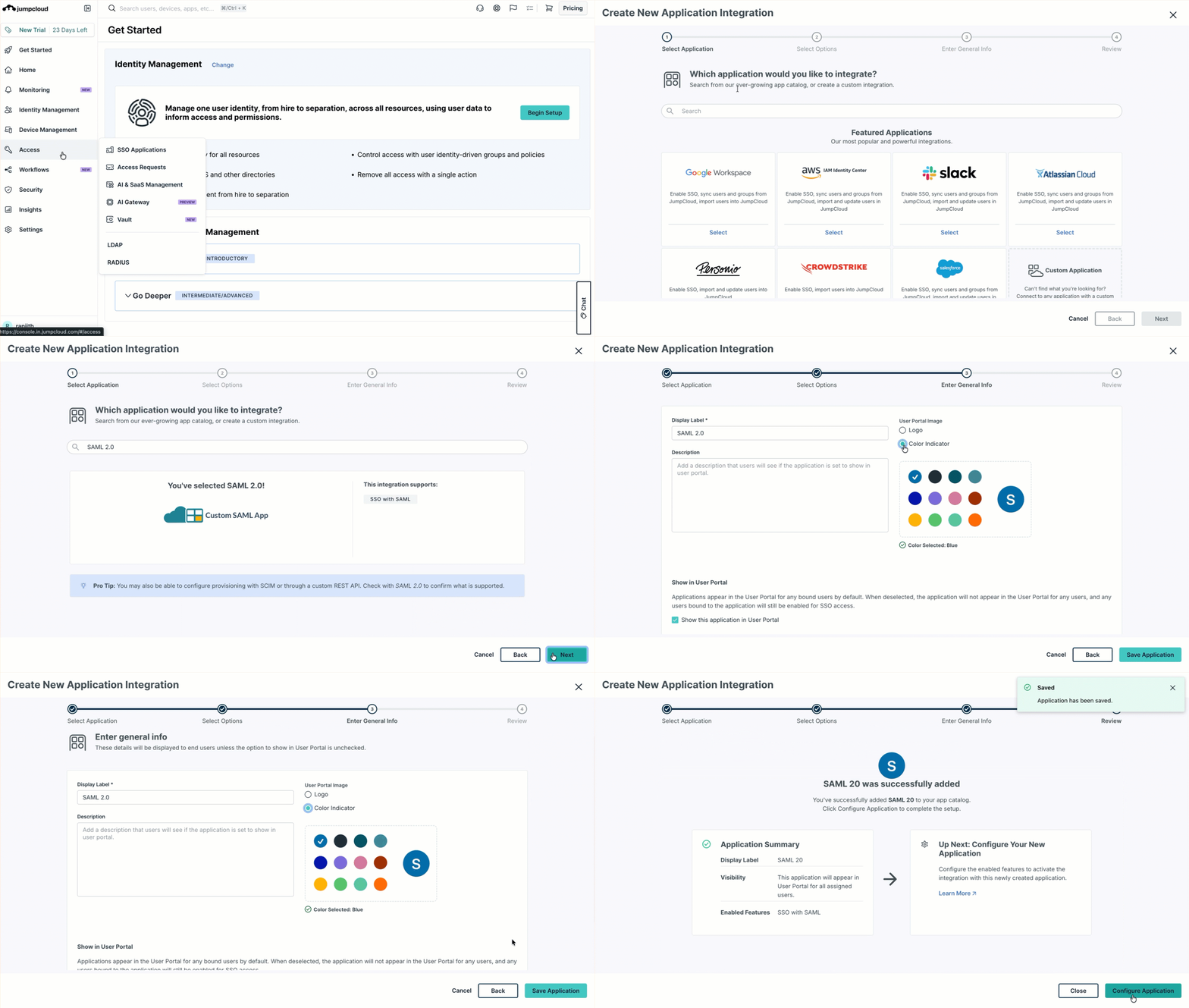
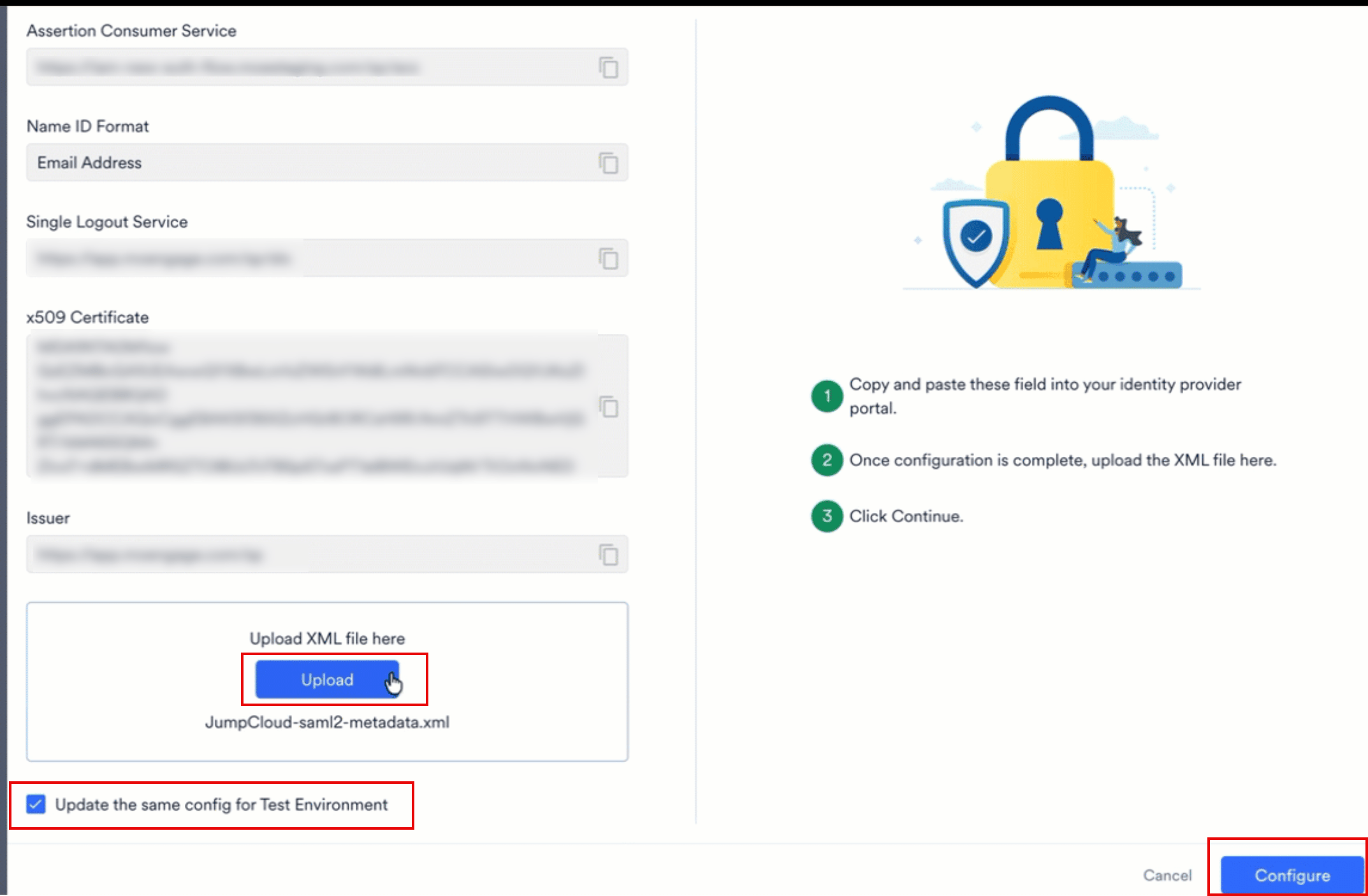
JumpCloud does not appear as a named option in the Identity Provider list on the MoEngage dashboard. Configure it using the Other option instead.JumpCloud grants application access by user group, so create your user and a user group before you configure SSO.
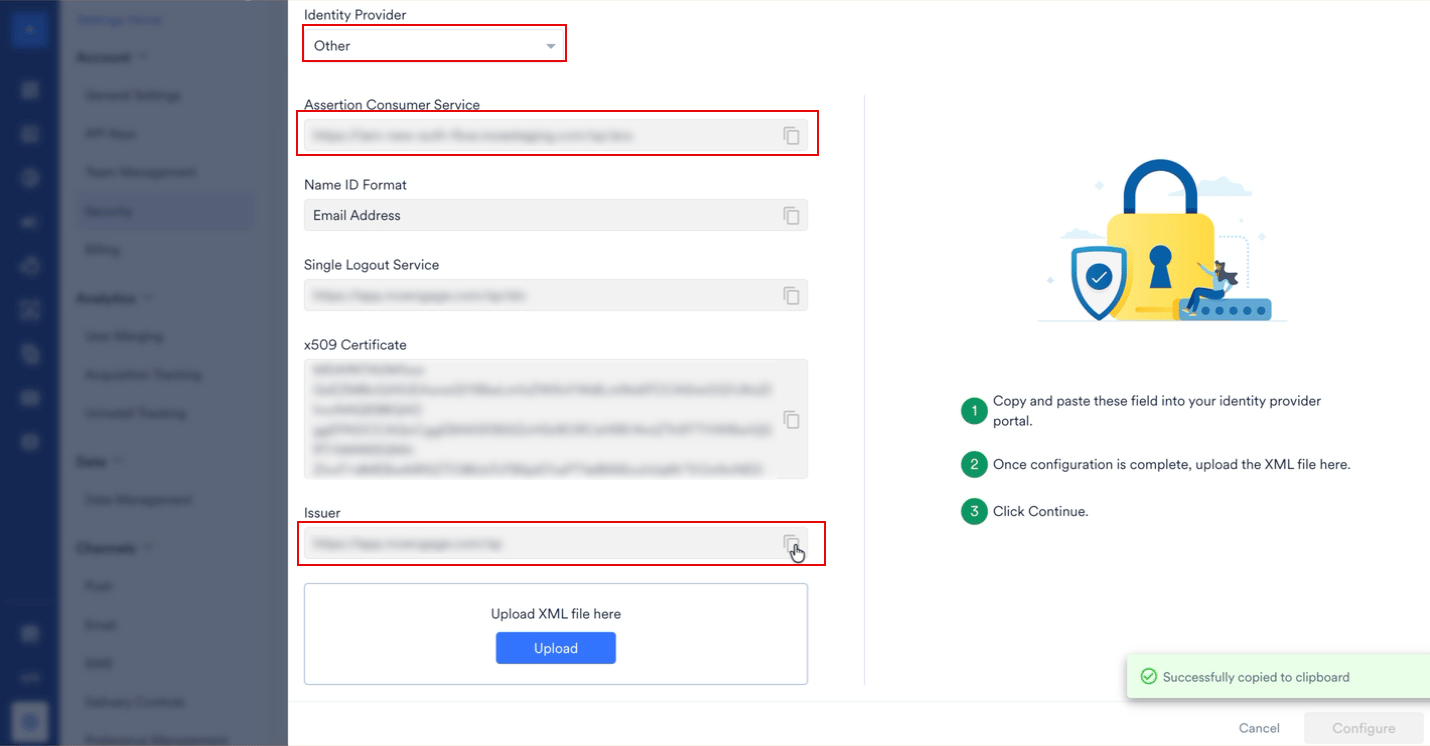
On the Configure SSO dialog box in the MoEngage dashboard, in the Identity Provider list, you must select Other, since JumpCloud does not appear as a named option in the list.
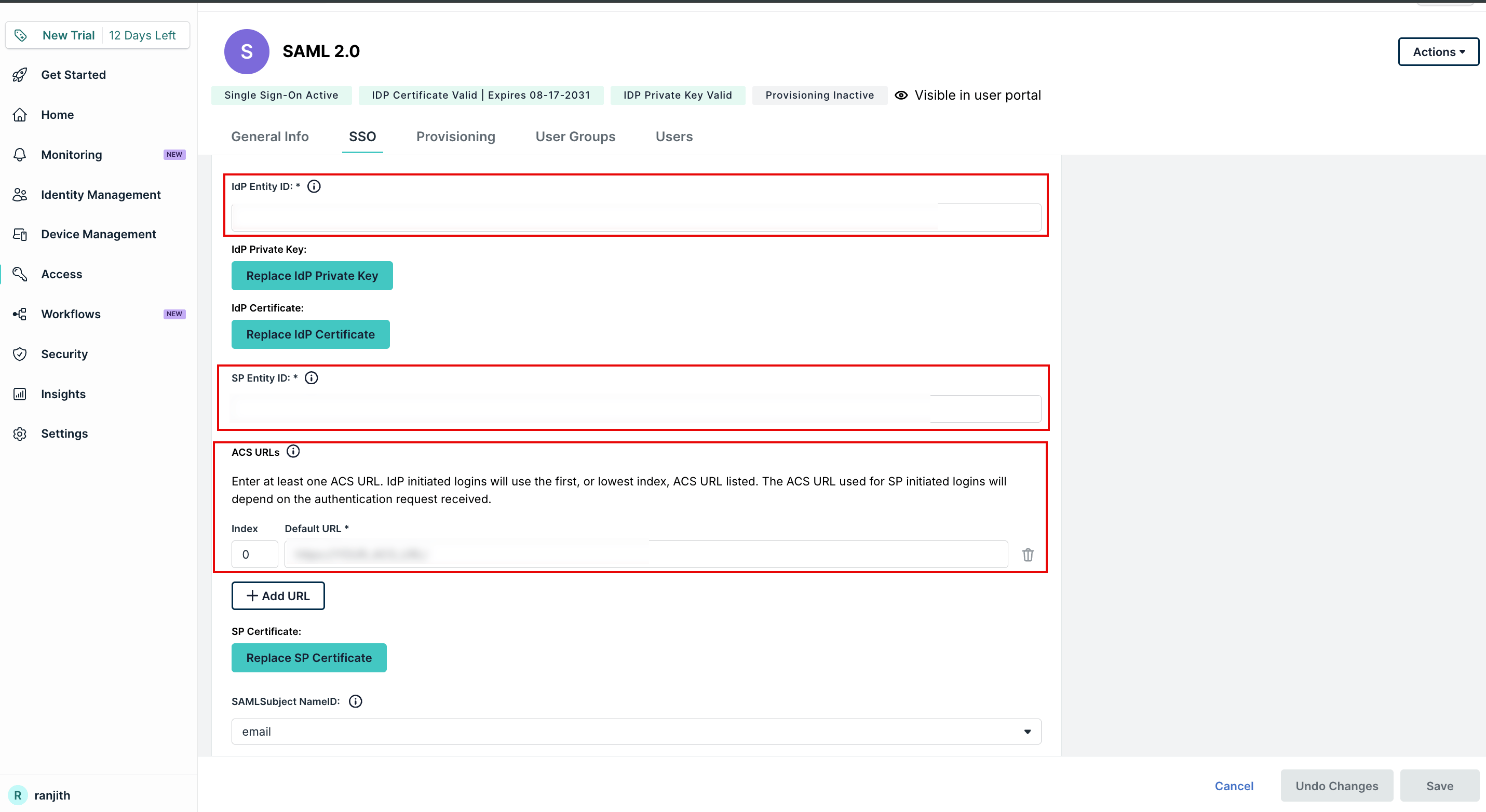
Then, on the SSO tab of your JumpCloud application, enter the following details:
In the SP Entity ID box, paste the Issuer value copied from the Configure SSO dialog box in the MoEngage dashboard.
Under ACS URLs, in the Default URL box, paste the Assertion Consumer Service URL copied from the MoEngage dashboard.
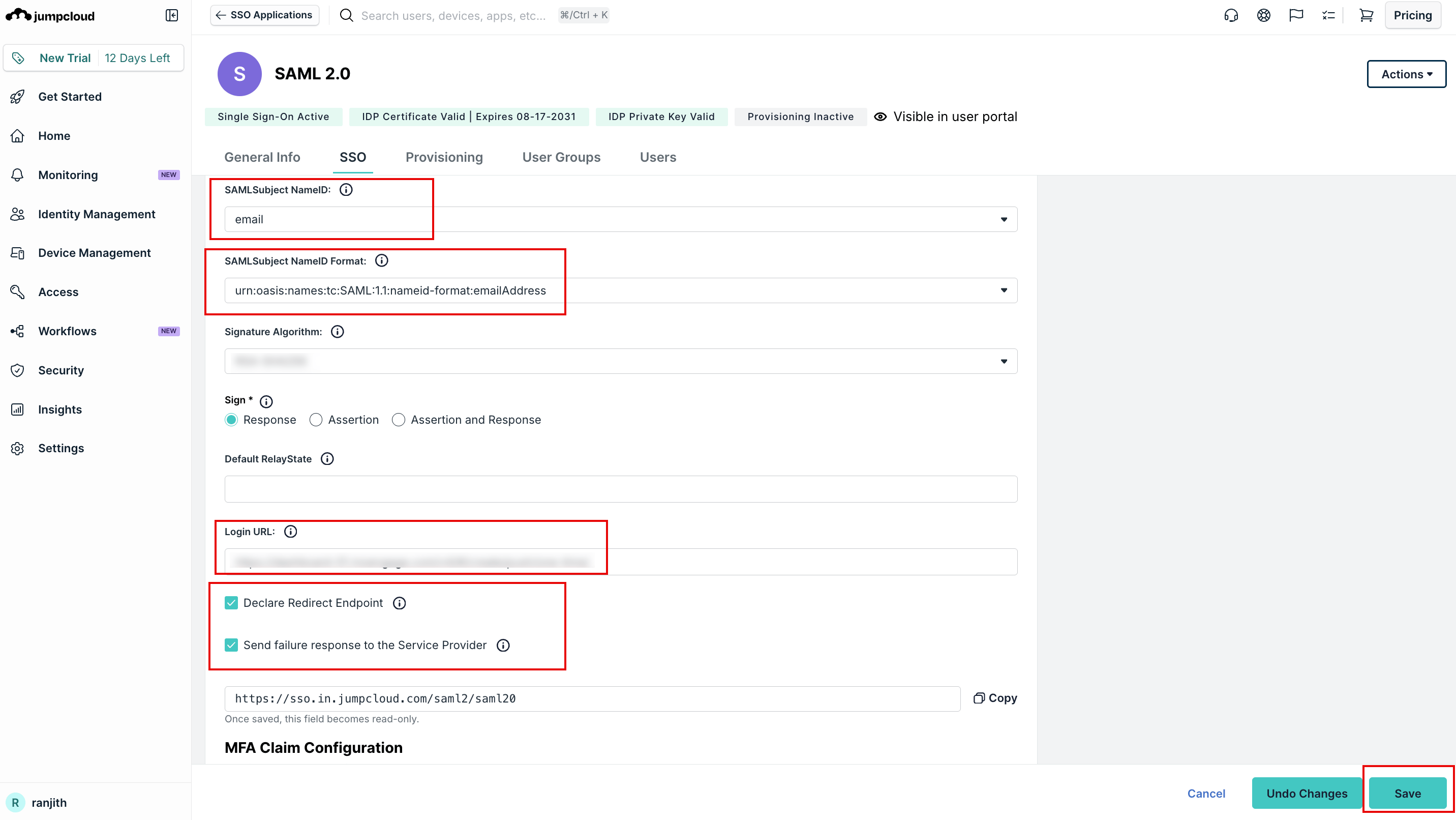
In the SAMLSubject NameID list, select email.
In the SAMLSubject NameID Format list, select urn:oasis:names:tc:SAML:1.1:nameid-format:emailAddress, which corresponds to the Email Address format shown on the MoEngage dashboard.
In the Login URL box, enter your MoEngage dashboard URL.
Select the Declare Redirect Endpoint and Send failure response to the Service Provider checkboxes.
Click Save.
Select both the Declare Redirect Endpoint and Send failure response to the Service Provider checkboxes. If you leave either checkbox cleared, uploading the SAML metadata XML file in Step 5 returns an error.
On the SSO tab of your JumpCloud application, scroll to Configuration Settings > JumpCloud Metadata, and click Export Metadata to download the SAML metadata XML file.
On the Configure SSO dialog box in the MoEngage dashboard, click Upload to upload the downloaded XML file.
By default, the Update the same config for Test Environment check box is selected. When it is selected, the configuration is applied to both the test and live environments. Clear the check box if you want the configuration to be applied only to the live environment.
Click Configure. The Alert pop-up window will appear, prompting you to review the instructions properly.
Select the Send email to the users of this workspace check box to notify all users about your workspace’s Single Sign-On (SSO) enablement.
Click Configure. The SSO configuration is now successfully completed. You can see the JumpCloud SSO on the Login tab.
On your JumpCloud application, click the User Groups tab.
Select the user group you created in Step 2 so its members can access MoEngage through this application.
If you are using an IDP that is not listed above, you can select the Other option from the Identity Provider list.
To set up SSO with the Other option, perform the following steps:
Complete the necessary setup within your IdP admin console.
Add the metadata values displayed on the Configure SSO dialog box in the MoEngage dashboard to the corresponding fields in your IdP admin console.
Download and save the SAML metadata file generated by your IdP.
To upload the XML file you downloaded in the Configure SSO section of the MoEngage dashboard, click Upload.
By default, the Update the same config for Test Environment check box is selected. When it is selected, the configuration is applied to both the test and live environments. Clear the check box if you want the configuration to be applied only to the live environment.
Click Configure. The Alert pop-up window will appear, prompting you to review the instructions properly.
Select the Send email to the users of this workspace check box.
Click Done. The SSO configuration is now successfully completed.
If you see an error while logging in via SSO, check the FAQ section below for common issues and fixes, or contact the MoEngage Support team for help.
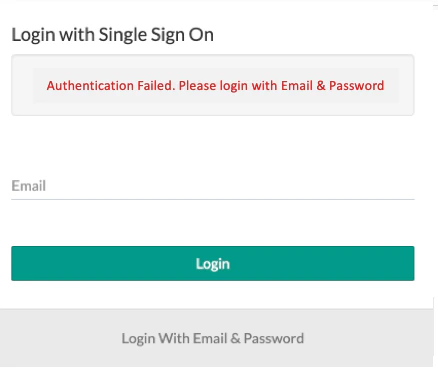
Authentication FailedThis generally happens when the SAML authentication with the Identity Provider fails. Please contact your identity provider for details.Persistent ErrorMoEngage supports the admin login using an email id - password combination. The Admin can go back to the Single Sign On screen (Go to settings > Security Settings) and disable SSO.
What if the user is not able to log in via SSO?
MoEngage allows you to log in to your last-used workspace by default. If it is not accessible for any reason, you can access other workspaces using the Login to a different workspace flow.
Does the email address need to match between the IdP and MoEngage?
Yes. Use the same email address in your organization’s Identity Provider (IdP) and in MoEngage. SSO login fails if the addresses do not match.
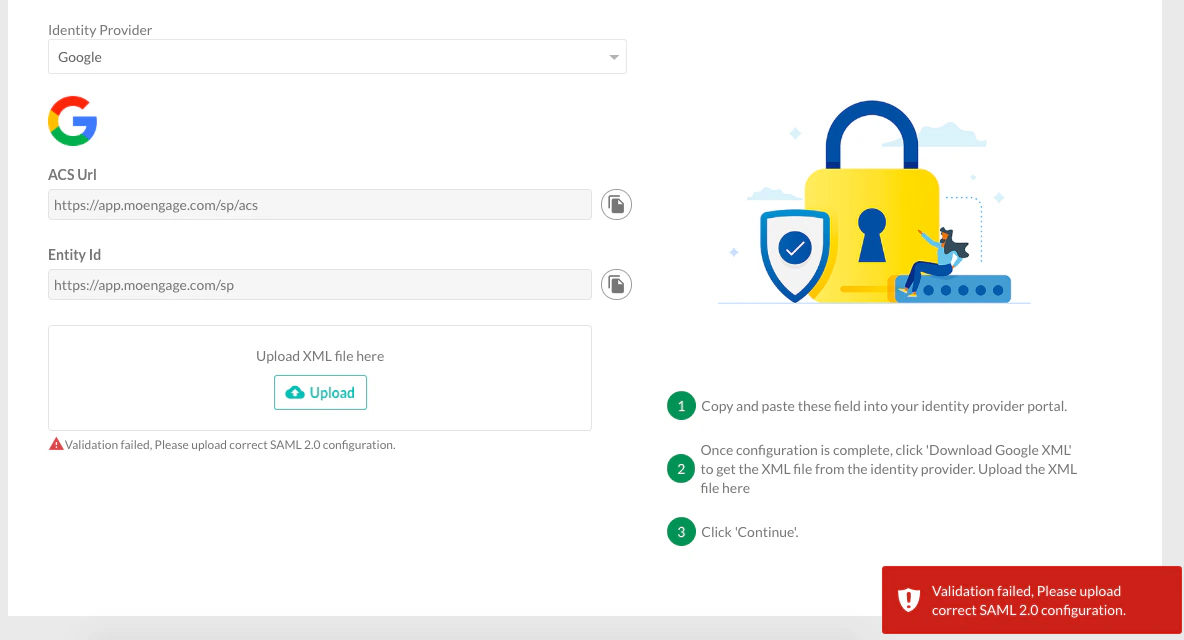
This generally happens when the uploaded XML file is invalid. Try again with the correct XML file. If the issue persists, check with your identity provider.
Which identity providers are supported by MoEngage?
MoEngage supports all identity providers (IdPs) that support SAML 2.0
Can different identity providers be used for different workspaces?
Yes, you can configure different identity providers for different workspaces. For example, you can use Okta to configure SSO for one workspace and Google for another. You can also have different identity providers for test and live environments.
Which identity provider (in case of multiple IdPs) will the user be redirected to after logging in?
The user will be redirected to the IDP associated with the most recent workspace that they used before the last session ended.
Is there a test environment using which SSO implementation can be tested?
You can use the test environment to test the SSO setup and verify that everything works as desired. Once you have verified it on the test, you will need to set up SSO again on the live environment. On the other hand, SSO gets configured to the test environment automatically if you configure it first in the live environment.
What happens if the user exists in the identity provider’s directory but not in MoEngage?
The user will not be able to log in to MoEngage if the user is not a part of the workspace in which the SSO has been enabled.
What happens if the user exists in the identity provider’s directory but does not have access to the SSO workspace linked with MoEngage?
The user will see the Auth Status Failure error on the MoEngage Dashboard while being redirected back from the identity provider.
Who can enable/disable SSO for a workspace on MoEngage?
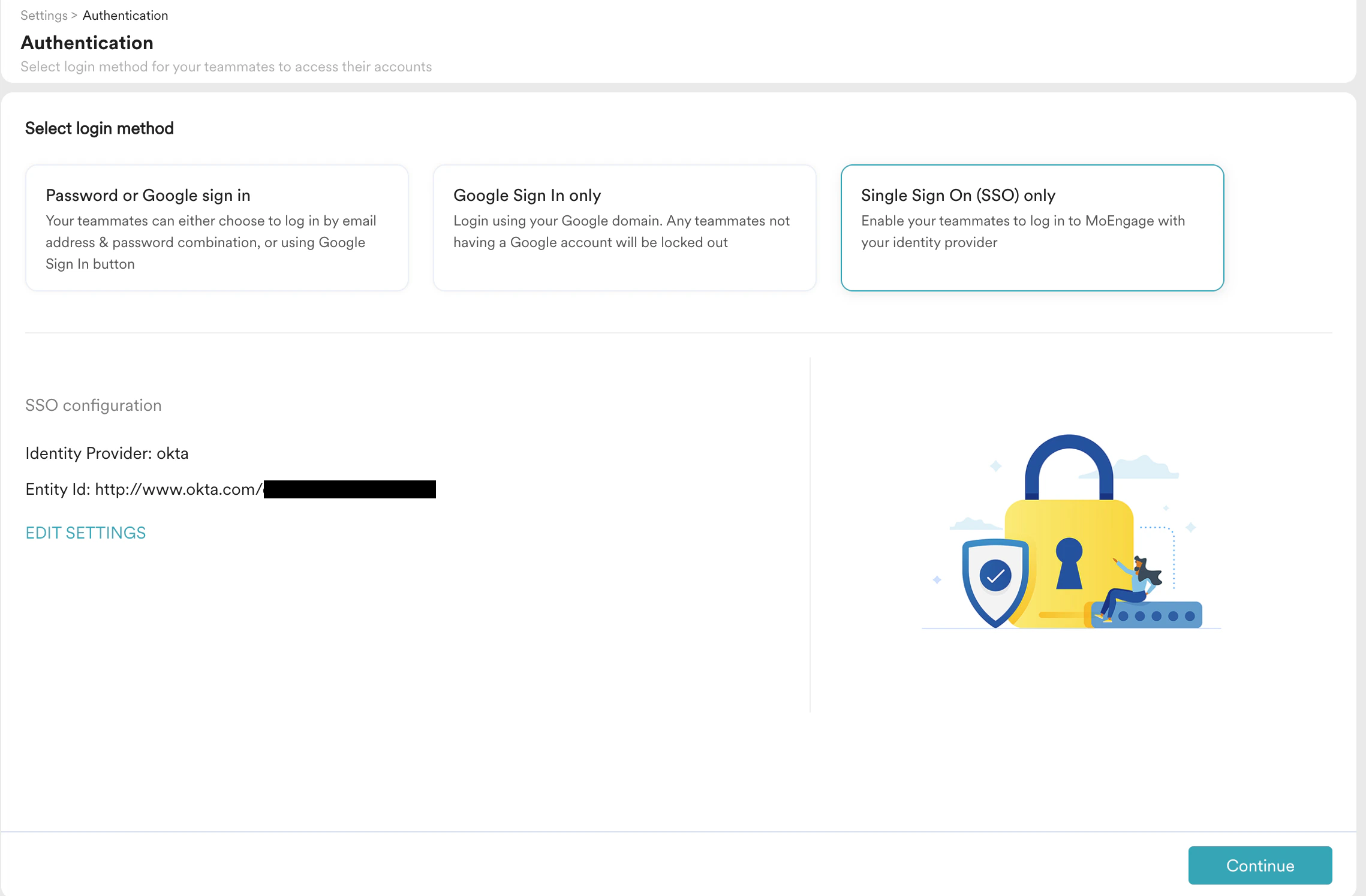
The SSO can only be enabled / disabled / edited by a user with access to the Setup & Manage permission under Login Settings.The user with the necessary permissions can go to Settings -> Login -> Authentication, select Single Sign On (SSO) Only, and perform the necessary action.
What happens if the SSO is not enabled for one of the workspaces or if different identity providers have been used for different workspaces?
If SSO is not enabled for one of the workspaces or if different identity providers have been used for the workspaces, the user will need to re-authenticate while switching between them.
What happens if the user wants to seamlessly switch between different workspaces after enabling SSO?
To switch between different workspaces without re-authenticating seamlessly, the user will need to enforce SSO on all the workspaces with the same identity provider in both the Test and Live environments.
Can we configure SSO to allow a specific set of users to log in using SSO and others to log in with ID and Password?
Only the admins have the option to log in using their MoEngage credentials once SSO is enabled. All other users must log in through SSO.
When using Microsoft Azure, what should be the value of the User Principal Name (UPN) attribute?
UPN consists of a UPN prefix (the user account name) and a UPN suffix (a DNS domain name). The prefix is joined with the suffix using the ”@” symbol. For example, “[email protected]”. A UPN must be unique among all security principal objects within a directory. Read more about it here.
What are some of the common issues faced by the users?
Here are some of the common issues faced and their resolutions.
Error
Resolution
Incorrect Cluster URL
Ensure that the correct login URL (as per your data center) is used to log into your MoEngage Dashboard. For more information, refer to Data Centers.
Incorrect Name ID Format
The Name ID Format should be in the format mentioned below: urn:oasis:names:tc:SAML:1.1:nameid-format:emailAddress
Missing Single Sign On URL
The Single Sign On URL should be present with a valid value in the SAML metadata file.


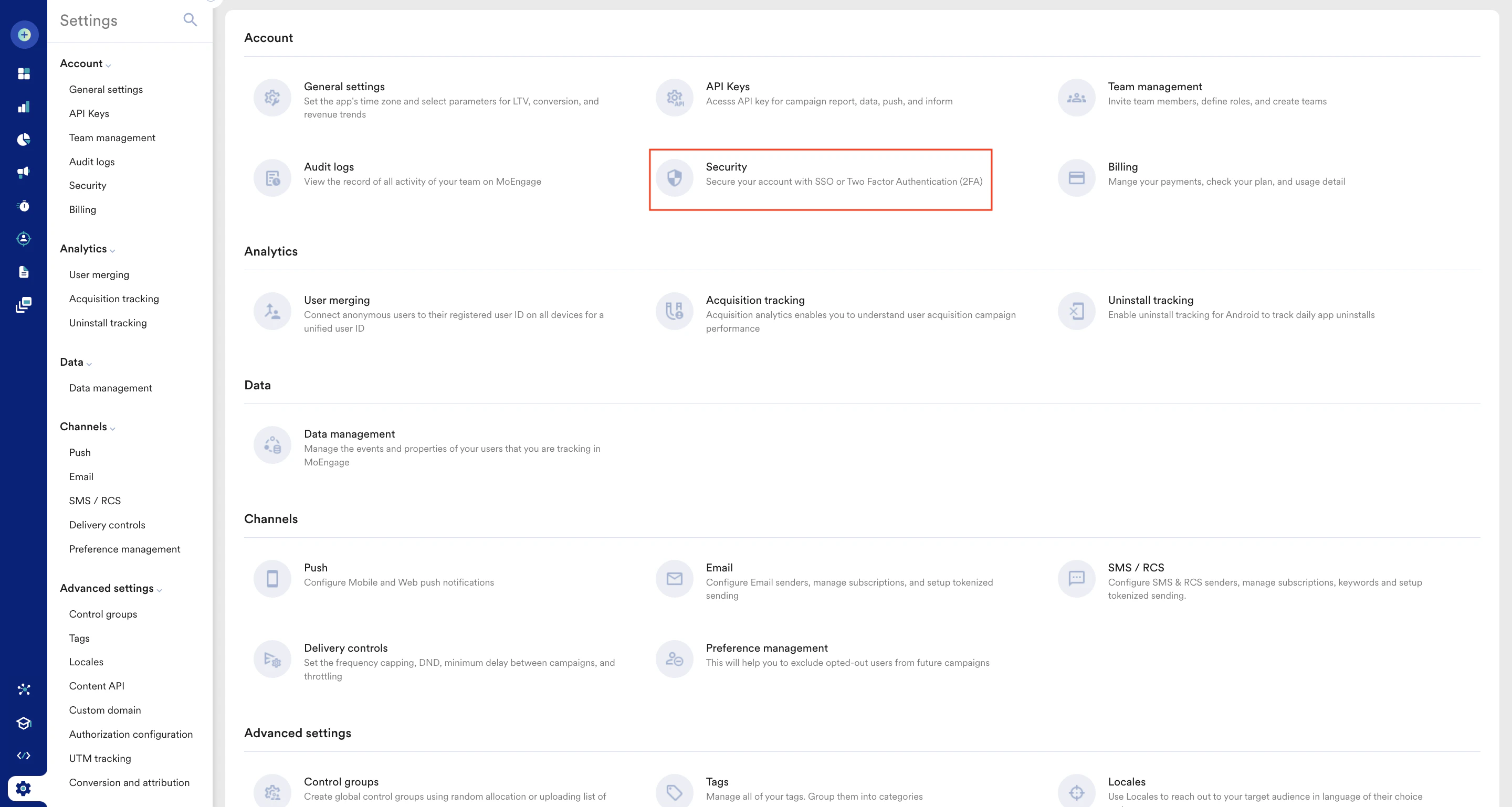
 The Configure SSO dialog box appears.
 Now, you must switch to that specific IdP admin console to configure the SSO settings and ensure the SSO integration between MoEngage and the selected IdP functions as intended.
If your preferred identity provider is not available in the Identity Provider list, you can select Other to configure your SSO. This function works with any SAML 2.0-compliant provider.
Now, you must switch to that specific IdP admin console to configure the SSO settings and ensure the SSO integration between MoEngage and the selected IdP functions as intended.
If your preferred identity provider is not available in the Identity Provider list, you can select Other to configure your SSO. This function works with any SAML 2.0-compliant provider.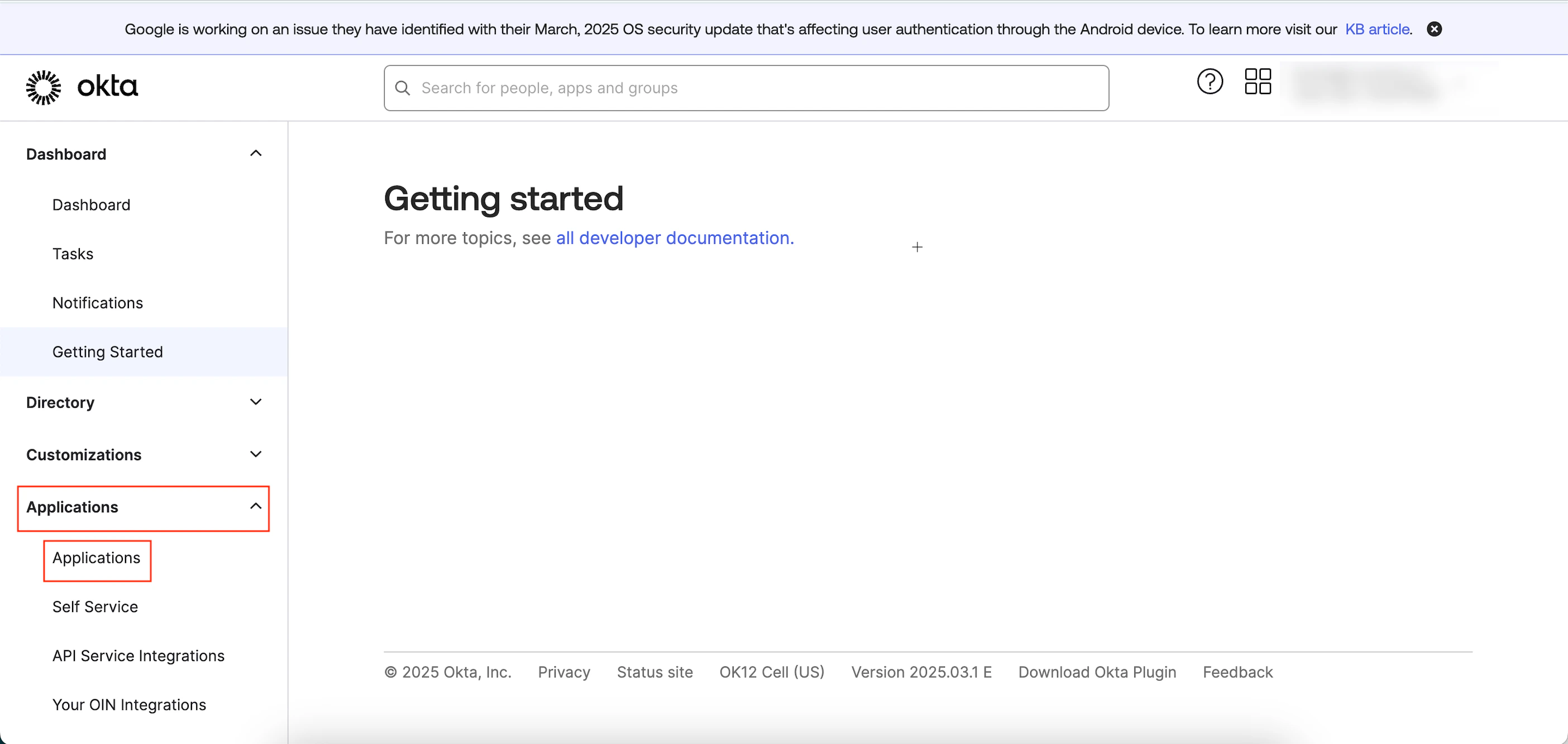

 The Create SAML integration page appears. You are taken to the first step, General Settings, to define your app.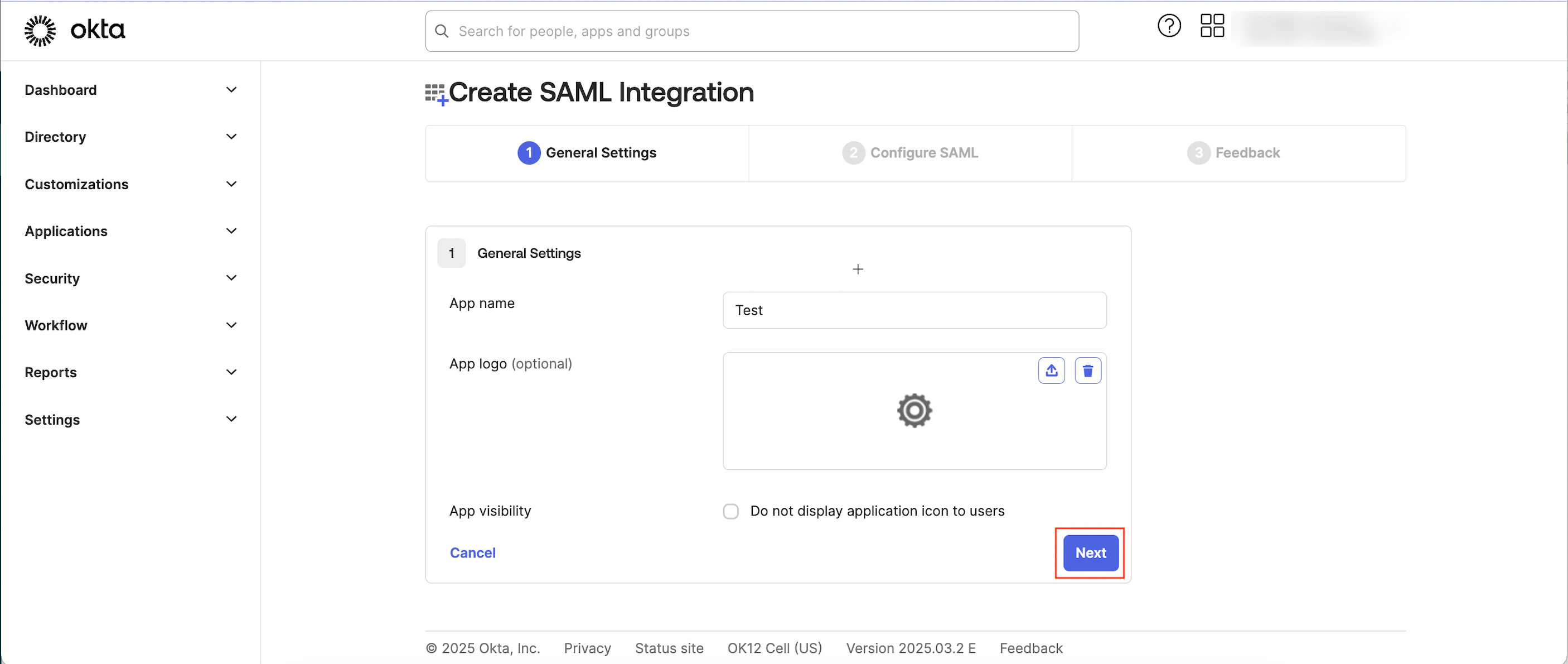
 The metadata will be downloaded in an XML file.
 The Alert pop-up window will appear, prompting you to review the instructions properly.
 The SSO configuration is now successfully completed. You can see the Okta SSO on the Login tab.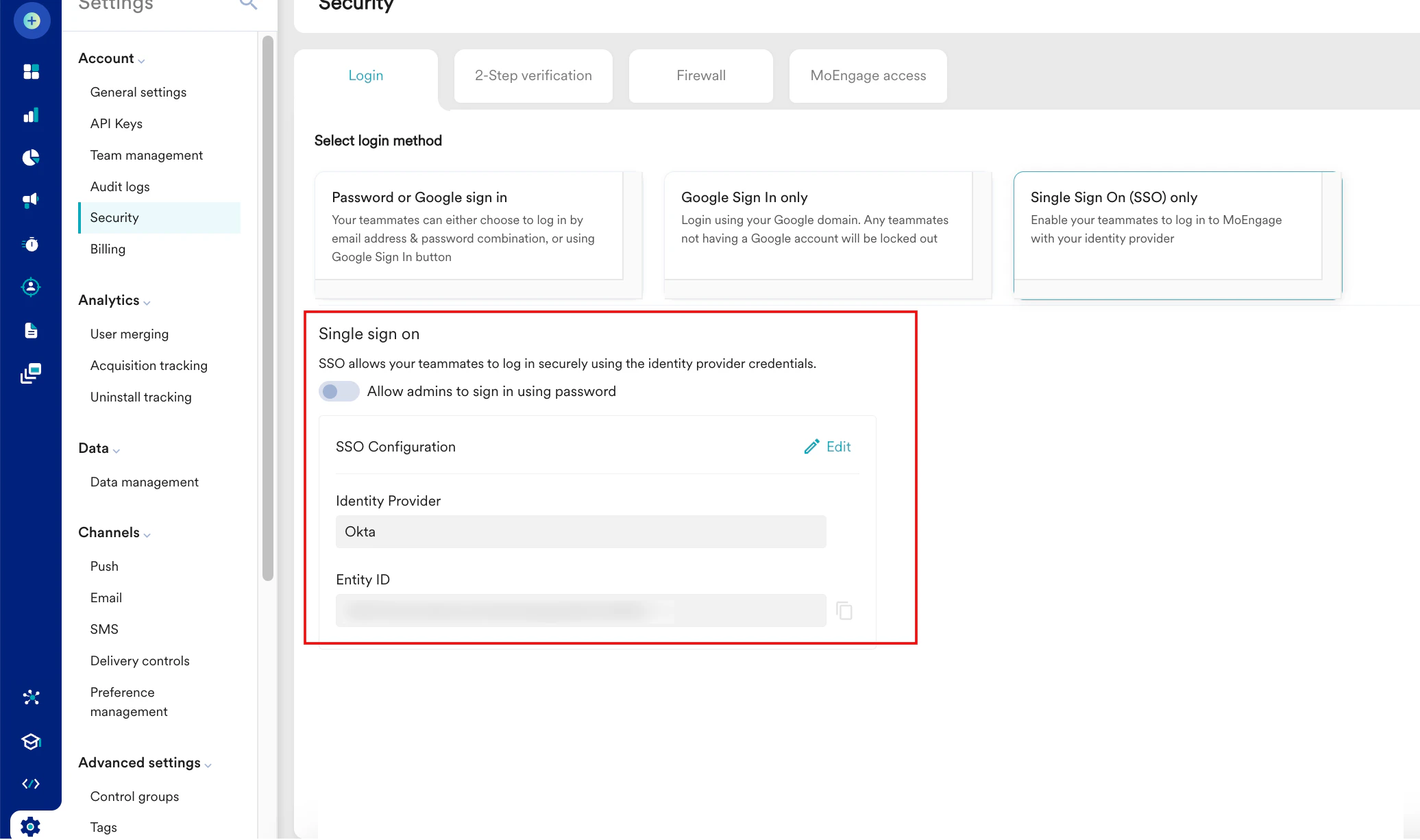
 The Find Applications page appears.
 The Add SAML Test Connector (IdP) page appears.
 Your SAML is now successfully added, and the SAML Test Connector (IdP) page appears.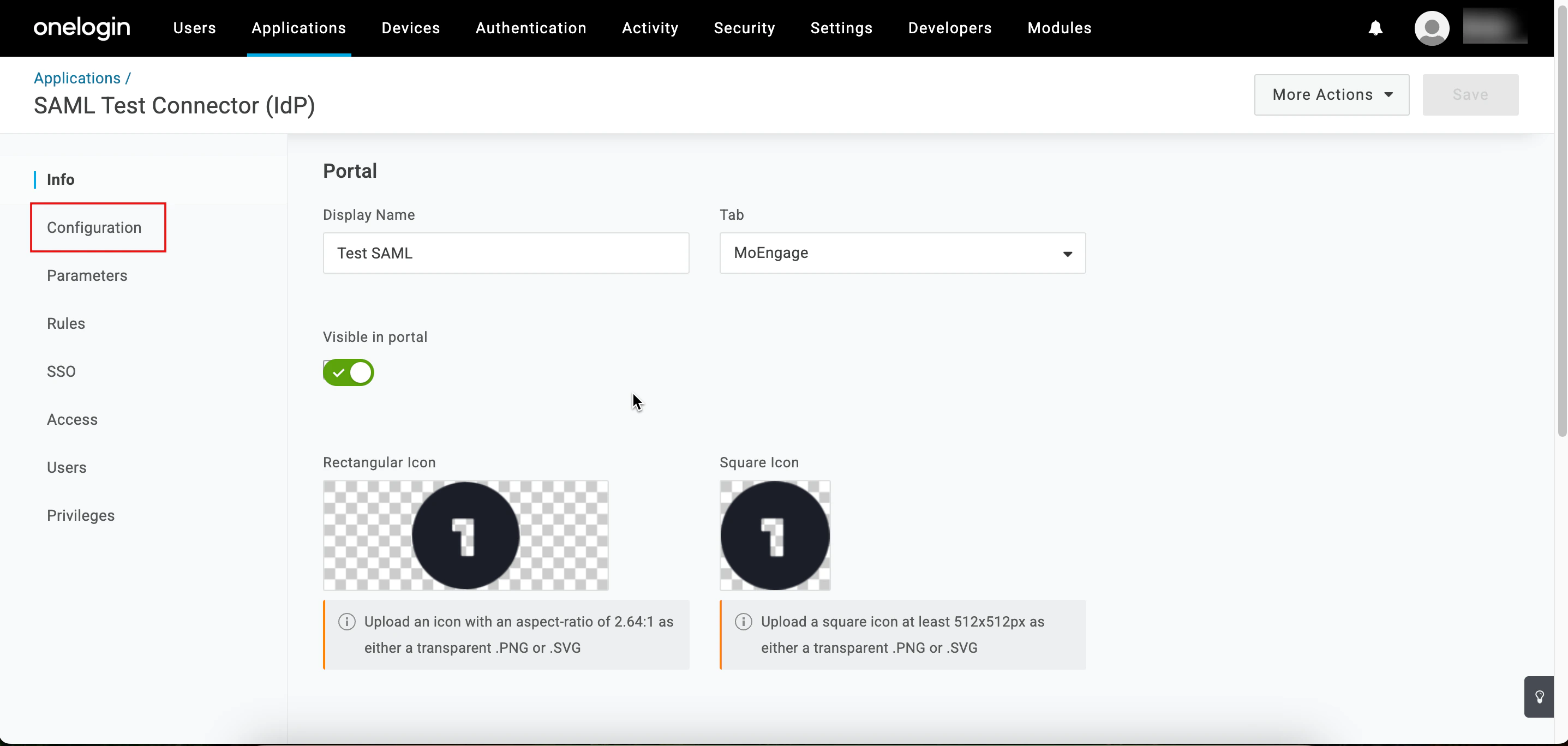
 The Alert pop-up window will appear, prompting you to review the instructions properly.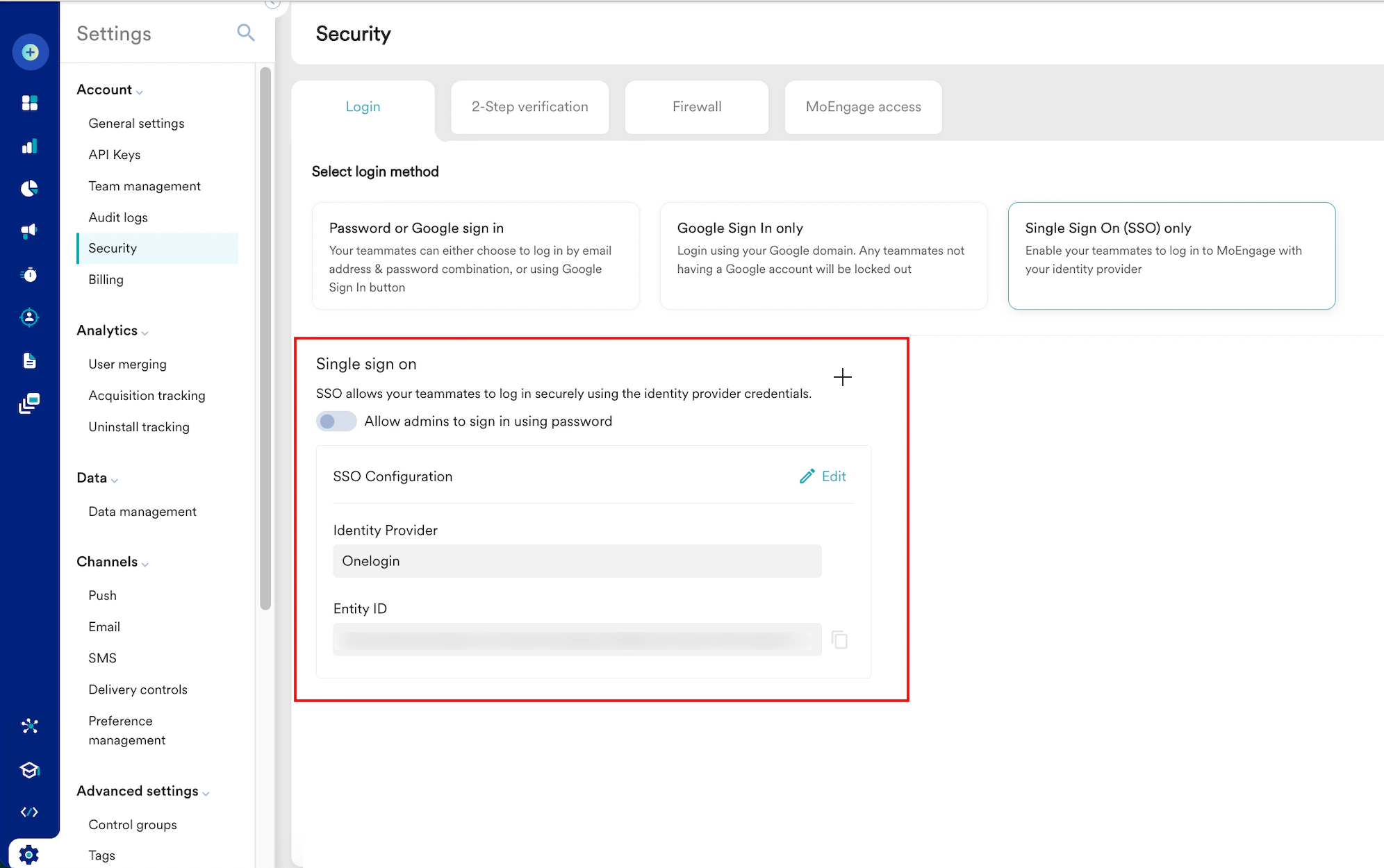
 The created application is listed on the Enterprise applications| All applications page.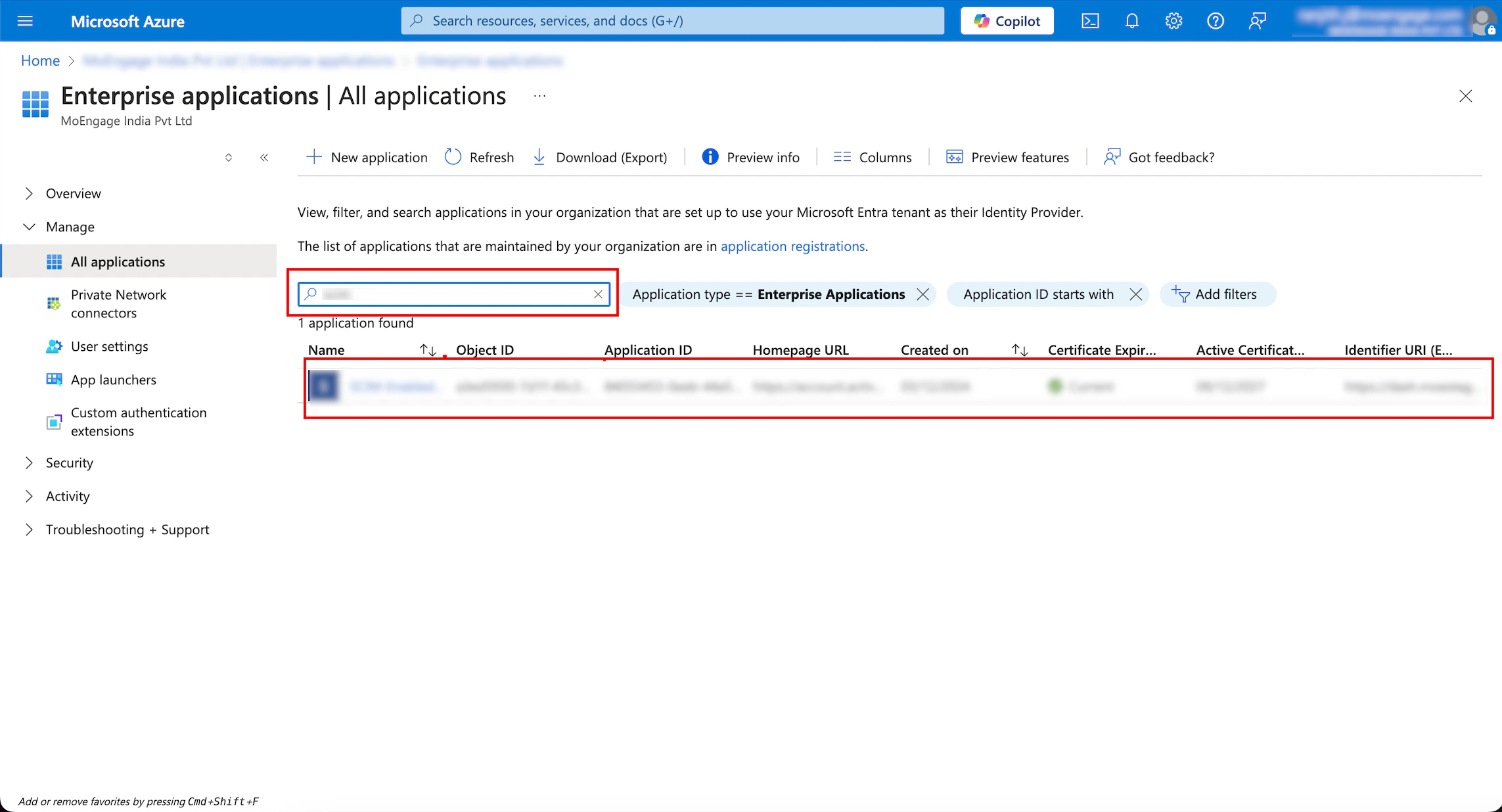
 Now, you must configure SSO for the application you created.
 The SAML-based Sign-On configuration page for your created application appears.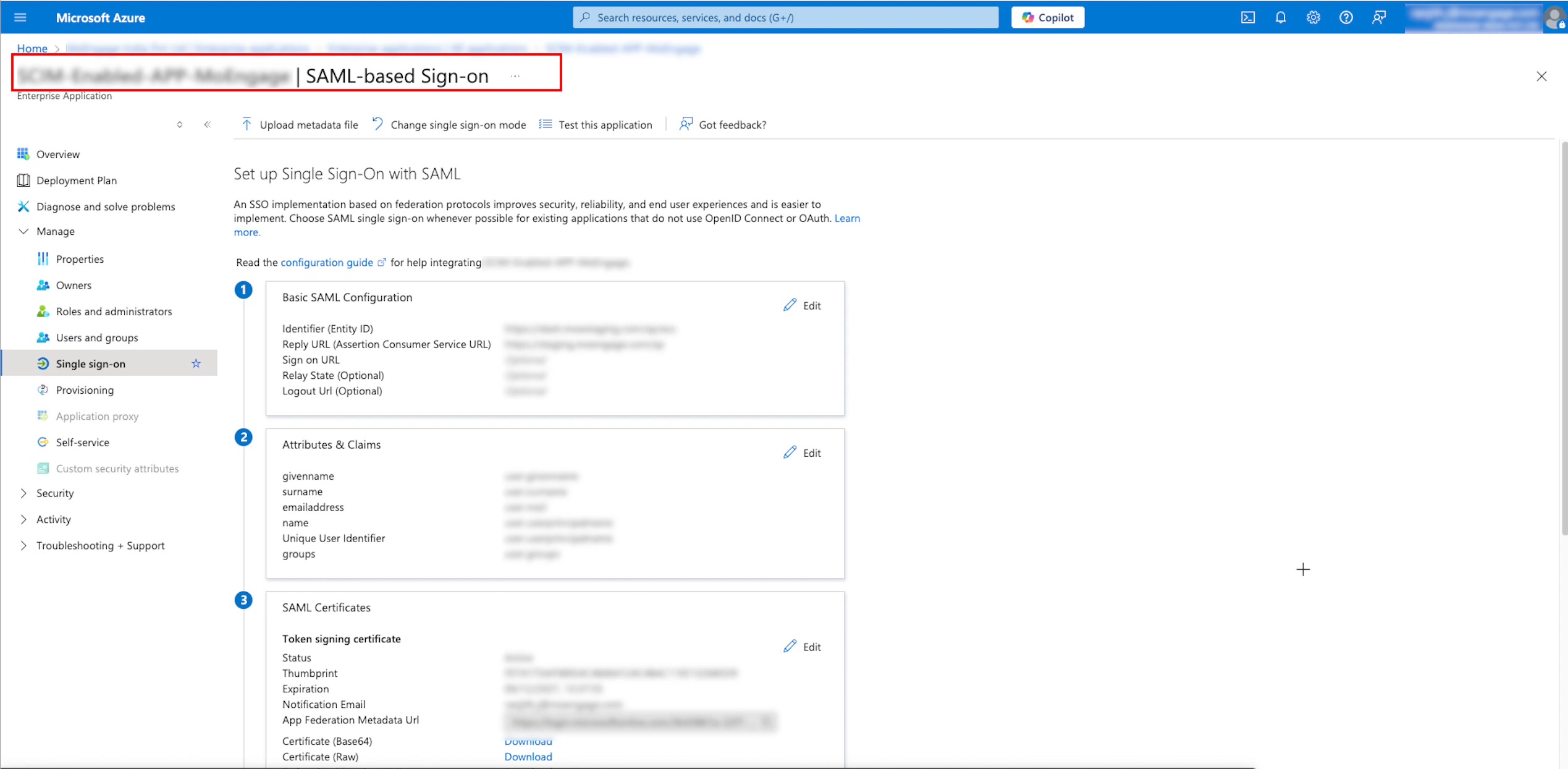
 The metadata will be downloaded in an XML file.
 The Alert pop-up window will appear, prompting you to review the instructions properly.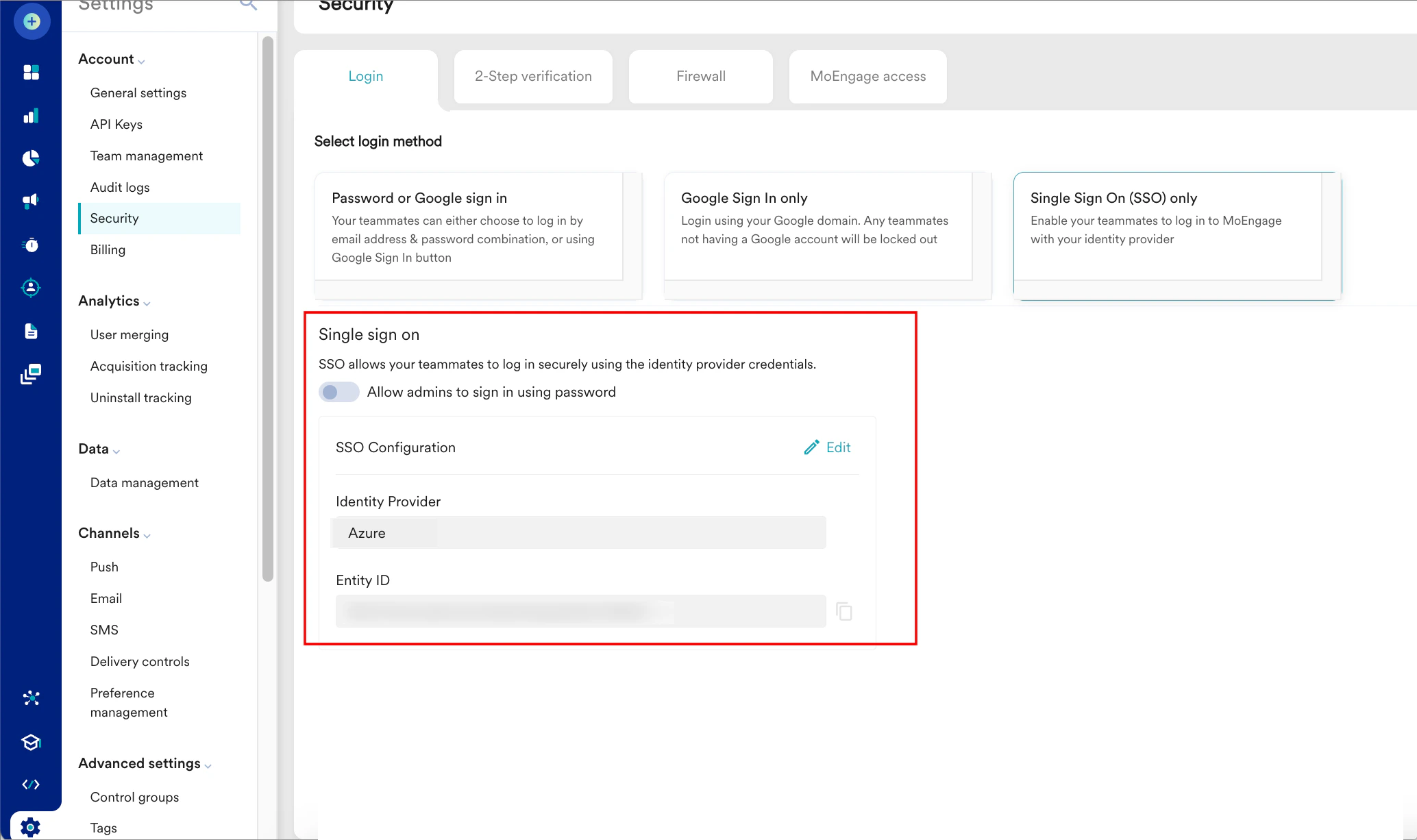
 You are taken to the first step, App details, to define your app.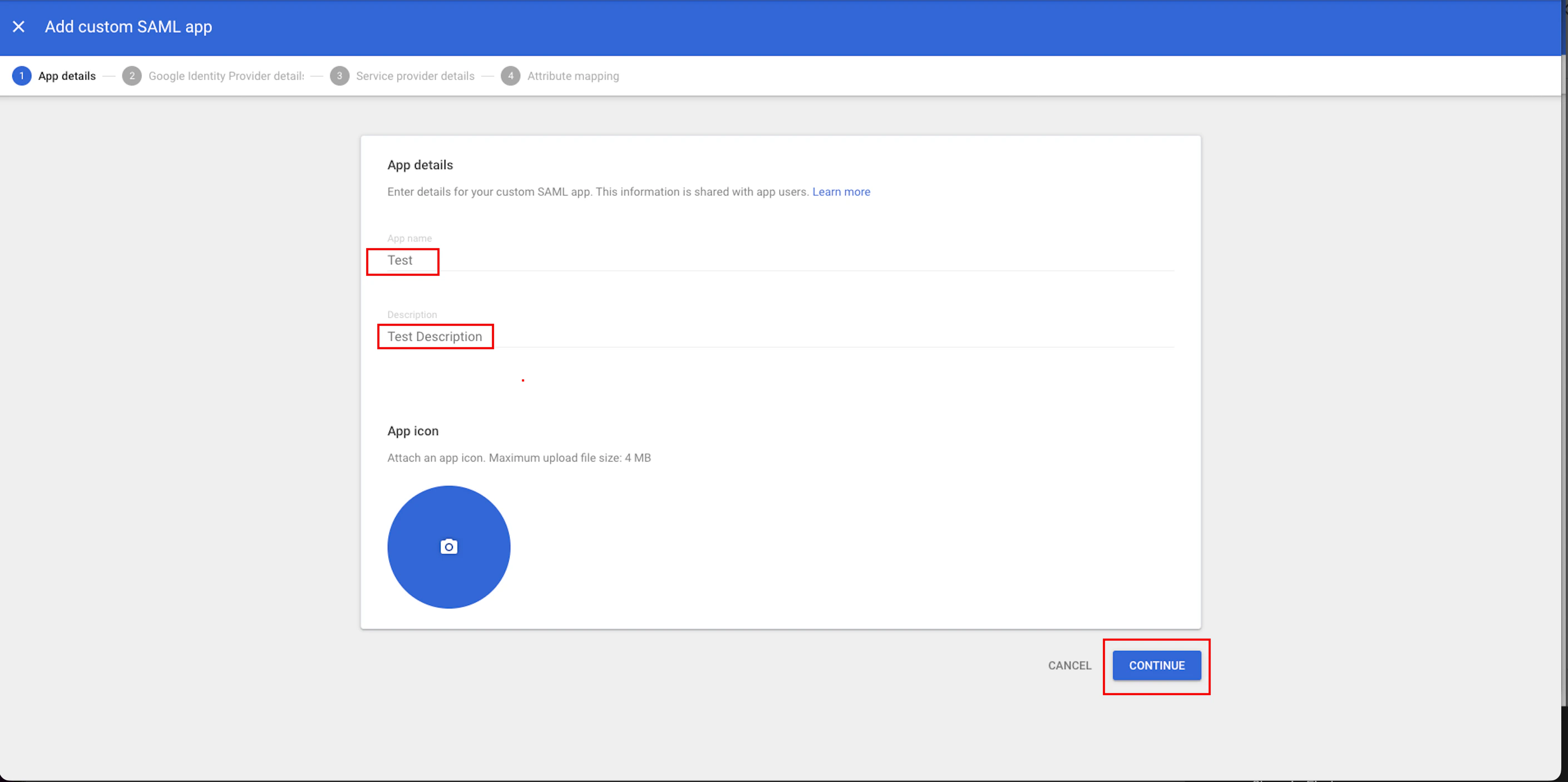
 You are taken to the third step, Service provider details.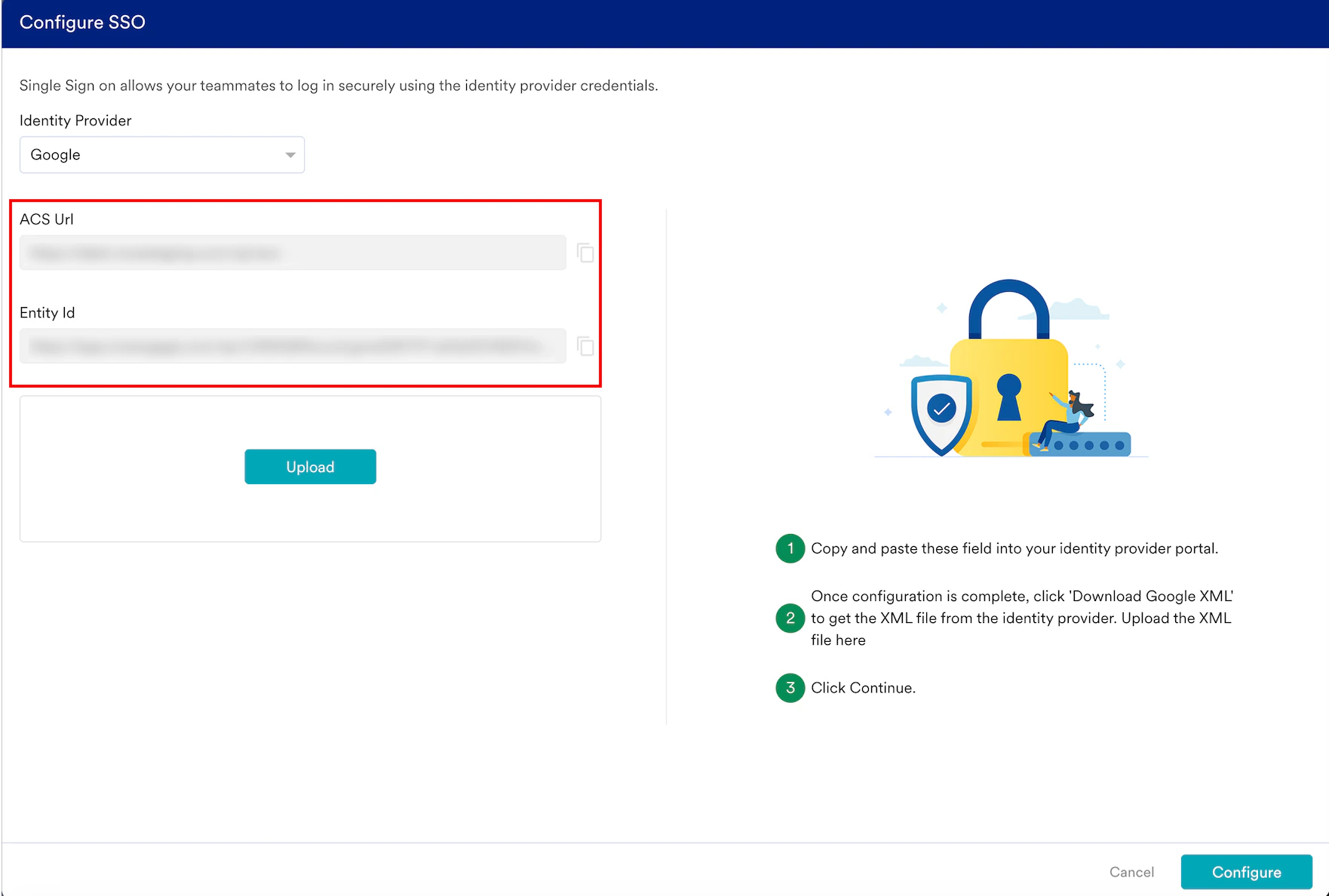
 You are taken to the fourth step, Attribute mapping. Here, you can map optional user attributes (for example, first name, last name, and email address).
 Your SAML settings are updated.
 The Alert pop-up window will appear, prompting you to review the instructions properly.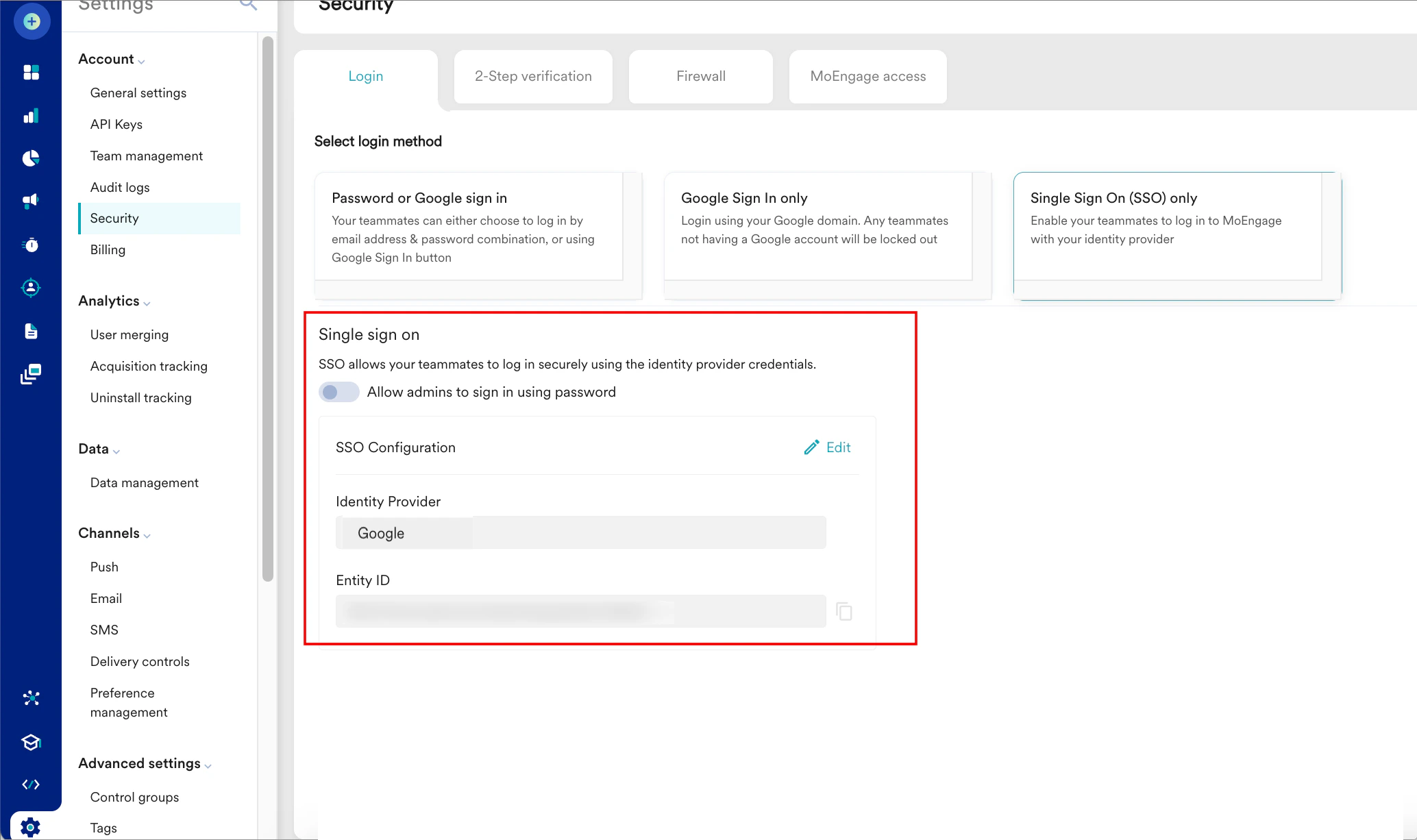
 The Alert pop-up window will appear, prompting you to review the instructions properly.