

- To diagnose and troubleshoot issues you face with your MoEngage workspace.
- Your issue is too complex to be understood without accessing your workspace.
- Your issue cannot be reproduced anywhere else.
- Visual analysis of the MoEngage workspace is needed and is not obtainable via any other method.
- Highly technical issues that need to be escalated through multiple levels of support.
- MoEngage users have read-only access to your workspace.
- The MoEngage user’s actions and changes, such as user logins, data modifications, and configuration within your workspace, are recorded in the audit logs. For more information, refer to Audit Logs.
Revoke Access from MoEngage Users
If you do not want to share access to your workspace with the entire MoEngage Support Team, you can revoke it. However, you can manually add the required MoEngage team members. To add MoEngage members to your workspace, refer here.
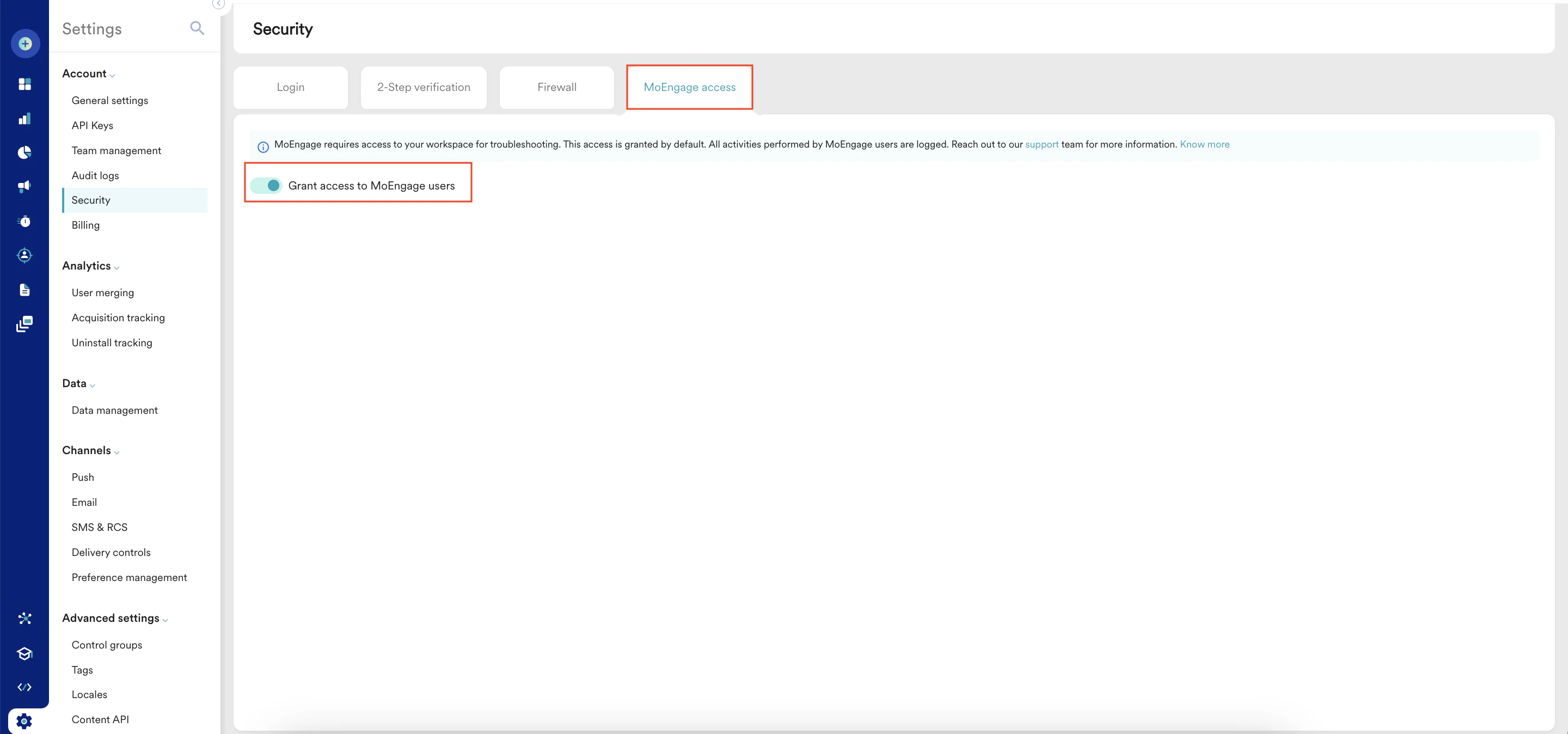
- On the Security page, click the MoEngage access tab.
- Turn the Grant access to MoEngage users toggle off.
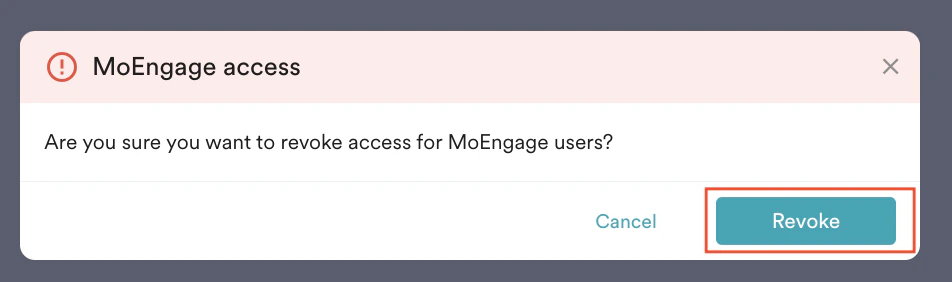
- Click Revoke.
Grant Access to MoEngage to Users
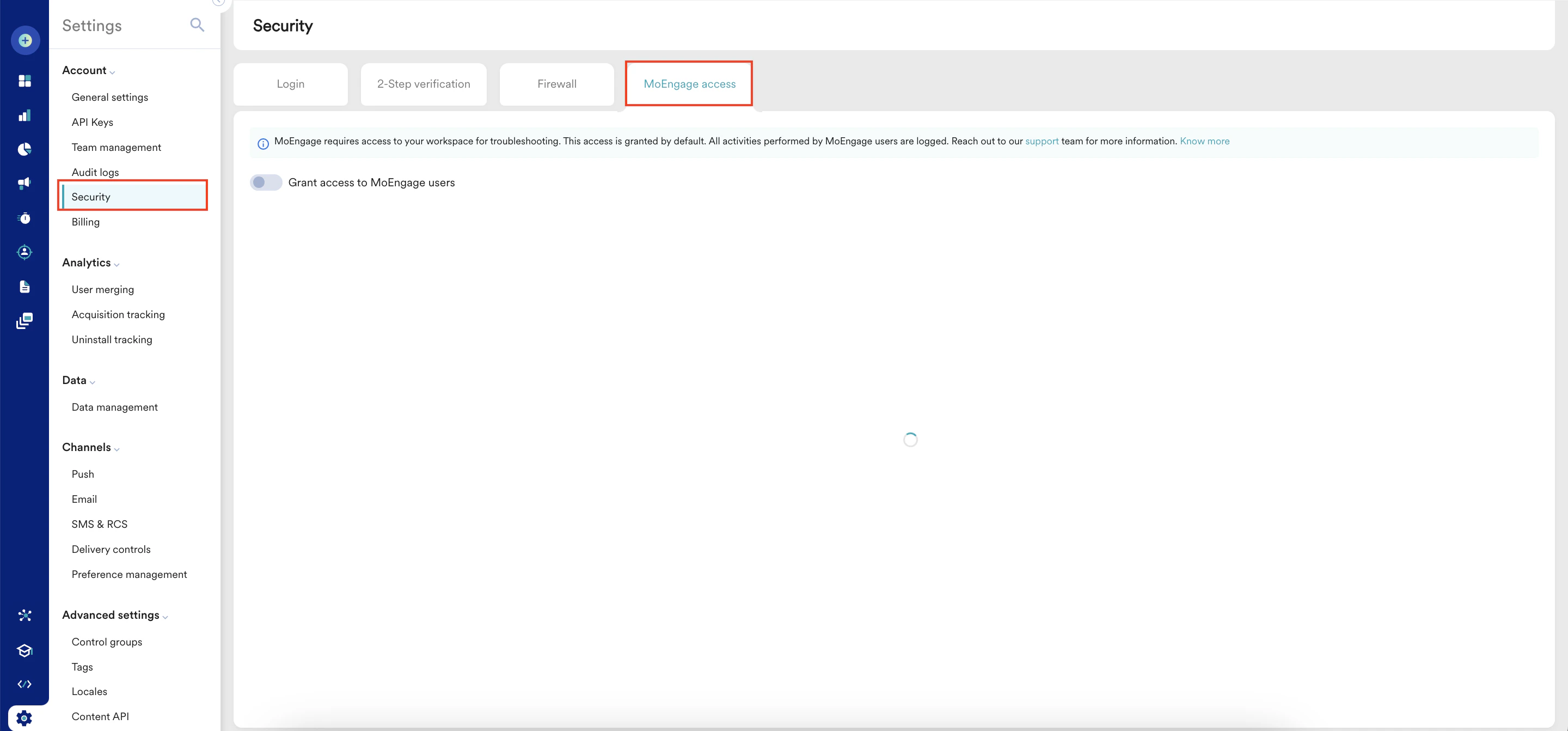
If you revoked the access from MoEngage users and want to grant it again, perform the following steps:- On the left navigation menu in the MoEngage dashboard, click Settings > Account > Security.
- On the Security page, click the MoEngage access tab.
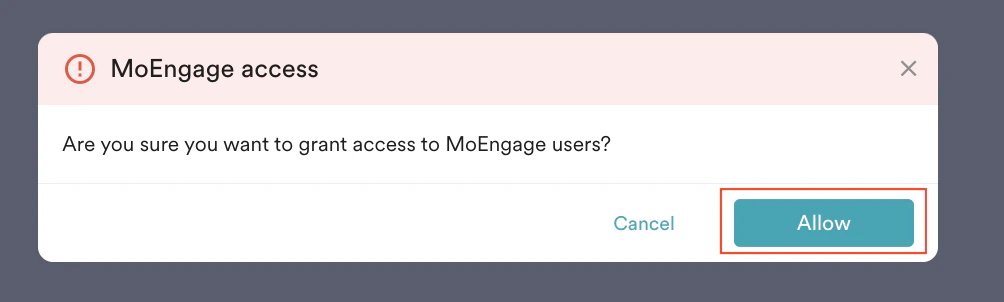
- Turn the Grant access to MoEngage users toggle on.
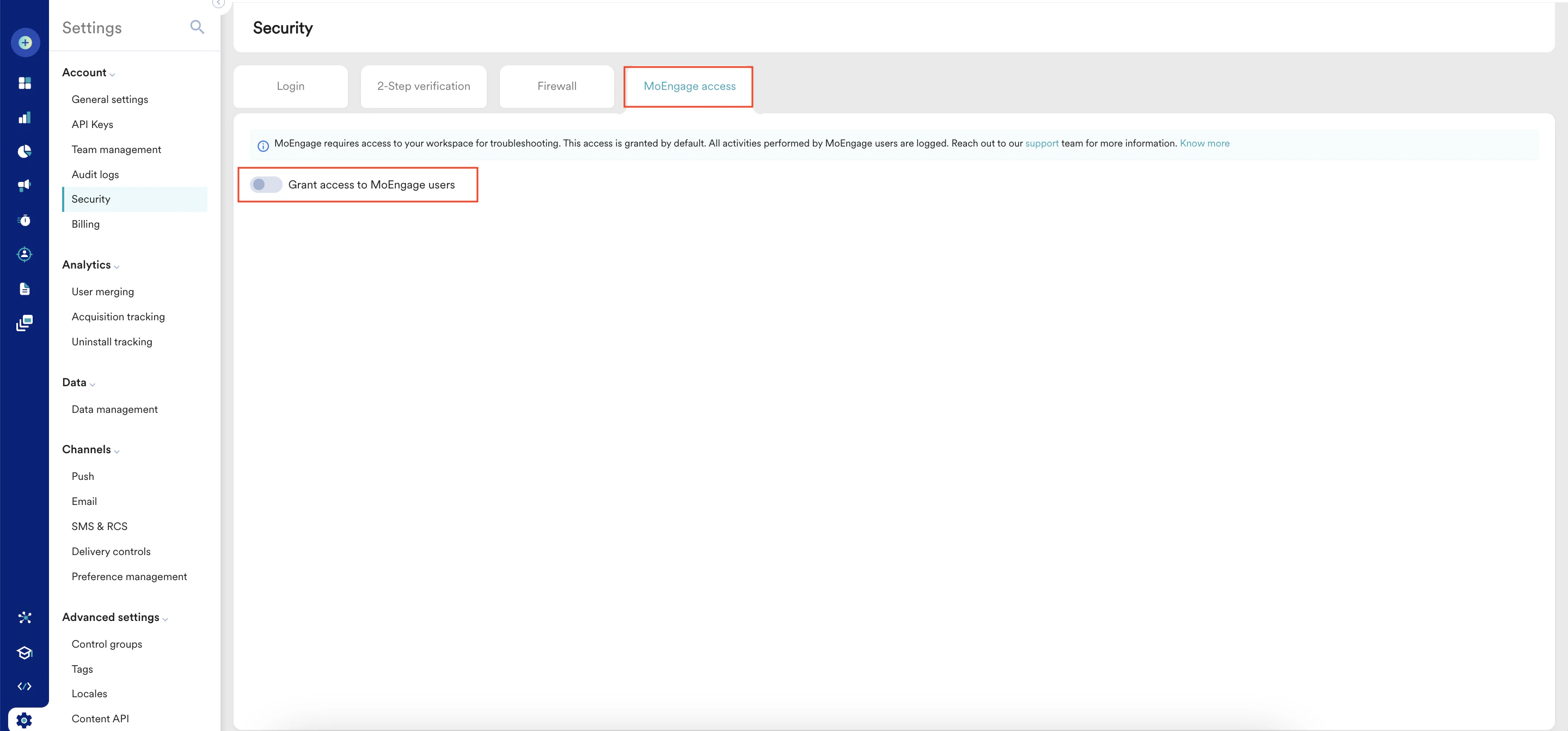
- Click Allow.\
You can provide temporary access to MoEngage users only when you encounter an issue with the MoEngage workspace. You can revoke the access after the issue is resolved.