

Configure Attribution Settings
To configure the attribution settings:- Navigate to Settings -> Advanced settings -> Conversion and attribution.
- The following fields are available:
- Click Save. You are prompted for confirmation about changing the attribution model or type.
- Click Done. You get a success message, as shown in the following image.

Switching Between Attribution Models
You can switch between the All Interactions and Last Interaction attribution models directly at Settings > Advanced Settings > Conversion and Attribution.Switching for the First Time
Say you are on the Last Interactions model and switch to the All Interaction model. The two models attribute conversions differently: All Interactions credits every campaign whose attribution window overlaps with a conversion, while Last Interaction credits only the campaign with the deepest and most recent engagement. Therefore, some campaigns may show a dip in conversion metrics after the switch. Switching in the other direction—from All Interaction to Last Interactions—can cause an apparent inflation in conversion numbers. For more information on how each model works, refer to All Interactions Model and Last Interaction Model.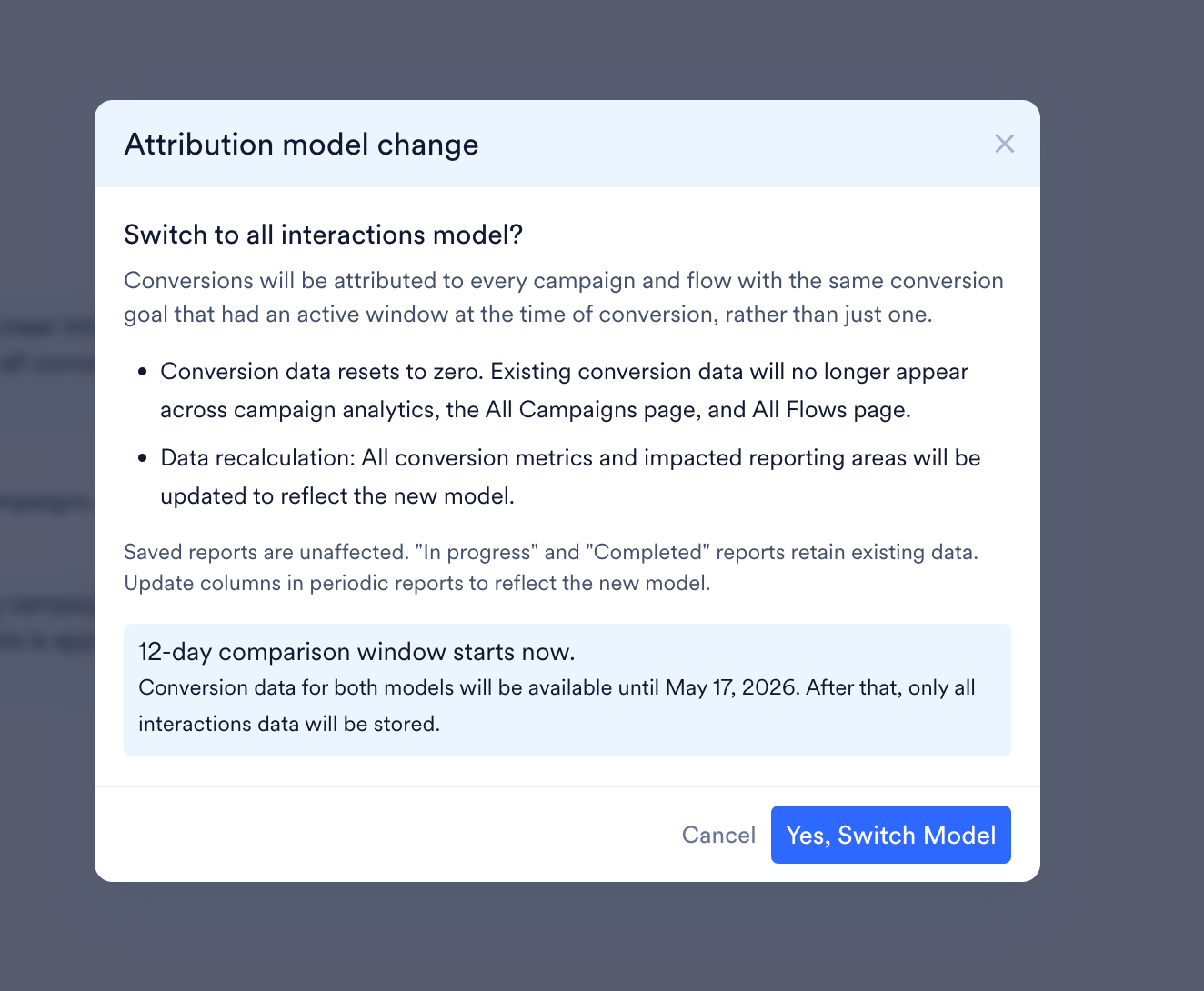
- MoEngage stores conversion data for both models simultaneously for the duration of the window.
- You can review and compare data across both models at any point during the 12 days.
- You can switch back to your original model within the window. MoEngage continues storing data for both models throughout the 12-day period.
Switching After the Comparison Window
After the 12-day window ends, you can still switch models at any time. However, MoEngage retains data only for the actively selected model. If you switch back to a previously used model, conversion data from the period when that model was inactive will not be available. For example, if you switch from All Interaction to Last Interactions on day 15, conversions from days 13 and 14 will not be recorded under the Last Interaction model.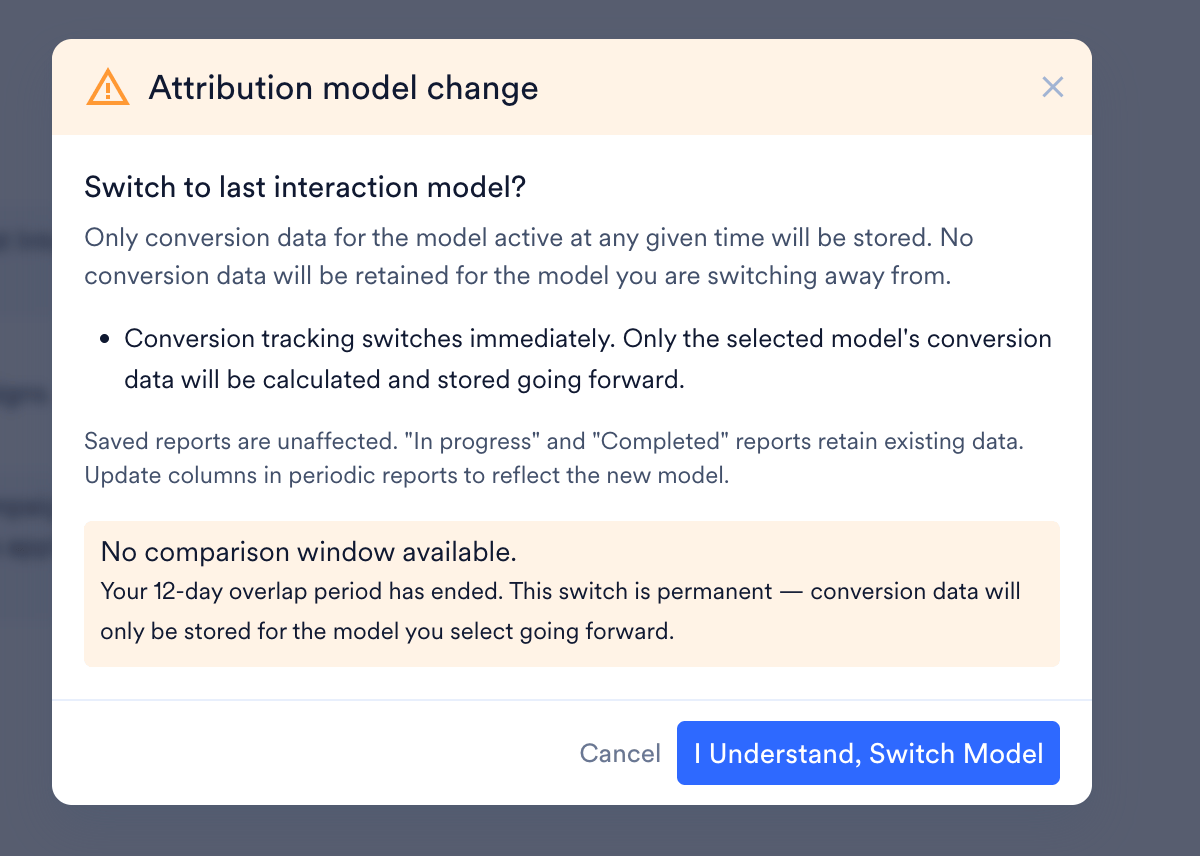
Impact on Reports and Analytics
When you switch attribution models, conversion data in your campaign and flow analytics changes immediately:- Conversion data before the switch date shows as zero for the newly selected model. MoEngage starts collecting data for that model from the switch date onward.
- Banners appear on Campaign Analytics pages, Flow pages, and all campaign pages to inform you of the switch date and explain why historical conversion data shows zero.
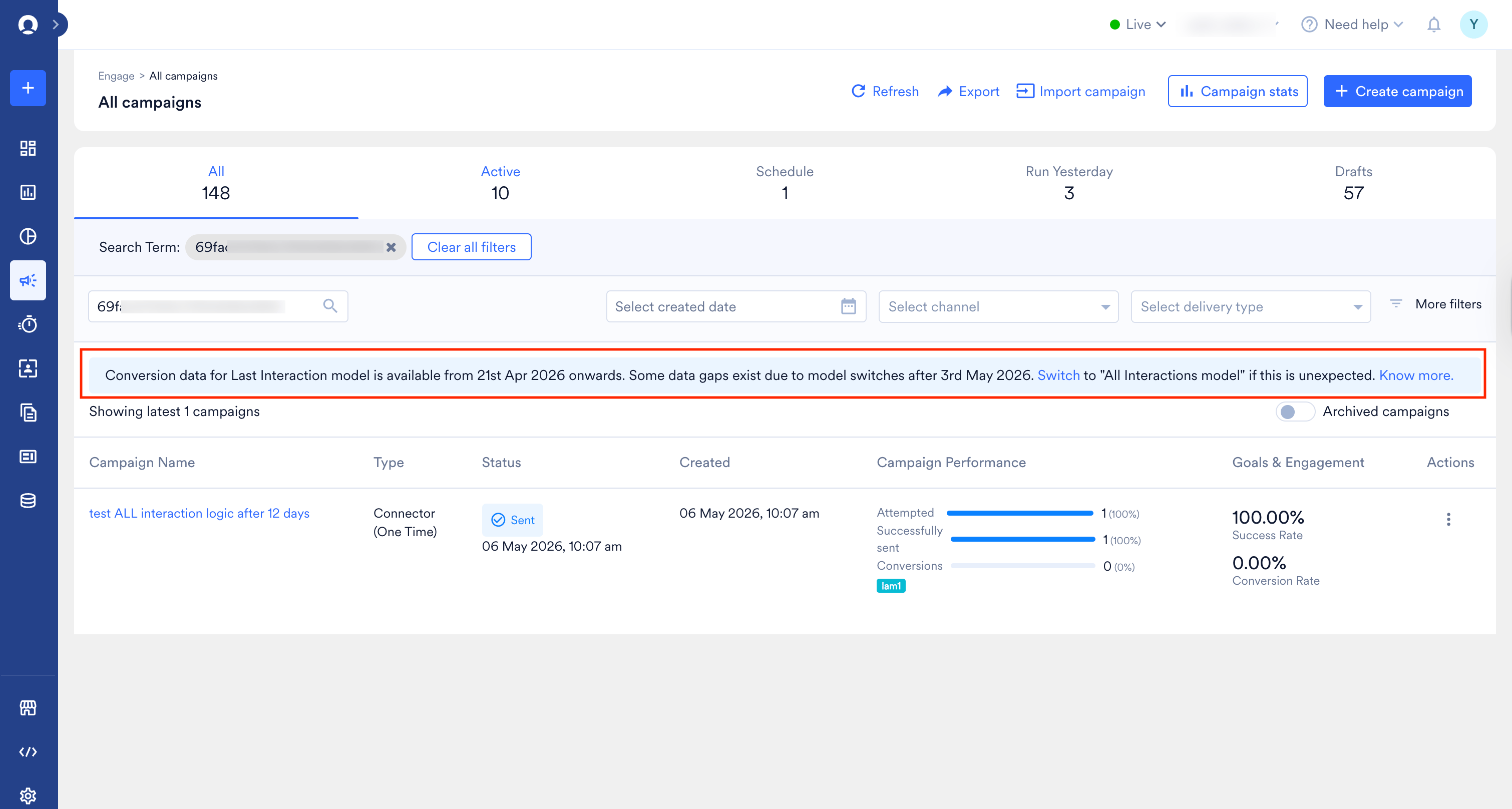
- Existing scheduled and periodic reports that include conversion columns for the previously active model will show zero for any period after the switch date. Update those reports to include the conversion columns for the newly selected model.
Switching Between Conversion Views
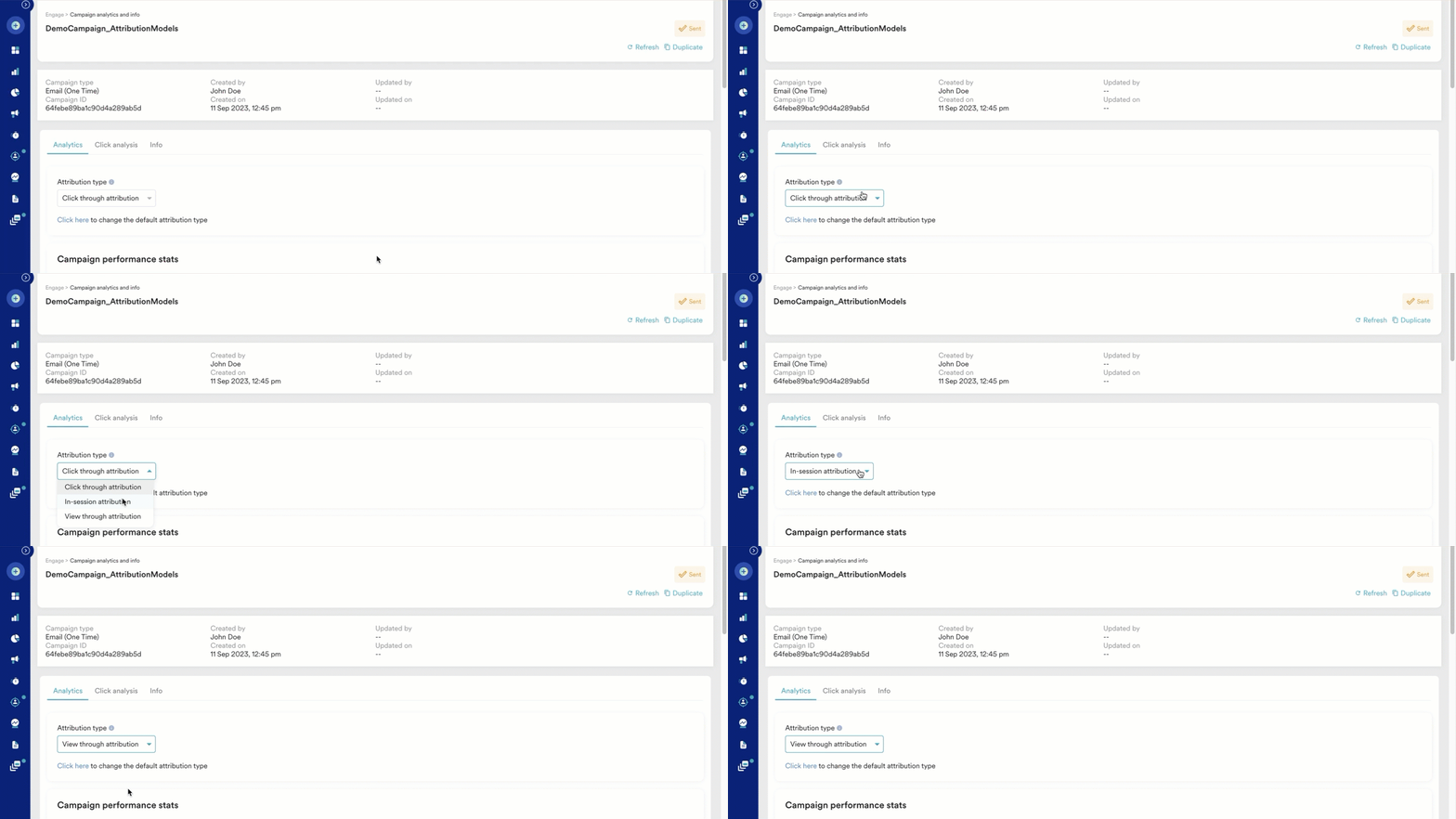
The conversion view you select here determines how conversion data is displayed across the All Campaigns page, All Flows page, and Campaign Analytics and Info pages.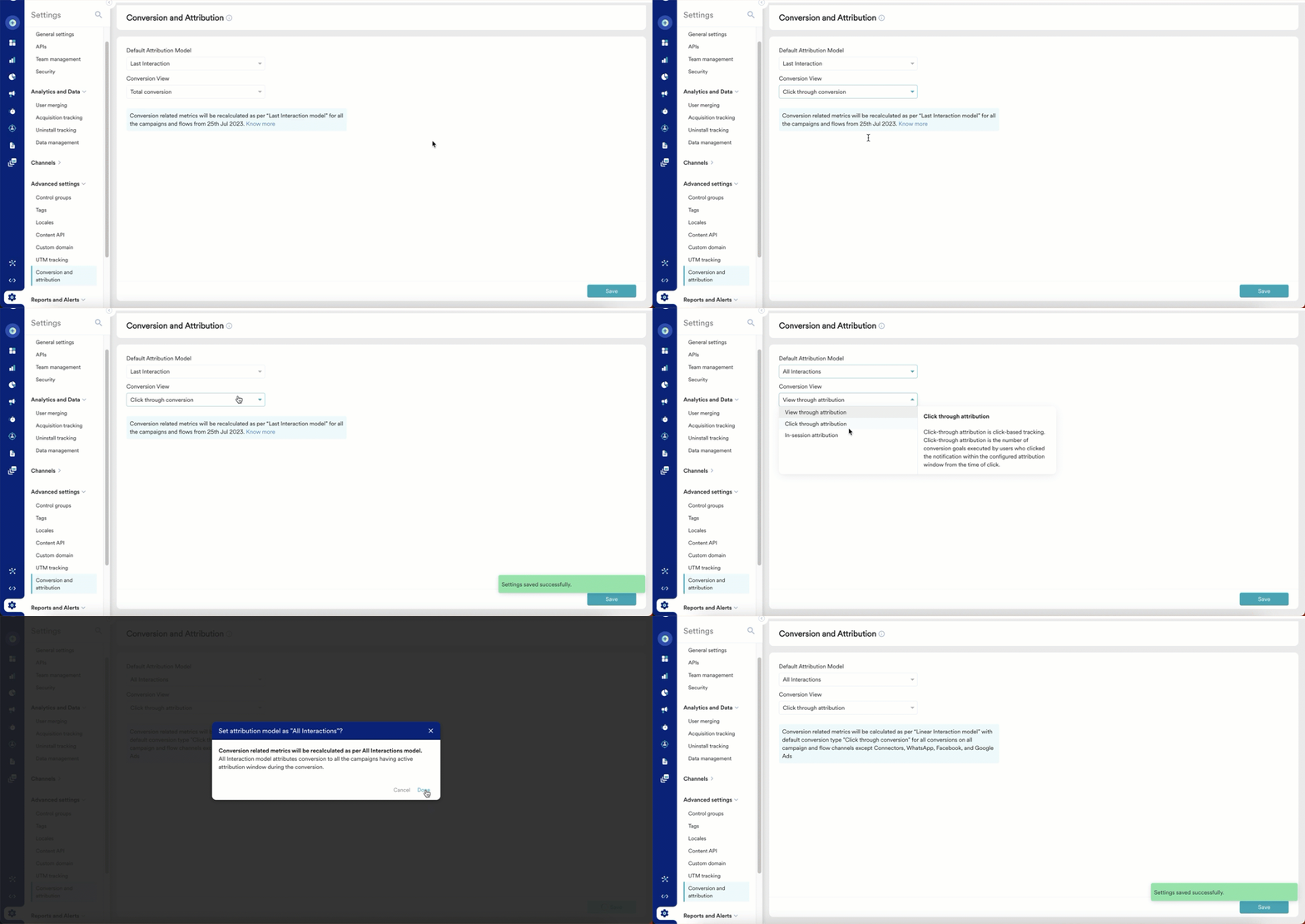
Frequently Asked Questions
What if I switch models by mistake? Can I get my data back?
What if I switch models by mistake? Can I get my data back?
It depends on when you catch the mistake. If you are still within the 12-day comparison window, switch back to your original model—MoEngage has been storing data for both models throughout the window, so no data is lost. If the comparison window has already ended, you cannot recover data from the period when the model was inactive. Switching back will create a gap for that period.
Does the attribution model apply to all campaigns and flows, or can I set it per campaign?
Does the attribution model apply to all campaigns and flows, or can I set it per campaign?
The attribution model is an account-level setting. All campaigns and flows in your account use the model selected in Settings > Advanced Settings > Conversion and Attribution. You cannot set a different attribution model for individual campaigns or flows.
Does switching models affect campaigns that are already running?
Does switching models affect campaigns that are already running?
Yes. The change takes effect immediately across your entire account. Active campaigns will show zero conversions under the newly selected model for any period before the switch date. Conversions recorded after the switch date will be attributed under the new model going forward.
Does the 12-day comparison window restart if I switch models again after it ends?
Does the 12-day comparison window restart if I switch models again after it ends?
No. The 12-day comparison window only starts the first time you switch to a different model. Once the window ends, any subsequent model switch does not trigger a new comparison window. MoEngage stores data only for the actively selected model from that point, so switching after the window ends will create gaps in your data.