Tags are separate from Content Labels, which AI Campaign Decisioning uses to auto-label message copy. The two are not shared.
- Navigate to Settings > Advanced Settings > Tags.\
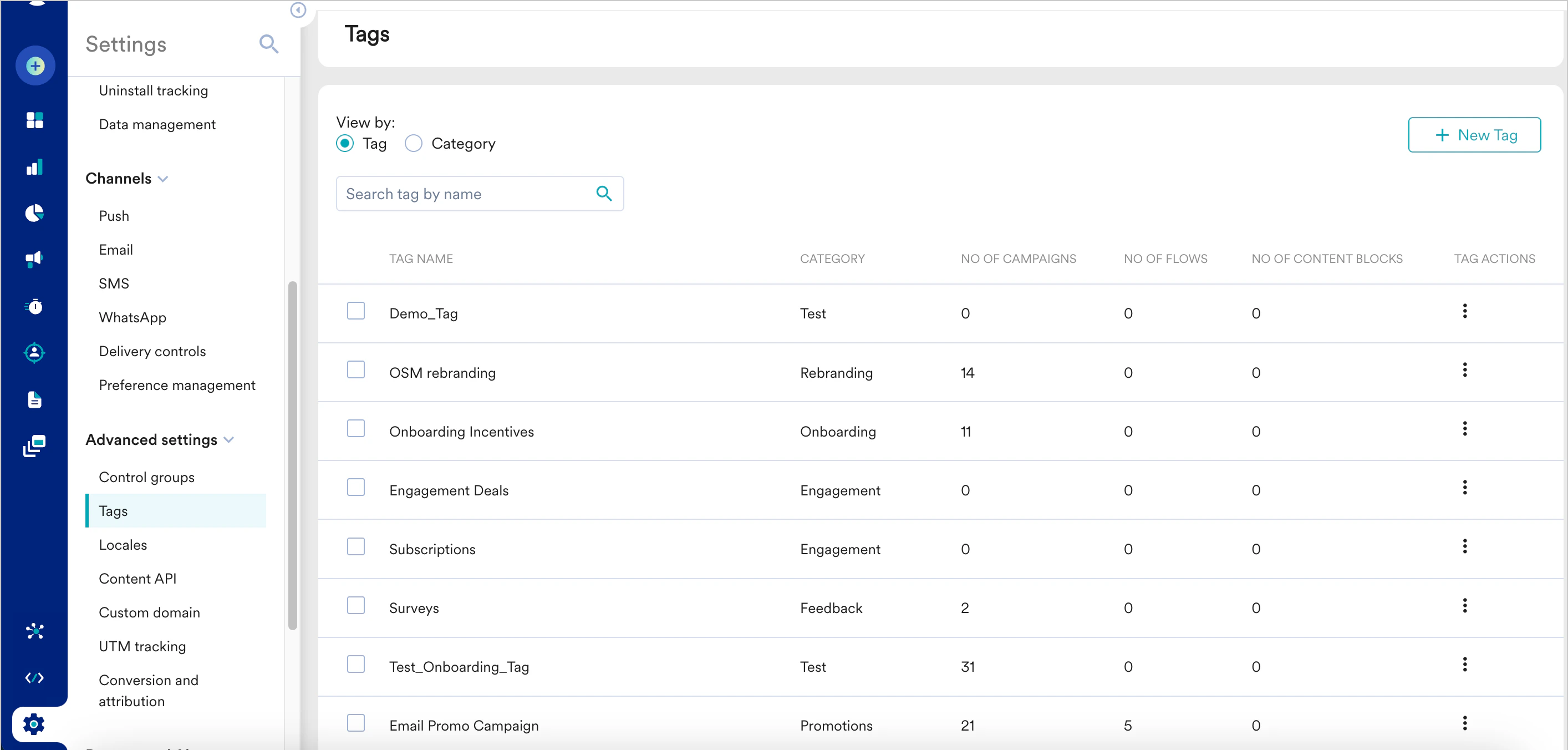
- Under View by, click Tag or Category to view all the tags listed individually or grouped by their categories.
- Tag: When you select this option, each tag contains information about the number of campaigns, flows, and content blocks in which it is used. You can search for a tag by its name, edit it, or delete it.
- Category: When you select this option, you can search for a category by its name, edit it, or delete it.
Create a Tag
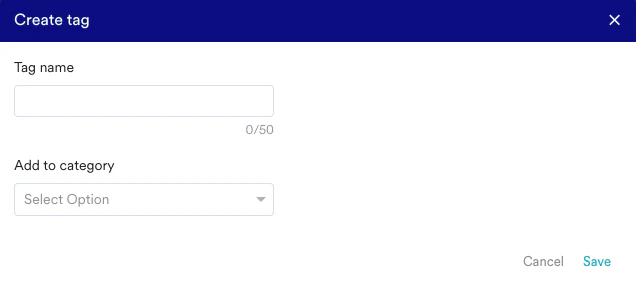
- Click + New Tag to create a new tag.
- Enter the tag name and category.
Edit/Delete a Tag
You are only allowed to edit the tag name or change tag categories. Click on the action button in the tag row. You can choose to edit/delete tags. Note: Default tags cannot be modified.
Edit/Delete Multiple Tags
- Select all the tags that you want to update.
- You can choose to edit/delete selected tags on the top row.

Edit/Delete a Category
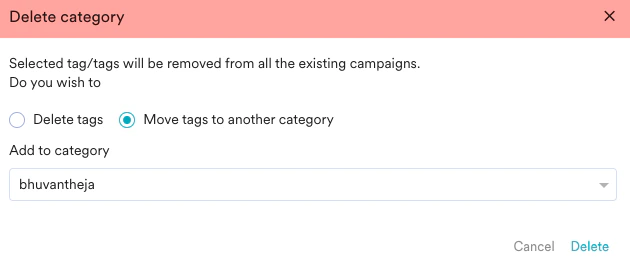
You are only allowed to edit the category’s name. Click on the action button in the category row. You can choose to edit/delete a category. If there are tags present in the category being deleted, you will have two options:- Delete tags along with the category.
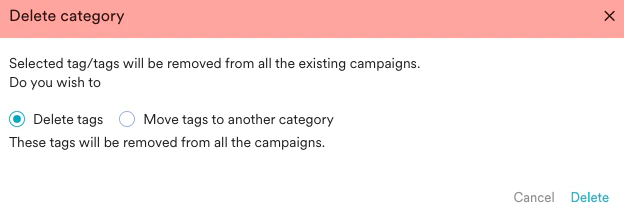
- Move the tags to a different category.