

Encrypted Storage
By default, all the data stored by the SDK on the device is inside the application sandbox. This prevents other applications from accessing the data(both read and write). Due to compliance standards or any other use cases, you might want additionally encrypt the data stored on the SDK.Keychain Set Up
To ensure the encryption works as expected, follow the below steps to set up the Keychain Sharing.-
Turn on Keychain sharing in Xcode with the below steps:
a. Select your app target and click the Signing & Capabilities tab.
b. Turn on the Keychain Sharing capability.
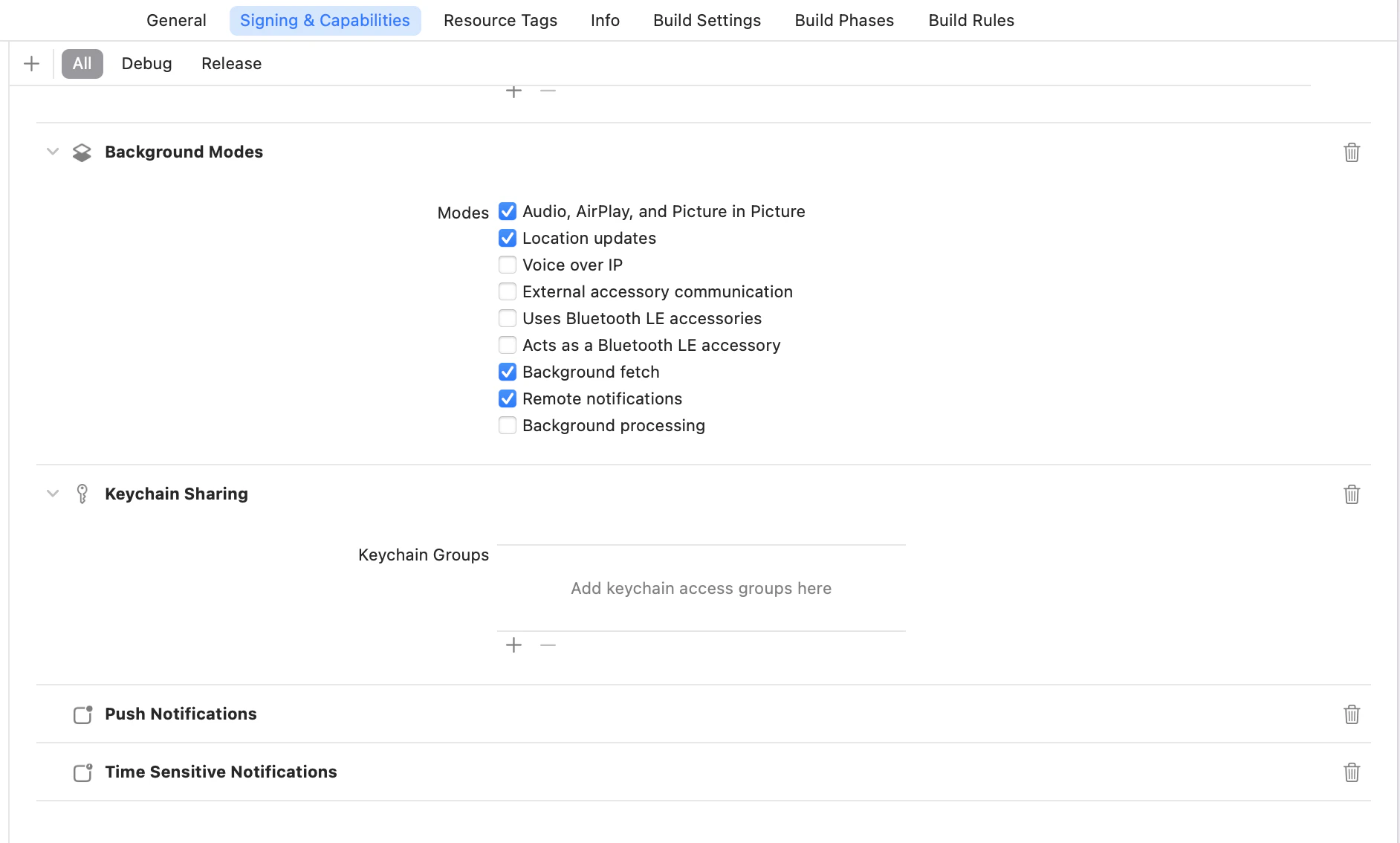
-
Specify the Keychain group name

-
App ID Prefix and Keychain group name: Xcode automatically prefixes keychain groups with your team ID. This ensures that your groups are specific to your development team. In order to see how it works, click on the .entitlements file and look at the value of the Keychain Access Groups array.

- Get your AppID: The App ID Prefix (also called Team ID) is a unique text identifier associated with your Apple developer account that allows the sharing of keychain and pasteboard items between your apps. Assume the AppID is AB123CDE45, Keychain group name is AB123CDE45.com.example.sharedItems. Pass the same keychain group name to the SDK in the step below.
Enabling Encryption
Enable storage encryption using the initialization method your app implements.- Config-Based Initialization
- Manual Initialization
Return to the MoEngage config generator and generate your configuration again with storage encryption turned on:
- Select Storage and Network Encryption at the features step, along with the modules you already use.
- Under Security, set Enable Storage Encryption to Yes and enter your Keychain Group Name.
- Select Generate the code, then replace the
MoEngagedictionary in yourInfo.plistwith the new output.
NoteOnce storage encryption is enabled and a build is released to production(App Store), you should not disable encryption. Disabling the encryption after the build is released will result in a new user being created in the MoEngage system when the user updates the application.
Encrypted Network Communication
By default, we use HTTPS protocol for all requests made from the SDK; HTTPS encrypts the requests by default. MoEngage SDK optionally adds another layer of encryption apart from the encryption done by HTTPS.Enabling Encryption
Enable network encryption using the initialization method your app implements. Provide the keys for both the TEST and LIVE environments.- Config-Based Initialization
- Manual Initialization
Return to the MoEngage config generator and generate your configuration again with network encryption turned on:
- Select Storage and Network Encryption at the features step, along with the modules you already use.
- Under Security, set Enable Network Encryption to Yes and enter the encryption keys for both environments.
- Select Generate the code, then replace the
MoEngagedictionary in yourInfo.plistwith the new output.
Note
- When using encrypted network communication, we strongly recommend you enable Storage encryption as well.
- Adding the above dependency and enabling the flag isn’t enough for this feature to work; there is some additional configuration required on our side to enable this feature completely. In case you want to use this feature, reach out to your account manager or the MoEngage Support team.