

PrerequisitesBefore you begin, ensure the following:
- Your workspace has access to the Global Agent. For more information, refer to Global Agent: Overview.
- You have run at least one task. For more information, refer to Run Tasks with the Global Agent.
Recent Tasks
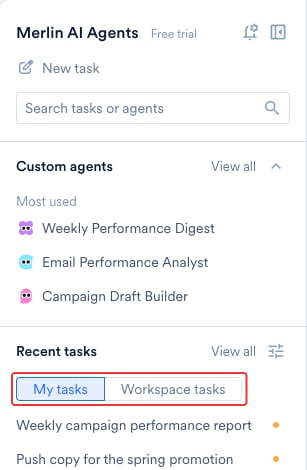
Under Recent tasks in the left pane of the Merlin AI Agents hub, switch between two tabs. Each task appears under exactly one tab.
Copy link becomes available once the task is visible to your workspace.
A colleague’s task appears under Workspace tasks in either of the following cases:
- The task is a Global Agent task, and the task owner leaves the task visible to the workspace.
- The task is a run of a Custom Agent that your workspace publishes publicly. For a Custom Agent run, the agent’s visibility decides whether colleagues see the run.
Change the Task List View
Select the view options icon beside Recent tasks to change what the left pane shows: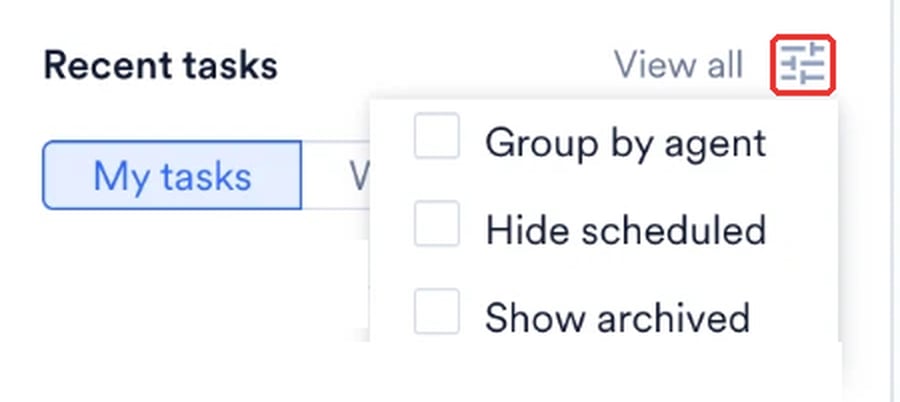
Search Tasks and Agents
Press Enter in Search tasks or agents, or select the magnifier, to open search. The results carry Tasks and Agents tabs, and a search needs at least two characters. Narrow the Tasks tab by time range, by run type, and by whether a task is active or archived. To open a specific task, paste the task’s Session ID into the search field. The left pane also has a Custom agents section. The section lists your pinned agents, and a Most used group of your three most-run live agents. Select View all in the section header to open the All custom agents page. Point at an agent under Most used to see the agent’s description, how many times the agent has run, and how long ago the agent last ran.Find a Task
Filters Above the Table
Click View all next to Recent tasks to open the All tasks page, which carries the filters. Three filters sit above the table:
Select run date offers Today, Yesterday, Last 7 Days, Last 30 Days, This Month, and Custom Range. Pick the dates on the calendar for a custom range, then click Done. Reset clears the range.
Filters in the Filters Panel
Click the filter icon to open the Filters panel, which holds three more filters: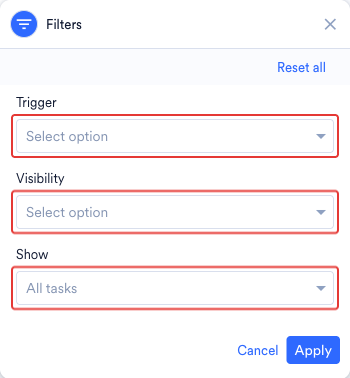
The Visibility filter switches between the same views as the My tasks and Workspace tasks tabs. To set whether your workspace sees a task, refer to Change Task Visibility.
Open a Task
On the All tasks page, select a task row to open a preview panel beside the list. The panel shows:- The transcript of the task, including what the agent returned.
- Finished working, which expands the steps the agent took.
- Who last ran the task, and when.
Task Menu
Each task in the left pane carries a task menu. On a task you own, the menu holds the following actions:- Copy link
- Rename
- Pin and Unpin
- Archive and Unarchive
- The Visible to workspace switch
Pin a Task
Pin a task to find the task quickly in the task list:- Your pins are yours alone, and your sidebar holds up to 50 pinned items.
- You pin any colleague’s Global Agent task that you can see.
- When the task owner archives a task, the task leaves every user’s pins.
Rename a Task
Each task starts with a title that MoEngage writes for the task. A scheduled run is titled with the agent’s name and the run’s scheduled time in UTC. Rename a task to describe the task in your own words. Only the task owner renames a task. Select Rename in the task menu, enter a title of up to 120 characters, and click Save. The dialog counts the characters as you type.Change Task Visibility
Global Agent tasks are visible to your workspace by default. As the task owner, you control a task’s visibility with the Visible to workspace switch:- Switch on: Any user in your workspace finds the task under Workspace tasks, opens the task transcript, and reads the task outputs.
- Switch off: The task leaves Workspace tasks, and only you open the task from the task list.
Copy a Task Link
Select Copy link in the task menu to copy the address of the open task. The option becomes available once the task is visible to your workspace, and the link works only for users who have permission to view the task.Archive and Restore a Task
Archive a task to take the task off your active list. Only the task owner archives or restores a task. Archiving a task has the following effects:- MoEngage keeps the transcript and the output files.
- The task leaves every user’s pins.
- The task opens again once the owner restores the task.
1
Show archived tasks
Select the view options icon beside Recent tasks and turn on Show archived. On the All tasks page, open the Filters panel and set Show to Archived only instead.
2
Find the task
Locate the task in the list.
3
Restore the task
Select Unarchive in the task menu, or open the task and select Unarchive and open.
What a Colleague Does on Your Task
When a colleague opens a task that you own, a notice replaces the message box, so the conversation stays yours to continue. A colleague can:- Read the full transcript and the output files.
- Copy the task link.
- Copy the session ID.
- Pin the task to their own sidebar.
Next Steps
Run a Task
Start a task, attach files, choose a mode, and review the output files the agent produces.
What the Agent Can Change
See what the agent writes, what stays a manual step, and how your workspace data is kept separate.
Agent Permissions
Review the permission scopes and security guardrails that apply across Merlin AI agents.