

PrerequisitesBefore you begin, ensure:
- Your workspace has access to the Global Agent. For more information, refer to Global Agent: Overview.
- You have access to the MoEngage data your request depends on, such as campaigns, segments, or analytics.
Start a Task
1
Open the composer
Hover over Merlin AI in the left menu and click Home, or click New task to open the composer directly.
2
Select the agent
Click Select agent and choose Global agent. Every task runs on one agent, so select the agent before the task starts.
3
Select a mode
Choose Fast, Balanced, or Expert. Balanced is the default mode, and the mode locks once the task starts, so to use a different mode, start a new task.The Global Agent sets the mode for each task. A Custom Agent sets the mode on the agent instead, so the control does not appear when you select a Custom Agent before the task starts. After the task starts, the control shows the agent’s mode and stays locked.
4
Describe the work
Write what you want in plain language, and then send the message.
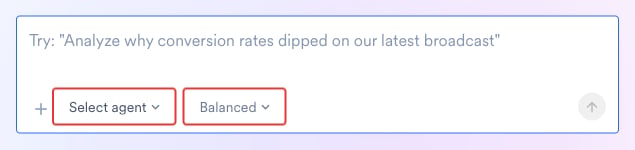
The first message starts the run: the agent begins work as soon as the message arrives.
Parts of a Task View
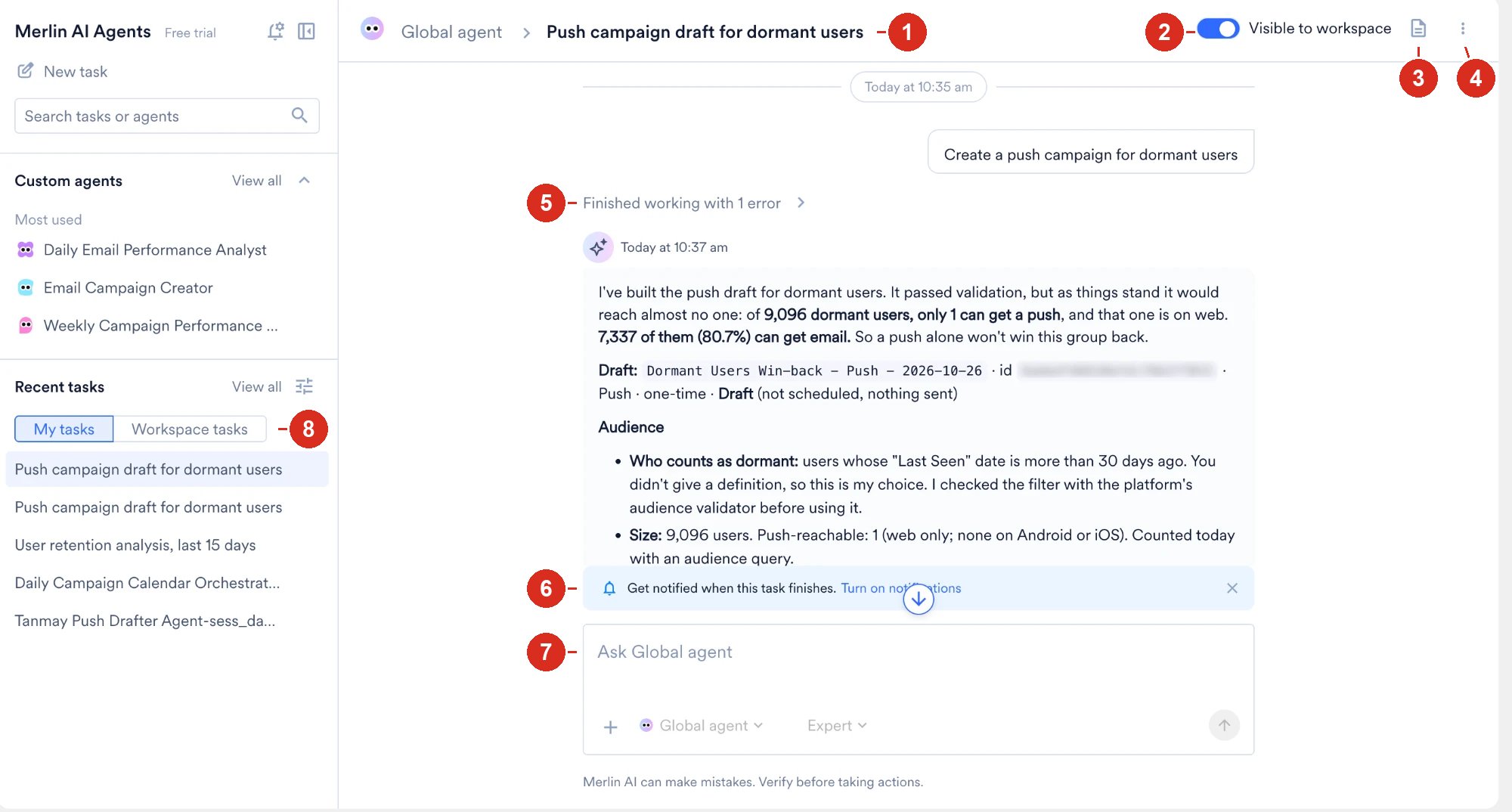
- Agent and task name. The breadcrumb names the agent the task runs on, followed by the task name. To change the name, refer to Rename a Task.
- Visible to workspace. Switches whether your colleagues find the task under Workspace tasks. For more information, refer to Change Task Visibility.
- Output files. Opens the panel that lists every file the run produced. For more information, refer to Review Task Outputs.
- Task menu. Pins, renames, copies a link to, and archives the task. For more information, refer to Task Menu.
- Finished working. Expands the steps the agent took, including any error the agent encountered.
- Notification banner. Turns on a browser notification for when the task finishes. For more information, refer to Notifications.
- Composer. Sends your next message in the same task. The agent picker and the mode control sit below the message box.
- My tasks and Workspace tasks. Switches the Recent tasks list between your own tasks and the tasks shared with your workspace. For more information, refer to Recent Tasks.
Example: Improving Day 1 Retention
The following walkthrough shows how a task develops across four turns. The values are illustrative.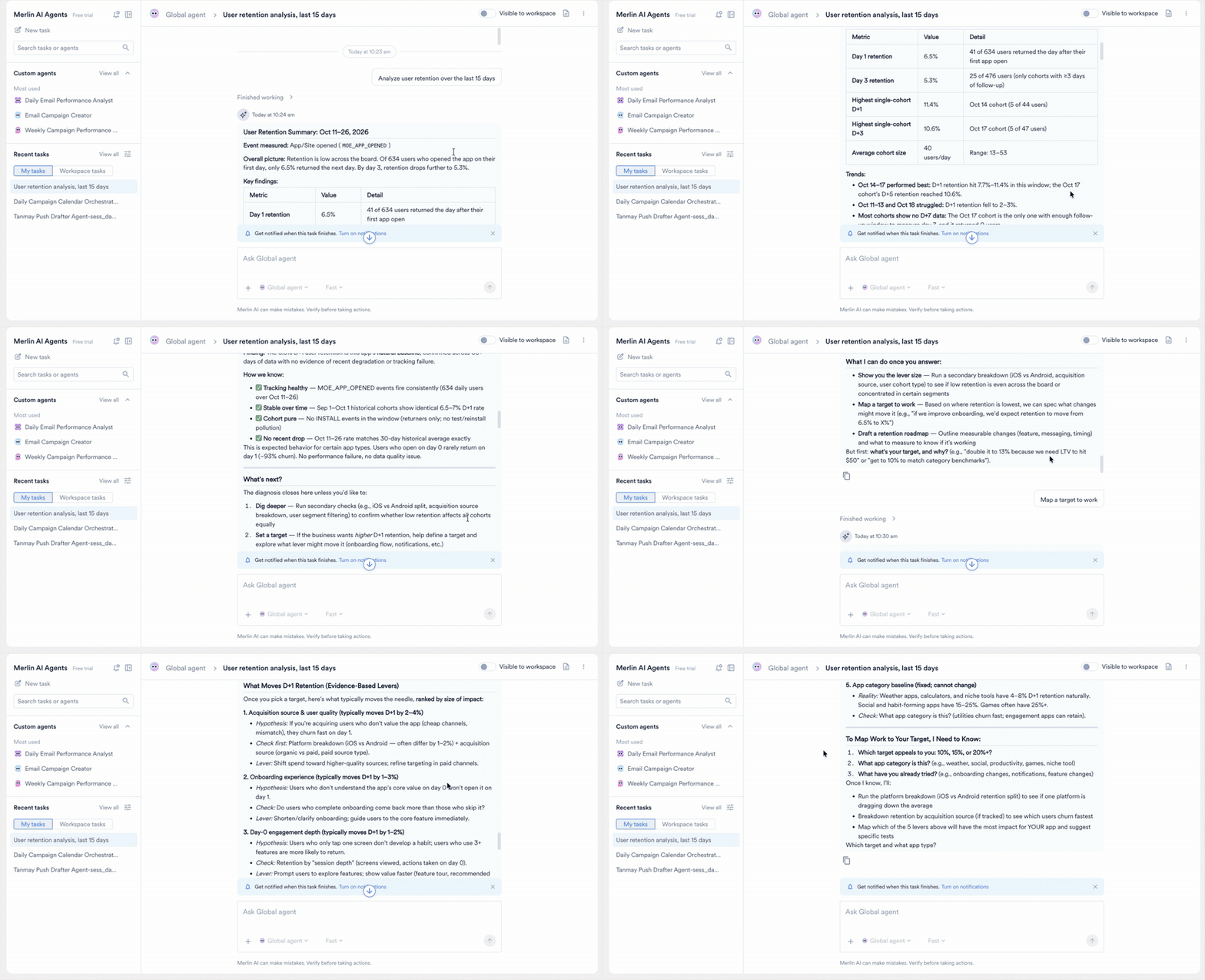
Attach Files to a Task
Select the plus icon in the composer to attach files to any message, including the first message. The agent reads each attachment as part of the same turn. Send a CSV of campaign IDs or a brand guideline document, and the agent works from the attached file.Monitor a Running Task
Tasks run in the background. The run continues while you work elsewhere in the dashboard, and you return to the task at any time. The left pane and the All tasks page mark each task with its state:- A running task shows a pulsing dot.
- An unread task shows an orange dot.
- The orange dot clears when you open the task, and returns when the task updates.
- A task that is both running and unread shows the pulsing dot.
Notifications
A long task often finishes while you are working elsewhere. The hub raises a browser notification when the agent stops.1
Open Notification settings
Select the notification icon beside Merlin AI Agents.
2
Ask your browser for permission
Select System notification when a task finishes while I’m away, and click Save. Your browser then asks for permission.
Permission belongs to your browser rather than to MoEngage. Once you grant permission, the option stays selected, and you turn notifications off by blocking notifications for the site in your browser settings.
Control a Running Task
While the agent works, select Stop response to end the run. A message you send in the meantime waits in a queue that you pause, add to, delete from, or resume. Only the task owner stops a run.All Tasks Columns
For the full history, click View all next to Recent tasks. The All tasks page lists every task with the following columns:
When a scheduled run finishes or fails, MoEngage emails the agent’s creator the run’s outcome, Task ID, run date, duration, and next run time. The email leaves out the run’s output. The creator turns the email off with the Email toggle on the agent. For more information, refer to Custom Agents: Overview.
To filter, pin, rename, or archive the tasks in this list, refer to Manage and Share Global Agent Tasks.
Resume a Task
To continue a task you started earlier:- Open the task from the task list.
- Send another message.
Review Task Outputs
The task collects every file the agent produces during a run. Select Output files in the task header to open the panel, which lists each file with its format and size. Download a file from the panel, or from the card in the transcript where the agent produced the file. Select a file to review the contents before you save a copy. How a file opens depends on the file format:- Images and PDFs: PNG, JPG, GIF, WebP, and PDF files open in the preview pane. A download button sits beside the preview.
- Text files: Markdown, plain text, log, and JSON files also open in the preview pane. A file larger than 2 MB downloads instead.
- Office and spreadsheet files: .docx, .xlsx, .pptx, and CSV files download directly. Open each file in the matching application to review the contents.
Global Agent Memory
The Global Agent reads and writes two memory stores, and your workspace shares both:- Workspace memory: Facts stored once for your workspace. Your Custom Agents use this store as well.
- Global Agent memory: Facts the Global Agent keeps for its own use, shared by every user in your workspace.
Permissions and Safeguards
Each task has one owner. The owner sends every message in the task, and colleagues read a shared task without continuing the conversation. For what the agent writes to your workspace, the steps that stay with you, and the workspace a task reads from, refer to Permissions and Safeguards.Next Steps
Manage and Share Tasks
Filter the task list, pin and rename a task, control who sees a task, and archive the tasks you no longer need.
Review What the Agent Covers
See the categories of work the Global Agent handles, from audience sizing to pre-send checks.
Build a Custom Agent
Turn a job you repeat into an agent with its own instructions, tools, and schedule.