Overview
Analyzing SMS campaign performance provides key insights into your messaging efforts, helping you understand how your messages are performing with your audience. By tracking essential metrics like sent, delivered, and read rates, along with clicks, you can gain a clear view of your campaign’s effectiveness. This analysis enables you to make data-driven decisions that refine your strategy and improve future campaigns. Analyzing your SMS campaigns helps you in several ways:- Refine campaign content: By tracking which message content or copy resonates best with specific audiences, you can optimize your campaigns to drive higher engagement and conversions.
- Optimize Performance: Use analytics to identify which message content, offers, or calls-to-action drive the highest engagement and conversions. You can also pinpoint the best time to send messages to your audience and test different sending frequencies to maximize results.
- Improve deliverability: Quickly diagnose why messages are failing to deliver. This helps you identify issues like invalid numbers or network errors, allowing you to improve future deliverability rates.
- Campaign Details: contains information about the campaign and its status. For more information, refer to Campaign Details.
-
Analytics: contains information about the various metrics that are tracked for the campaign and has the following sections:
All the metrics are calculated and displayed in the App’s Timezone.
Campaign Details
This section contains the following information:- Campaign type
- Campaign ID
- Campaign creation and updation details
- Team information
- Approver’s list/ Approved by/ Rejected by (if CAF is enabled)
- Campaign status: A campaign can have various statuses, including Active, Expired, Not Sent, Paused, Scheduled, Sending, Sent, and Stopped. If the Campaign Approval Workflow (CAF) is enabled, additional statuses such as Under Review and Rejected will also be available.
Campaign Analytics
The analytics section contains information about the performance stats and revenue metrics.Global Analytics Filters
These filters are applied to all the sections in the Analytics tab.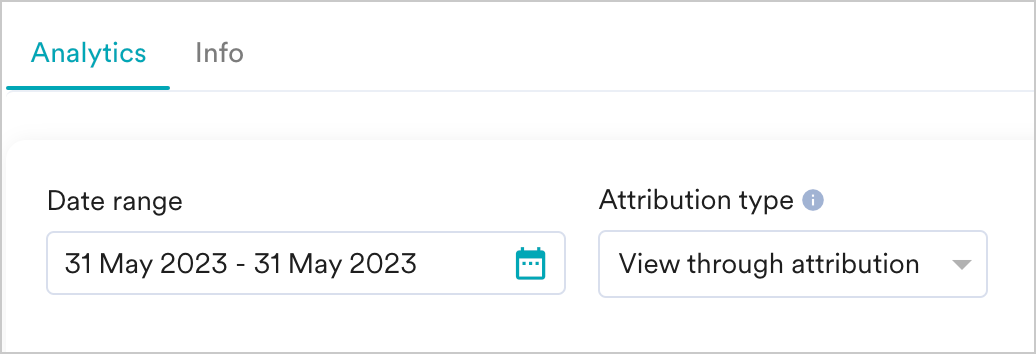
- Date Range: Select the date range for which you want to view the performance stats.
- Attribution Type: Select the attribution type to view the analytics information for the specified attribution type. You can track your conversion using the following attribution type:
- View through attribution
- Click-through attribution
- In-session attribution
For more information, refer to Attribution Details.
Campaign Performance Stats
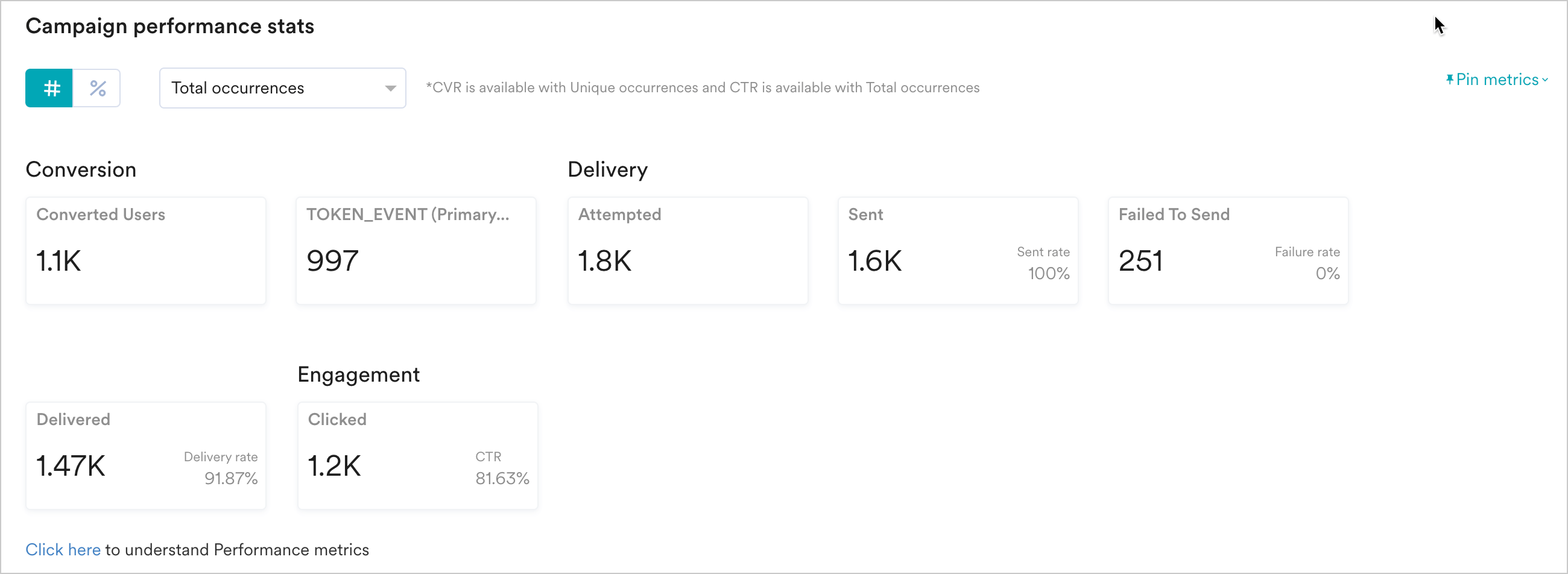
- Select between the number view or the percentage view to see the stats as numbers or percentage values.
- View the unique or total occurrences of stats by selecting Unique or Total in the dropdown at the top of the section.
- Pin the metrics you want to view using the Pin metrics list at the top right corner. You can pin up to five metrics. The selected metric pins are available in the Pinned metrics section.
-
Click Show all metrics to view all the metrics being tracked for the campaign, and hide unpinned metrics to see only the pinned metrics for the campaign.

Conversion Metrics
These metrics pertain to the conversion goals set for the campaign. The higher these metrics, the more effective your campaign. MoEngage attributes conversions only to users for whom delivery receipts have been received. In the case of Integrated SMS connectors, the conversions are attributed only to the customers for whom we have received Delivery Receipts. In the case of custom SMS connectors:- The conversions are attributed based on whether the delivery tracking for the custom SMS connector is enabled.
- When delivery tracking for custom SMS connectors is configured, the conversions are attributed only to users for whom the delivery receipts are received by MoEngage.
- When delivery tracking is not configured, the conversions are attributed to the users for whom the SMS is successfully sent from MoEngage.
If your revenue attribute is inside an object array, MoEngage’s calculation may not match what you expect. For more information, refer to Revenue Tracking with object attributes.
Delivery Metrics
The following are the delivery metrics tracked for your SMS campaign:Engagement Metrics
The following is the engagement metric tracked for your SMS campaigns:Locale and Variation Performance
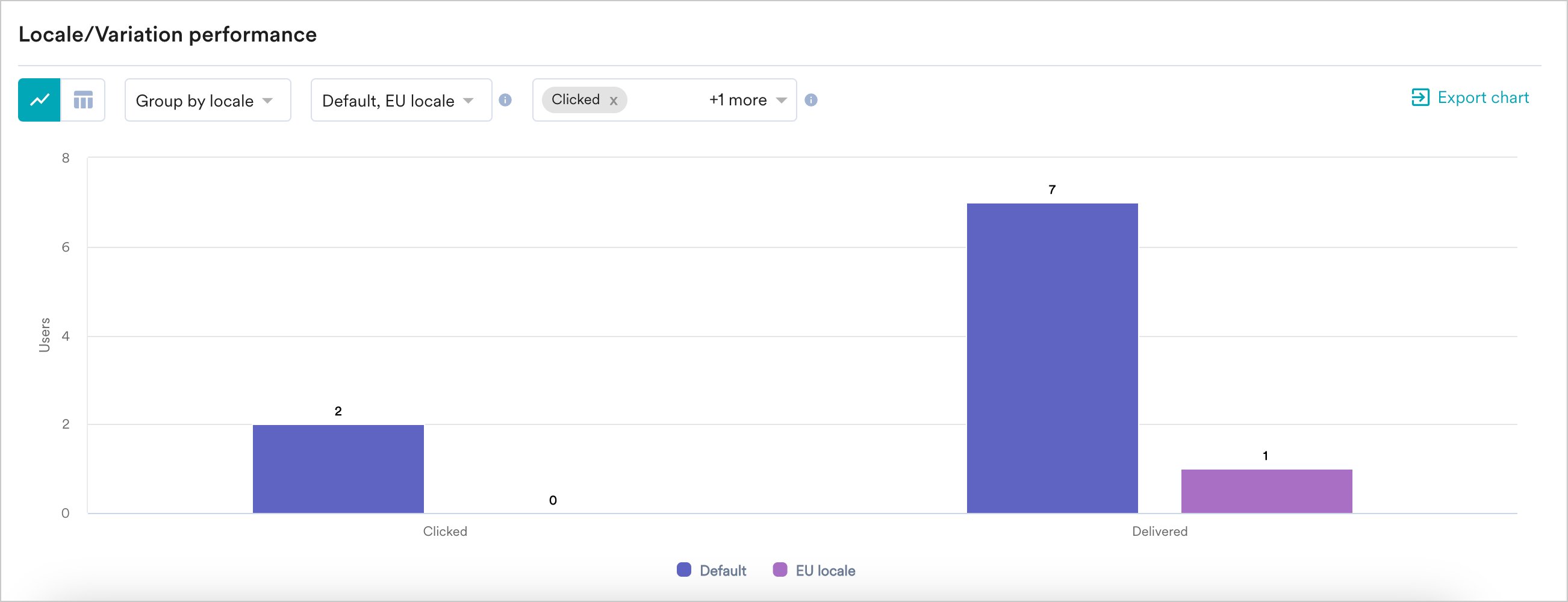
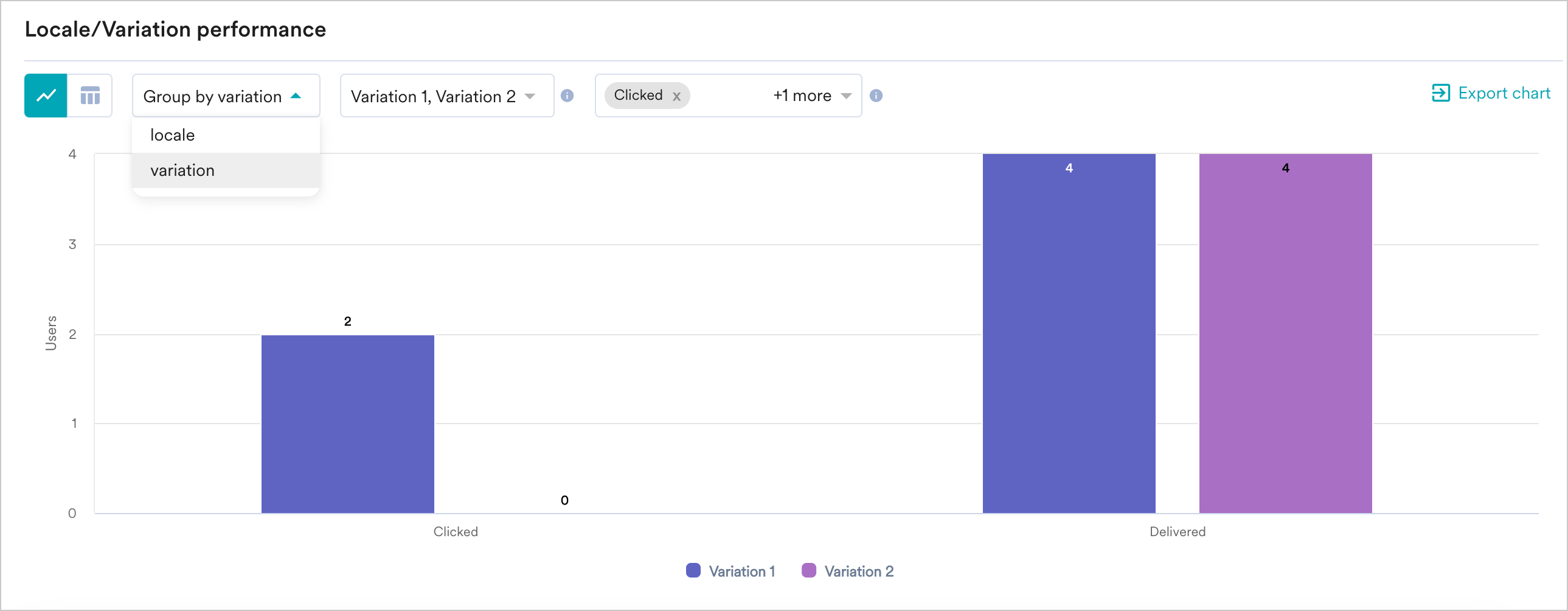
You can see the breakdown of performance metrics (Clicked, Delivered, Conversions, Conversion Goals) across each locale (including the default locale) and variation, allowing you to assess and compare the effectiveness of the various locale and variation combinations. You can view the uplift percentage on the tabular view of Locale/Variation performance. For more information, refer to Uplift in Campaigns. You can choose the metrics for which you wish to see the comparison in the metrics dropdown and filter using the following mechanisms:-
Group by locale - Lists the performance of the metrics selected for each variation grouped by the locale. Hover over the bar graph to understand how each variation has performed for the specified metric in a locale. Delivery metrics are only available in the ‘All Locales’ view and are not available while viewing analytics for individual locales.
-
Group by variation - Lists performance of each metric in all locales grouped by the variation. Hover over the bar chart to understand how each locale has performed for the specific metric in a variation.
Conversion Goals Performance
You will be able to see this section when you have set more than one conversion goal for your campaigns. The section compares the performance of goals set by the marketer for the campaign. **Total Conversions:**This will show all the goal events for the respective goals i.e., if a user made a purchase twice, it will be shown twice. It is the equivalent of conversion events covered in the sections above. Unique Conversions: Goals are unique across the users converted per campaign instance. It is the equivalent of the Conversions metric covered in the sections above. You can view the uplift percentage in the tabular view of Conversion Goals performance. For more information, refer to Uplift in Campaigns.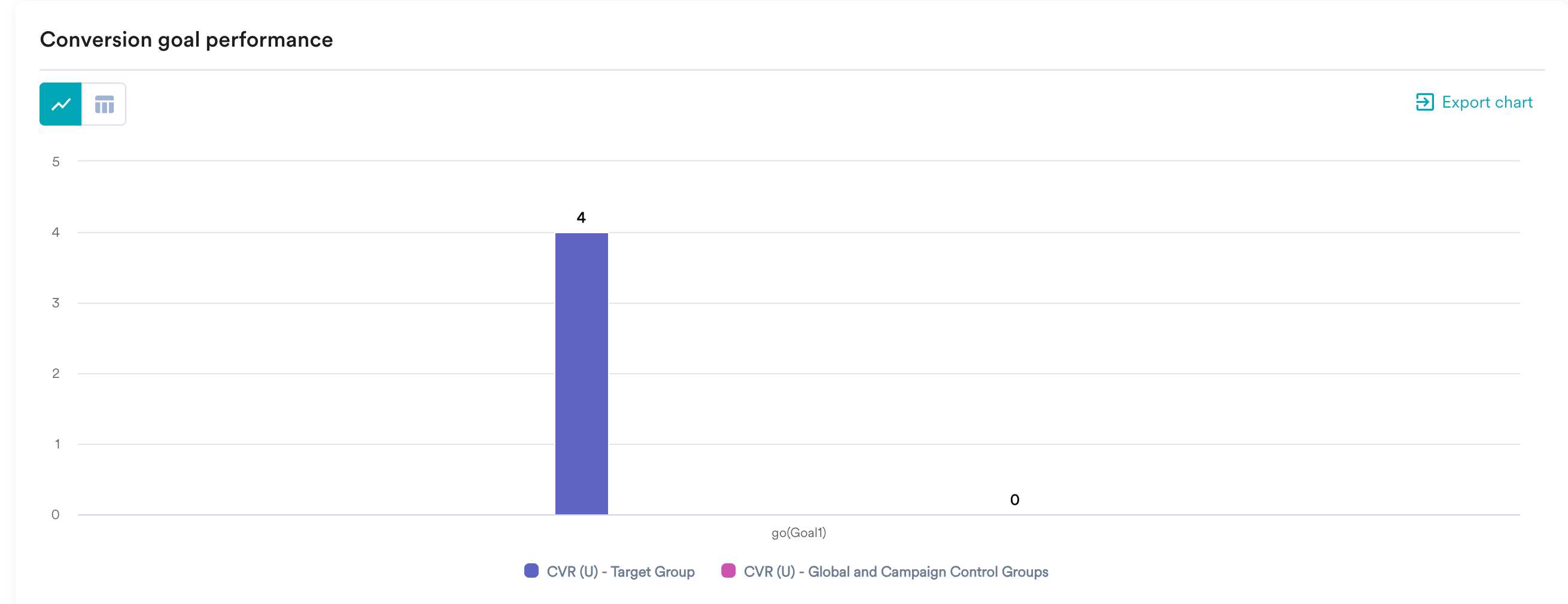
Campaign Delivery
The delivery metrics can be viewed as numbers with the percentages shown above them.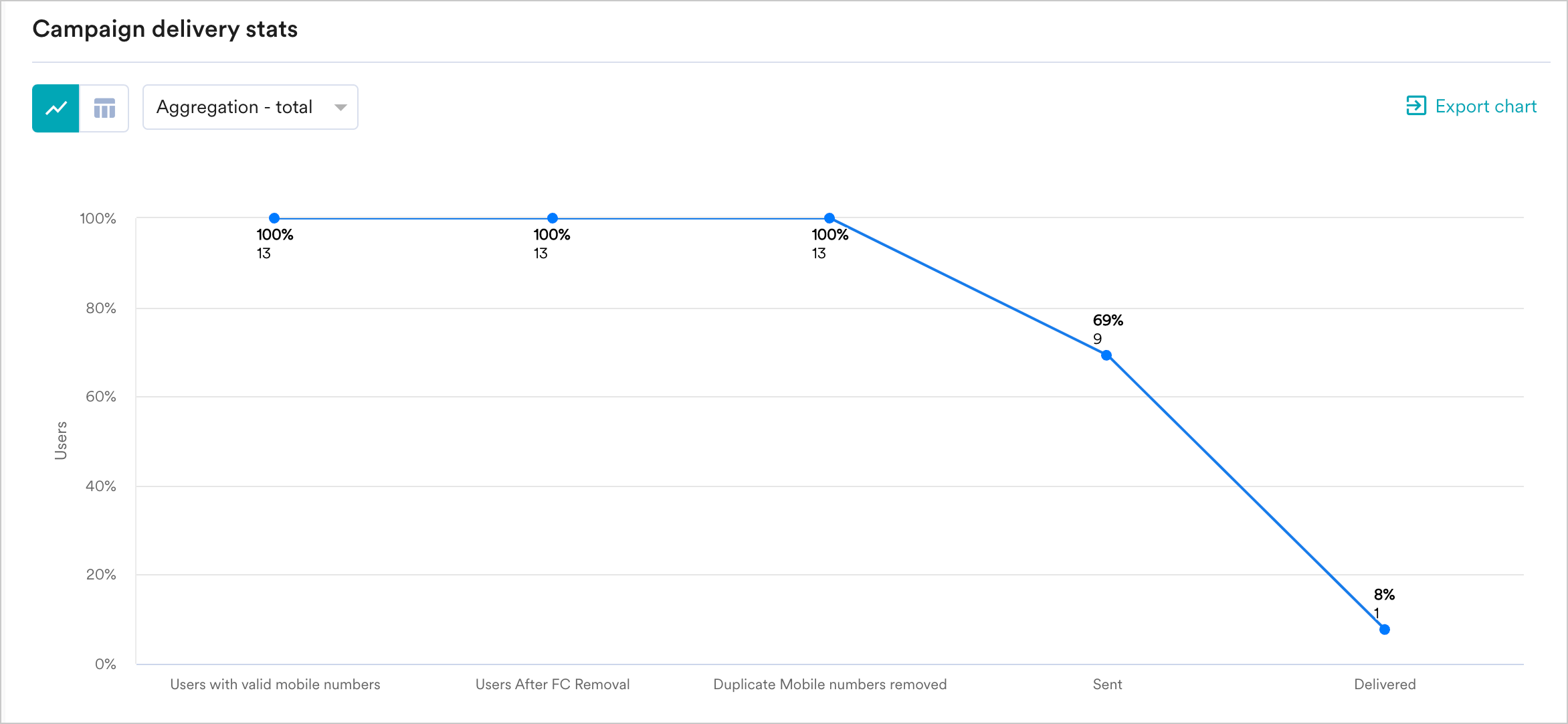
Attribution Details
You can select the attribution type (Click through, In-session, and View through) to view the analytics information for the specified attribution type.Attribution types are only applicable when you have set a conversion goal for your campaign.
- View through attribution: If a user saw your message and didn’t click it but converted afterwards, it would be attributed to a view-through conversion.
- Click-through attribution: If a user has clicked your message and converted, it would be attributed to a click-through conversion.
- In-session attribution: If a user conversion is made within 30 minutes after clicking the message, it would be attributed to an in-session conversion.
For example, consider the case where three customers, namely Users A, B, and C, received your message from campaign C1.- User A clicked the message and did the conversion event within 30 minutes (we assume it to be the same session) of clicking.
- User B clicked the message and did the conversion event 2-3 hours after clicking.
- User C saw your message, later launched the app directly, and made the conversion.
*Attribution window: The attribution window is the duration calculated from the time a user receives a campaign with specific conversion goals. For example, two campaigns with a conversion goal of a purchase are created: Campaign C1 at time H hours and Campaign C2 at H+12 hours. The customer achieves the conversion goal for purchase with the campaigns C1 and C2 at time H+15 hours. The conversion of customers is attributed to both C1 and C2.
The maximum attribution window is 7 days for SMS campaigns in MoEngage. When you send more than one campaign with a difference of less than 7 days, then set the attribution window:
- Less than 7 days.
- With the duration difference in sending the campaigns.
Error Breakdown
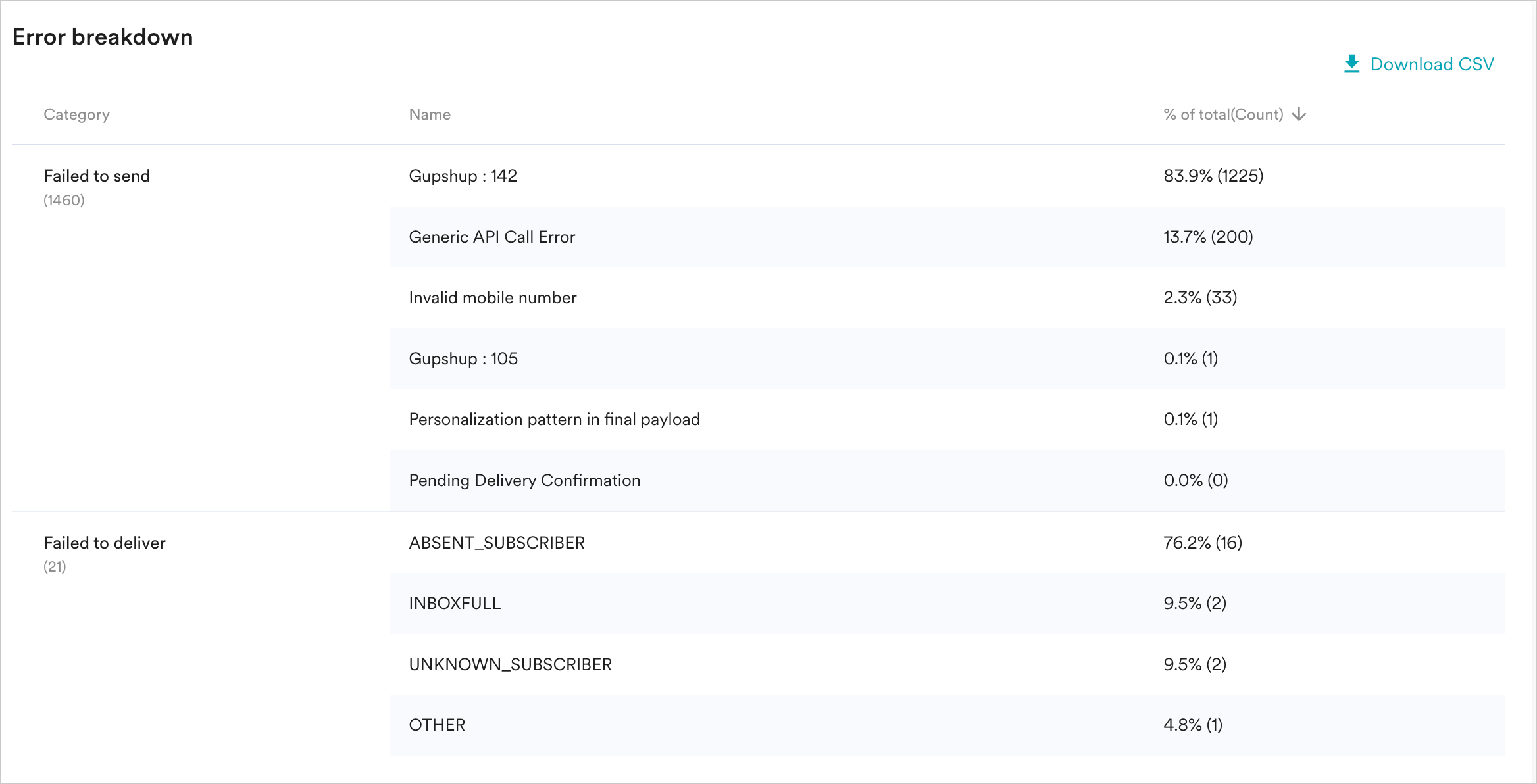
This section details the number of campaign delivery failures and their reasons. The failures are segregated into two parts:- Failed to Send - This section shows the reasons why some of the messages were not sent by MoEngage to your SMS provider. These could happen due to multiple reasons, such as personalization failure and errors at the SMS provider’s end.
- Personalization failure occurs when one or more of the event/user attributes present in the request are not found for a specific user. For more details, refer to Personalization Errors.
- Error on the SMS Provider’s end: For such errors, the error codes and the aggregated count of requests for which they were received from the SMS Provider are shown in the UI, as illustrated in the image. You can learn about these errors from the documentation of your SMS provider.
- Users being excluded because they had already reached the campaign’s Limit Message configuration within the defined rolling window. For more information, refer to Limit Messages for Periodic and Triggered Campaigns.
- Failed to Deliver- This section shows the reasons why messages were not delivered by your SMS provider. SMS Delivery is marked based on the delivery receipt of the SMS provider. Apart from the errors that come directly from the SMS provider, you can also see errors in transit when MoEngage awaits the delivery receipt from your SMS provider.
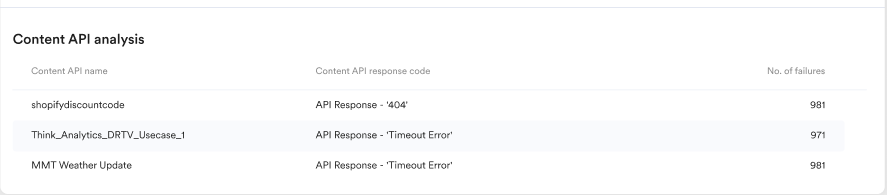
If the Content API being used in the campaign does not provide a 2xx/successful response, campaigns might still be delivered if the empty response has been handled in your JINJA code added in Step 2 of Campaign Creation (the content/message creation step).
Best Time to Send
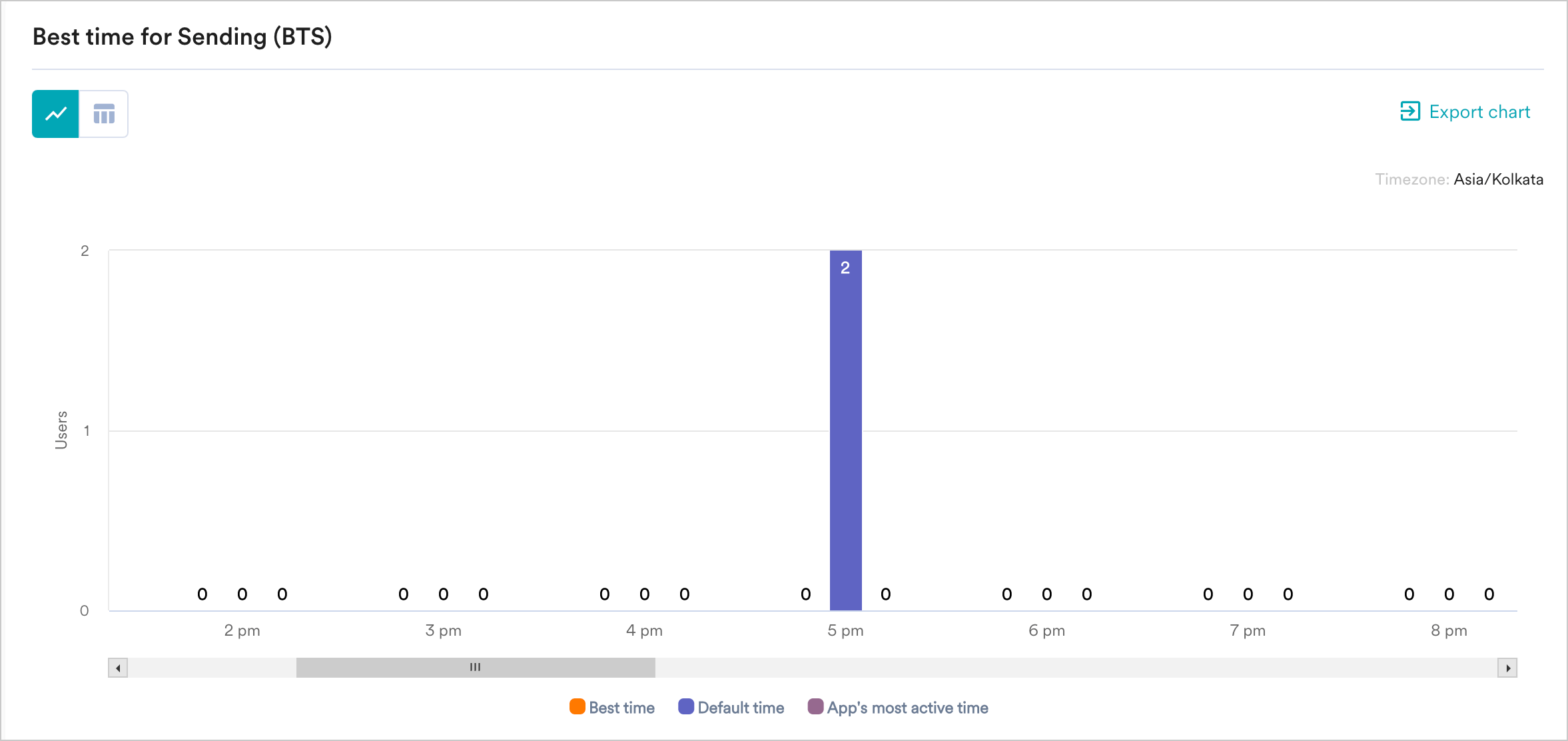
BTS campaigns use MoEngage’s Merlin AI to estimate the best time to deliver a campaign to a specific user based on their past engagement trends. For more information, refer to BTS. This section showcases the stats for users for whom the campaign was delivered at the following times:- BTS
- Default time
- App’s most active time
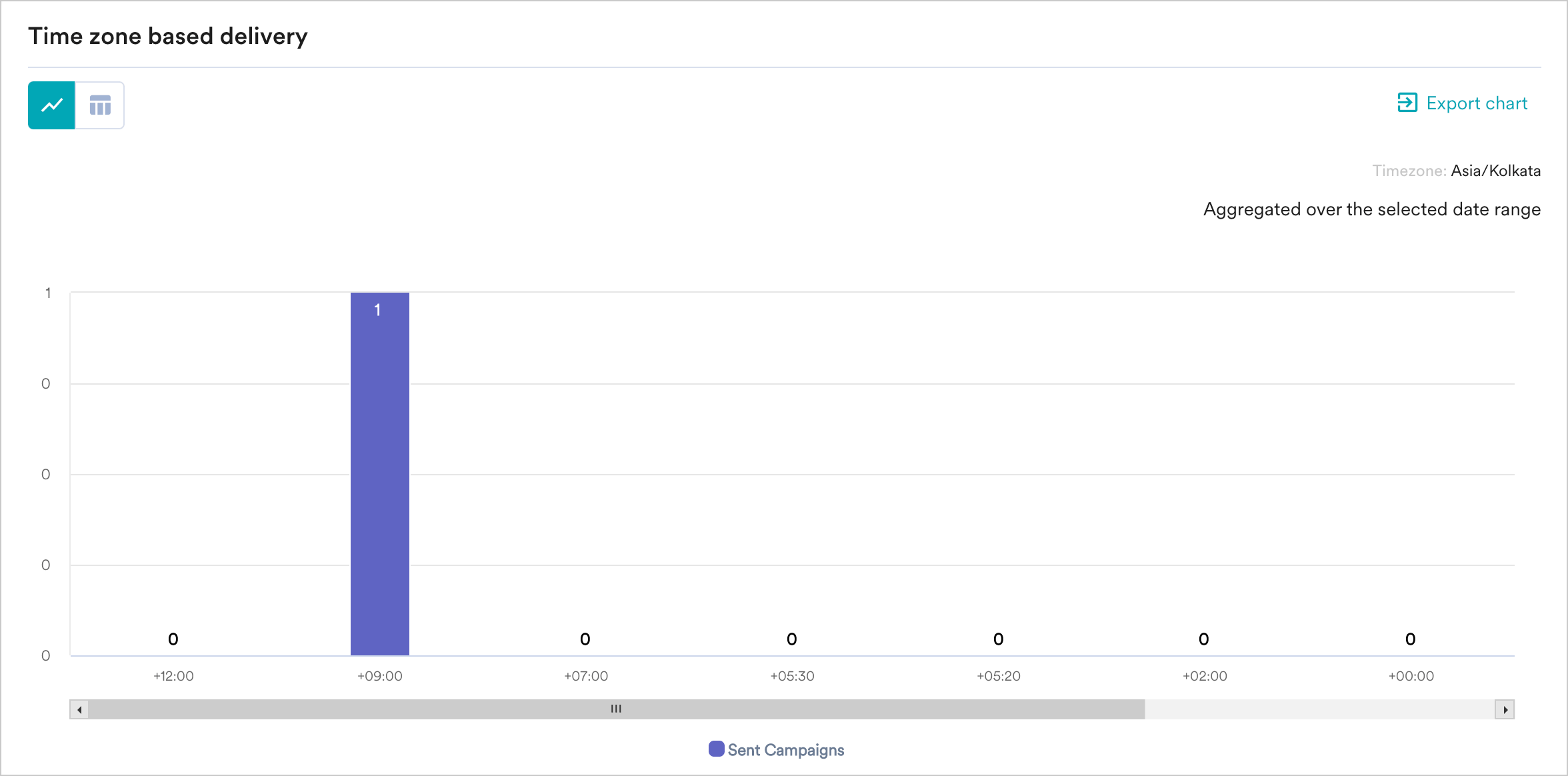
Time Zone Based Delivery
This section showcases information about the timezone in which the campaign was sent to the users. The following information is available:- The number of users for whom the campaign was sent in their app’s timezone
- The number of users for whom the campaign’s default time zone due to time lapse