

Early AccessJust-in-Time User Provisioning is an Early Access feature. To enable it for your account, please contact your MoEngage Customer Success Manager (CSM) or the Support team.
Overview
MoEngage supports JIT provisioning only for logins initiated via the Identity Provider (IdP-initiated login), which allows MoEngage to correctly identify the targeted workspace.
Advantages
- Faster onboarding: New team members can access MoEngage immediately without waiting for a manual invitation.
- Dynamic role assignment: Roles can be automatically assigned or updated from the identity provider (if enabled in MoEngage).
- Temporary access: Provide session-based access to your users, where they can be automatically deleted after their session ends (if enabled in MoEngage).
Access Just-in-Time User Provisioning
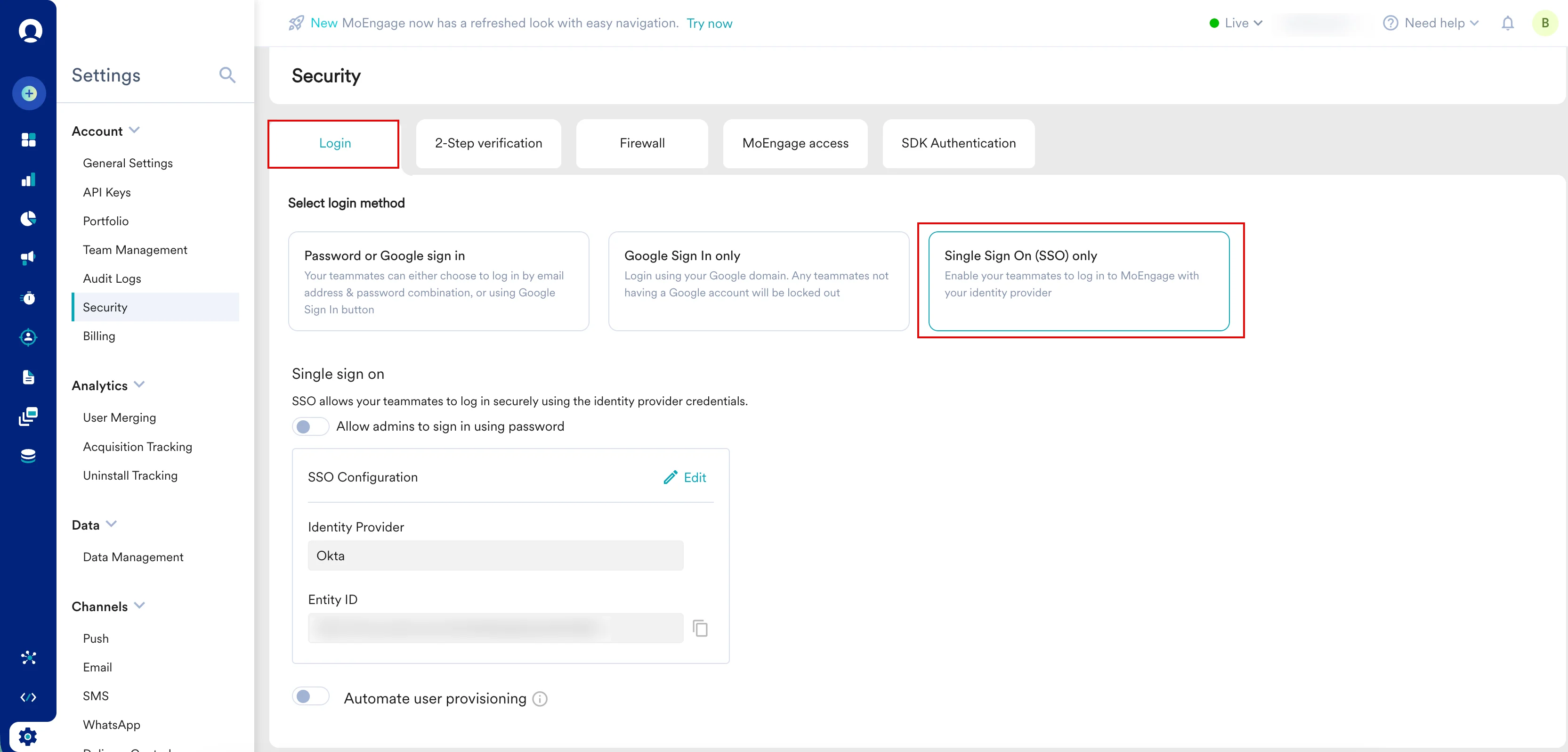
- On the left navigation menu in your MoEngage workspace, navigate to Settings > Account > Security > Login.
- Click Single Sign On (SSO) only.
Note: Ensure SSO is configured. For more information, refer to how to configure SSO. - Scroll to the Automate user provisioning section.
Permissions to Access
The following table describes the permissions required to access and use JIT provisioning:Step 1: Enable Just-in-Time User Provisioning
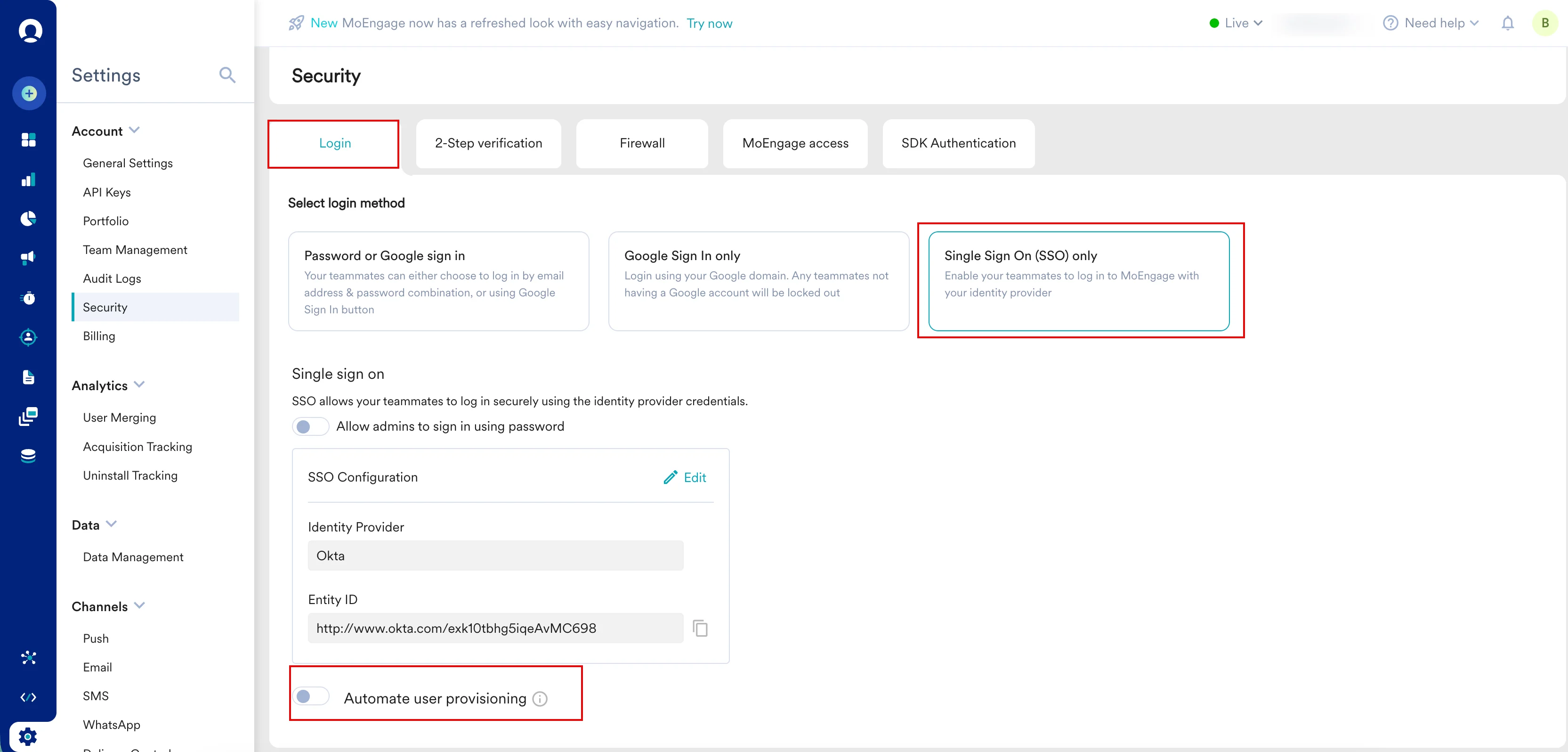
- Turn the Automate user provisioning toggle on.
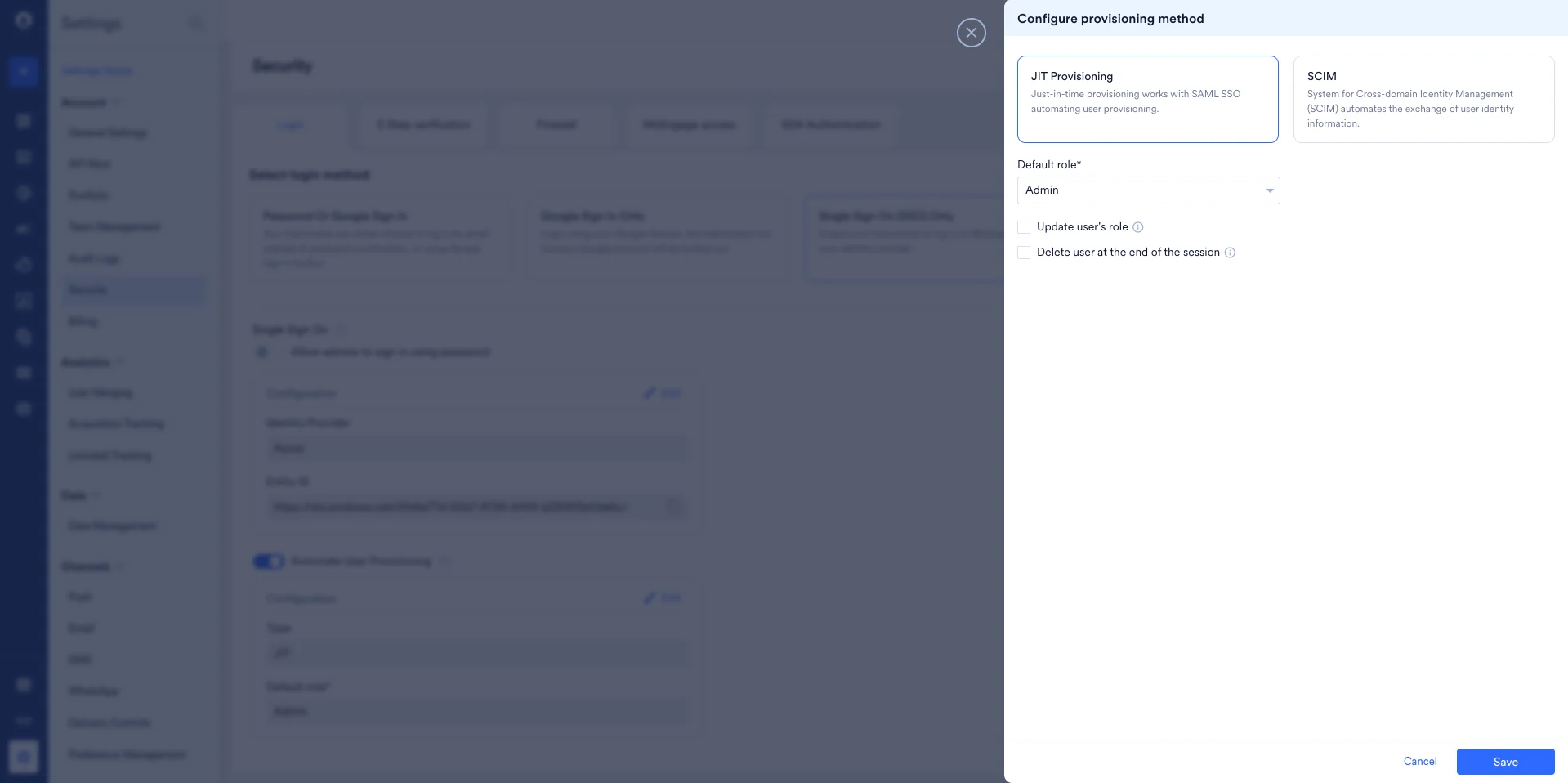
The Configure provisioning method dialog box appears. - Select JIT Provisioning as your configuration type.
Step 2: Configure and Save
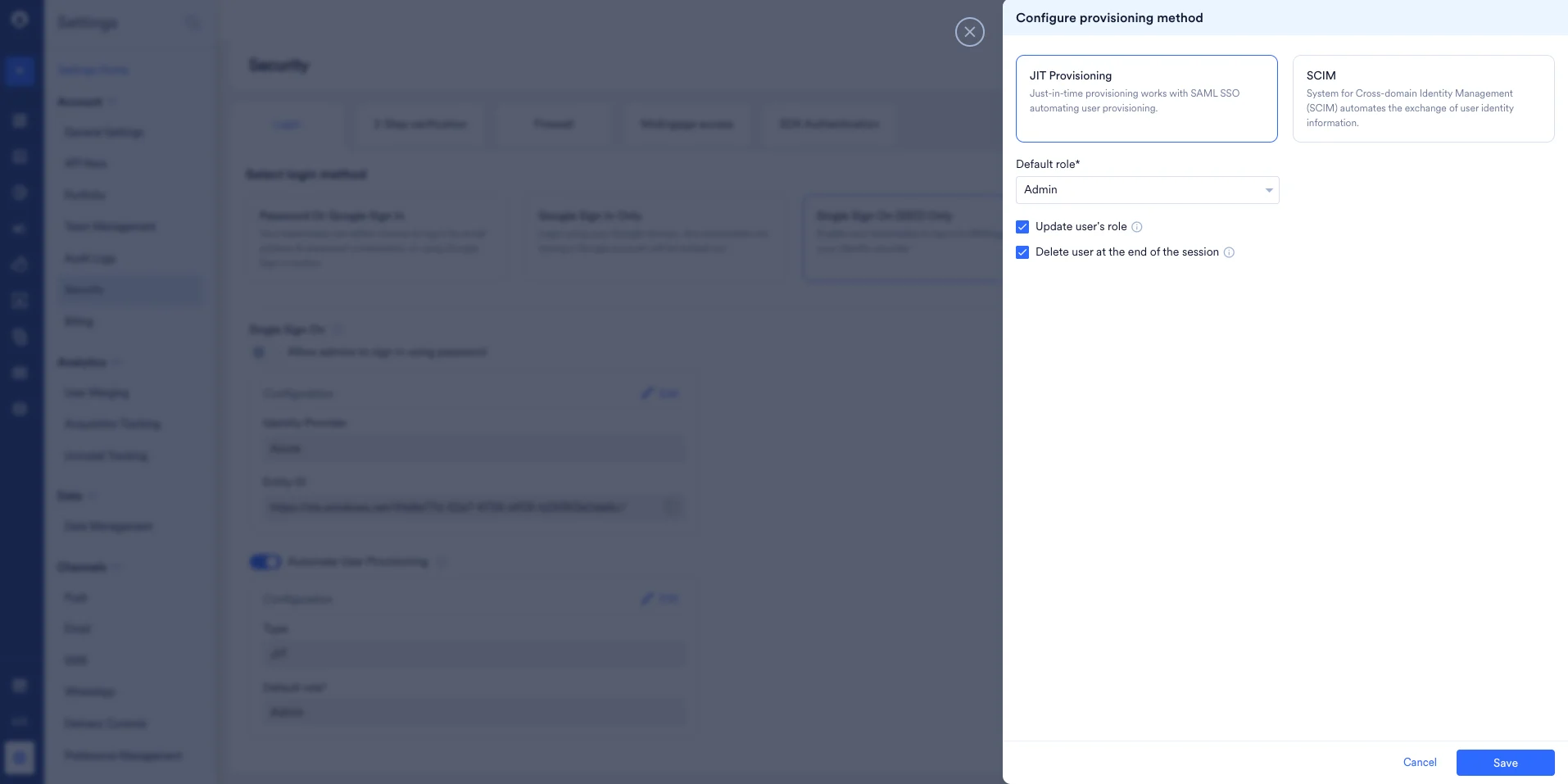
- Provide the following fields:
- Click Save.
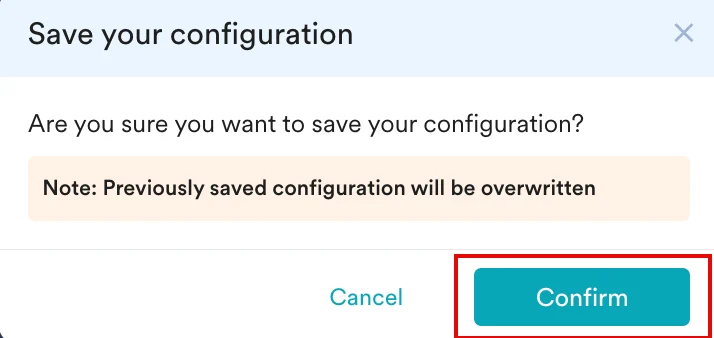
The Save your configuration dialog box appears, prompting you to confirm your configuration. - Click Confirm.
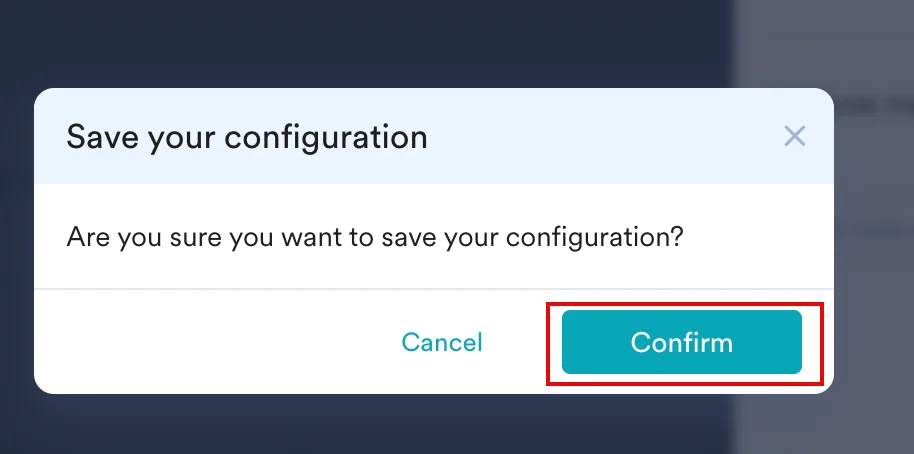
The enabled successfully message appears.
Identity Provider (IdP) Setup
JIT provisioning supports the following Identity Providers:- Okta
- Microsoft Azure
- OneLogin
- Any Identity Provider that supports Just-in-Time User Provisioning
- Okta
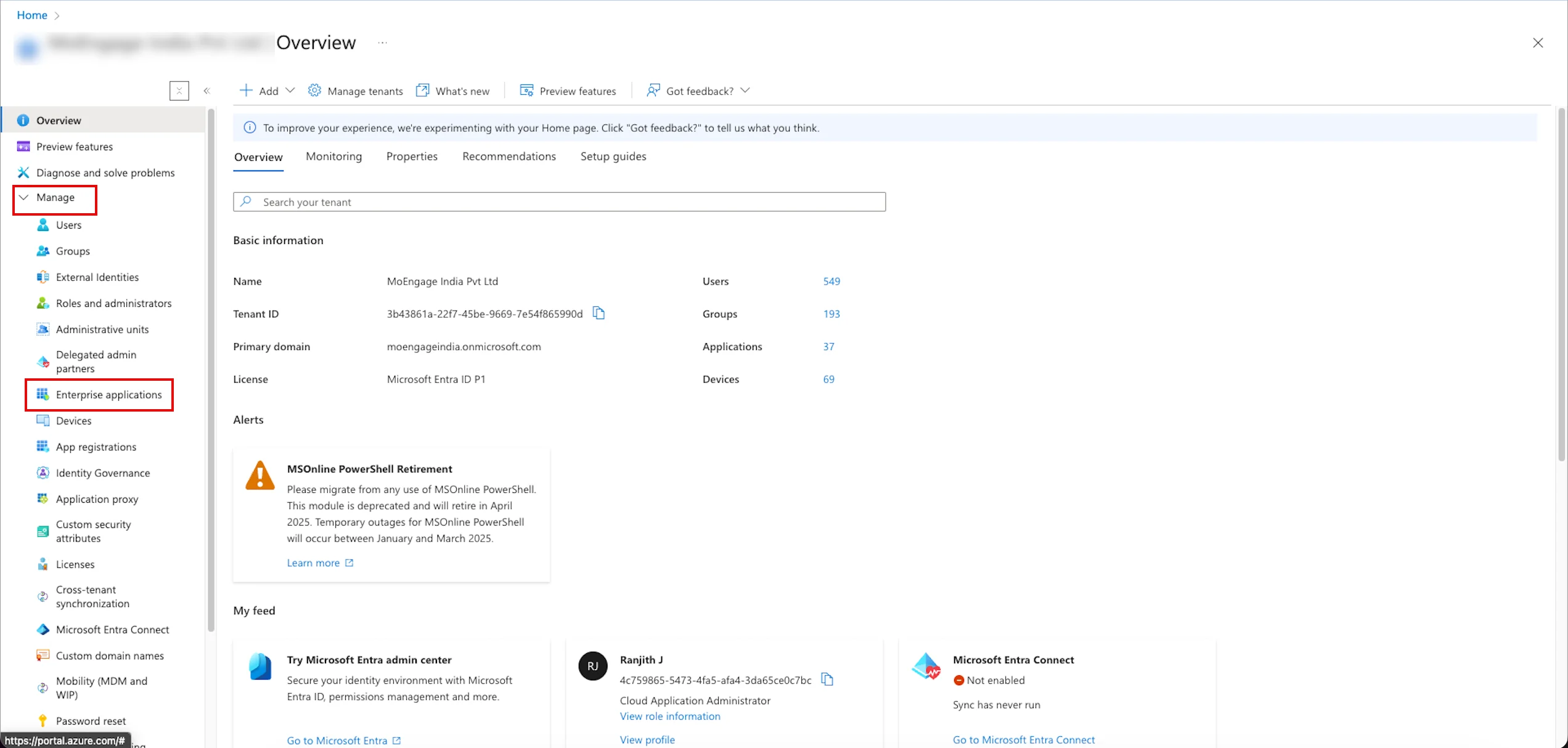
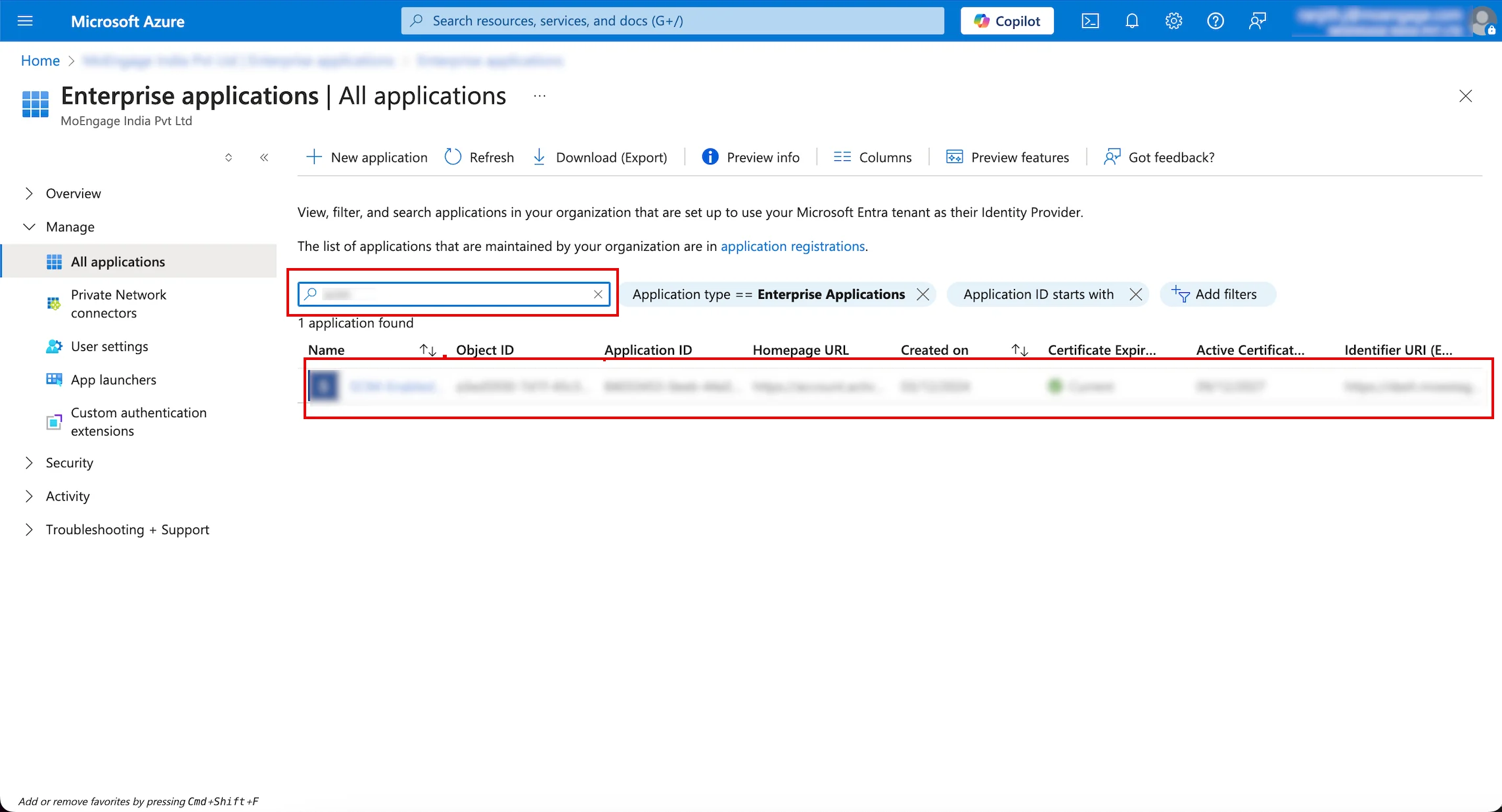
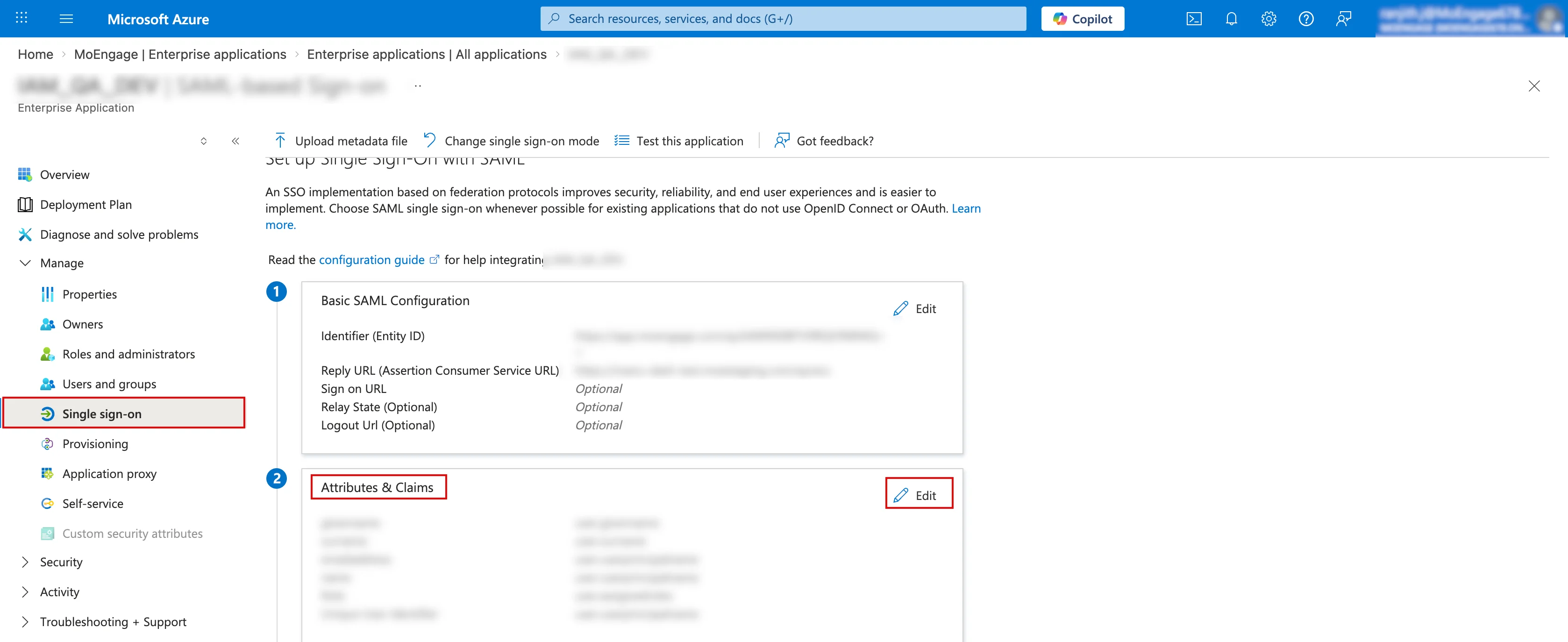
- Azure
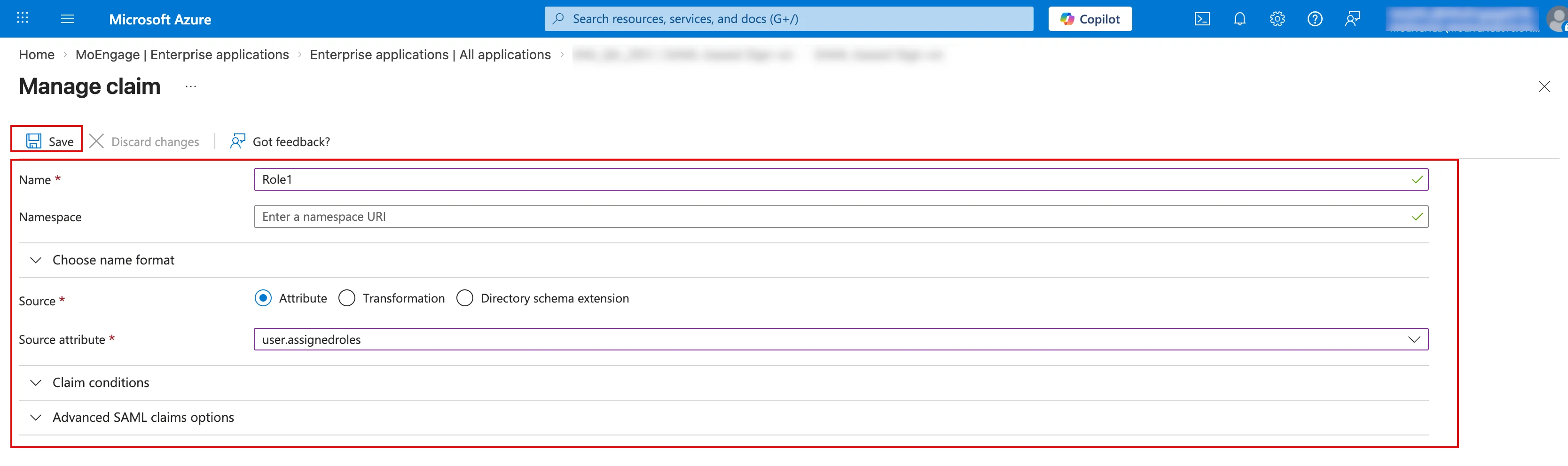
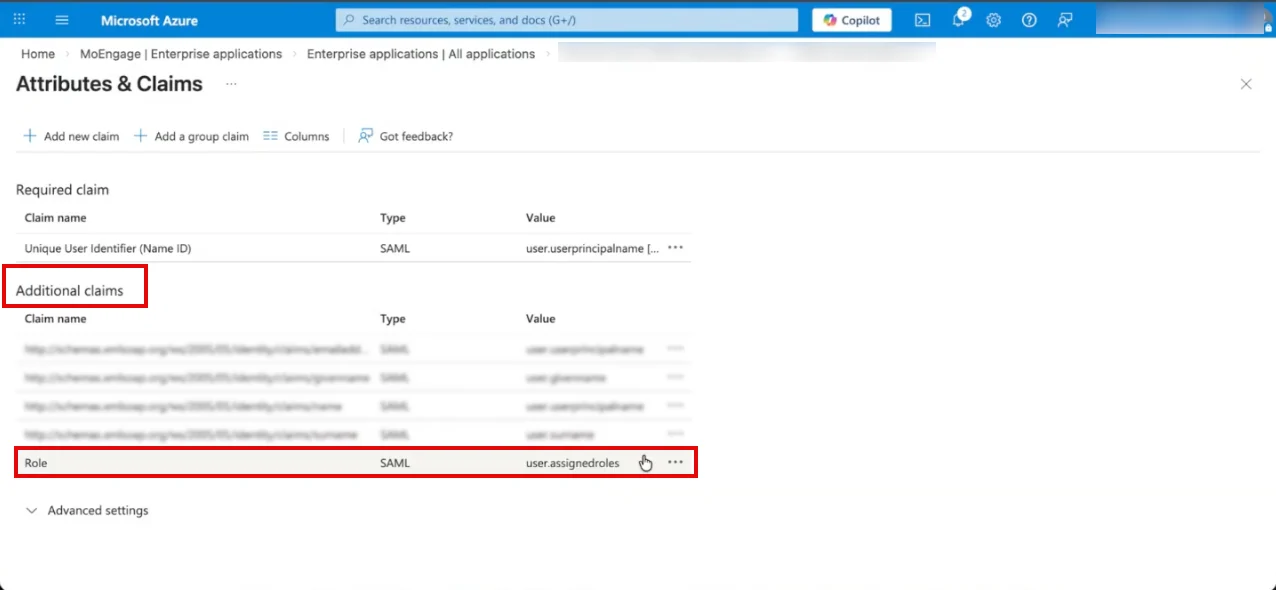
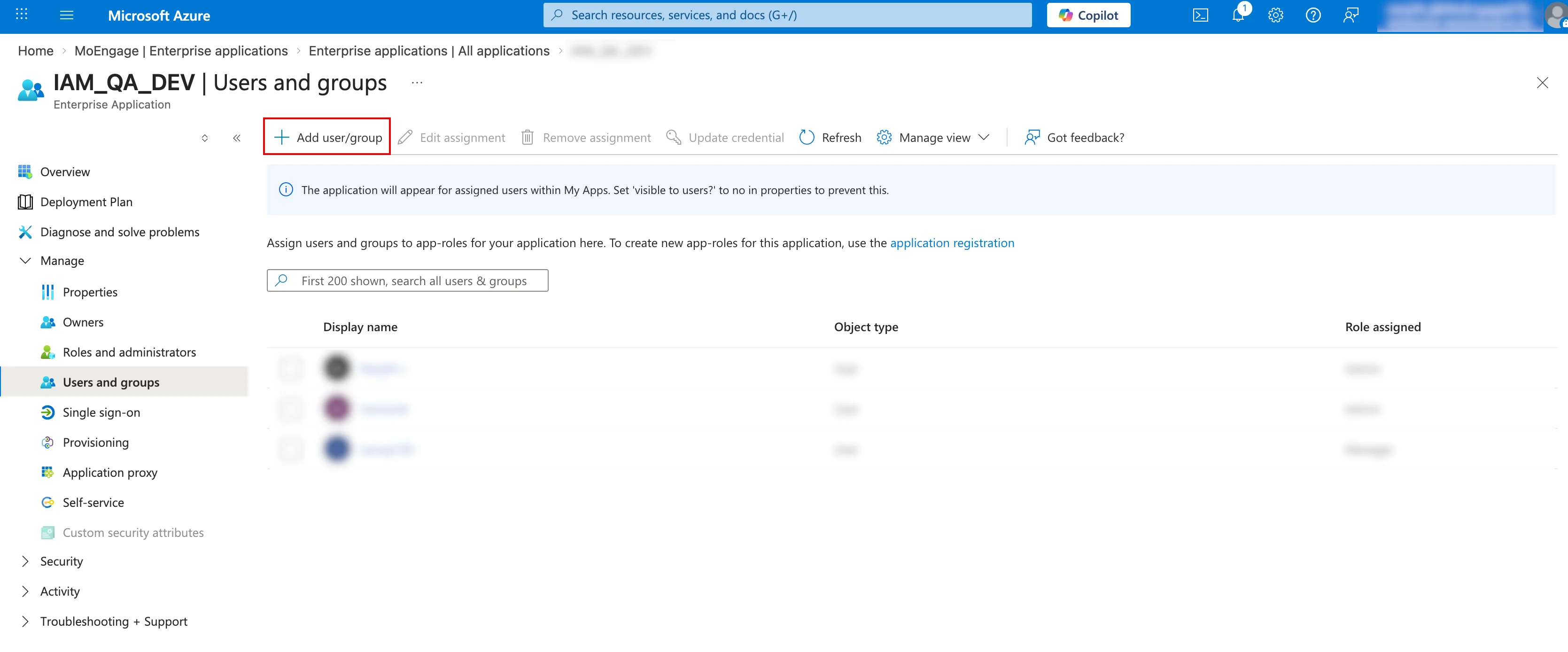
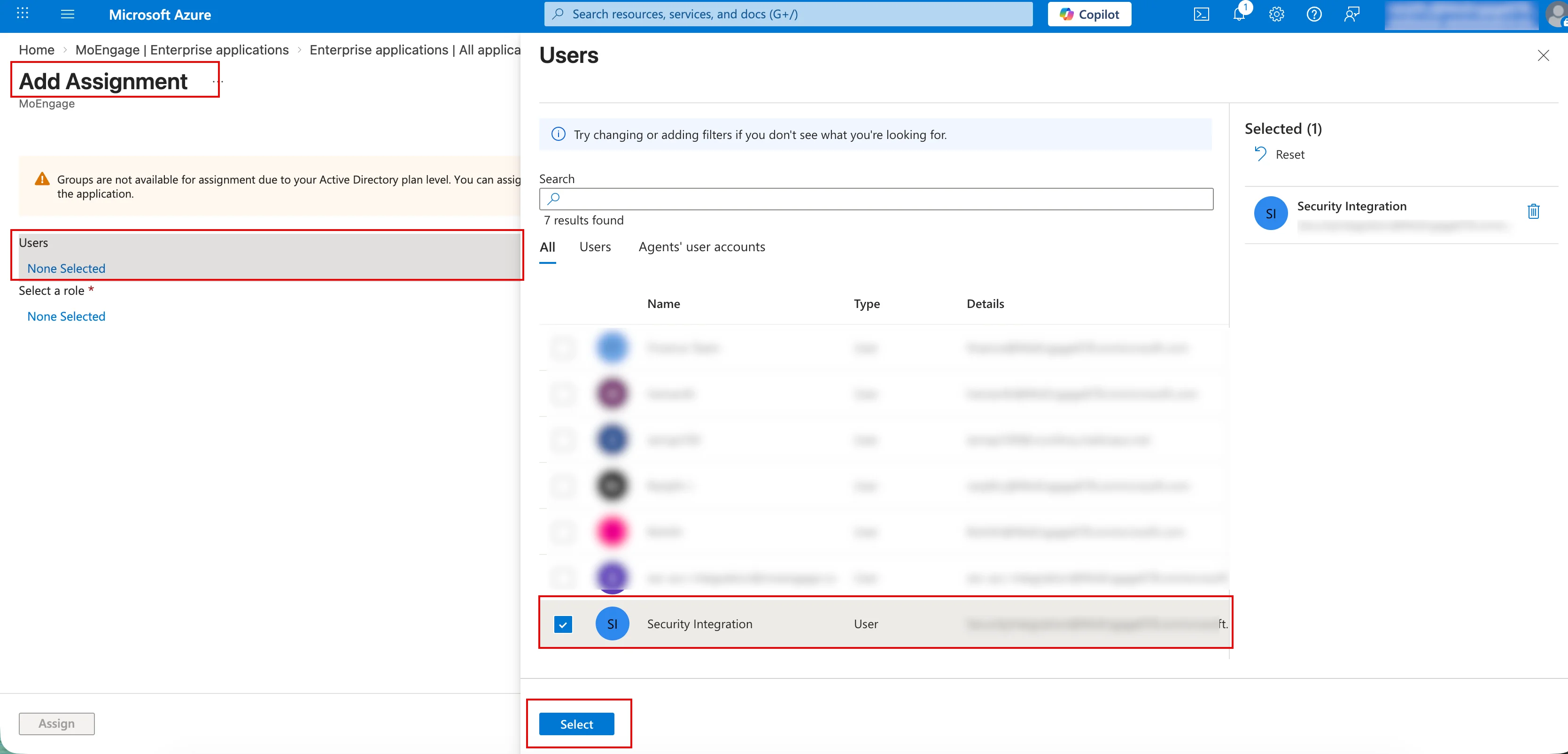
Step 1: Add the Role Attribute to the MoEngage SSO Application
- Navigate to the Okta Admin Console.
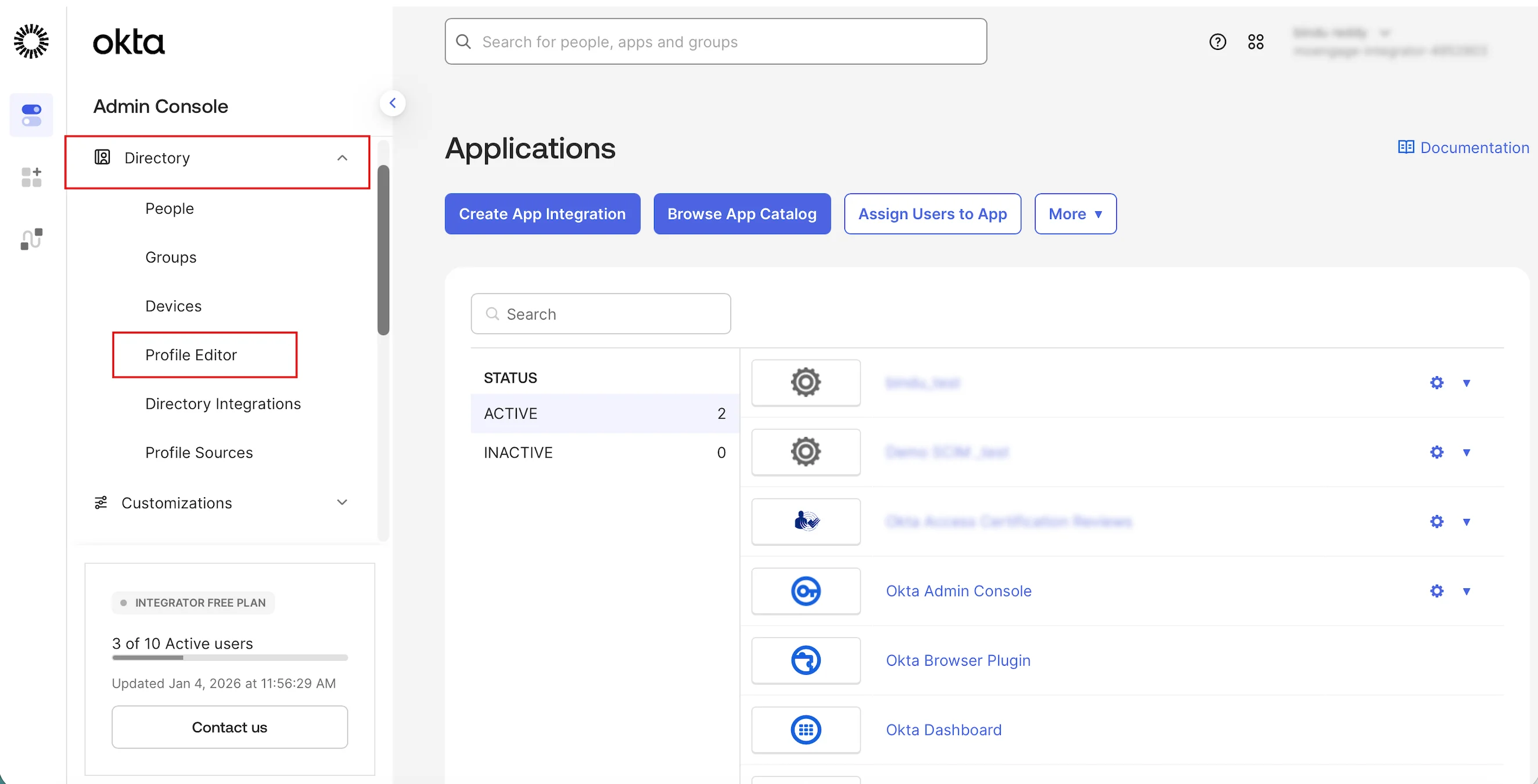
- On the left navigation menu, click Directory > Profile Editor.
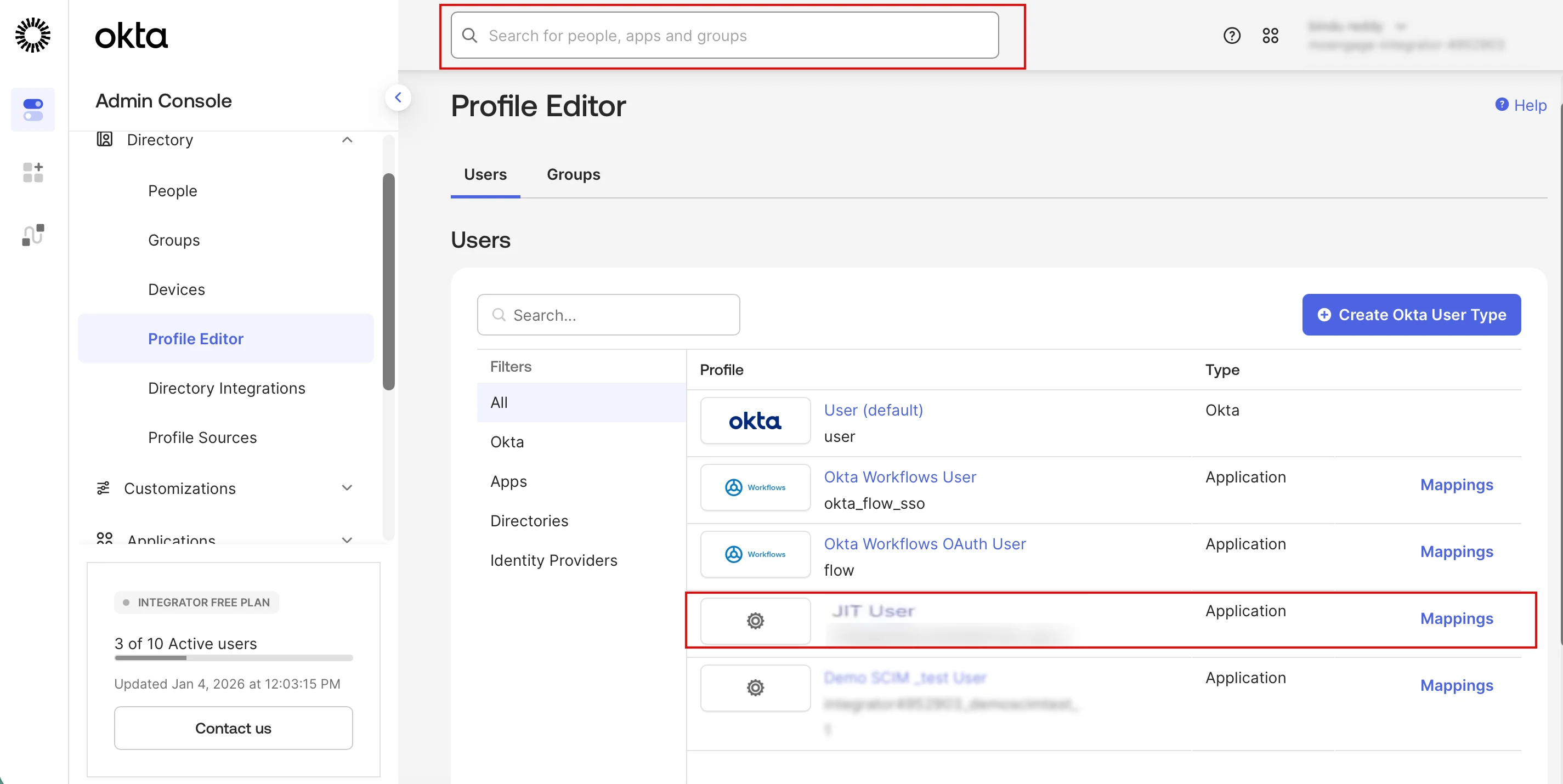
- On the Profile Editor page, select the MoEngage SSO application you created, or use the Search for people, apps, and groups box to find it.
- Click Add Attribute.
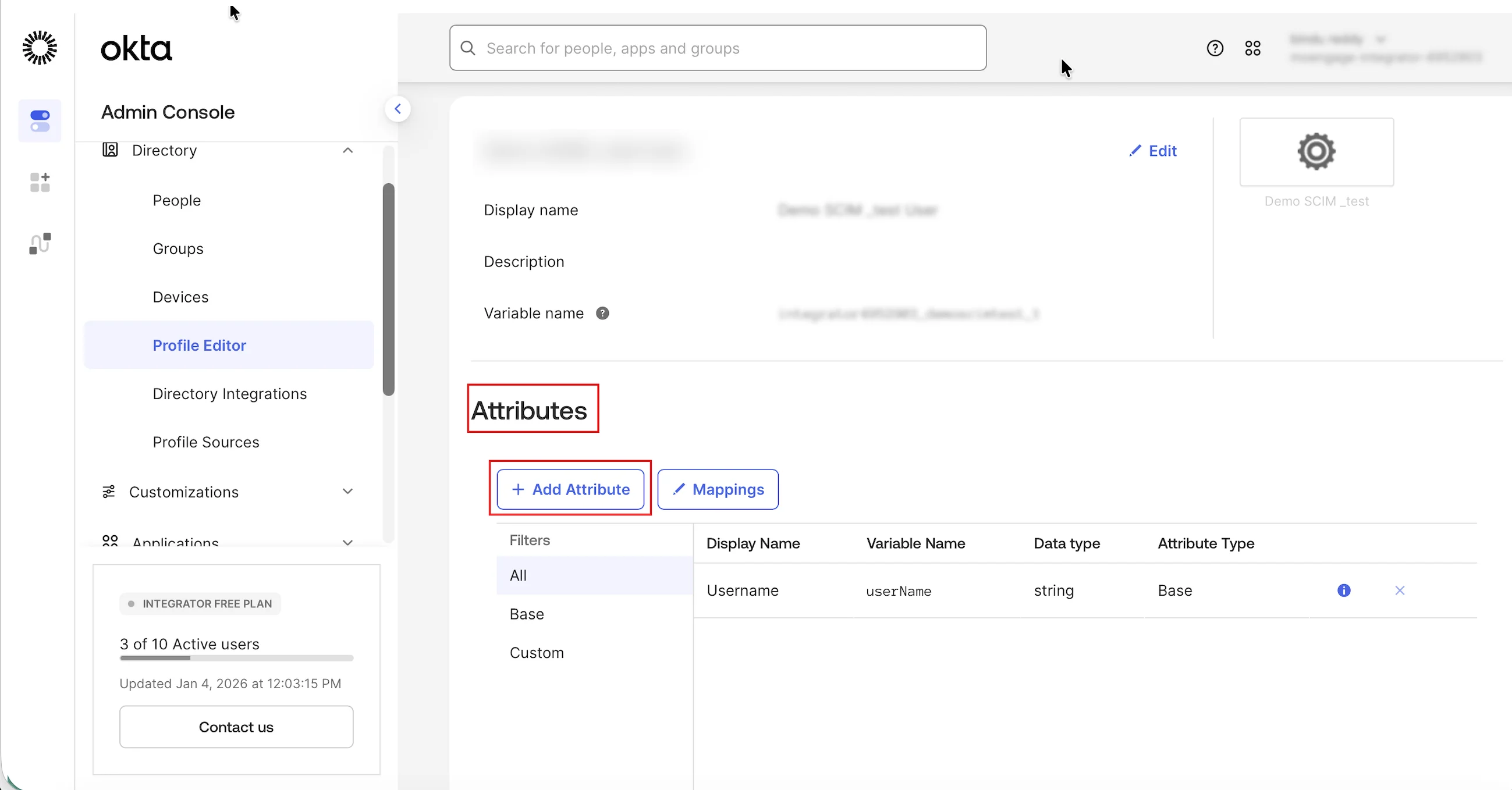
The Add Attribute dialog box appears. - In the Data type list, select string.
- In the Display name box, enter role.
- In the Variable name box, enter role.
- In the Description box, enter role.
- Click Save.
Step 2: Configure SAML Attribute Statements
- Navigate to Applications > Applications and click the MoEngage SSO application.
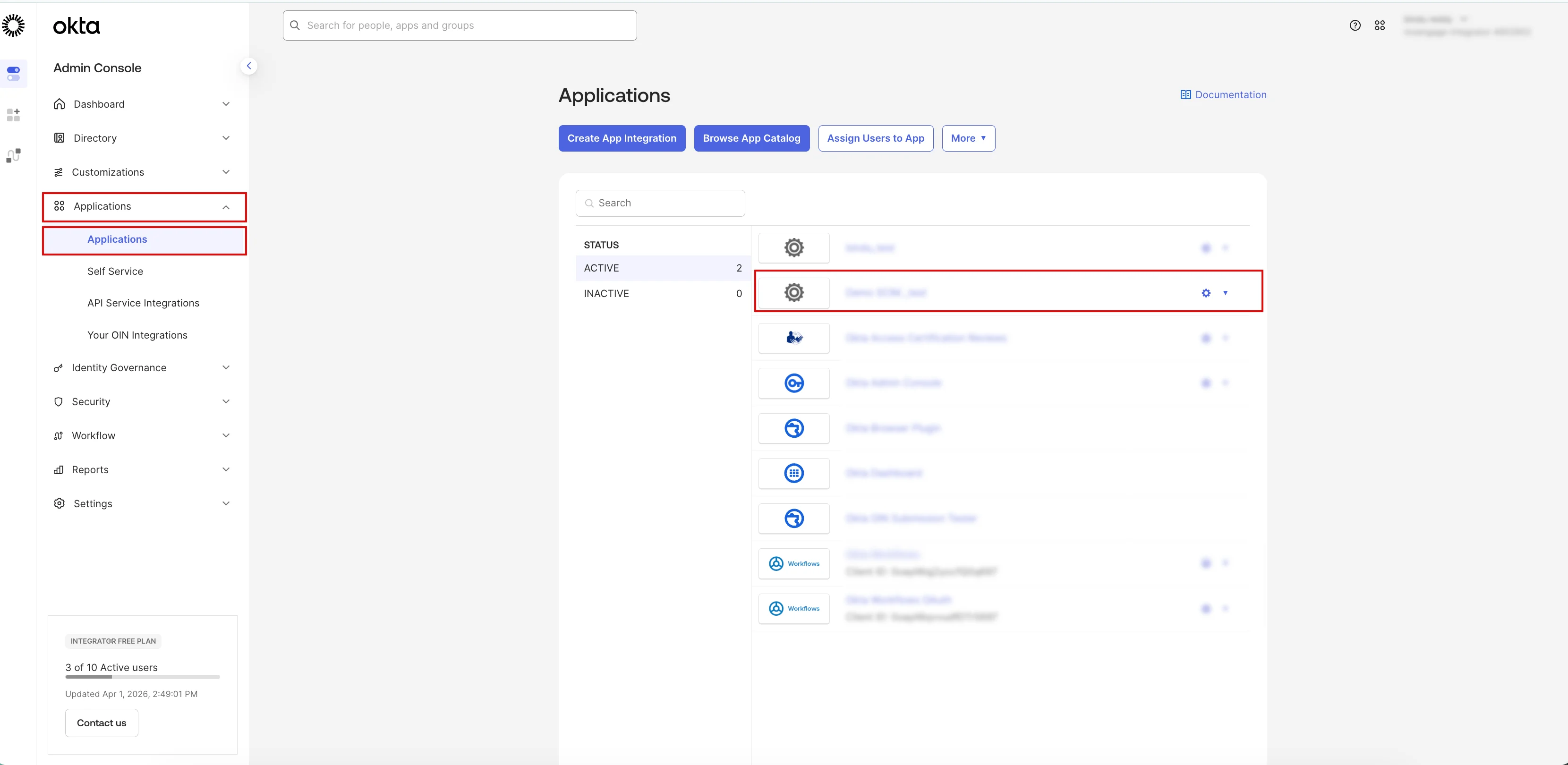
- Click the Sign On tab and scroll down to the Attribute Statements (Optional) section.
- Click Show legacy configuration to expand the section.
- Click Edit adjacent to the Profile attribute statements section and enter the following details:
- Click Save.
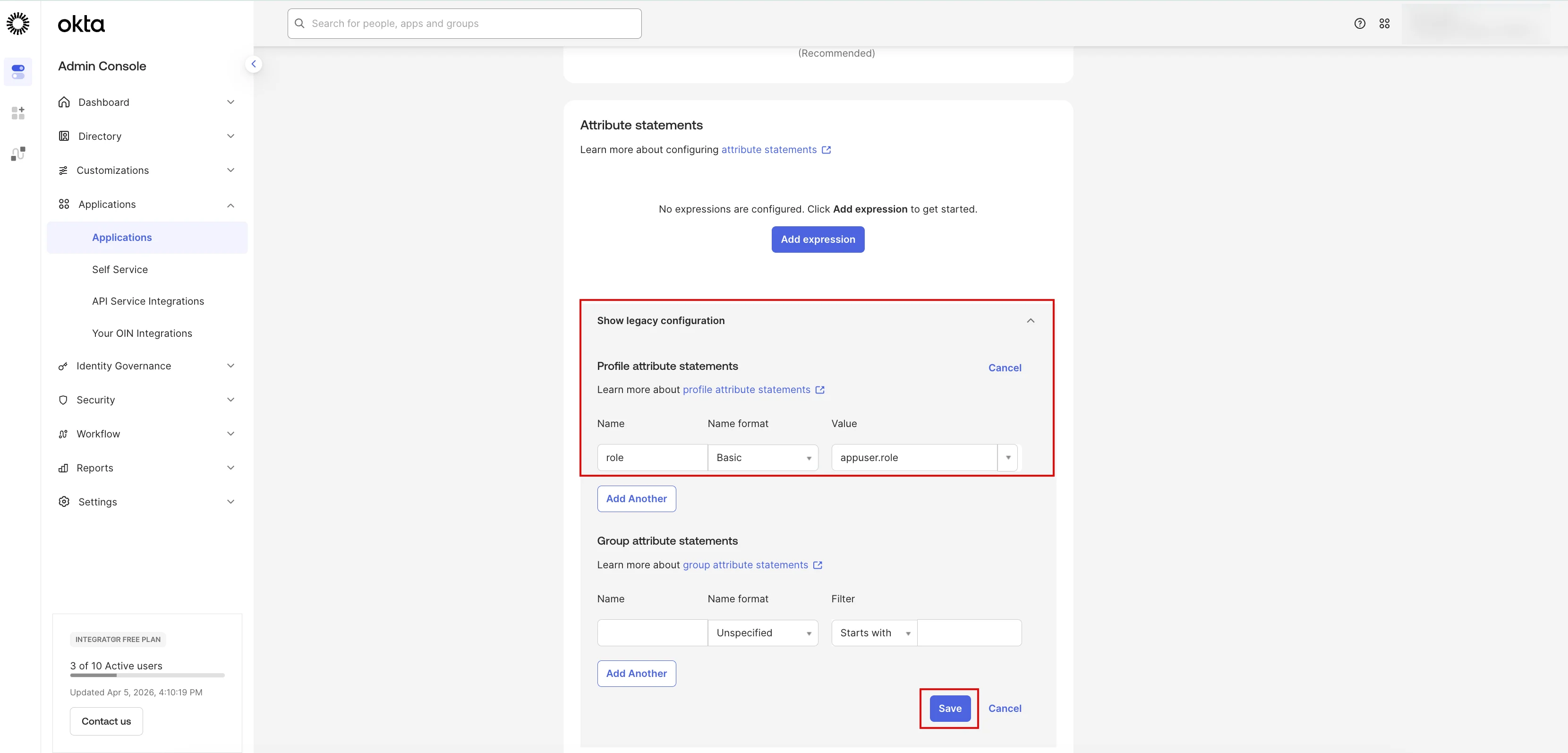
Step 3: Assign the User and Define the Role
- Navigate to Applications > Applications and click your MoEngage SSO application.
- On the Assignments tab, click Assign > Assign to People.
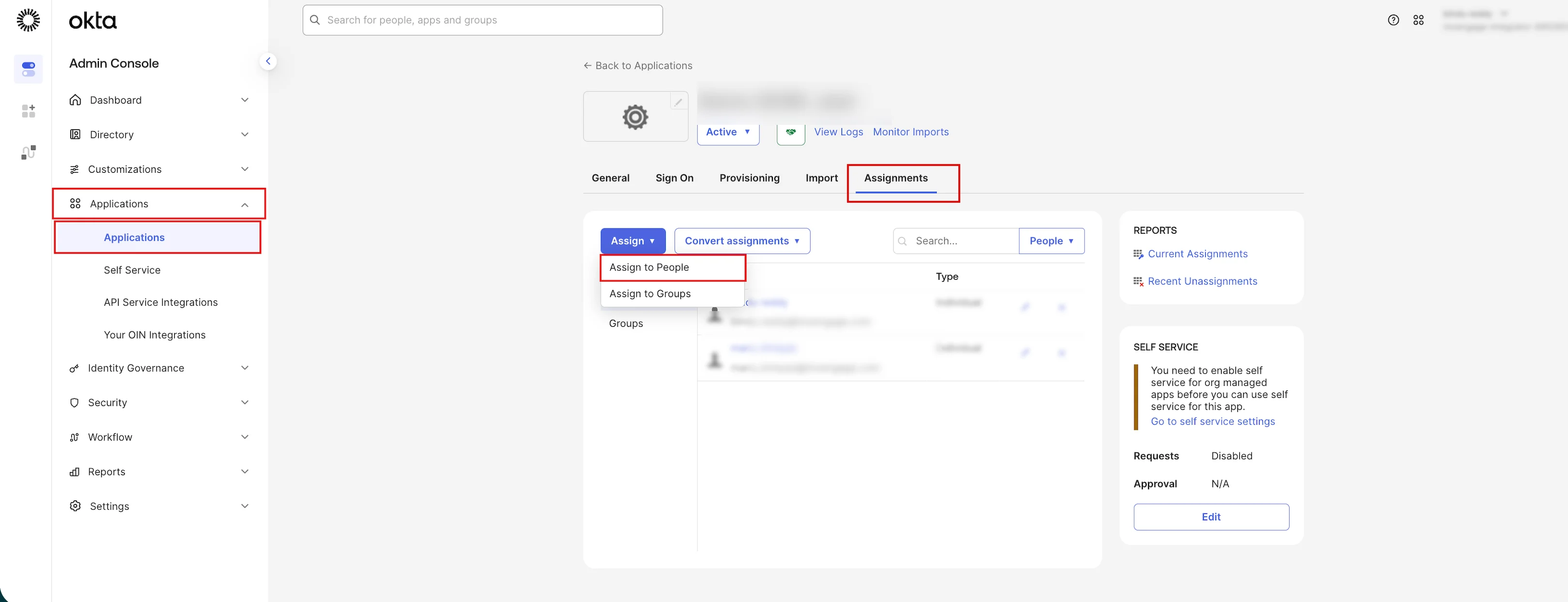
- In the assignment attributes modal, locate the Role field and enter the exact role name (for example, Admin, Manager, Marketer, or a custom role) as defined in your MoEngage workspace.
- Click Save and Go Back, and then click Done.

- To update an existing user:
- In the Assignments tab, click the pencil icon
 next to the user.
 - Edit the role and click Save.
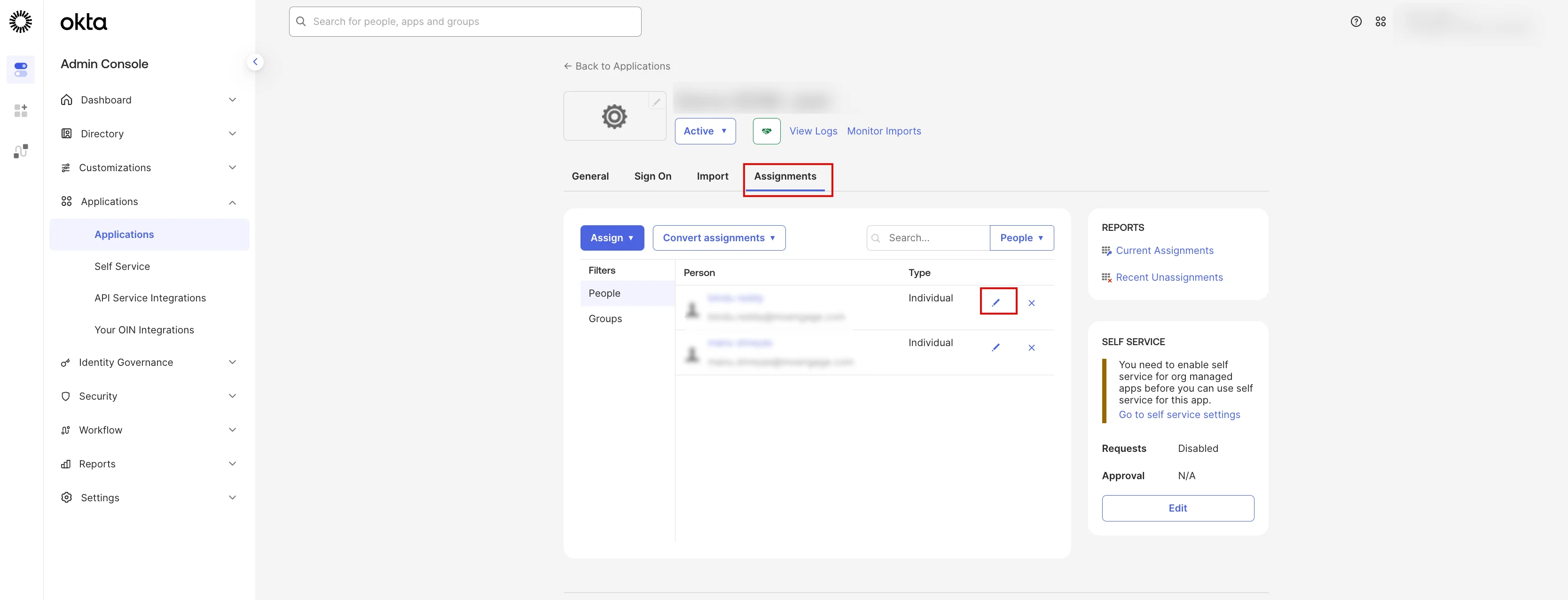
- In the Assignments tab, click the pencil icon
Step 4: Validation
After the setup is complete, log in to MoEngage through your Identity Provider (IdP). To verify that roles are passed correctly, inspect the ACS payload and confirm that the role attribute contains the expected value as passed in the Identity Provider and defined in MoEngage (for example, Admin). This confirms that users are assigned the appropriate role upon redirection.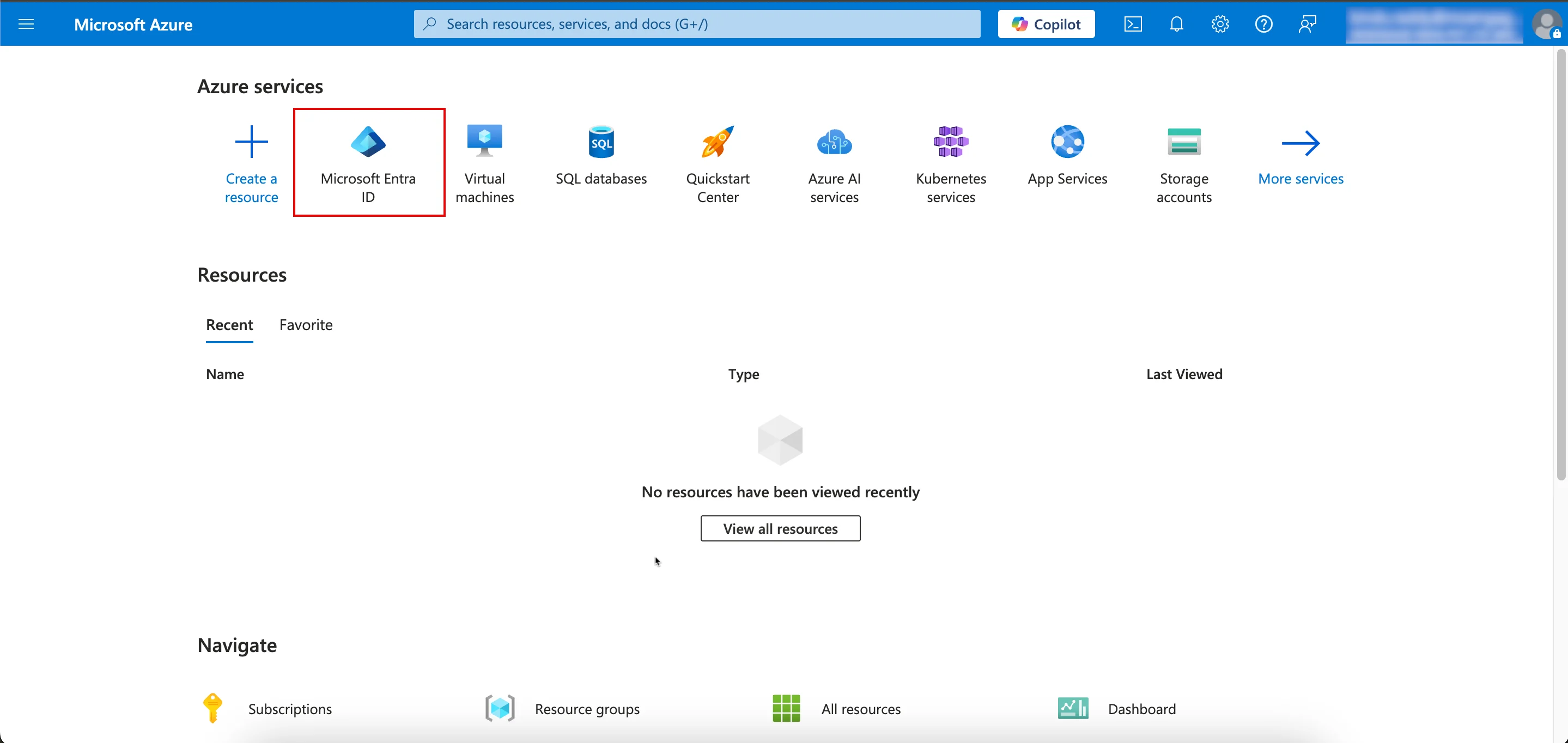
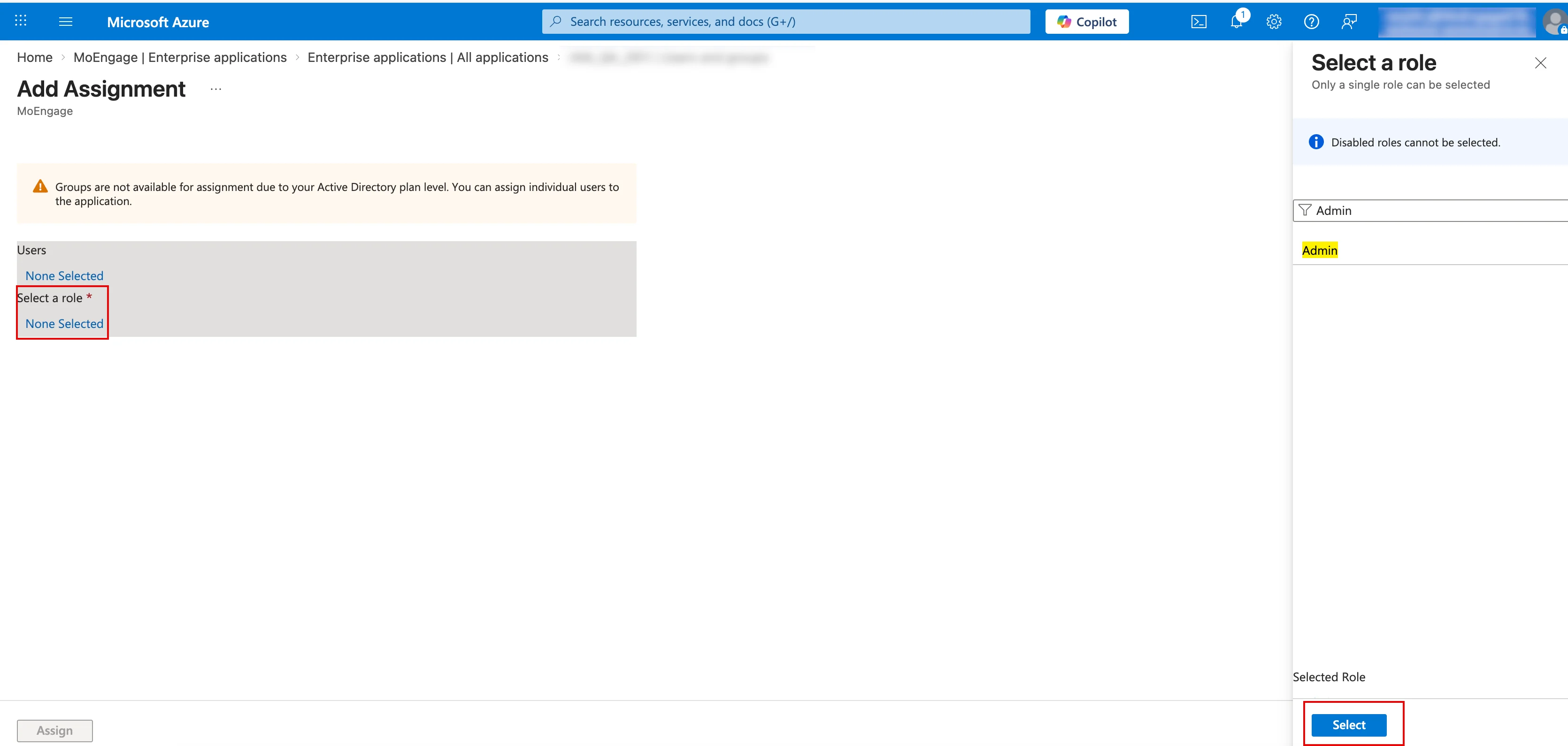
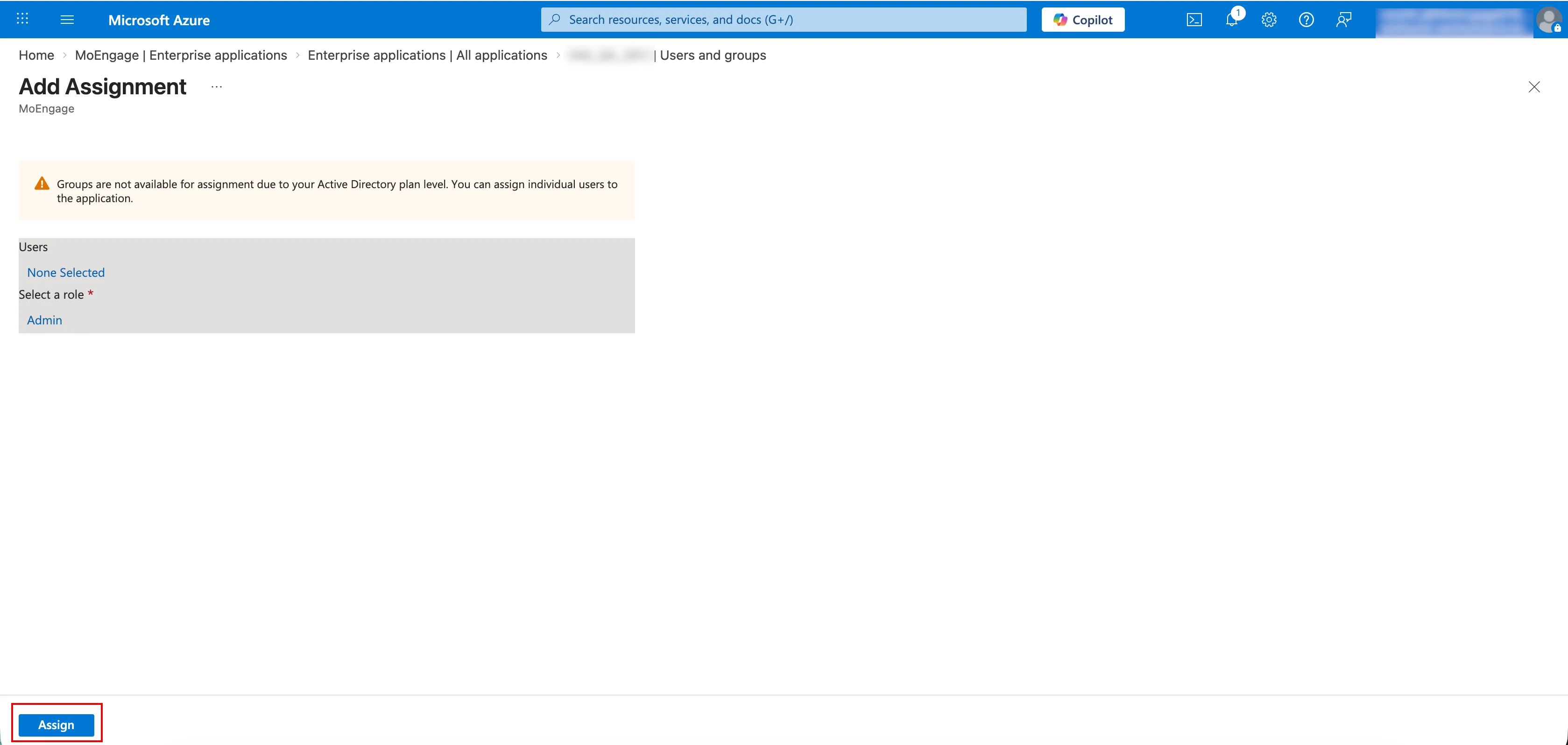
Update or Disable JIT Provisioning Configuration
Update Configuration
- Navigate to the Automate user provisioning section.
- Click Edit.
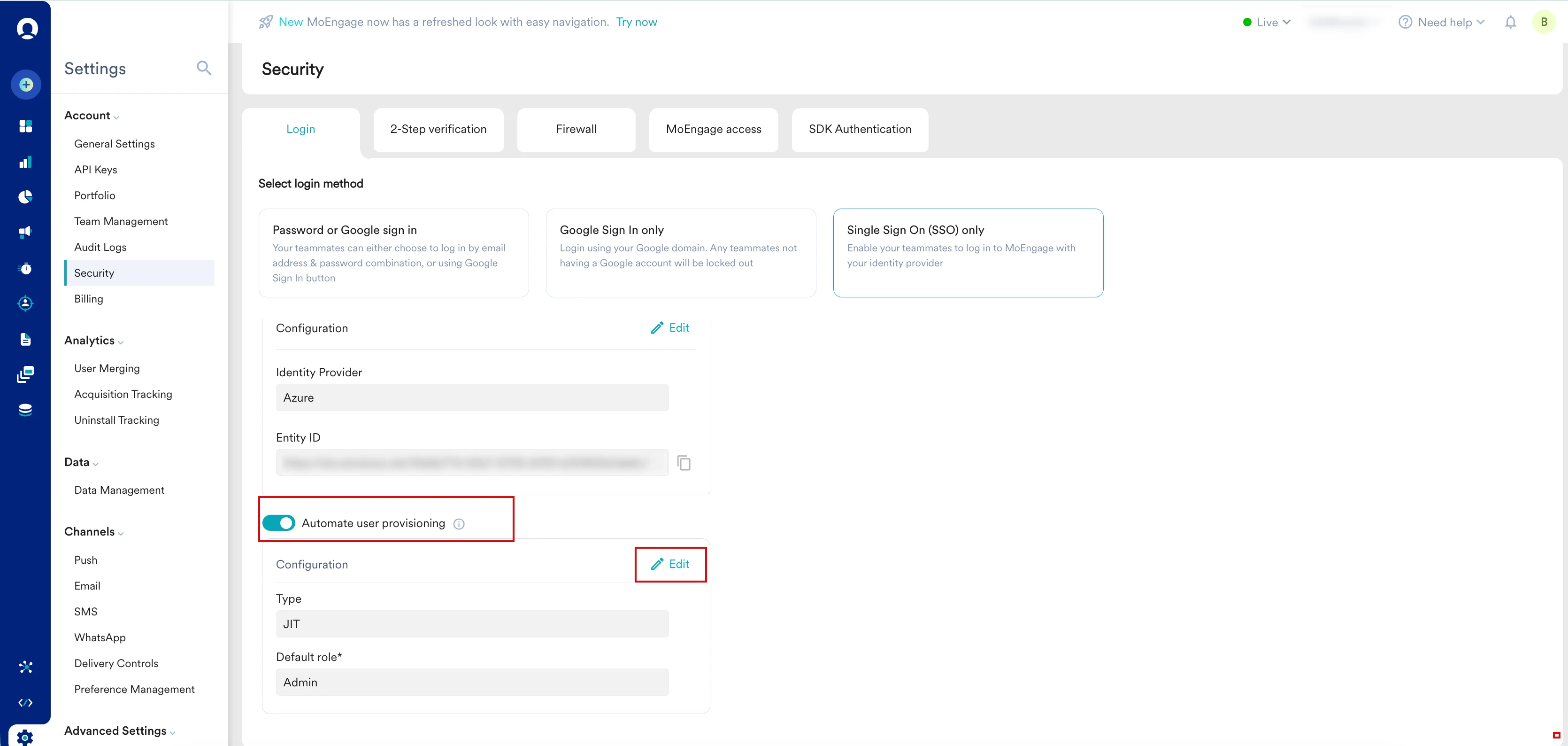
- Modify the required settings as needed.
- Click Save.
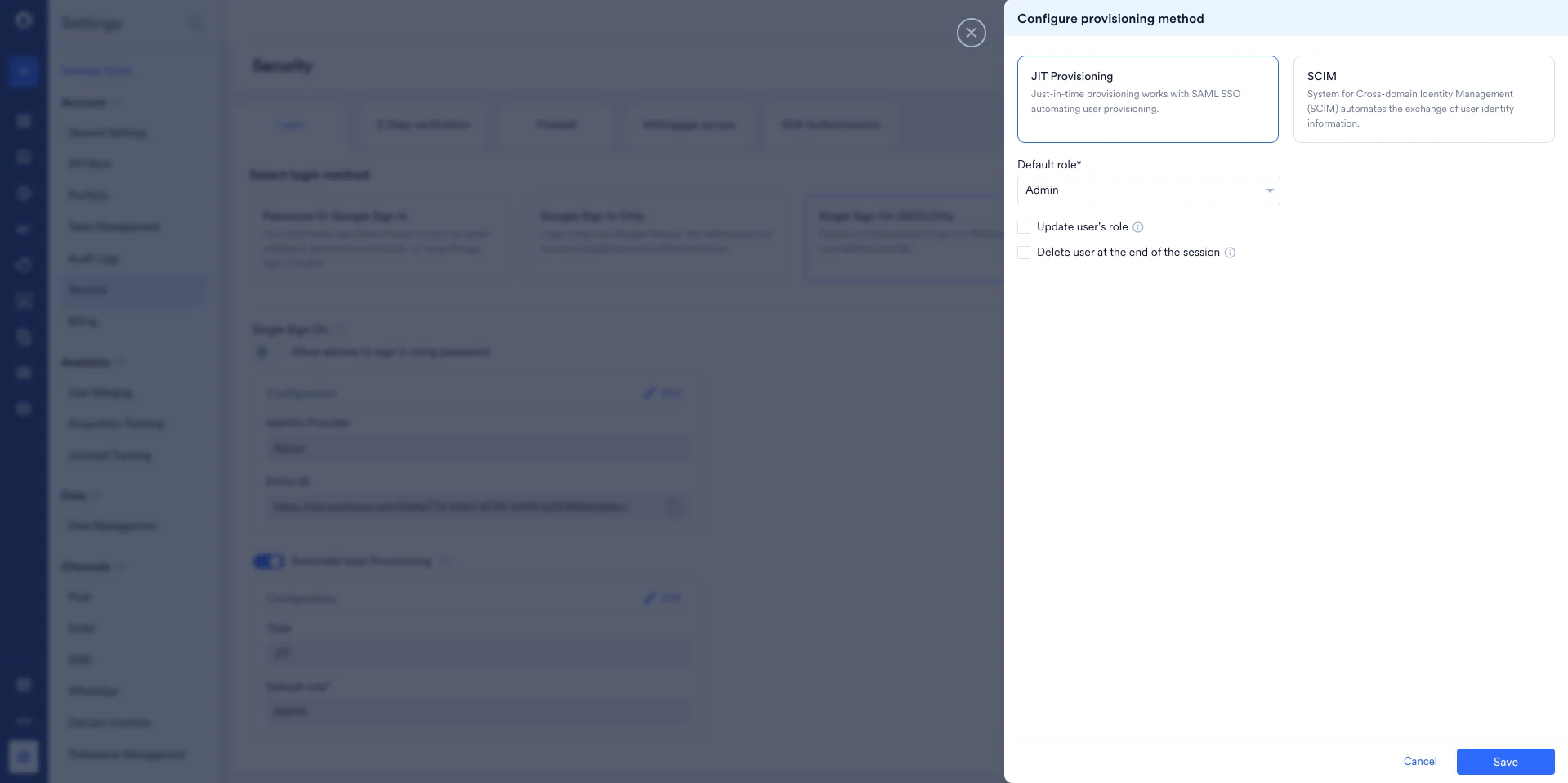
The Save your configuration dialog box appears, prompting you to confirm your configuration. - Click Confirm to apply the changes.
Disable Configuration
- Navigate to the Automate user provisioning section.
- Turn the Automate user provisioning toggle off.
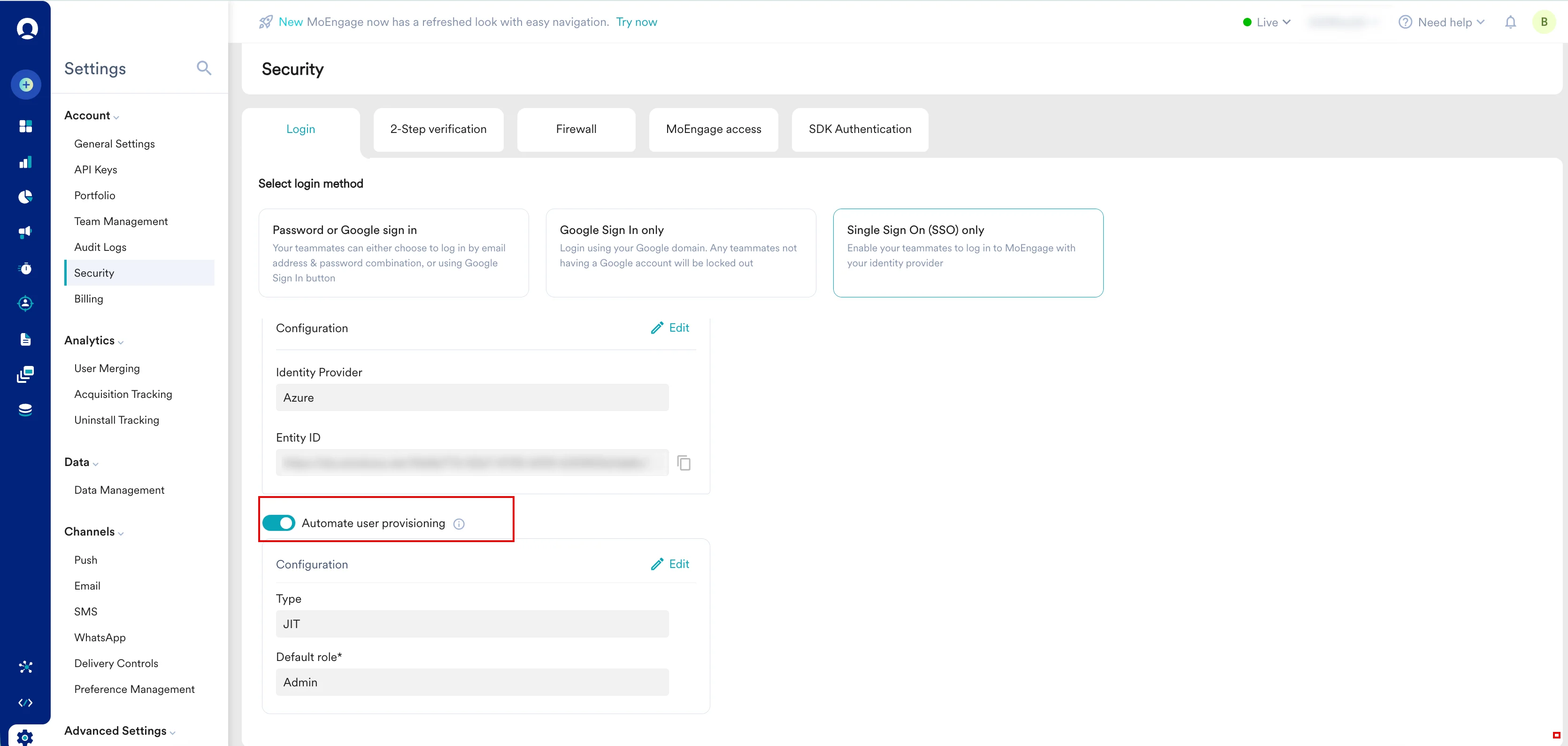
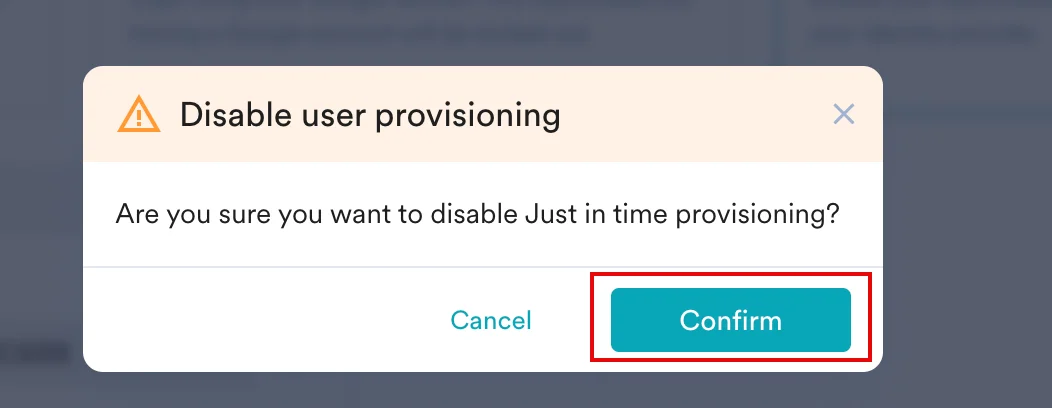
The Disable user provisioning dialog box appears. - Click Confirm.
The JIT provisioning disabled successfully message appears to confirm the action.
Security and Logs
- 2FA and firewall: Existing firewall rules apply to the users created via Just-in-Time User Provisioning. If 2FA is enforced for the workspace, these users must set up and enter a 2FA code upon login.
- Audit logs: All activities, including enable, disable, and update operations and user create, delete, and update operations, are recorded in the Audit Logs under Login settings.
- Notifications: Admins receive email notifications whenever Just-in-Time User Provisioning is enabled or disabled, or when a new user is created via Just-in-Time User Provisioning.
FAQs
What happens if I try to enable Just-in-Time User Provisioning while SCIM is enabled?
What happens if I try to enable Just-in-Time User Provisioning while SCIM is enabled?
You cannot enable Just-in-Time User Provisioning while SCIM is enabled. You must first disable SCIM.
What happens if the Delete user at the end of the session checkbox is NOT selected?
What happens if the Delete user at the end of the session checkbox is NOT selected?
MoEngage creates the user upon their first sign-in. The user remains active in the workspace until access is manually revoked. For more information, refer to how to revoke access.
What happens if the Delete user at the end of the session checkbox IS selected?
What happens if the Delete user at the end of the session checkbox IS selected?
MoEngage creates the user for that specific session. The system automatically revokes access when the session ends or 24 hours after user creation, whichever happens first.Note: This rule applies only to users created via Just-in-Time User Provisioning.
What happens if I switch from using SCIM to JIT?
What happens if I switch from using SCIM to JIT?
The users created via SCIM remain active in the workspace along with their role information. For further role updates, you can use JIT (if the option to update users’ roles is selected) or the Team Management > Members page (if the option to update users’ roles is not selected). To revoke access, refer to how to revoke access.
What happens if multiple role values are received in the SAML assertion call for a user?
What happens if multiple role values are received in the SAML assertion call for a user?
MoEngage refers to the first role value in the list when multiple values are received in the SAML assertion call.
What happens to a user if I perform user management operations via the Team Management > Members page while JIT is configured?
What happens to a user if I perform user management operations via the Team Management > Members page while JIT is configured?
- Invite: The user is invited to the workspace.
- Update Role: The user’s role can be updated. However, it is only effective if the option to update users’ roles under JIT configuration is not selected.
Note: This option is provided to facilitate role updates for users who are not part of the JIT application in the Identity Provider but are part of the SSO application, or are admins logging in via password (and not part of any application in the Identity Provider). - Revoke Access: The user can be deleted or access can be revoked using the same page. However, if the user is part of the IdP application where JIT is configured, the user can log in again.