

Overview
MoEngage AI Credits are the single unit that measures how much your workspace uses Merlin AI. Every text variation, generated creative, and agent run draws from one shared monthly credit balance.Features That Consume Credits
Every Merlin AI feature draws from the same credit balance:Credit Factors
MoEngage records credits for each completed session, based on the resources that session uses. Each session may have multiple agent requests associated to it.- Text generation: MoEngage counts the input and output tokens the session uses.
- Image generation: MoEngage counts the size, in bytes, of the asset the session produces.
- Agent runs: MoEngage counts the model processing duration, the infrastructure the run uses, and any web searches the run executes.
Merlin AI consumes credits when a session completes, not when you accept the output. Regenerating a variation or re-running an agent consumes credits again.
View AI Credit Consumption
On the left navigation menu in the MoEngage dashboard, click Settings > Account > Billing, then select the Merlin AI tab.Summary Metrics
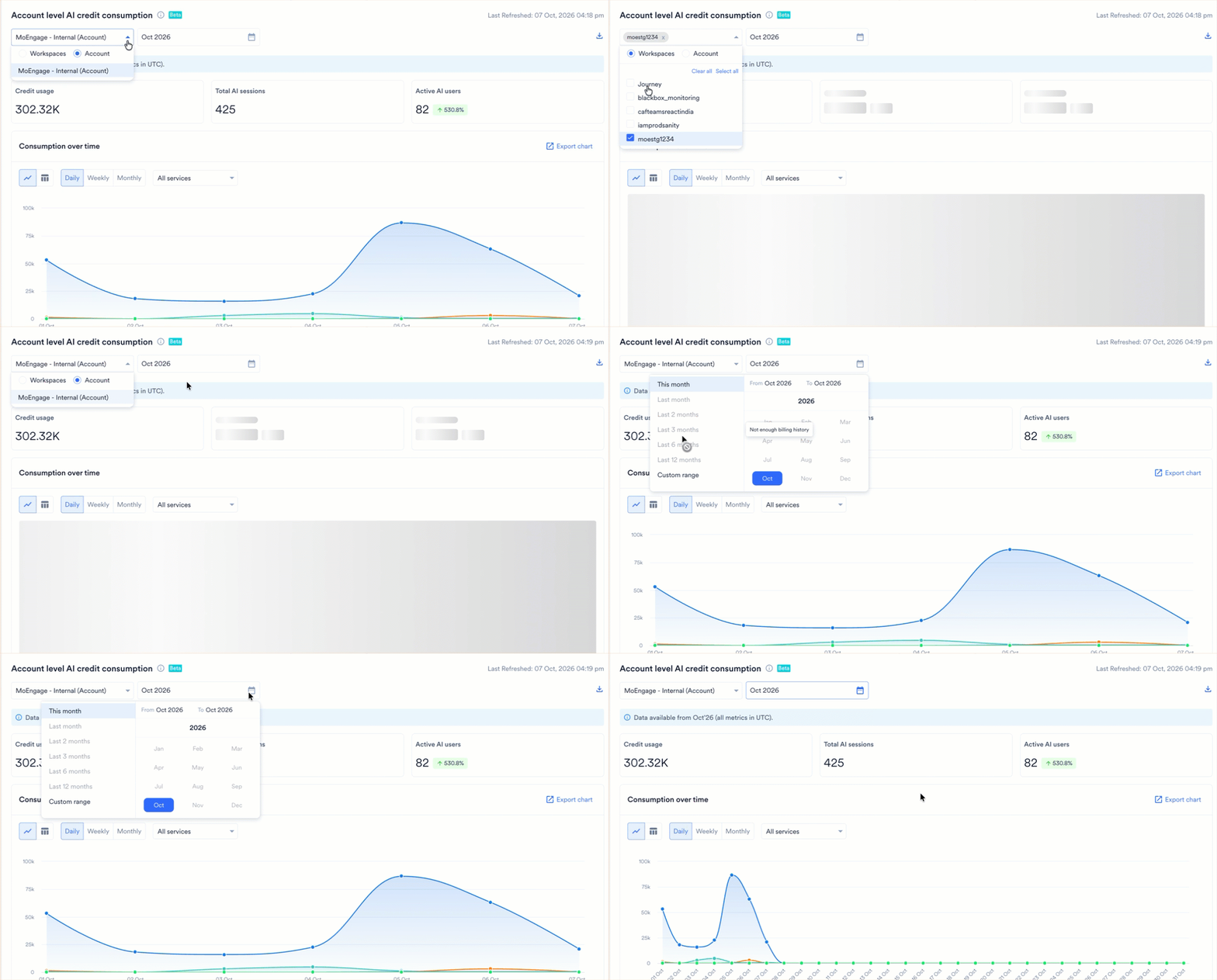
Before you read the metrics, set the scope and the reporting period:- Scope: Open the scope selector and choose one of the following options:
- Account: View AI credit consumption across your entire account.
- Workspaces: View AI credit consumption for the workspaces you select. Use Select all or Clear all to adjust your selection quickly.
- Month: Select the month you want to report on. Every metric reflects the selected month and compares it against the previous month, so you see whether consumption is rising or falling.
Review Session-Level Data
To export the table of raw data covering every individual Merlin AI session, click the download icon. The table includes the following details:- The user who created the session.
- The service and sub service of the session.
- The credit consumed by the session.
- The timestamp of the session.
Analyze Consumption
The Merlin AI tab breaks your consumption down across the following four views. Each view reflects the scope and month you select.- Consumption over time
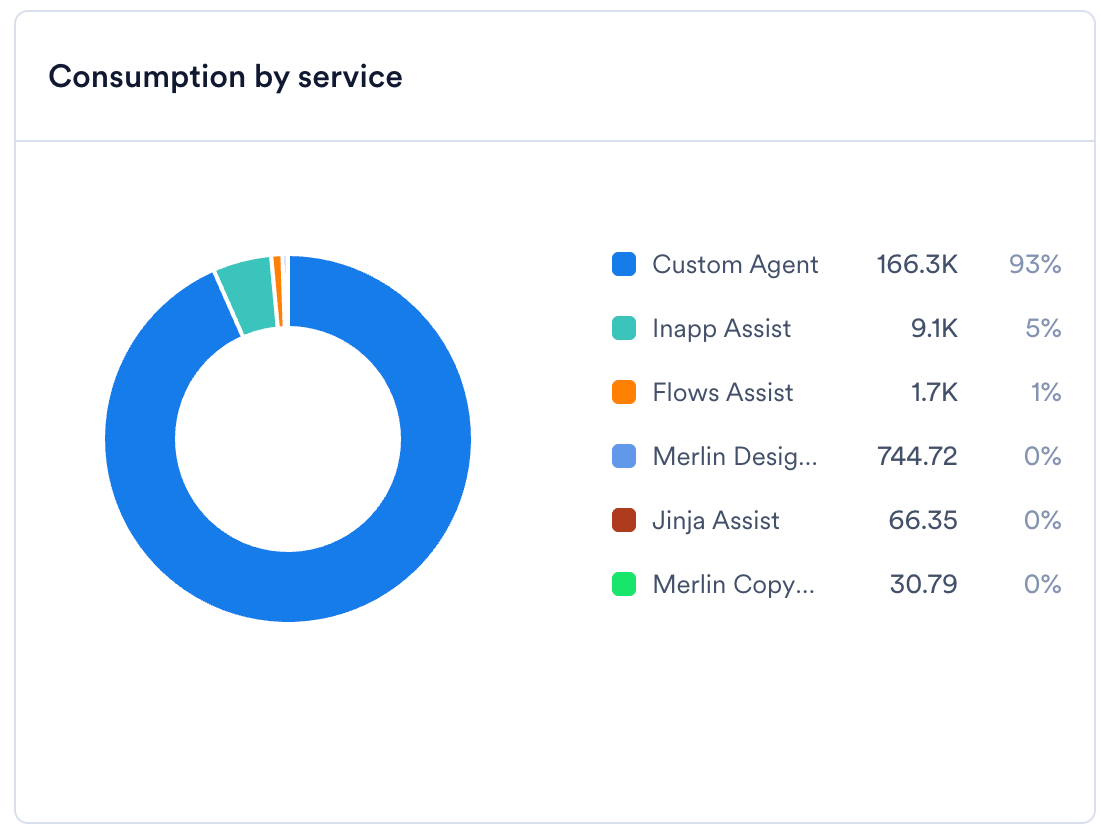
- Consumption by service
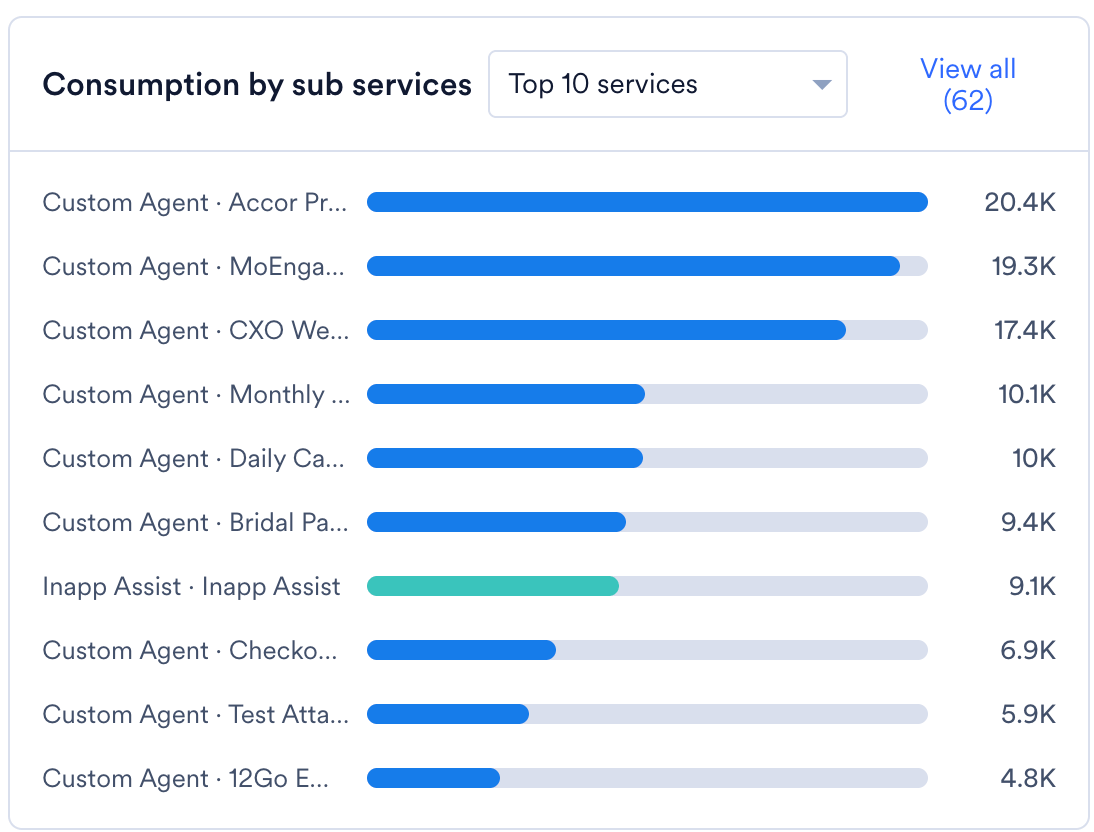
- Consumption by sub services
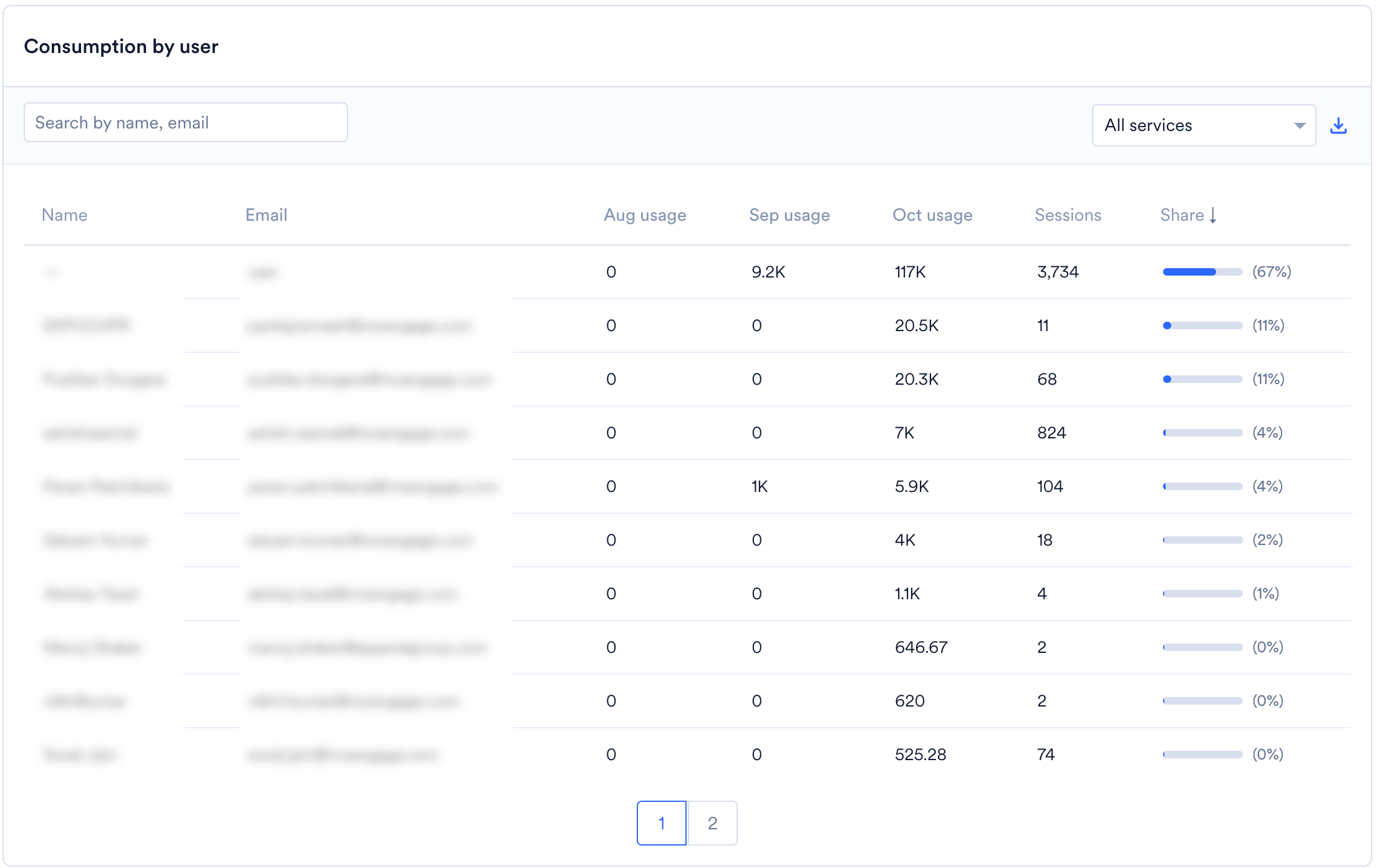
- Consumption by user
This view plots your credit consumption across the selected period, with one series per service. The legend below the chart identifies each service. Configure the chart using the following controls: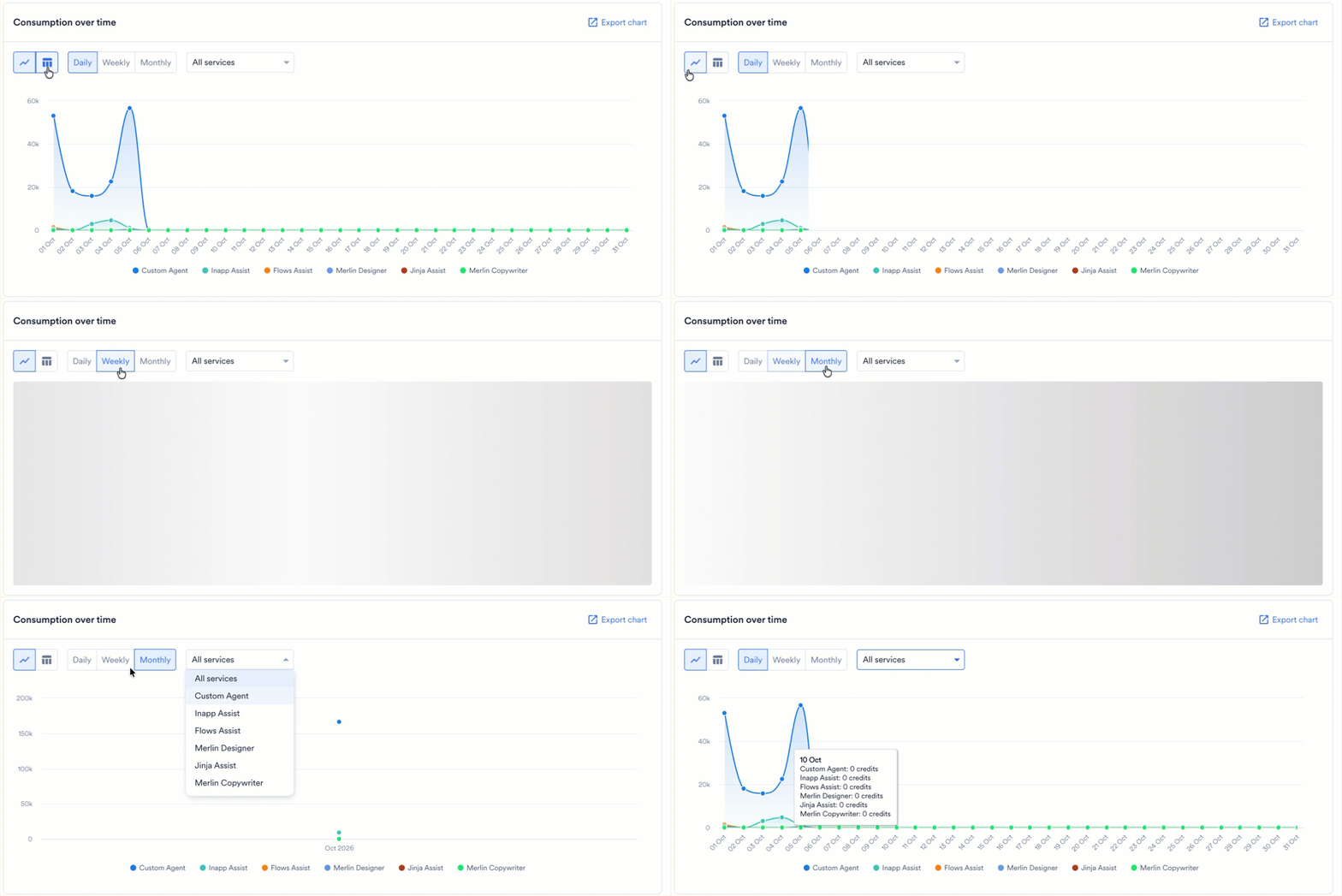
- Chart type: Switch between a line chart and a bar chart.
- Granularity: Choose Daily, Weekly, or Monthly.
- Service: Keep All services, or select a single service to isolate its consumption.
FAQs
Does every Merlin AI feature use the same number of credits?
Does every Merlin AI feature use the same number of credits?
No. The credit of the session reflects the resources that session uses, such as the tokens a text generation consumes or the size of an image a session produces. Review the session-level table to compare costs across services.
How current is the data on this tab?
How current is the data on this tab?
MoEngage records each session against your balance as soon as the session finishes, so consumption appears on this tab shortly afterward.
Can we see which team members consume the most credits?
Can we see which team members consume the most credits?
Yes. The Merlin AI tab lists all users and the credits each user consumes in the selected period, and the session-level table attributes each individual session to a user.