

Activate Your Subscription
Activate your subscription to enable the plan contracted for your workspace, along with the products it includes. Use either of the following options.Option A: Welcome Guide
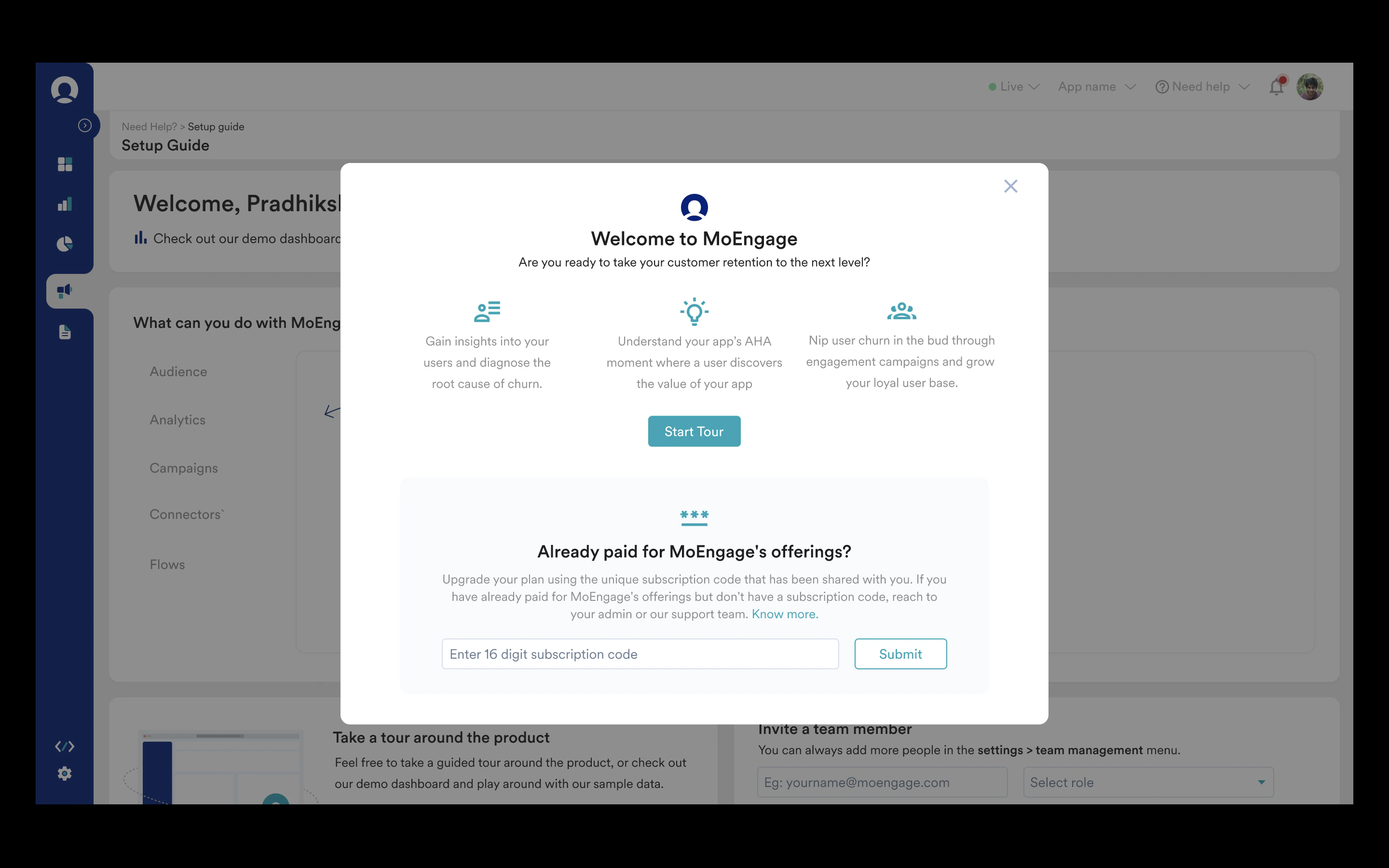
After you sign up, MoEngage displays a welcome prompt.- Enter your Subscription Code.
- Click Submit.
Option B: Setup Guide
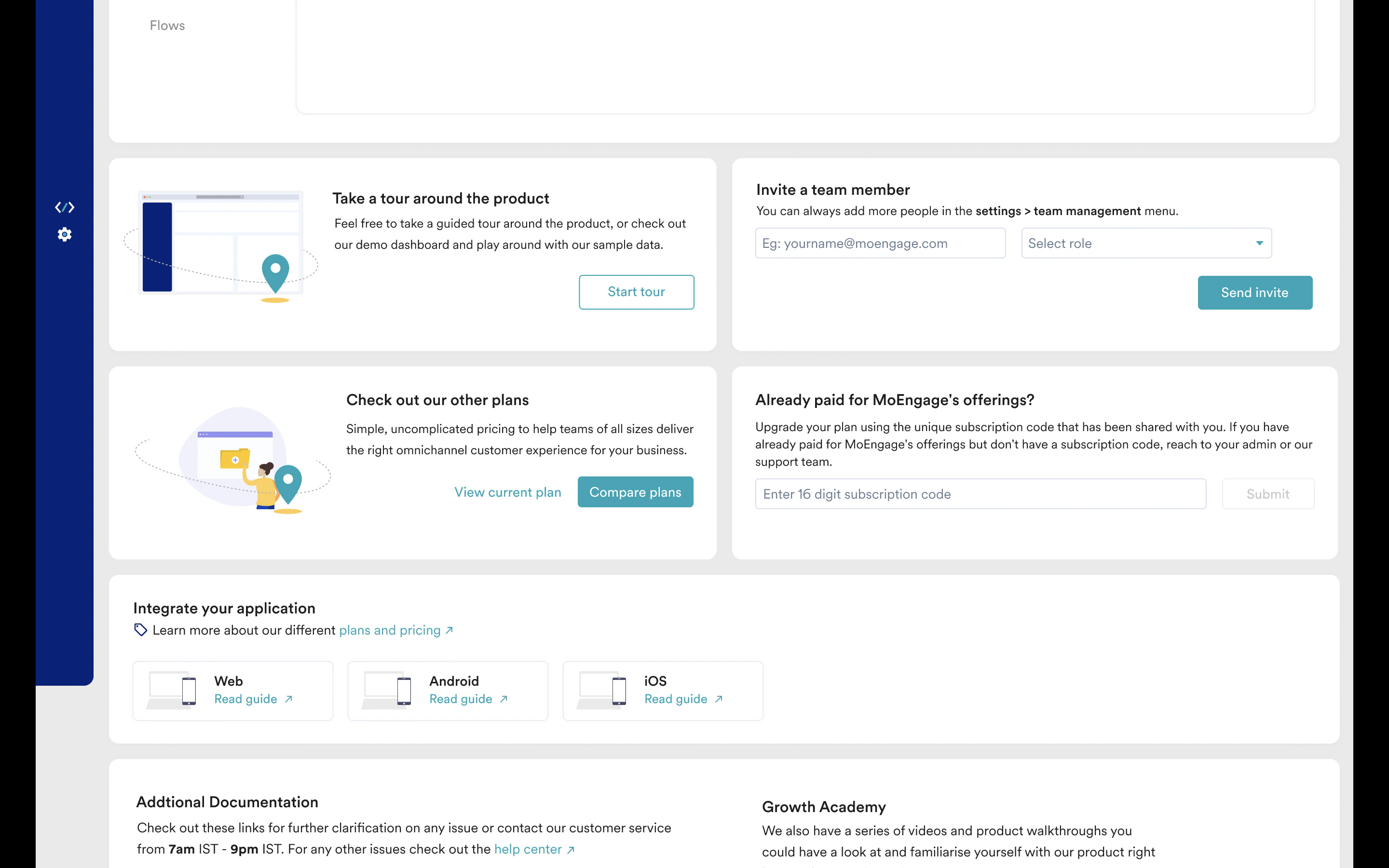
- In the upper-right corner, click the Need help dropdown, and then click Setup Guide.
- Enter your Subscription Code and click Submit.
View Your Current Plan Details
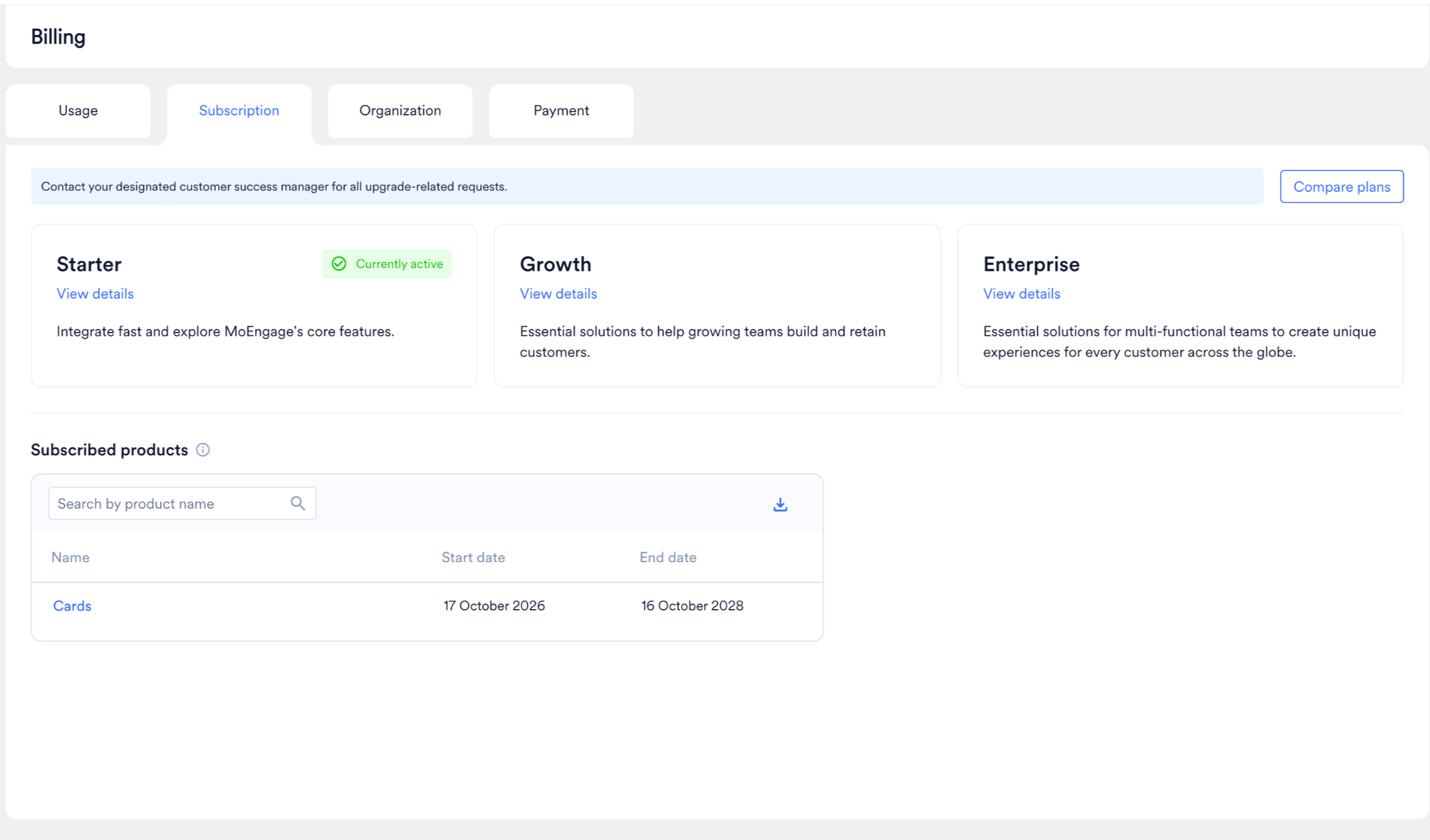
Review your plan details to confirm the features available to your team.- Navigate to Settings > Billing, then select the Subscription tab.
- Click Compare plans to compare the plans MoEngage offers, or click View details on a specific plan to review its full feature list.
View Subscribed Products
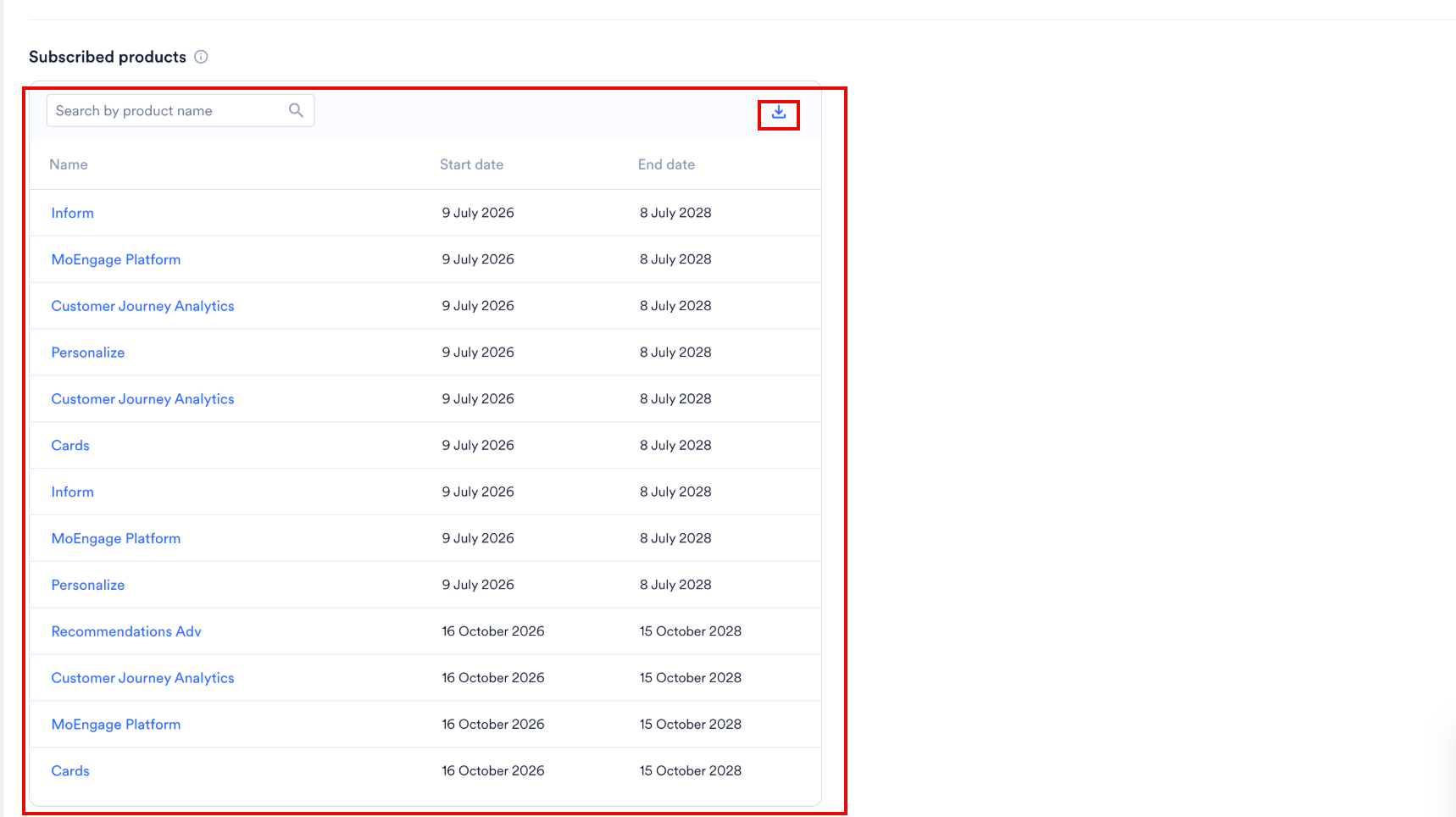
The Subscribed products section lists the products and add-ons included in your active contract. Review this section to confirm which MoEngage products your team can use and when each subscription term ends. To view your subscribed products:- Click Settings > Billing, then select the Subscription tab.
- Use the Search by product name field to find a specific product.
This list shows the products in your active contract. To add a product or to confirm your contract terms, contact your customer success manager.
Download Subscribed Products
Click the Download icon to export your subscribed products list for internal reporting or contract review. The downloaded file includes the following columns:Access Permissions
Viewing and downloading subscribed products requires the same permissions as the Usage page. For more information, refer to Access Permissions.FAQs
Why is a product missing from my Subscribed products list?
Why is a product missing from my Subscribed products list?
The products that are part of your contract appear in this list. To add a product or to confirm your contract terms, contact your customer success manager.
Does the Subscribed products list reflect what I am billed for?
Does the Subscribed products list reflect what I am billed for?
The Subscribed products list shows the products and add-ons included in your active contract, along with their subscription terms. For a breakdown of your usage against billing metrics, refer to Usage Details.
What happens when a product's subscription end date passes?
What happens when a product's subscription end date passes?
To maintain uninterrupted access, contact your customer success manager before a subscription end date to discuss renewal or changes to your contract.