

- Your security team wants API access to MoEngage restricted by IP address.
- You’re about to turn on the API Firewall.
- A partner tool already gets
403errors from MoEngage.
The API Firewall is off by default. Until you publish a rule for a category, MoEngage accepts calls to that category from any IP address. MoEngage documentation calls this practice “IP whitelisting”. Many security teams call it “IP allowlisting”, which means the same thing.
Overview
This guide covers traffic coming into MoEngage: the calls your servers and partners make to MoEngage APIs. The IP addresses belong to those callers, not to MoEngage, so you collect them from each owner and enter them in the API Firewall. Keep a worksheet, such as a spreadsheet, as you go. Record each caller, its owner, the API category it uses, its IP addresses, where each IP address came from, and the date you got it. The process has six steps:- Find your data center and API host. Partners and developers must call the host that matches your data center.
- Find the partners that send data into MoEngage. The dashboard shows each partner type in a different place.
- Find your own servers and tools that call MoEngage. Your developers know their outbound IP addresses.
- Match each caller to an API category. You set rules per category, not per API key.
- Get the IP addresses from each owner. No single person holds every IP address.
- Create the rules, then publish them together. A workspace Admin does this in the dashboard.
Step 1: Find Your Data Center and API Host
Your data center decides the API host that partners and developers must call. Check the address you use to log in to MoEngage. It readsdashboard-0X.moengage.com, where 0X is your data center number.
Record the API host in your worksheet. Every caller in the following steps must use the host of your data center. A partner that points at the wrong host fails for a reason that has nothing to do with the API Firewall. For more information, refer to Data Centers in MoEngage.
Your own outbound firewall is a separate setting. If your network blocks your servers from reaching MoEngage, allow the domain
api-0X.moengage.com for the Data API instead of MoEngage’s IP addresses. MoEngage is multi-tenant and its IP addresses change often, so don’t cache them. The API Firewall in Step 6 works in the other direction: it controls which callers MoEngage accepts.Step 2: Find the Partners That Send Data Into MoEngage
Partners connect to MoEngage in two ways, and each leaves a different trail, so check both. Menu names can differ slightly between the current and the new MoEngage UI.Partners You Set Up in MoEngage
MoEngage shows each partner type in a different part of the dashboard. Use the following table to find them.
The following sections show where to check each route in the table.
Data Management
In Data management, open the Events tab. In Select source, select Data API or a partner listed under Partners, and then sort by Last seen. An event that still arrives from a partner has a recent date, which tells you the connection is live. The Source column shows where each event comes from.
Data Imports
The Data imports page lists your import jobs by name on the File imports and Data warehouses tabs. Use the Select source filter on the File imports tab to separate Amazon S3, SFTP, and CSV imports, and use the import names to tell partners apart.
App Marketplace
In App marketplace, select My Integrations to see the partners connected to your workspace.
Acquisition Tracking
The Attribution Platform field shows which attribution partner your workspace uses.
Partners That Connect From Their Own Side
Many partners, such as Hightouch, Zapier, and Konnectify, are set up inside the partner’s own tool. Someone on your team pastes your Workspace ID and Data API key into that tool, so MoEngage may show no tile or setting for the partner. Use the following methods to find these partners:- Open Settings > Account > APIs. This page shows your Workspace ID and one API key per API group, such as Data, Push, Inform, Campaigns and catalog, and Personalize. Ask who copied each key and where they pasted it.
- Use the API Key Dashboard if you have it. With this Early Access feature, an Admin can create several named keys under Settings > Account > API keys, each limited to chosen APIs. Audit Logs record who created, updated, or archived each key. Creating one key per vendor is the easiest way to see who calls MoEngage. For more information, refer to API Key Dashboard.
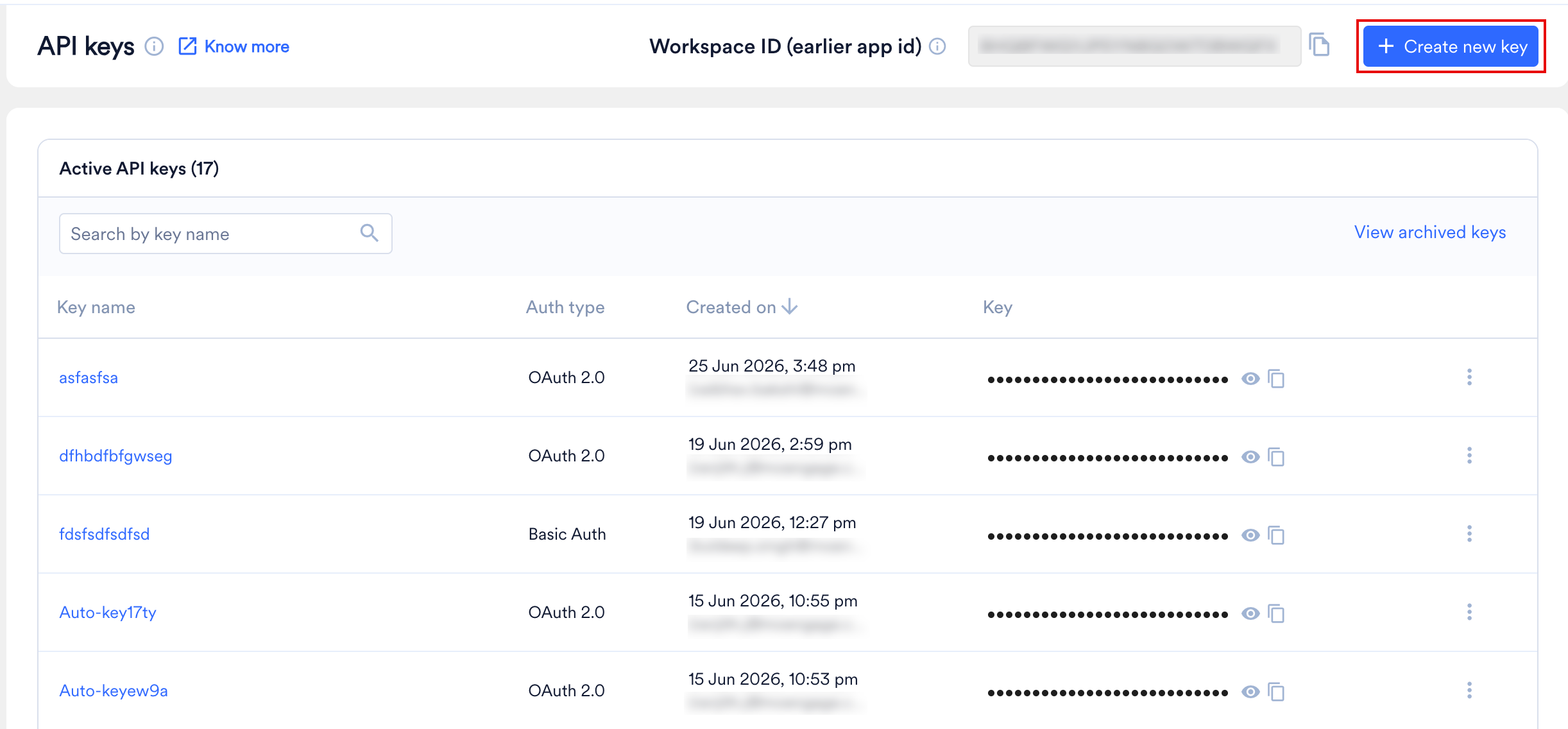
- Ask Support which IP addresses MoEngage already sees. Raise a support ticket to request the IP addresses from which MoEngage received successful API requests for your workspace. Ask for a period long enough to include your longest job cycle, such as a month. Every IP address in the list should belong to a server or partner in your worksheet. Before you publish rules, find an owner for any IP address you don’t recognize. The list shows only successful requests, so it can miss a caller that already fails or that runs rarely.
- Ask the teams that own data tools. Your data, growth, CRM, and analytics teams know which tools list MoEngage as a destination.
- Check from the partner’s side. Look for a MoEngage entry in the destinations or connected apps list of your CDP, reverse ETL, automation, and CRM tools.
- Use the partner impact list as a checklist. For each partner in Impact on Partner Integrations, ask whether your team uses it.
Record the Partners
- Open each location above and record every partner in your worksheet, with the vendor name, the owner, and a contact.
- Mark whether the partner calls MoEngage from its own servers. The Impact on Partner Integrations table tells you which named partners do.
- Ask your CSM about any partner you can’t place. Your CSM can see the same partner list and can walk through it with you.
Step 3: Find Your Own Servers and Tools That Call MoEngage
Partners are only part of the picture. Anything of yours that uses a MoEngage API key is also blocked after you publish a rule, so ask your developers and IT team to list every caller. Share the following table with them.
Your developers can find these callers in two ways:
- Search code, scheduled jobs, and configuration for your MoEngage API host from Step 1.
- Review the API keys under Settings > Account > APIs, and in the API Key Dashboard if you have it, then ask each key’s owner what uses it.
- Fixed IP addresses only. The API Firewall accepts single IP addresses and IP ranges, not domain names or wildcards. A caller with no fixed outbound IP address, such as a serverless function, must first route its traffic through a NAT gateway or proxy that has one.
- Mobile and web apps aren’t affected. The API Firewall covers server-to-server API traffic and doesn’t affect SDK traffic from your app or website, so you don’t list user devices.
- Both IP versions work. You can enter IPv4 and IPv6 addresses, CIDR ranges, and IPv4 ranges with a start and an end address.
Step 4: Match Each Caller to an API Category
API Firewall rules apply per API category across the whole workspace, so for each caller in your worksheet, you need to know which category its calls fall into. There are five fixed categories.
Ask your developers which API each of their calls uses, then place it in a category. For the full list of APIs in each category, refer to API Categories.
Keep the following exceptions in mind:
- The legacy push API isn’t covered. The Send Push Notification (Legacy) v2 API ignores whitelist rules. To restrict push requests by IP address, move to Send Push Notification (V2.1).
- A few accounts are exempt for Inform. The API Firewall supports the Send Transactional Alert (Inform) API, except for a small number of accounts. If you think your account is exempt, contact your CSM.
- Rules apply per category, not per API key. You can’t limit one key to one IP address. Any caller on the whitelist can use any key for that category.
- Workspace-to-workspace traffic needs MoEngage’s IP addresses. If you use Connected Segments, Streams, or Connector campaigns to send data from one MoEngage workspace to another, add MoEngage’s own IP addresses to the receiving workspace’s rules. For the list, refer to IP Whitelisting in MoEngage.
Step 5: Get the IP Addresses From Each Owner
No single person holds every IP address, so send each request to the owner of that caller. Send one complete message per owner so they can answer without a follow-up.Find a Partner’s IP Addresses
- Search the partner’s help center for “IP allowlist”, “IP whitelist”, “static IP”, “egress IP”, or “webhook IPs”. Many vendors publish a page.
- Read the partner’s MoEngage integration guide in the Partner Guide.
- Ask the partner’s support team or account manager for the IP addresses it calls MoEngage from.
- Ask your developers about middleware or tools you host yourself. They can give you the public IP address of your NAT gateway or load balancer from your cloud console. A NAT gateway is the single public address that many internal servers share when they call out to the internet.
- Record every IP address in your worksheet with its source and the date you got it.
What to Expect From Vendors
- Some vendors publish fixed lists. Klaviyo, Iterable, and Optimove publish IP address lists for the traffic they send, and Iterable lets you fetch its list programmatically.
- Some vendors give shared regional ranges only. Twilio Segment publishes ranges by region and doesn’t offer dedicated IP addresses to individual customers.
- Some vendors gate fixed IP addresses by plan. Segment’s IP allowlisting for Functions traffic is on its Business tier.
- Some vendors can’t give fixed IP addresses for all traffic. Iterable tells customers to allow domains, not IP addresses, for API and CDN traffic.
Step 6: Create the Rules, Then Publish Them Together
The main risk is blocking your own traffic, so add every rule first and turn on enforcement last. You must be a workspace Admin to add rules.Create the Rules
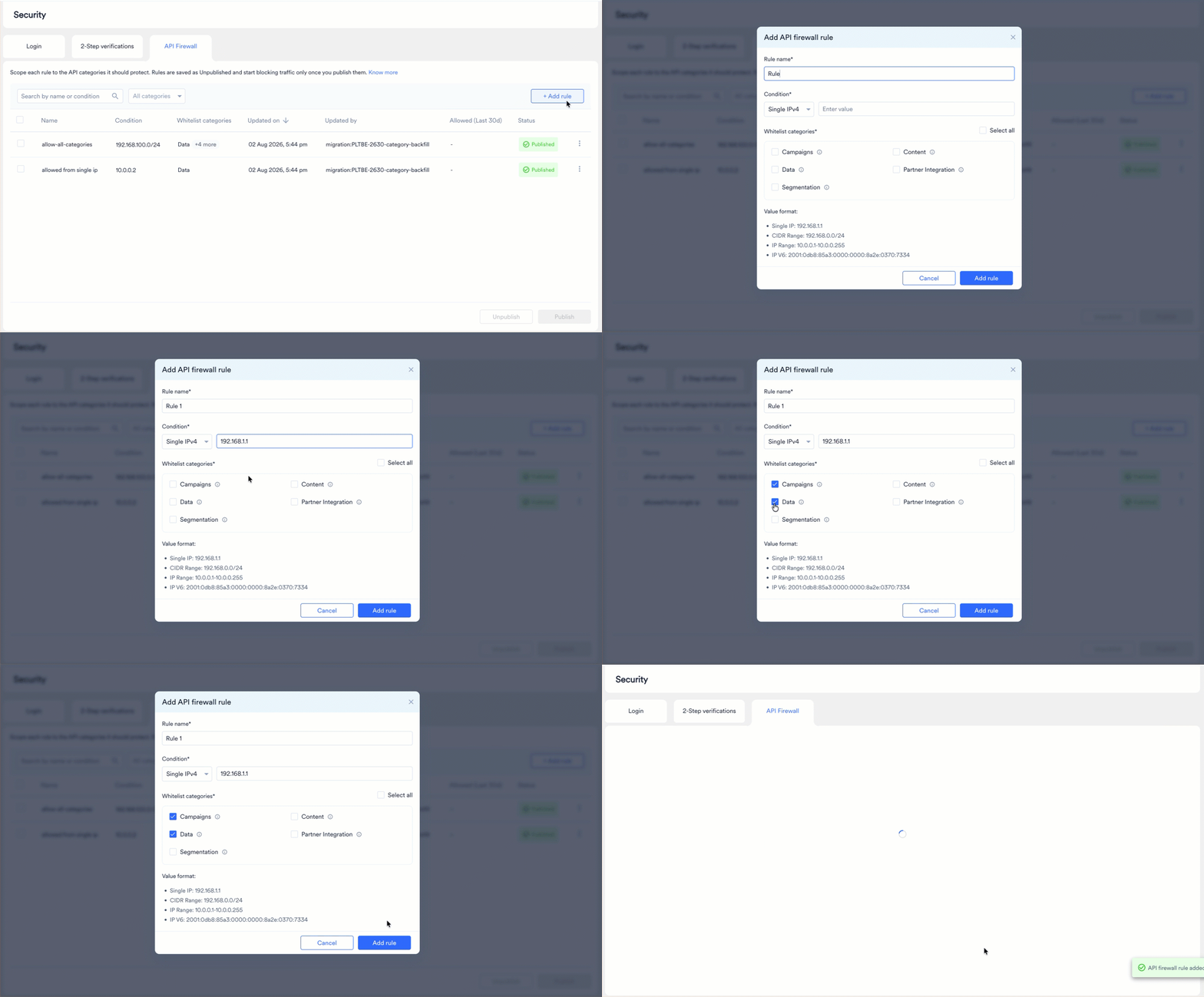
- On the left navigation menu in the MoEngage dashboard, go to Settings > Account > Security, and select the API firewall tab.
- Select Enable API Firewall. The Add API firewall rule dialog box opens.
- In Rule name, enter a name that says who the rule is for, such as “Production backend” or “Hightouch”.
- Under Whitelist categories, select every category that the caller uses from Step 4. You must select at least one.
- In Condition, select the type that matches the IP address you have: a single IPv4 or IPv6 address, a CIDR range, or an IPv4 range.
- In Value, enter the IP address or range, and then select Add rule.
- Repeat these steps for every caller in your worksheet. To add more rules, select + Add rule on the API firewall list page.
Publish the Rules
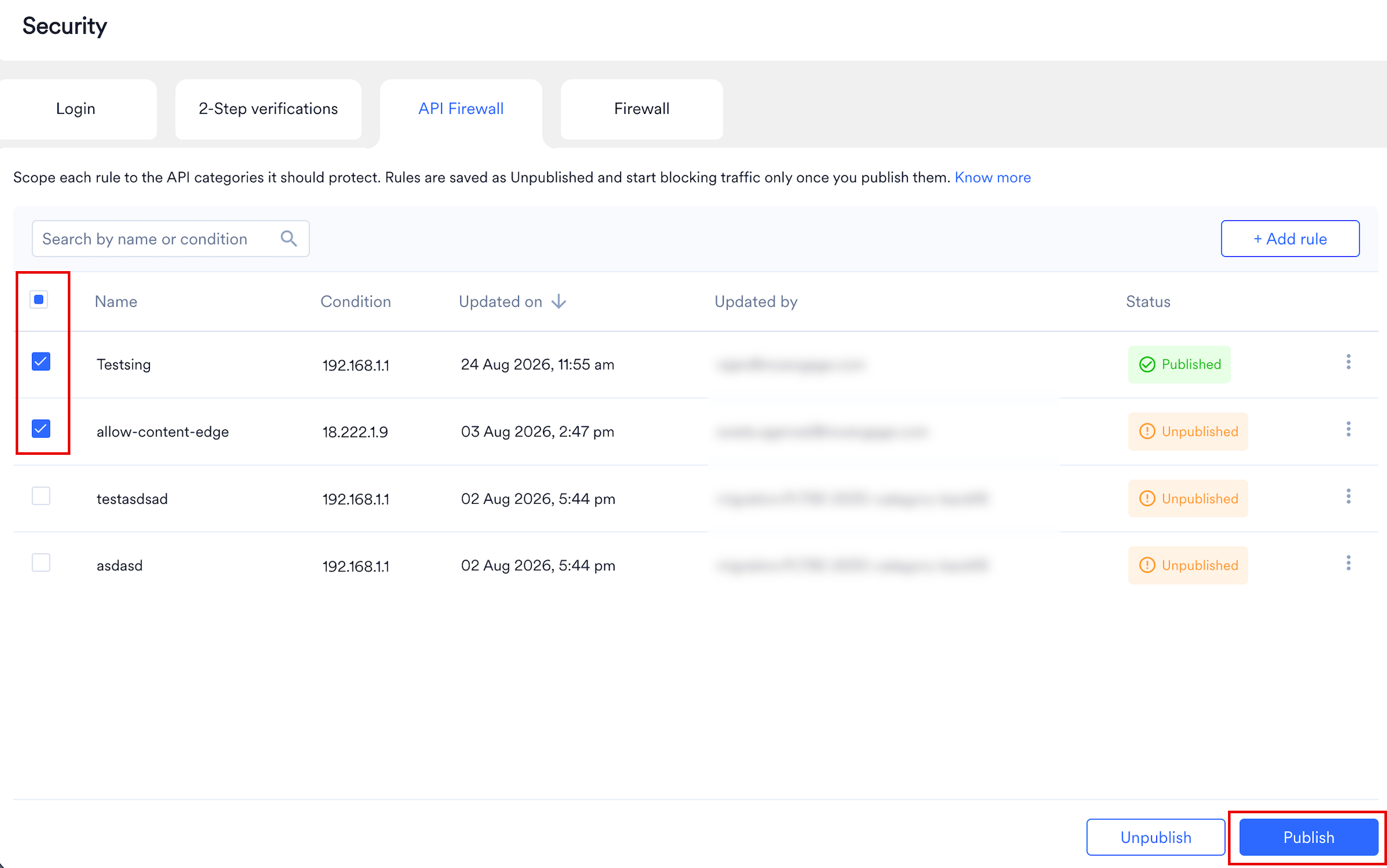
Publishing a rule enforces it for every category it covers, and MoEngage applies it within about 15 minutes. From then on, a call from an IP address that isn’t in a published rule for that category gets a403 response.
Before you publish, confirm the following:
- Every caller from Steps 2 and 3 has a rule.
- Every partner marked Yes in Impact on Partner Integrations that you use has its IP addresses in a rule for the right category.
- Every rule is saved as Unpublished.
- You read the First rule for this category warning in the dialog box and checked that no caller is missing.
- Your team knows the publish time, and someone watches for
403errors from your servers and partners that day. - Your worksheet lists each IP address with its source and date.
403 response directly, so ask your developers and partners to set up alerts for it.
Roll Back and Review
To stop enforcing a rule, select it and then select Unpublish. If you unpublish every rule for a category, that category accepts calls from any IP address again. Deleting the last published rule for a category has the same effect, and the dashboard warns you first. Audit Logs record every rule change, with who made it, when, and from which IP address. If the API Firewall itself has an internal failure, it’s designed to fail open. It lets traffic through so that data collection continues.Troubleshooting
FAQs
Do I have to turn on the API Firewall?
Do I have to turn on the API Firewall?
No. The API Firewall is inactive by default, and MoEngage accepts API calls from any IP address until you publish a rule for a category.
Who can create rules?
Who can create rules?
A workspace Admin. Developers and partners can supply the IP addresses, but an Admin enters and publishes the rules.
Can I enter a domain name or a wildcard?
Can I enter a domain name or a wildcard?
No. Rules accept single IP addresses, CIDR ranges, and IPv4 ranges only.
Does the API Firewall affect my mobile app or website?
Does the API Firewall affect my mobile app or website?
No. The API Firewall applies to server-to-server API traffic and doesn’t affect SDK traffic from end users.
Why should I add all rules before I publish them?
Why should I add all rules before I publish them?
Publishing enforces each category within about 15 minutes. If you publish rules one at a time, a caller whose rule isn’t published yet can get
403 errors.Will I know if the API Firewall blocks something?
Will I know if the API Firewall blocks something?
Not from the dashboard. The blocked caller receives a
403 response, so monitor for it on the caller’s side.Where can I see who changed a rule?
Where can I see who changed a rule?
In Audit Logs, which record each rule change, who made it, when, and from which IP address.
Who do I contact if I don't have a CSM?
Who do I contact if I don't have a CSM?
Contact the MoEngage Support team.
A partner is set up in its own tool and I can't find it in MoEngage. What do I do?
A partner is set up in its own tool and I can't find it in MoEngage. What do I do?
Refer to Partners That Connect From Their Own Side. Check Settings > Account > APIs, the API Key Dashboard if you have it, and the destinations list in the partner’s own tool.